What's new

What we shipped in Tenkai, newest first.

Create your servers at Infomaniak

Connect an Infomaniak Public Cloud project, and Tenkai creates your servers there, in Switzerland.
Tenkai already created servers at Hetzner Cloud, DigitalOcean and Scaleway. You can now keep them in Switzerland, at Infomaniak.

Connect a project

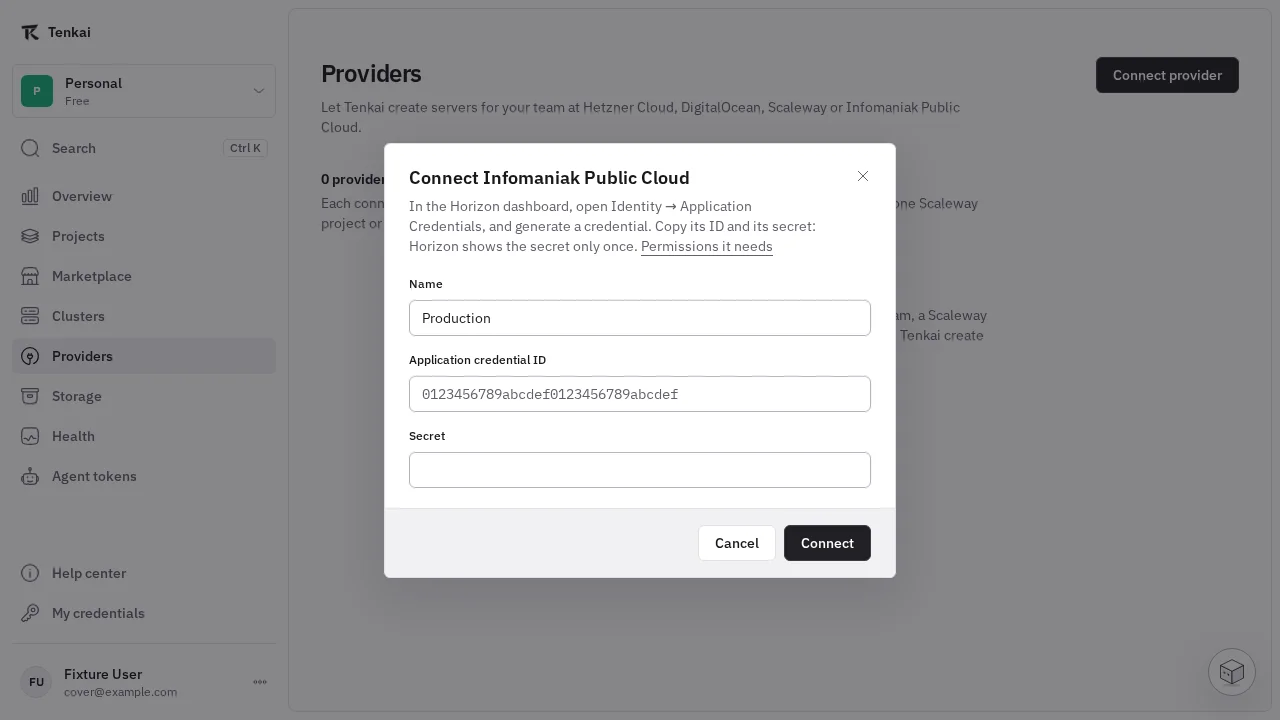
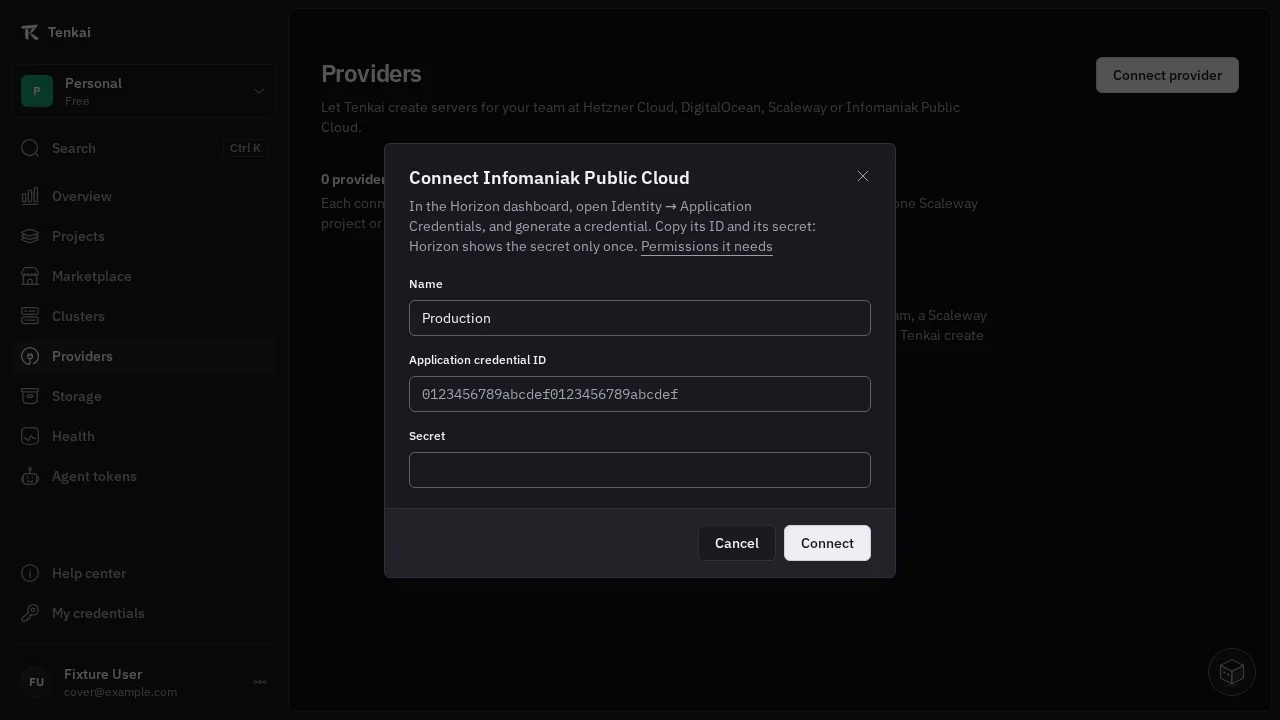
In the Horizon dashboard of your Infomaniak Public Cloud project, create an application credential with the reader and member roles. In Tenkai, open Providers, choose Connect provider, then Infomaniak Public Cloud, and paste its ID and its secret.

See Connect a server provider for the details.

Create a server

When you create a cluster or add a node, choose your Infomaniak connection, then a region, a server type and Debian or Ubuntu. The dialog shows the monthly price in CHF before VAT, the IPv4 address included. Infomaniak bills your account directly.

When you remove the server from Tenkai, select Also delete the machine to have Infomaniak delete it, with its disk and its IPv4 address. See Remove a server from Tenkai.
Know when an app you installed has a security flaw

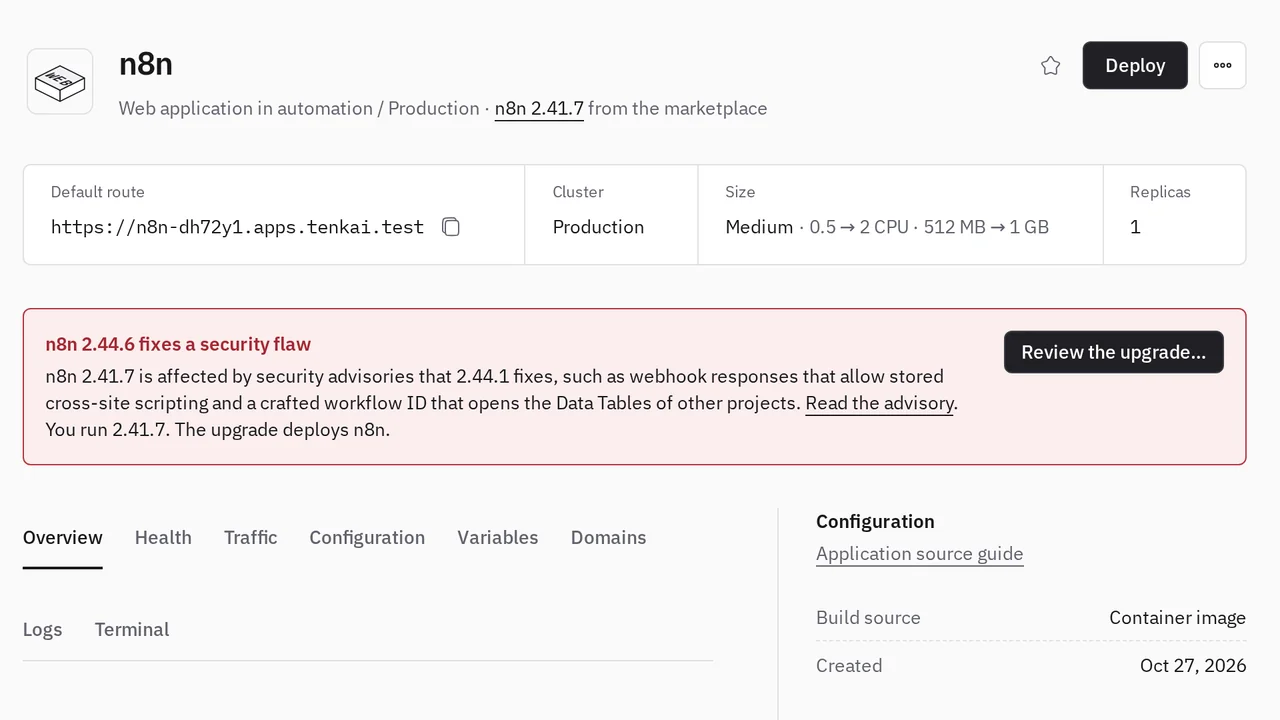
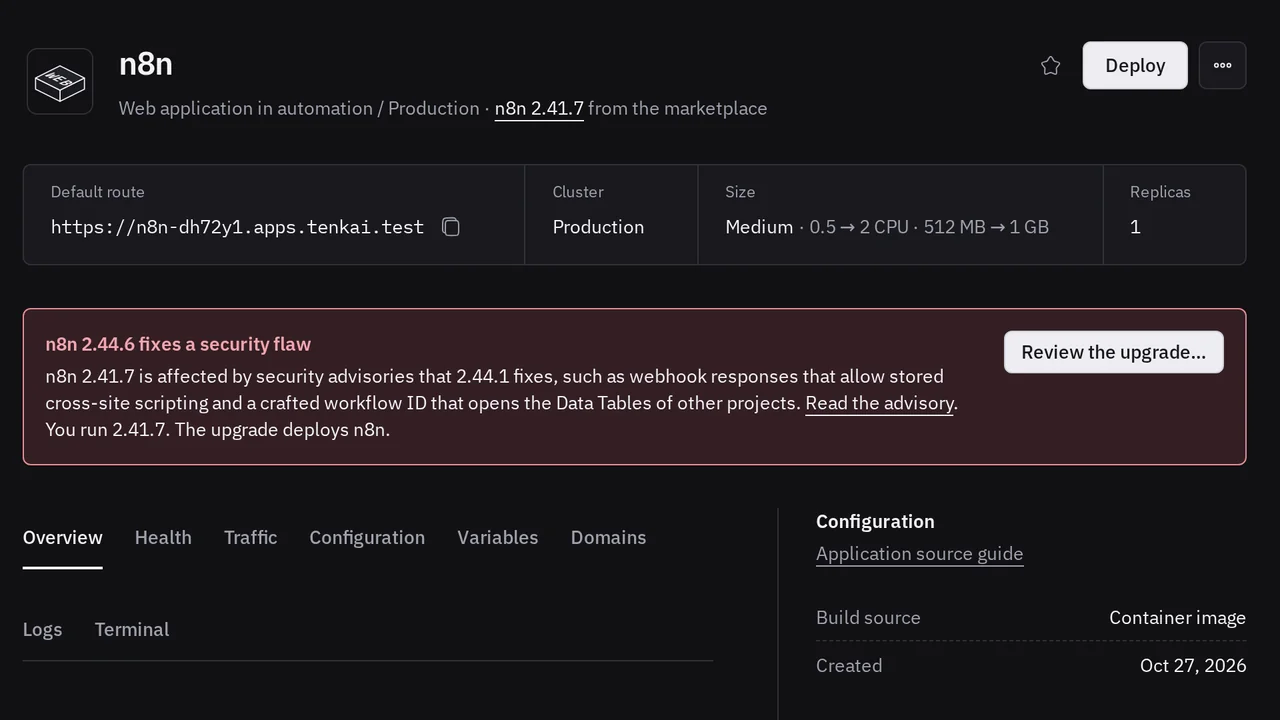
When a newer version of a marketplace app fixes a security flaw, Tenkai now emails your team and shows you the upgrade to review.

The apps of the marketplace get security fixes upstream. Your installed copy does not get them until you upgrade it, so Tenkai now tells you when it matters.

An email for each flaw

When a newer version of an app fixes a security flaw, Tenkai emails the owners and admins of your team, once for each installation that runs an earlier version. The email says what the flaw allows and links to the advisory.

The flaw also shows in health, and on each resource of the app.

Upgrade from the app

Open the app from the email and choose Review the upgrade. Tenkai shows what the new version changes in your copy. Confirm, and Tenkai backs up the app, then deploys the new version.

See Upgrade an installed app for the details.

Stop attackers at the door

CrowdSec now blocks the addresses that attack your web applications, and Tenkai tells you when a server lets in someone it did not.

Your servers face the internet all day. Tenkai now blocks the attacks it can, and tells you about the doors it did not open.

Block attacks with CrowdSec

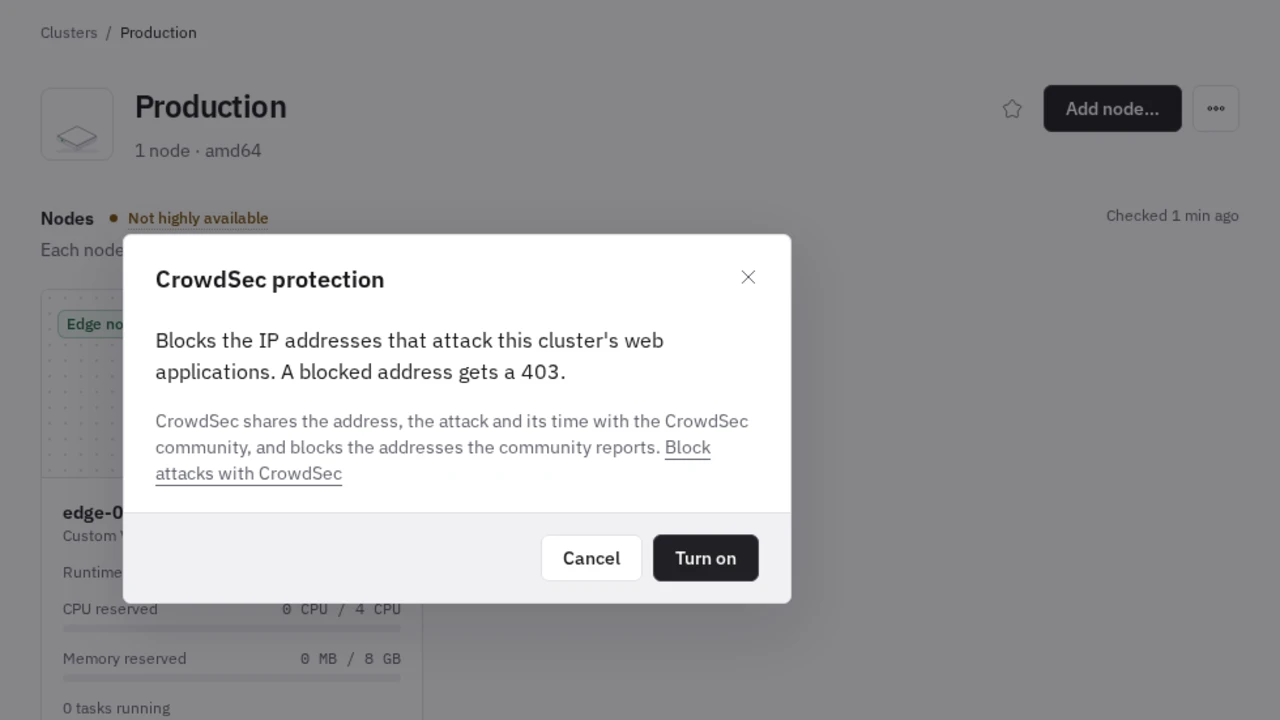
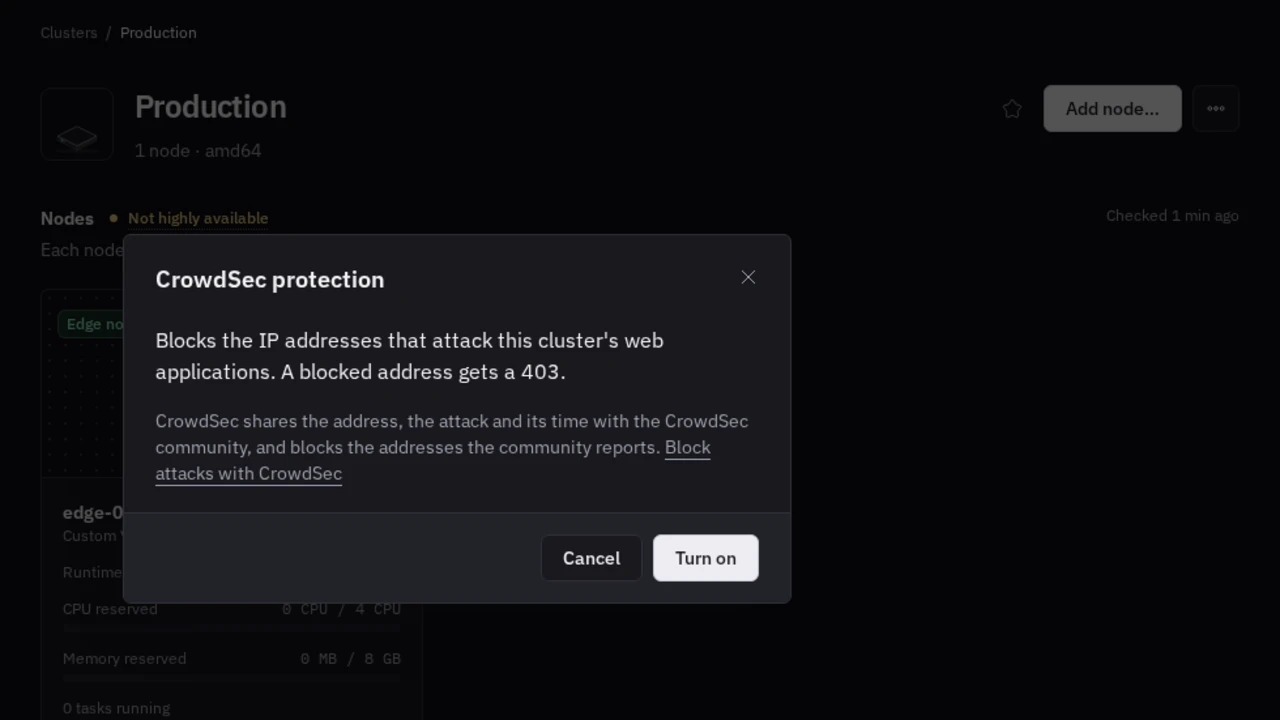
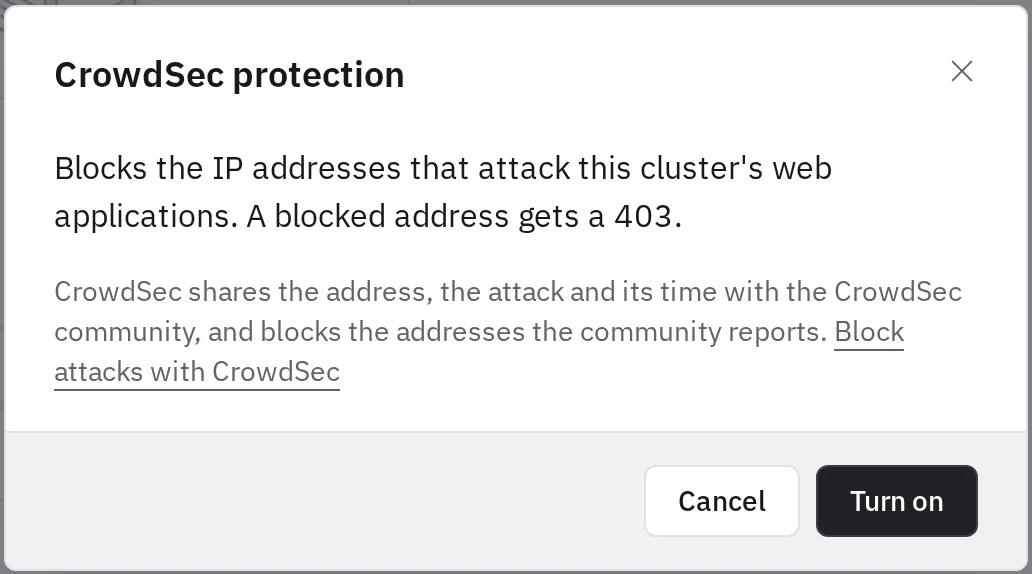
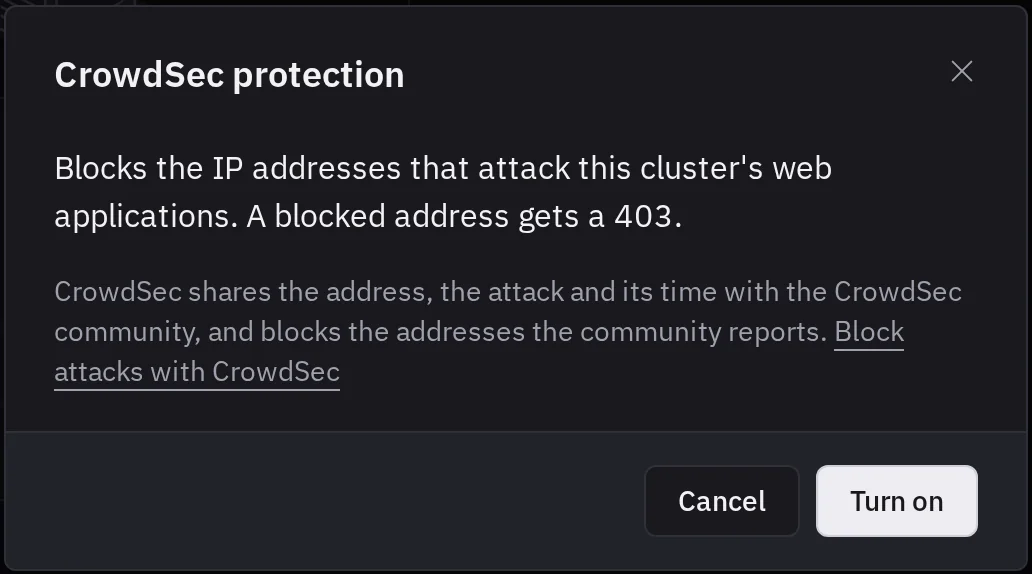
In the cluster menu, CrowdSec protection… turns it on. The edge node then blocks the addresses that scan for admin pages, brute-force logins or look for known flaws, and the addresses the CrowdSec community reports. A blocked address gets a 403 from every web application of the cluster.

CrowdSec protection dialog of a cluster: it blocks the IP addresses that attack the cluster's web applications with a 403, says what CrowdSec shares with its community, and offers Turn on.CrowdSec protection dialog of a cluster: it blocks the IP addresses that attack the cluster's web applications with a 403, says what CrowdSec shares with its community, and offers Turn on.

CrowdSec shares the address, the attack and its time with its community, never the requests. It comes with every paid plan, and you can give it to each new cluster from your team settings.

See Block attacks with CrowdSec for the details.

See the SSH keys Tenkai did not add

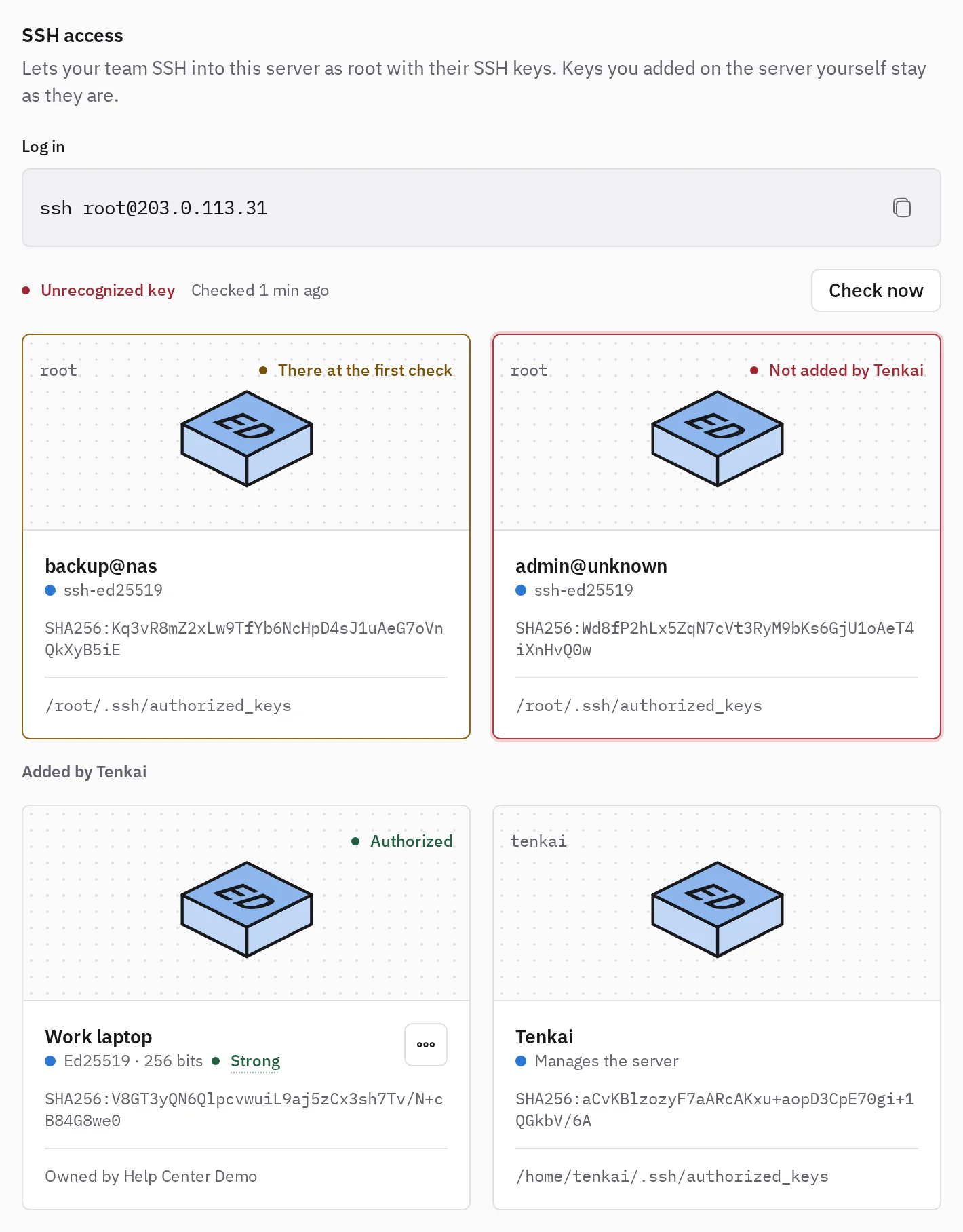
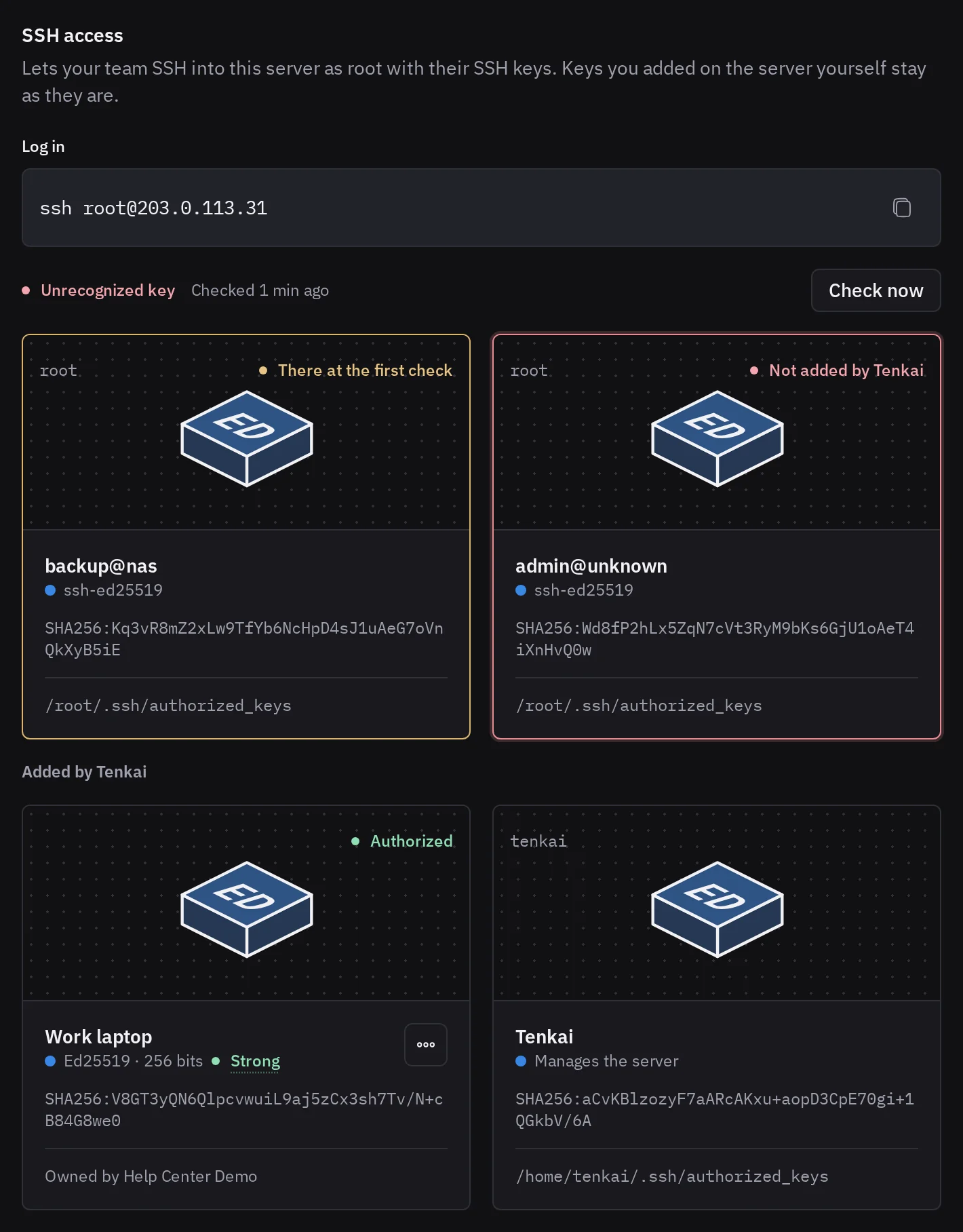
SSH access in the SSH tab of a server now shows every key that can log in and that Tenkai did not add, in red when it appeared after the first check. A new one also shows in health.

SSH access section of a server: a root key there at the first check, in orange, and a root key not added by Tenkai, in red, above the keys Tenkai added.SSH access section of a server: a root key there at the first check, in orange, and a root key not added by Tenkai, in red, above the keys Tenkai added.

See who can log in for the details.

Find the ports left open

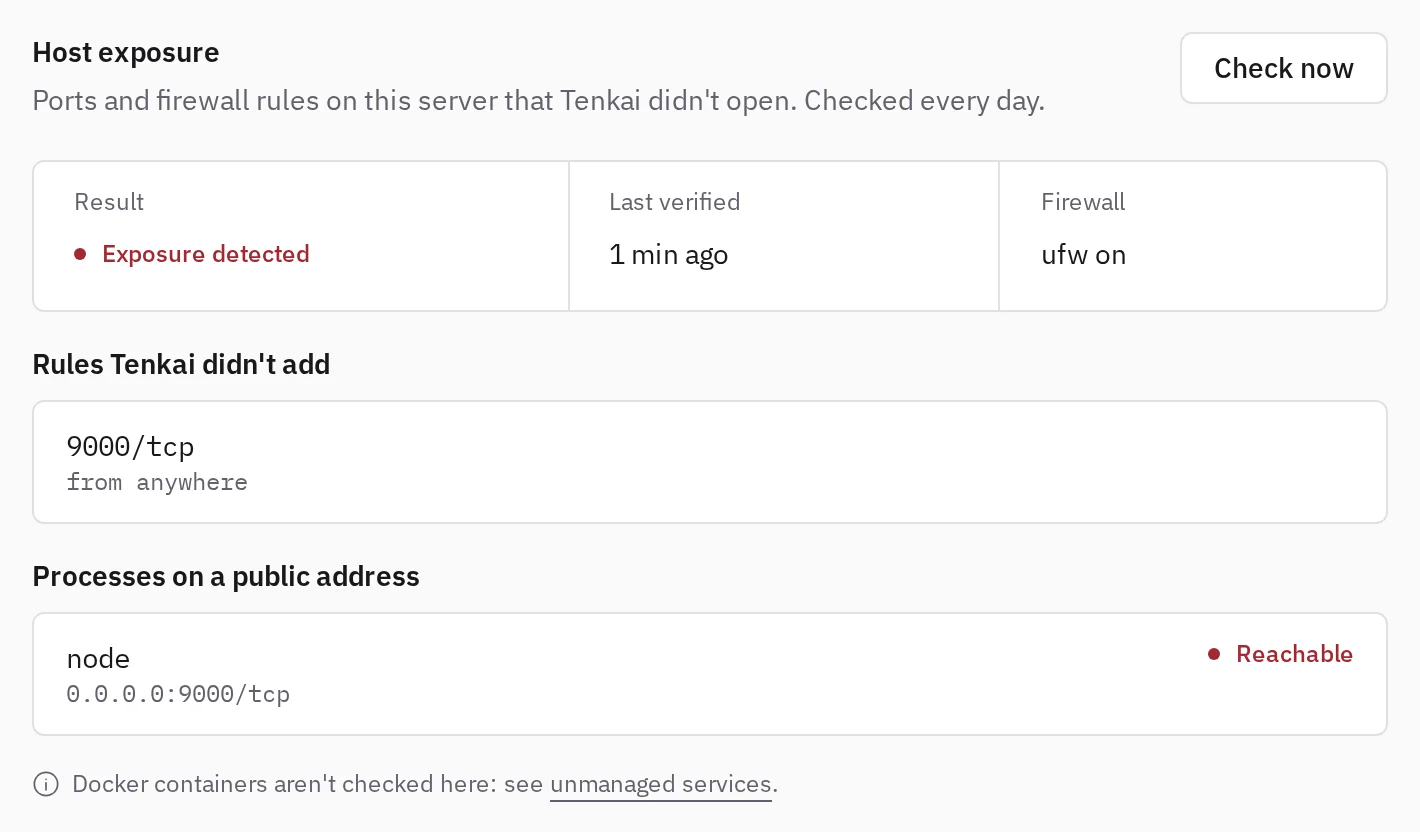
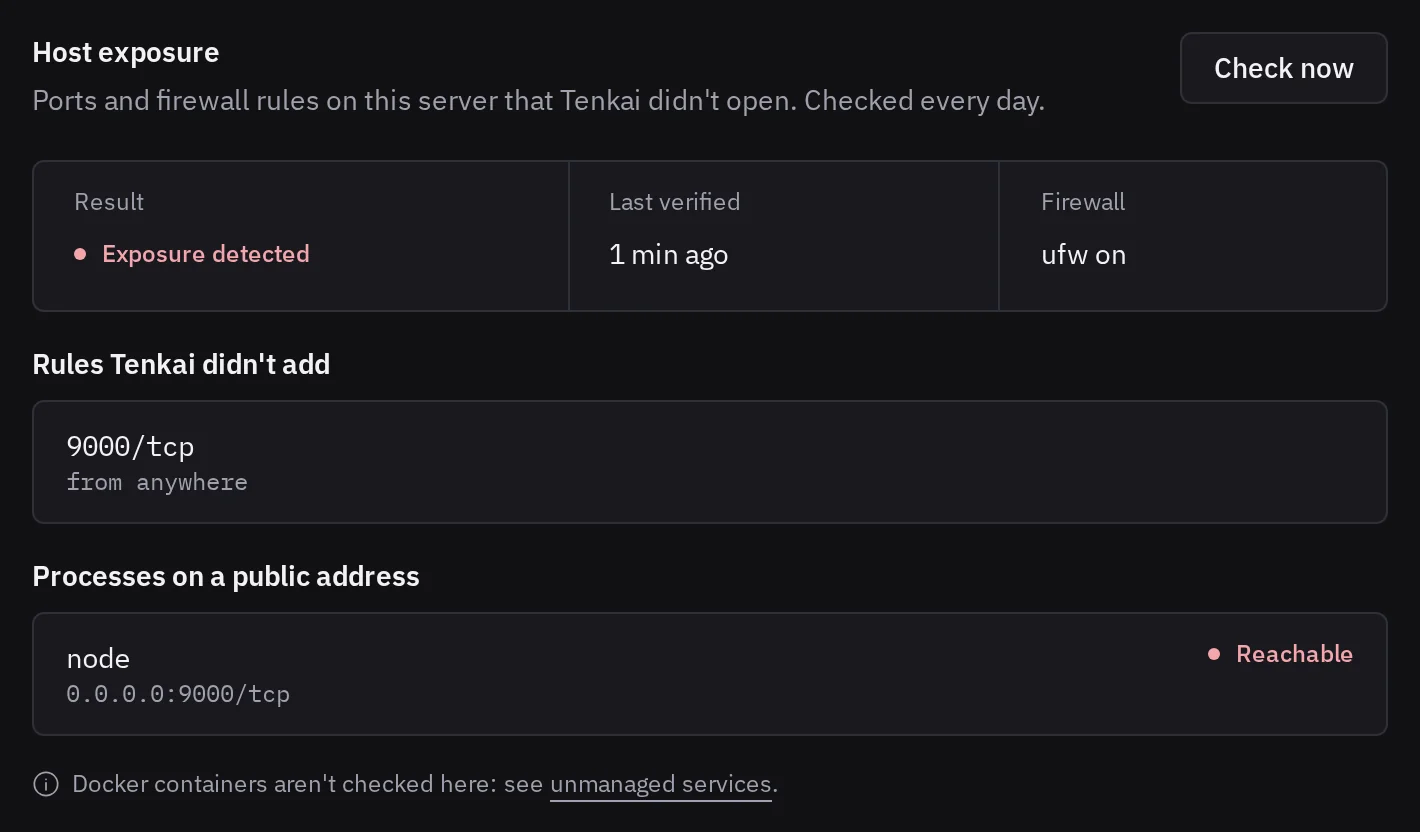
The Firewall tab of a server lists the ports that a ufw rule opens without Tenkai, and the processes outside Docker that ufw lets the internet reach. Close one, then choose Check now.

Host exposure section of a server's Firewall tab: a ufw rule Tenkai did not add opens 9000/tcp, and the node process behind it is reachable.Host exposure section of a server's Firewall tab: a ufw rule Tenkai did not add opens 9000/tcp, and the node process behind it is reachable.

See Ports left open for the details.

Both checks run every day, on the Pro and Team plans.

Follow what we ship

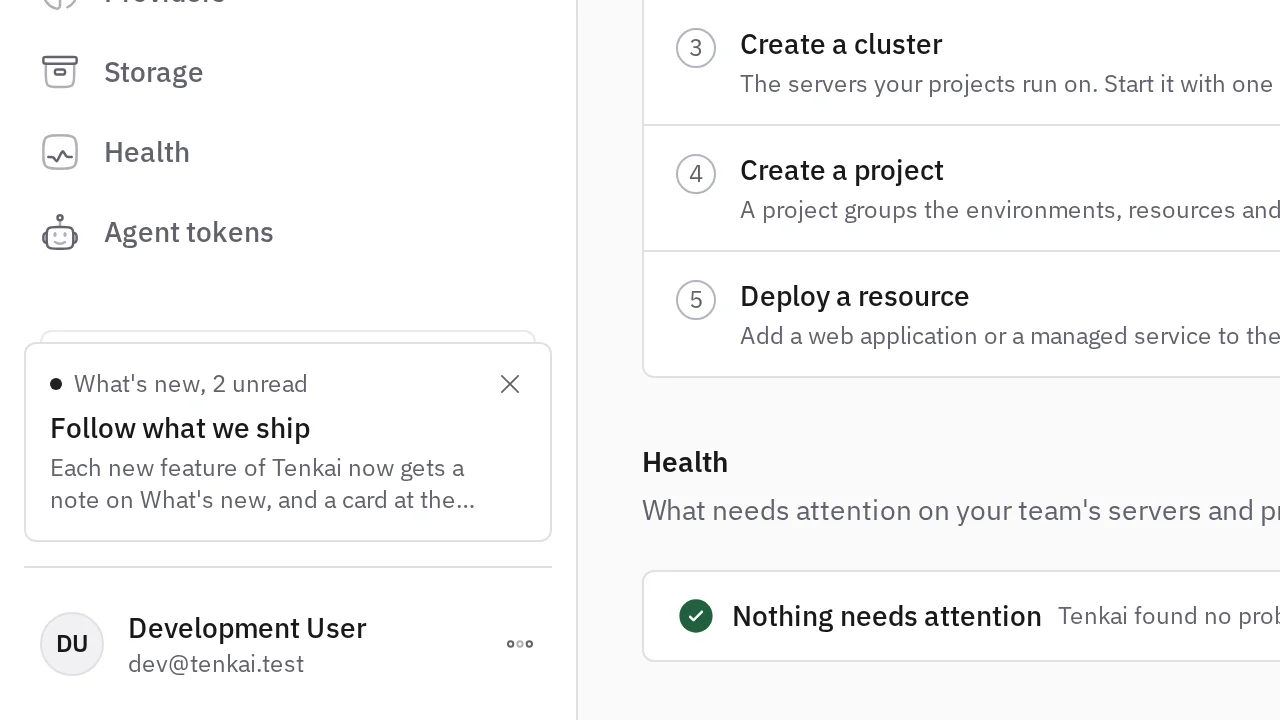
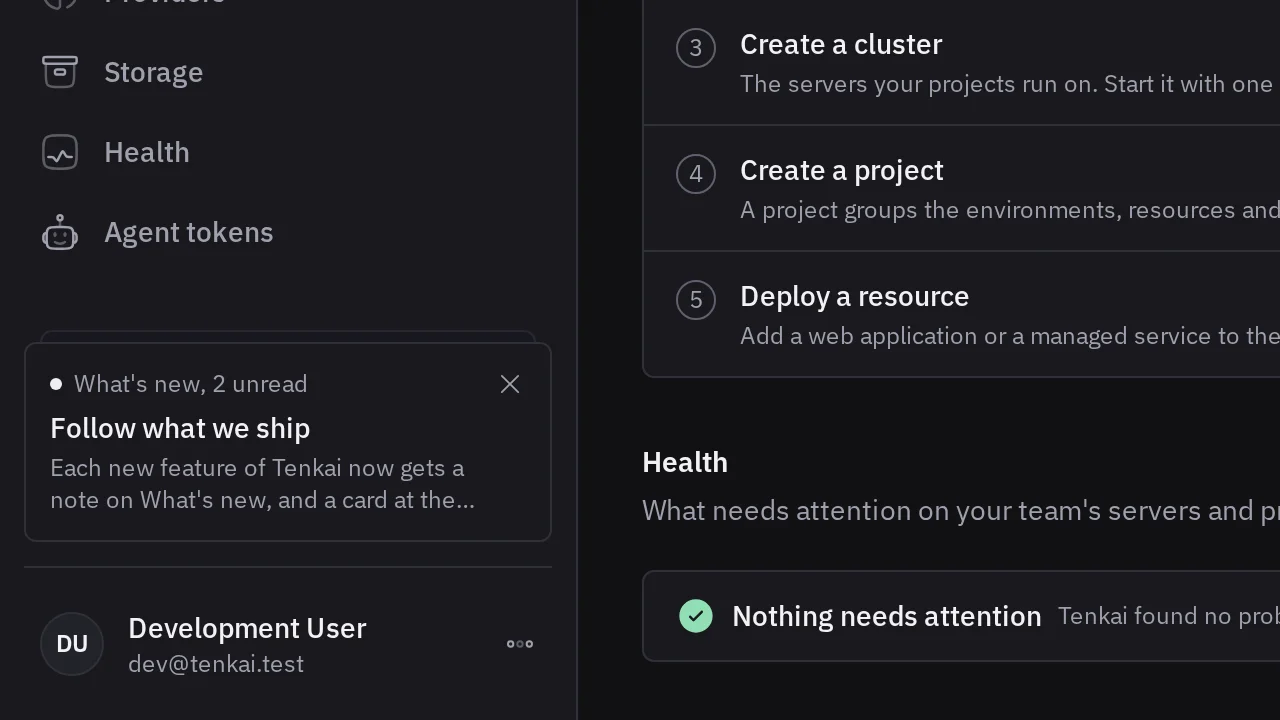
Each new feature of Tenkai now gets a note on What's new, and a card at the bottom of your sidebar tells you when one is out.

When we ship something you can use, we write a note here: what changed, what you can do with it, and the guide that shows how. The newest note comes first.

In the sidebar

A note you have not read yet shows in a card at the bottom of the sidebar, above your name. Select it to read the note, or close it. Either way, the card goes away until the next note.

You get the notes published after you created your account. The older ones stay on this page.

See Your account for the details.