Log in to a server with SSH
Add or generate an SSH key, authorize it on the servers of your team and log in as root, then revoke it when it should no longer work.
How root access works
Each team member keeps their SSH keys in their account. An owner or admin then authorizes keys on a server, and Tenkai adds them to the authorized keys of root. A key in your account reaches no server until it is authorized there.
Server setup turns off password logins over SSH, so root logs in with a key only.
Add your SSH key
Open My credentials in the sidebar.
- Add SSH key… takes an OpenSSH public key, such as the content of
~/.ssh/id_ed25519.pub. Tenkai accepts Ed25519, ECDSA and RSA keys of at least 2048 bits. Never paste a private key. - Generate SSH key… creates an Ed25519 key pair in your browser. Download the private key before you save: Tenkai never receives it and cannot give it back. Move it to
~/.ssh, keep it private and add a passphrase.
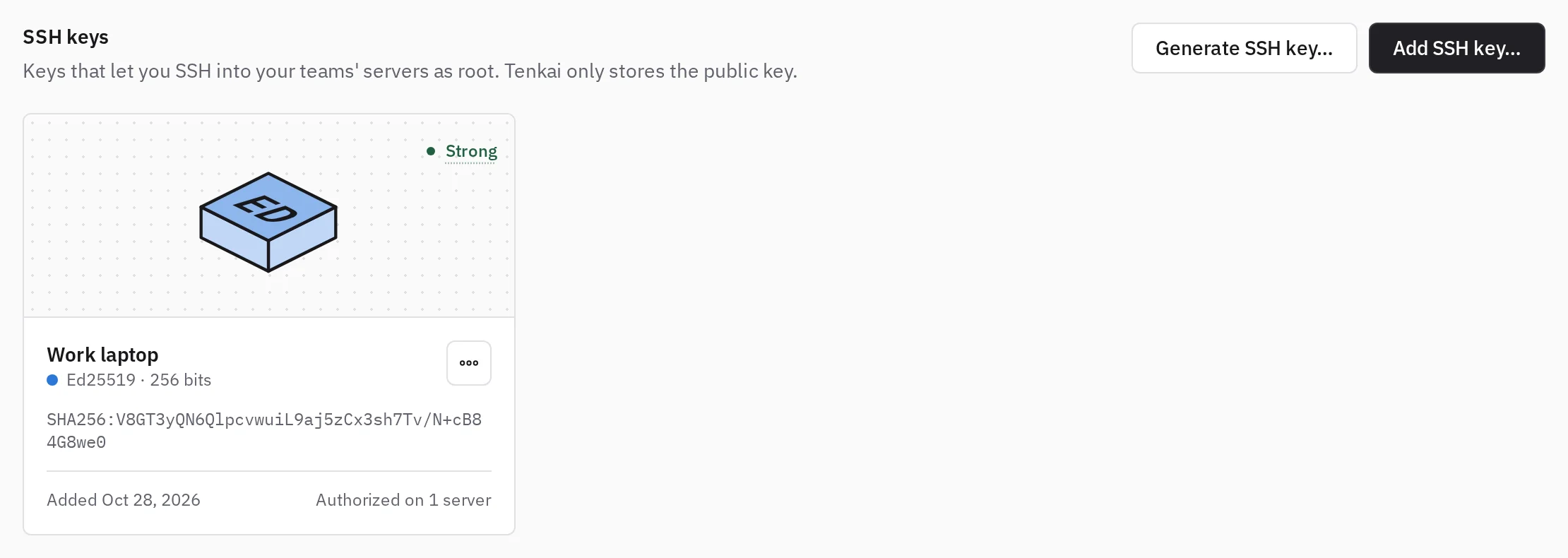
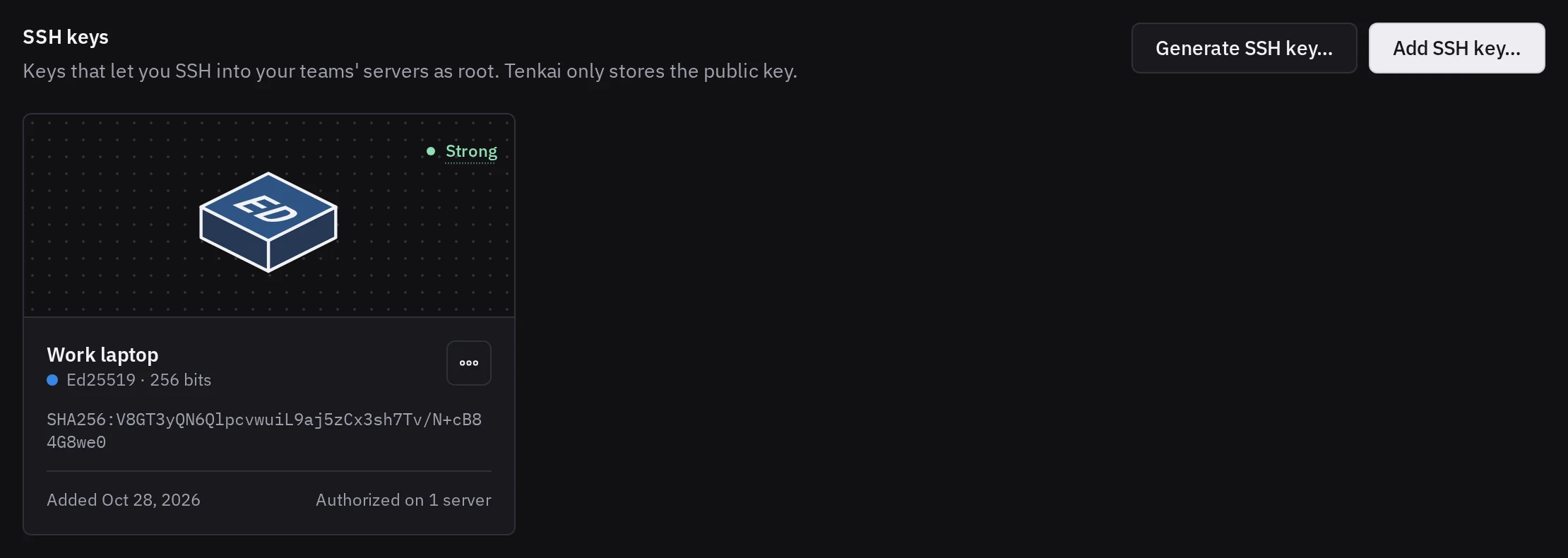
Prefer Ed25519. Replace an RSA key under 3072 bits, which Tenkai marks Weak.
Add one key per machine you log in from, so you can revoke one machine without the others.
Authorize a key on a server
Only owners and admins choose which keys reach a server:
- When Tenkai creates a server through a connected provider, check the keys under SSH keys to authorize on root. Your own keys start checked.
- On an enrolled server, including one you enrolled by hand, open its page and choose Authorize SSH keys in SSH access.
Log in as root
The SSH access section of the server page shows the command to copy, such as ssh [email protected]. Wait for your key to show Authorized before logging in. If it shows Failed, an owner or admin can select Retry.
See who logged in
The SSH logins section of the SSH tab of a server lists the logins of the last 30 days, the latest first. Each one names the team member and their SSH key authorized on that server, the account and the address it came from. A login that Tenkai cannot tie to a team member is highlighted in red: Key not added by Tenkai, with its fingerprint, or Password login. If nobody expected a login, check the server.
The Tenkai Agent of the server reports the logins, so a server without an agent that reports shows no new login. Tenkai's own connections are not listed.
To get an email for each login, turn on SSH login alerts.
See who can log in
On the Pro and Team plans, SSH access in the SSH tab of a server also shows the SSH keys that Tenkai did not add, for root, tenkai and each account with a login shell. Below them, Added by Tenkai holds your team's keys and the key Tenkai uses to manage the server. Tenkai reads the authorized_keys files that sshd uses, every day. An owner or admin can choose Check now.
A key already there at the first check shows There at the first check, in orange, and is not reported. A key that appears after it shows Not added by Tenkai, in red, and is reported in Health. Tenkai recognizes its keys by their fingerprint, not by their comment, which anyone can copy.
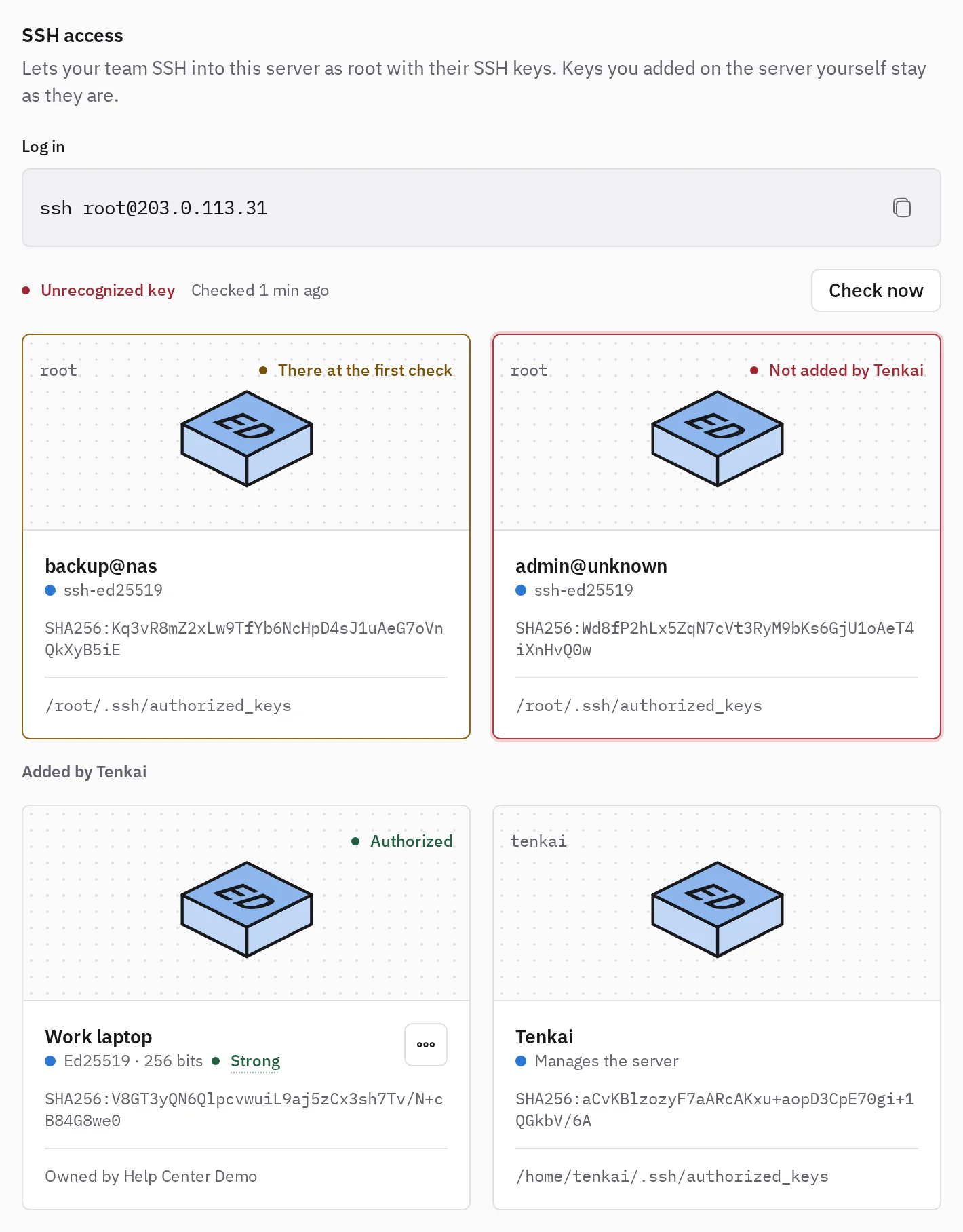
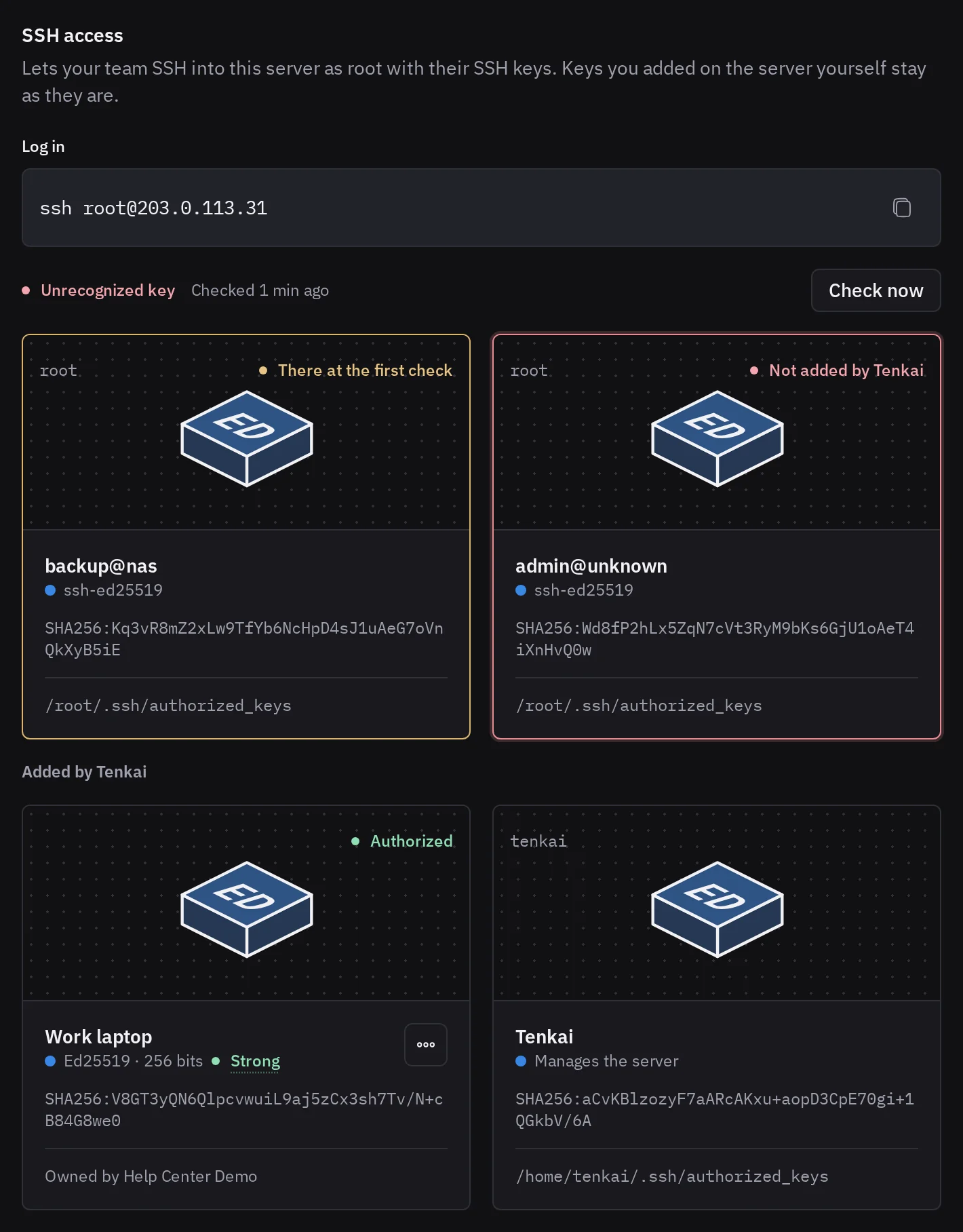
If nobody on your team added a key, someone else may have access to the server: remove its line from the file its card shows, then check the server for other changes. Tenkai never removes a key itself.
The tenkai user
Tenkai connects to the server as its own tenkai user. Owners and admins can read its sudo password once, from Reveal Tenkai user password in the More actions menu of the server page. Store it: Tenkai never shows it again. You do not need it to log in as root.
Allow only Tenkai through your firewall
Tenkai connects to your servers over SSH from the addresses listed at tenkai.cloud/ips, one per line. To keep the SSH port closed to everyone else, allow each of these addresses, then remove the rule that opens the port to all:
ufw allow from 179.237.94.170 to any port 22 proto tcp
ufw delete allow 22/tcp
Replace 22 with your SSH port if you moved it. Allow the addresses you log in from as root too, or you lose your own SSH access. The Terminal tab of the server still works, because it goes through Tenkai. In a provider firewall, such as a security group, allow the same addresses on the SSH port.
Check the list before you change your rules: Tenkai adds an address there before it connects from it.
Reach a server through a bastion or another port
Tenkai connects over SSH at the address the server enrolled from, on port 22. If you close that port to the internet, an owner or admin selects the pen beside SSH address on the server page, and enters a host and a port, such as:
- a bastion or a router that forwards one of its ports to port 22 of the server;
- an SSH server that listens on another port.
The host and the port must lead to the SSH server of the same machine: Tenkai refuses to connect when another machine answers. Tenkai connects only to public addresses. An installation of Tenkai that reaches its servers over a private network can allow private addresses with TENKAI_SERVER_SSH_ADDRESSES=any.
Tenkai cannot jump through a bastion with a user and a key of its own, nor use a Cloudflare Tunnel that needs cloudflared on the client.
Changing the SSH address changes neither the Public address nor the Cluster network endpoint of the server: see Link servers that share a private network. If you move the SSH server to another port yourself, open it in the firewall first with ufw allow <port>/tcp.
Tenkai does not test the new address when you save it. Read Telemetry on the server page after the change: Unreachable means Tenkai could not connect.
Revoke access
- To remove one key from one server, an owner or admin opens the More actions menu of the key in the SSH access section and chooses Revoke.
- To remove a key everywhere, delete it from My credentials.
- When a team member leaves the team, or an owner or admin removes them, Tenkai revokes their keys from the servers of that team.
When you remove a server from Tenkai and keep its machine, the SSH keys it authorized stay on root, like the tenkai user and the Tenkai Agent. Delete them on the machine if they should stop working.