Read the overview of your team
Read the page Tenkai opens when you sign in: the first steps of a new team, the requests of an agent that wait for you, health, the latest deployments, the load of each cluster and the traffic of each project.
What the overview shows
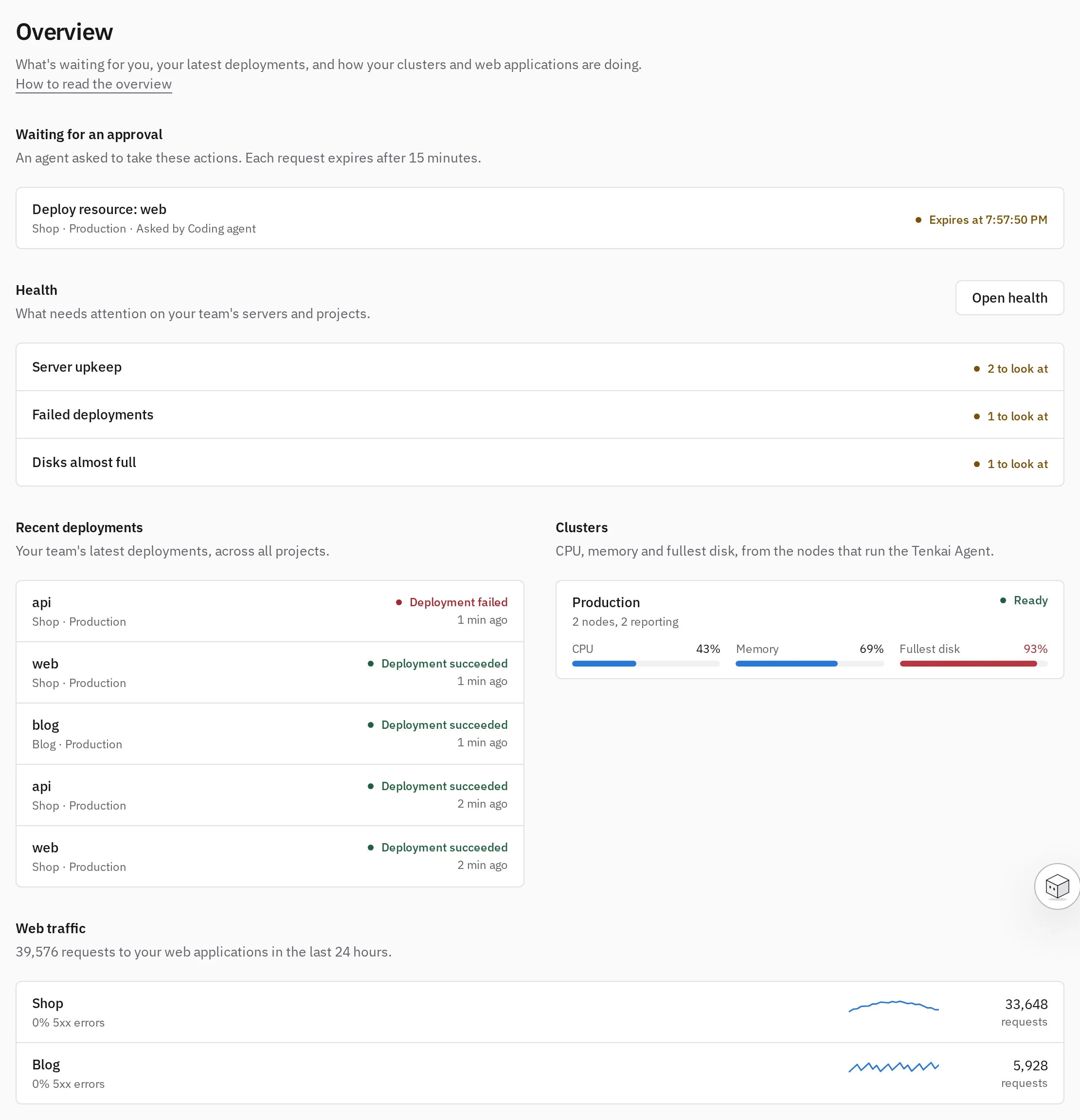
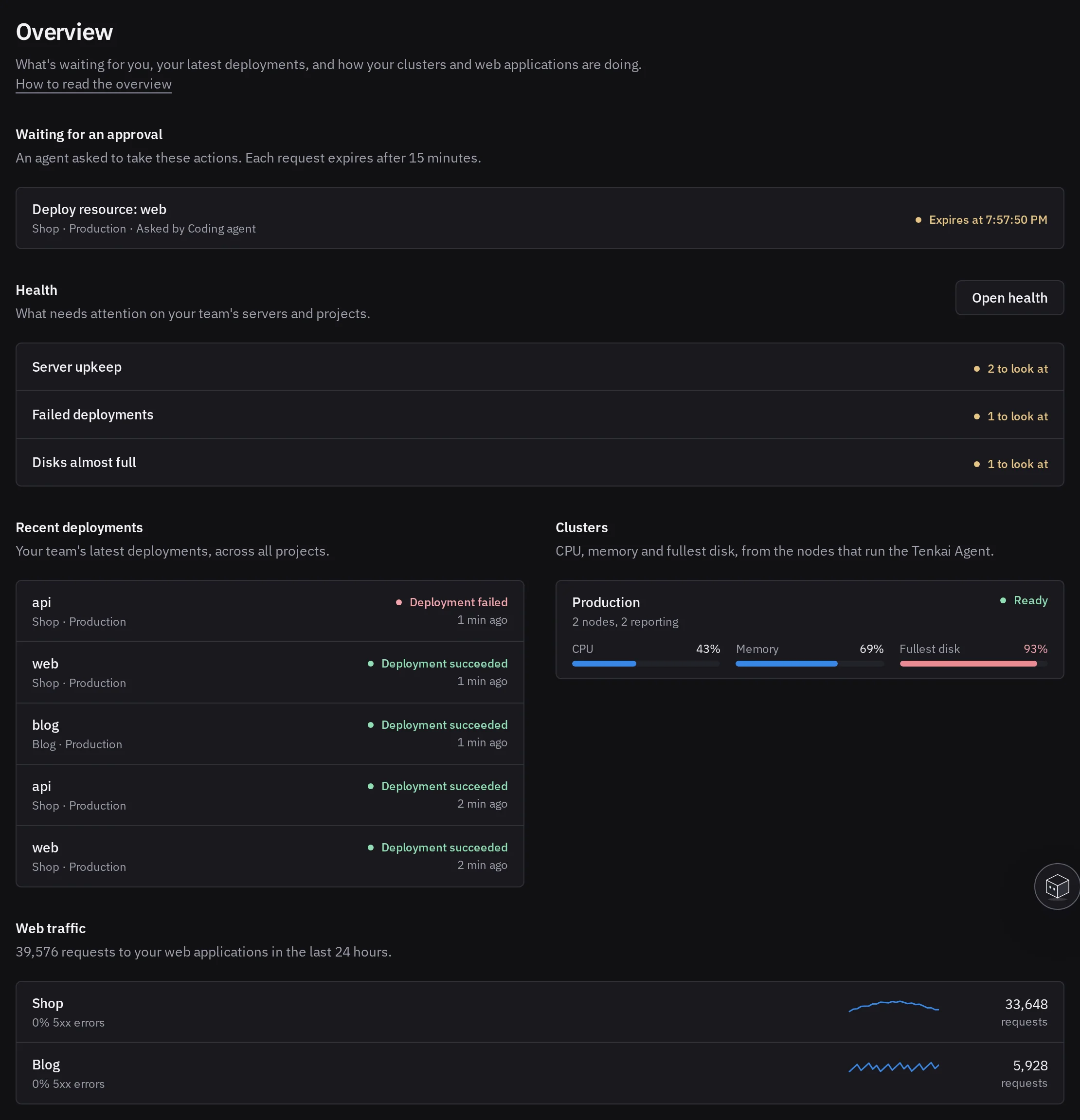
Overview is the page Tenkai opens when you sign in. It gathers what waits for you, what your team deployed lately, and how its clusters and web applications do.
Follow the first steps
A team that never deployed sees First steps: add your SSH key, connect a provider, create a cluster, create a project, then deploy a resource. Skip Connect a provider when you enroll a server you already have. Only an owner or admin connects a provider, creates a cluster or creates a project. See deploy your first application.
Read each section
- Waiting for an approval: the deployments, rollbacks, applied configurations and servers a coding agent asked for. A request expires 15 minutes after the agent made it. See Approve what the agent asks for.
- Health: what waits on the health page. Nothing needs attention means Tenkai found no problem in what it last observed, not that none exists. See See what needs attention with health.
- Recent deployments: open a failed one to read its logs.
- Web traffic: the requests and the share of 5xx answers of each project in the last 24 hours. See Read the traffic of a web application.
What the figures leave out
The figures of a cluster count only the nodes whose Tenkai Agent reported in the last 10 minutes, so the cluster may be busier than they say. The CPU is an average over those nodes, so one saturated node can hide behind idle ones. Open the cluster, then the server, to read each node.
A cluster did not report marks a project whose traffic is missing from some of its clusters.