Update and reboot a server
Read the upkeep report of a server, install its package updates, reboot it without surprise and open a root terminal from Tenkai.
What Tenkai maintains, and what stays with you
Tenkai never installs an update or reboots a server on its own. An owner or admin asks for each one from the Upkeep tab of the server: open Clusters, choose a cluster, then a server.
Read the upkeep tab
The Tenkai Agent of the server reports every six hours the pending package updates, how many are security updates, and whether the server asks for a reboot.
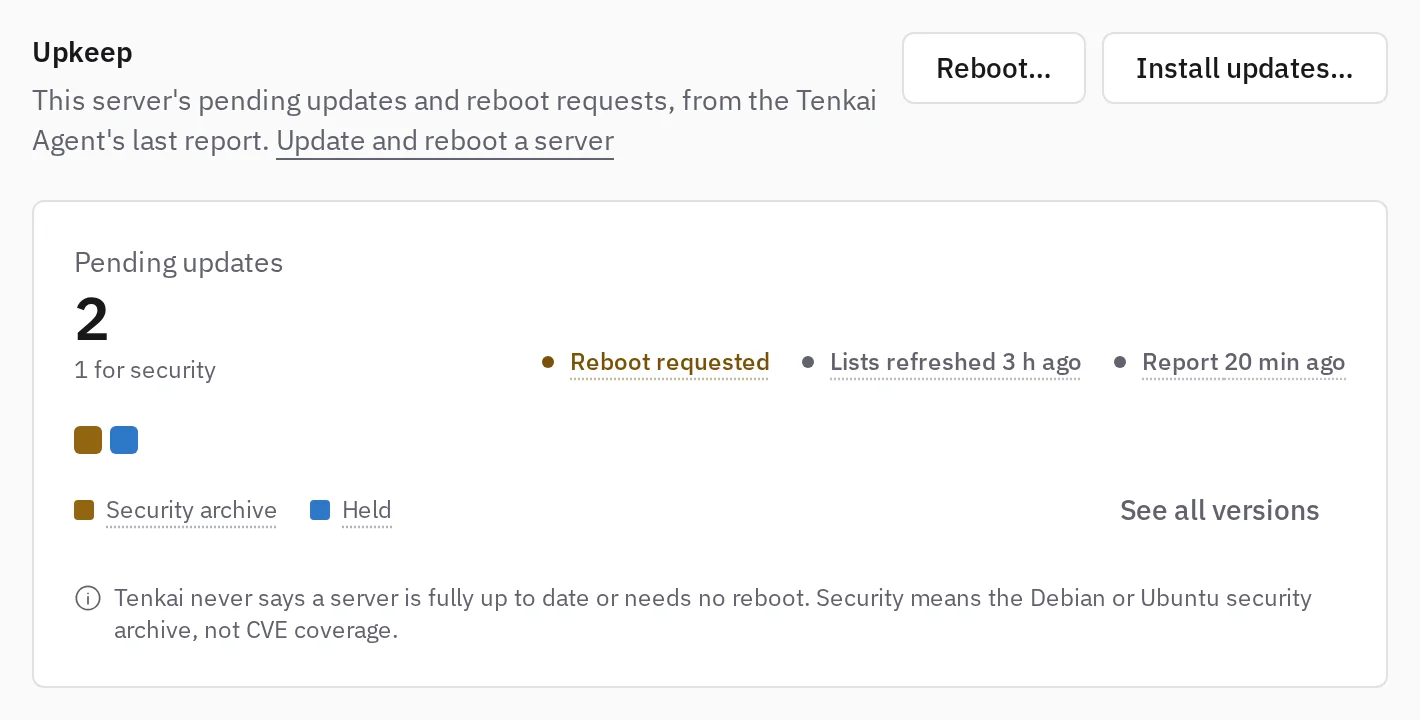
No pending update in the package lists does not mean the server is up to date: it only describes the package lists the server had when the agent read them.
Health gathers the servers of your team that ask for an update or a reboot.
An update and a reboot both run over SSH. When Tenkai cannot connect to the server, the tab offers neither until it answers again.
Install the updates
- On the Upkeep tab, choose Install updates….
- Choose Security updates or All updates.
- Confirm. Tenkai refreshes the package lists, then installs what the server offers at that moment, which may differ from the last report.
Tenkai leaves Docker Engine and held packages as they are, so your containers keep running, and keeps the configuration files you changed. Services that use an updated library may restart. A new kernel waits for a reboot: an update never reboots the server.
Reboot a server
Choose Reboot… on the Upkeep tab when the server asks for one, for example after a kernel update. Tenkai waits up to 15 minutes for it to answer again.
When another node takes workloads, the dialog offers Move and reboot: Tenkai first moves the web applications and the workers of this node to other nodes, one at a time, so they keep serving. The node then takes no new workload, Tenkai reboots it, and once it is back it takes workloads again. Nothing moves back: the next deployments spread the applications again. The Upkeep tab draws each step while it runs.
Read the dialog before you confirm. It lists what keeps serving and what stops for a few minutes:
- Its managed services stop, and every application bound to them, since their data stays on this node. A MySQL or a PostgreSQL with high availability keeps serving.
- A web application that keeps files cannot move, so it stops with the node.
- A scheduled job does not move: a run on this node stops with it.
- When no other node takes workloads, the dialog offers a plain Reboot, and the web applications and workers stop too. When the other nodes lack the room for them, the dialog says so after Move and reboot, and offers Reboot anyway.
- On the only edge node of a cluster, all the traffic of the cluster stops until the server is back. Tenkai moves nothing first: move the edge node to keep the traffic flowing, and reboot the old one once the move ended.
- On a manager of a cluster where every manager receives traffic, Move and reboot first takes the node out of the edge hostname, and waits about two minutes for DNS caches to drop it, while the other edge nodes serve. The node receives traffic again once it is back and passes its checks, even when the reboot fails. When it is the only edge node that receives traffic, it stays in, and the dialog says that all the traffic of the cluster stops.
On a cluster that runs etcd, Tenkai refuses to reboot a node that holds a member while another such node reboots, or while it changes the members of etcd.
Before it reboots, Tenkai moves the primary of each database with high availability off this node (MySQL, PostgreSQL), so writes stop for a few seconds only. When a primary cannot move, because its other instance does not hold every write or another operation runs on the database, the reboot fails and the page of the database says why. Reboot again once it runs.
The whole reboot has 20 minutes. On a node that holds the primary of many databases, it may stop before the server reboots, with an unexpected error. A database whose move was cut then shows as Failed: retry its provisioning, then reboot again.
An update and a reboot never run together. You cannot remove the server, or its cluster, until the maintenance ends.
When an update or a reboot fails
- The reboot did not run: an application could not move to another node, so Tenkai did not reboot the server, which keeps taking workloads. Open the application from the notice, fix what stopped its move, then choose Reboot… again. The applications that moved stay on their new node.
- The reboot failed after the applications moved: the server takes no workloads. Once it answers again, choose Resume on the notice, or on its node card in the cluster. A reboot that succeeds meanwhile also lets it take workloads again.
- Failed: read the message under it. Open the terminal, fix what the message names, then choose Install updates… again.
- Stopped reporting: Tenkai lost track of the operation for half an hour. Check that the server answers over SSH, as in cluster is not ready, then request it again.
- Updates not checked: the agent could not ask
dpkgor APT. The same checks apply.
Open a terminal on a server
Owners and admins can open a root shell on a server from its Terminal tab, without an SSH client or an SSH key. Use it to read a log, check the disk or repair a package manager that an update left in a bad state.
The terminal closes when you leave the tab, after 10 minutes without activity, or once you lose access to the server. You are root: a command that stops Docker, changes the firewall or edits the SSH configuration can cut Tenkai off from the server.
To work from your own machine instead, log in to the server with SSH.