Back up and restore a database
Send encrypted backups of a database, or of a web application that keeps files, to your own storage bucket, restore one, create a database from it and read it without Tenkai.
A PostgreSQL, MySQL, Redis® or Valkey managed service keeps its data in a volume on one node, its data node. If that node or its disk is lost, the data is lost too. A backup is an encrypted copy of the database in a storage bucket that you own, outside your clusters. Tenkai keeps no copy of your data. A database with high availability needs backups too: its second instance applies every write of the first one, a deleted row included. Replication does not replace a backup.
How a backup works
Tenkai copies the database on its data node, with pg_dump for PostgreSQL, mysqldump for MySQL, and a snapshot for Redis® and Valkey. The database keeps serving your applications meanwhile. The copy is encrypted on the node with age, with the public key of the backup key of your team, and sent straight to your storage bucket. The node must be able to reach the endpoint of your bucket over HTTPS.
Each database has its own folder in the bucket, named after its runtime name, such as main-db-k7m4p9/2026-10-02T030000Z-x3f9qa.dump.age. A MySQL backup ends in .sql.zst.age, and a Redis® or Valkey backup in .rdb.age.
A MySQL backup holds the tables, views, triggers, routines and events of the database app. Do not run a migration during a backup of a MySQL: a table that changes its definition during the dump may fail the backup, or give it incorrect contents that Tenkai cannot detect. Tables of another engine than InnoDB, such as MyISAM, may also change during the dump.
Set up backups
Backups stay off until you choose a storage bucket for the database.
- Open Storage and choose Add storage bucket…. Enter the endpoint, the bucket, an optional prefix and access keys. Enter the region when the service gives one, such as
fr-parat Scaleway, and leave it empty otherwise, such as for Cloudflare R2 or Infomaniak. The keys must be able to write, read and delete objects in the bucket. Tenkai only writes under the prefix, so the keys do not need to list the bucket, unless a PostgreSQL keeps a continuous backup there. - Download the Backup key of the team and store it outside Tenkai. Tenkai creates it with the first storage bucket. You need it to read your backups without Tenkai.
- Open the Backups tab of the database, choose Choose a storage bucket, select the bucket and choose Save.
- Choose Back up now, and follow the backup in the timeline until it succeeds.
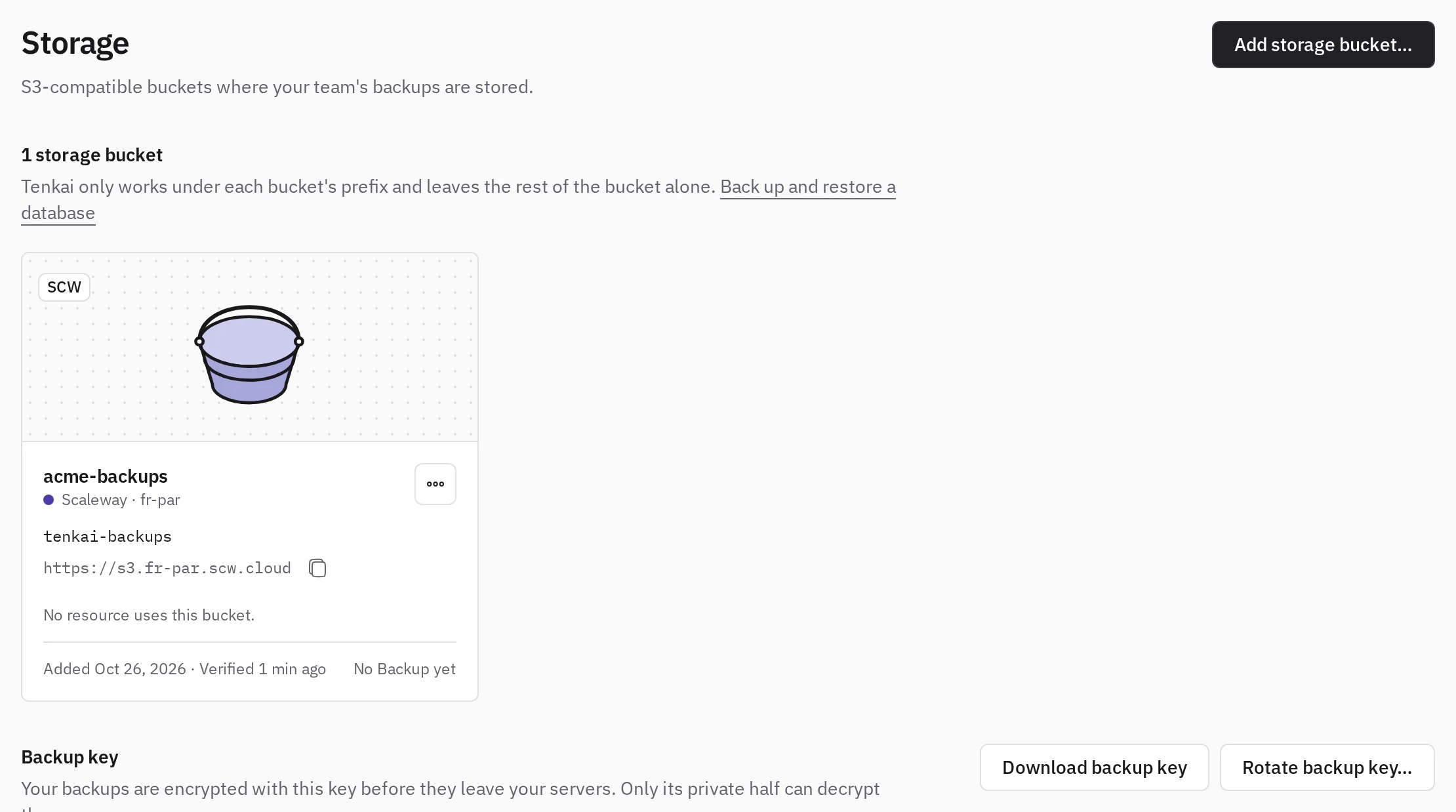
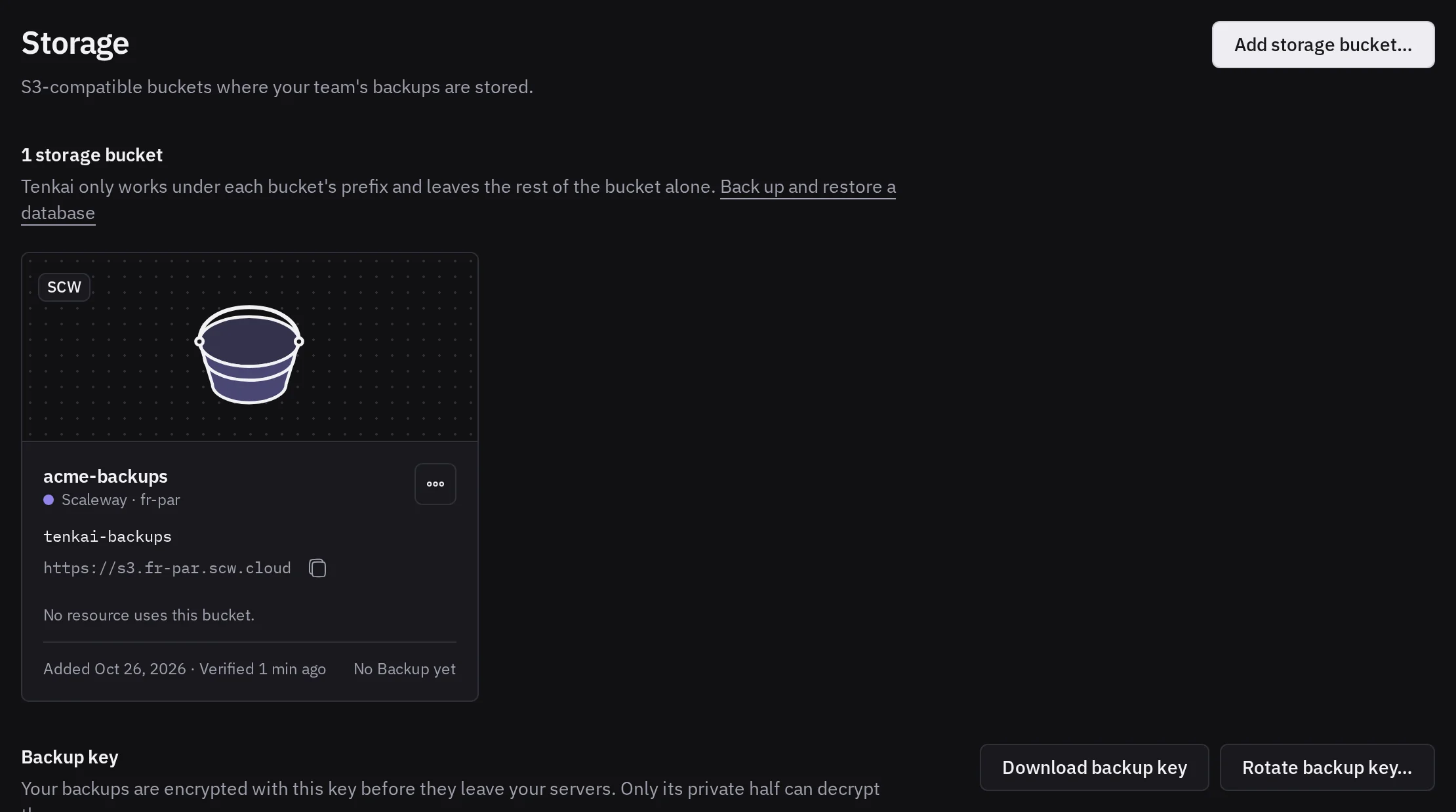
After you change the permissions of the keys at the service, choose Check access in the menu of the bucket. A bucket whose keys fail becomes Invalid: select the badge to see why, then replace the keys or check them again.
A coding agent can add the storage bucket for you with the keys you give it, when its agent token holds Add storage buckets.
Any S3-compatible service works, such as AWS S3, Cloudflare R2, Scaleway, Backblaze B2, Hetzner, DigitalOcean Spaces, Wasabi, OVHcloud, MinIO or RustFS.
A storage bucket is not a hosted bucket. A hosted bucket never receives backups, since it lives on the cluster the backup protects.
Owners and admins manage storage buckets and the backup key. Owners, admins and developers choose the bucket of a database, back it up and restore it.
An agent with the request backups scope can do steps 3 and 4 for you. You approve each one in Tenkai.
When backups run
Each database gets a backup about every day, not at a fixed time: Back up now moves the next daily backup to about one day later. A failed daily backup does not run again before the next day: choose Back up now if you need one sooner. Tenkai stops a backup that runs for more than 3 hours.
Tenkai keeps the 7 latest succeeded backups of each database, Daily and On-demand together, and deletes the older ones from the bucket.
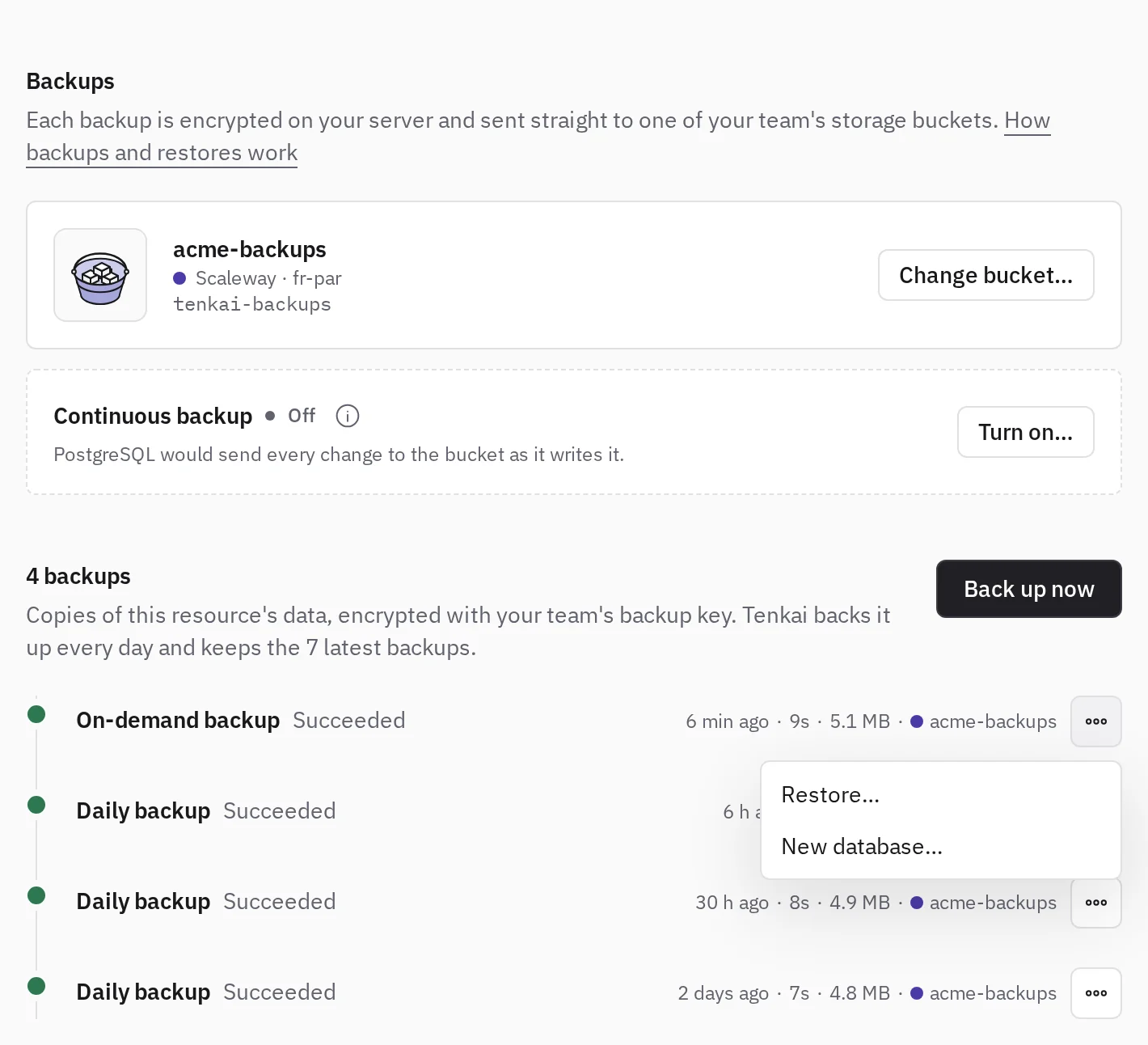
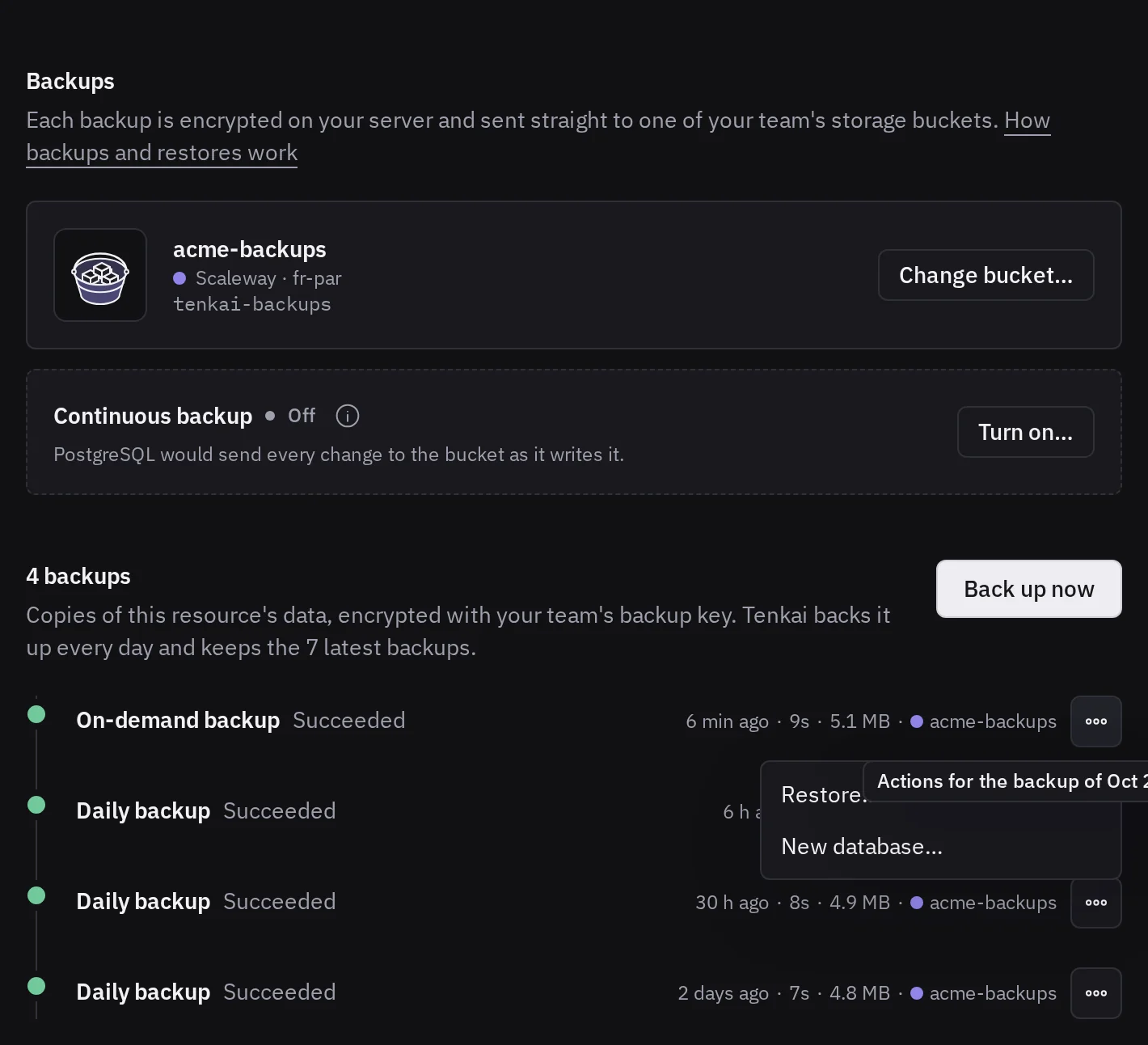
Read the timeline
A failed backup shows its reason. When the bucket refused the keys, the bucket becomes Invalid and gets no backup until you choose Replace keys, or Check again once you fixed the keys at the service. Both are behind the Invalid badge of its card.
A Missing backup is one that the bucket said it no longer holds when Tenkai tried to restore it, and again when Tenkai asked it. Do not let a lifecycle rule of the bucket delete the objects under the prefix of Tenkai. After each succeeded backup of the database, Tenkai asks again, and a Missing backup that the bucket holds again succeeds again.
Restore a backup
A restore replaces the data of the database with the data of a backup, on the same node. All the data written after the backup started is lost. You cannot cancel a restore.
A restore changes the database only. A web application that keeps files and uses the database keeps its current files, which may no longer match the restored data. The restore dialog names these applications.
- Open the menu of a succeeded backup and choose Restore.
- Type the name of the resource to confirm.
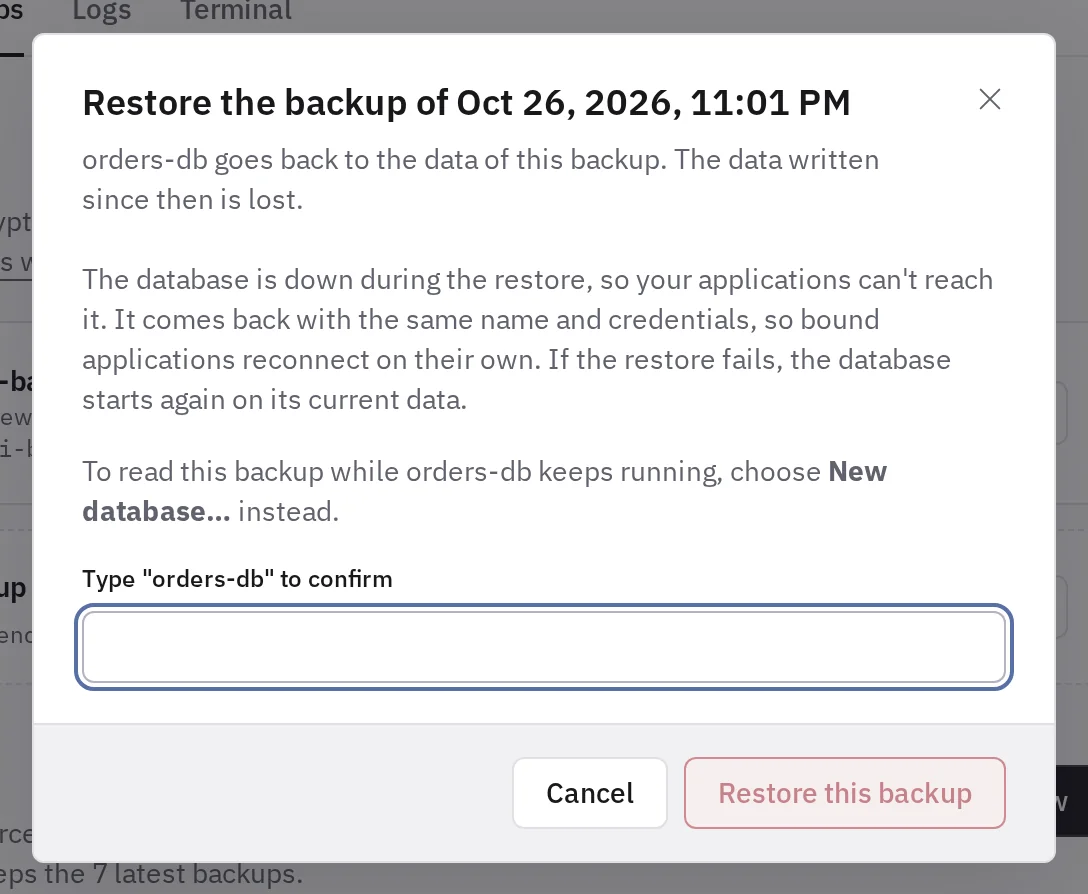
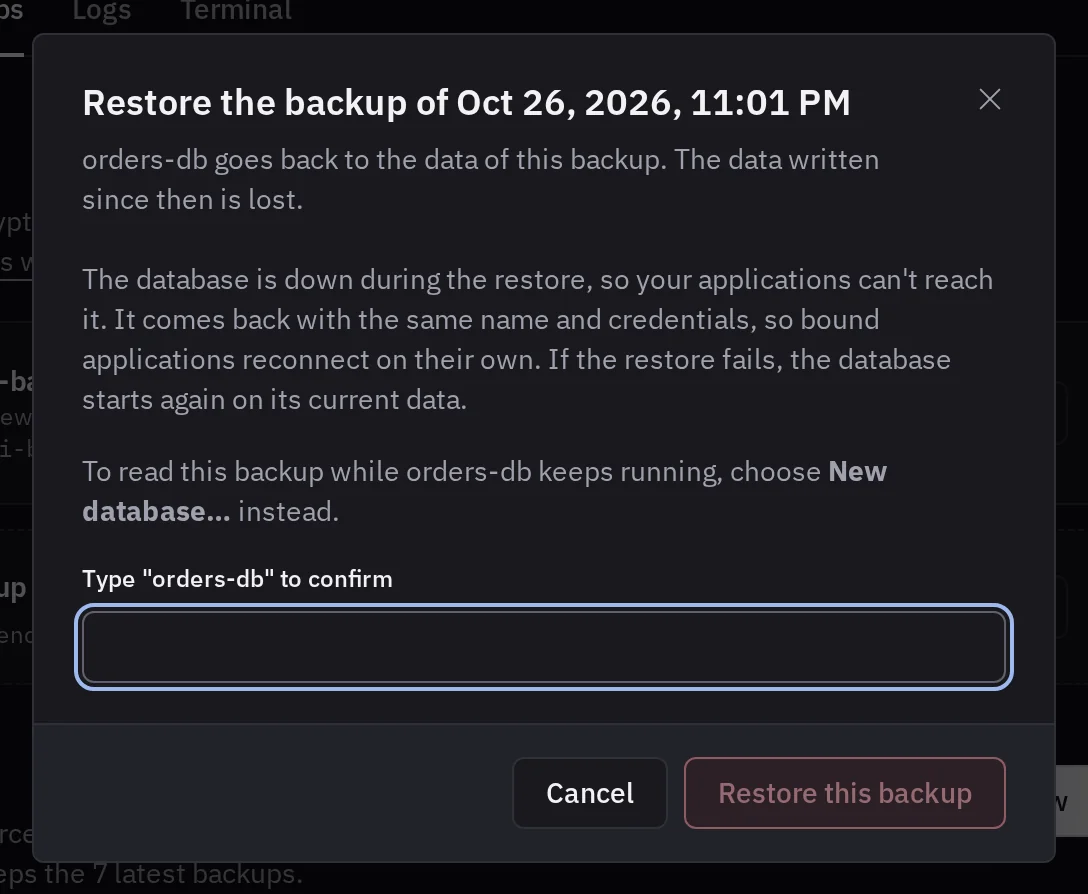
The database stays stopped until the restore ends, so your applications cannot connect to it. It then runs with the same name and credentials, so bound applications reconnect without a change. To read the data of a backup while the database keeps running, create a new database from it instead.
While the continuous backup of a PostgreSQL is on, Tenkai does not restore a backup into it: see restore a daily backup with a continuous backup.
If the restore fails before the database moved to the restored data, the database starts again on its current data, and the details of the resource say why. If it fails later, the resource shows Failed: choose Retry provisioning. In that case Tenkai may keep a second volume on the node, since the database may have written to it, and never removes it, even when you delete the database. docker volume ls on the node lists it, with a name that starts like the volume the database uses. Remove it with docker volume rm once you no longer need it.
A restore also brings back a database that shows Failed. Tenkai refuses a restore while another operation of the database runs, such as a backup, another restore, its provisioning or the replacement of an instance of a MySQL with high availability. It stops a restore that runs for more than 6 hours.
Create a database from a backup
To get data back without touching the database, open the menu of a succeeded backup and choose New database. Choose a name and any environment of the team, even one on another cluster. Tenkai creates another database of the same type and size with its own credentials, filled with the data of the backup.
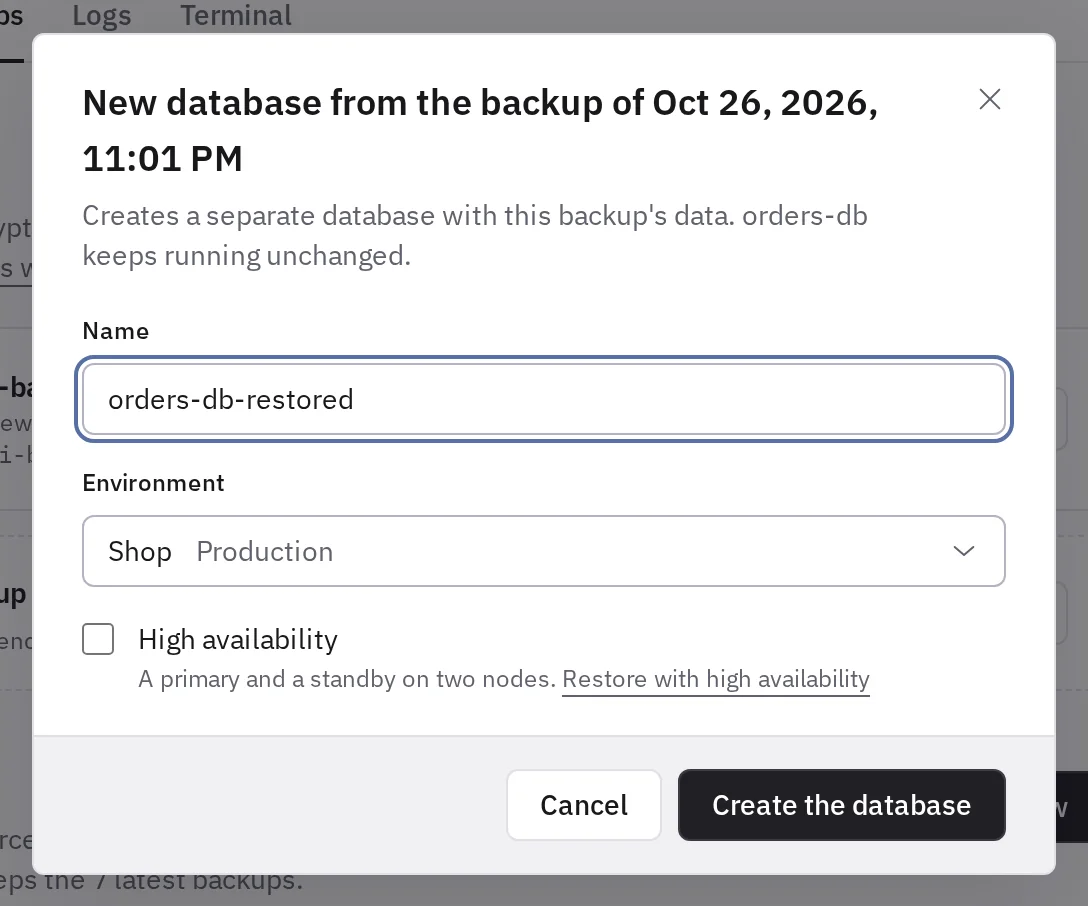
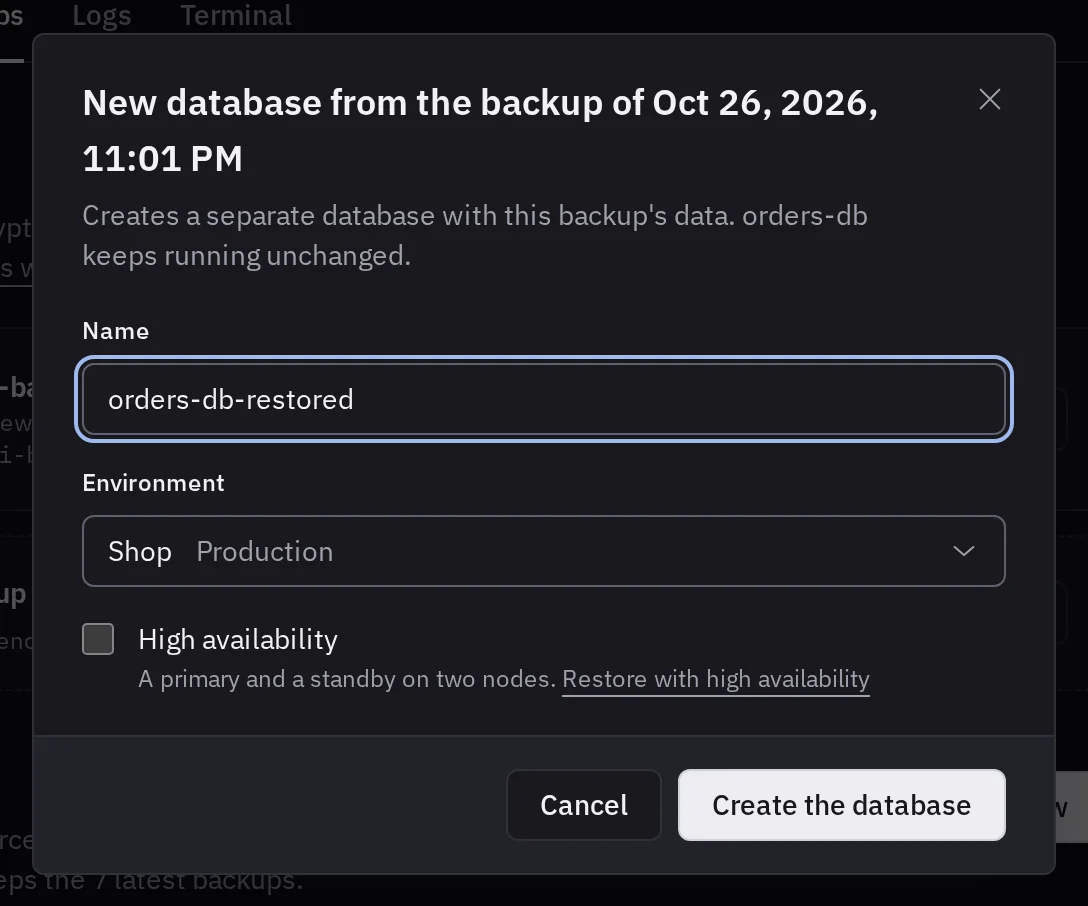
You can also start from Add resource: select PostgreSQL or MySQL, then under Initial data choose From backup. Choose the Database and one of its Backups. The new database takes the size of the one it comes from.
If the backup cannot be restored, the new database shows Restore failed with the reason. Delete it and create it again.
When your team tries high availability in early access, select High availability to create the new database with two instances. It needs a MySQL of the Medium size or larger, or a PostgreSQL of the Small size or larger. See A database with high availability.
A database with high availability
A MySQL or a PostgreSQL with high availability (MySQL, PostgreSQL) has the same backups, restores and new databases as one that runs as one instance. A backup of one restores into the other. Only a backup brings back a dropped table or a wrong UPDATE: replication applies it to both instances.
A backup runs on any ready node of the cluster with 128 MB free, and reads the instance that takes the writes. If that instance fails during the backup, the backup fails with the error of mysqldump or pg_dump: choose Back up now once the writes go to the other instance. On a MySQL, a change of a table during the backup stops every write of the database, and may fail the backup too.
A restore stops both instances, and the database does not answer until the second instance has copied the restored data. Count that time: a MySQL of 314 MB copied it in less than a minute in our tests.
If the restore fails before your applications reach the restored data, both instances start again on the data they had, with no confirmed write lost. Tenkai keeps the restored volume on the node of the first instance, and its copy on the node of the second one if it was made: remove them with docker volume rm once you no longer need them. If something fails later, the resource shows Failed, and Retry provisioning starts it on the restored data.
Tables with another engine than InnoDB, such as MyISAM, stop a restore into a MySQL with high availability, since the second instance would not receive their writes. The backup of a MySQL that ran as one instance may hold some:
- a restore fails, names the tables, and the database runs again on the data it had;
- a new database with high availability fails and names them. Delete it, create it from the backup without high availability, change the engine of these tables with
ALTER TABLE <table> ENGINE = InnoDB, then turn high availability on.
A backup of a PostgreSQL restores into one with high availability whatever it holds.
Continuous backup of a PostgreSQL
The continuous backup is in early access for the teams that try it first.
A daily backup is a copy of one moment. A continuous backup also sends the write-ahead log of PostgreSQL, the record of each change, to your storage bucket, at least every minute while the database writes. You can then restore the database to a moment, to the second, or create a new database from that moment.
It exists for PostgreSQL only, with one instance or with high availability. The daily backups continue: a daily backup is what moves a database to another node or to a later version of PostgreSQL.
What you accept
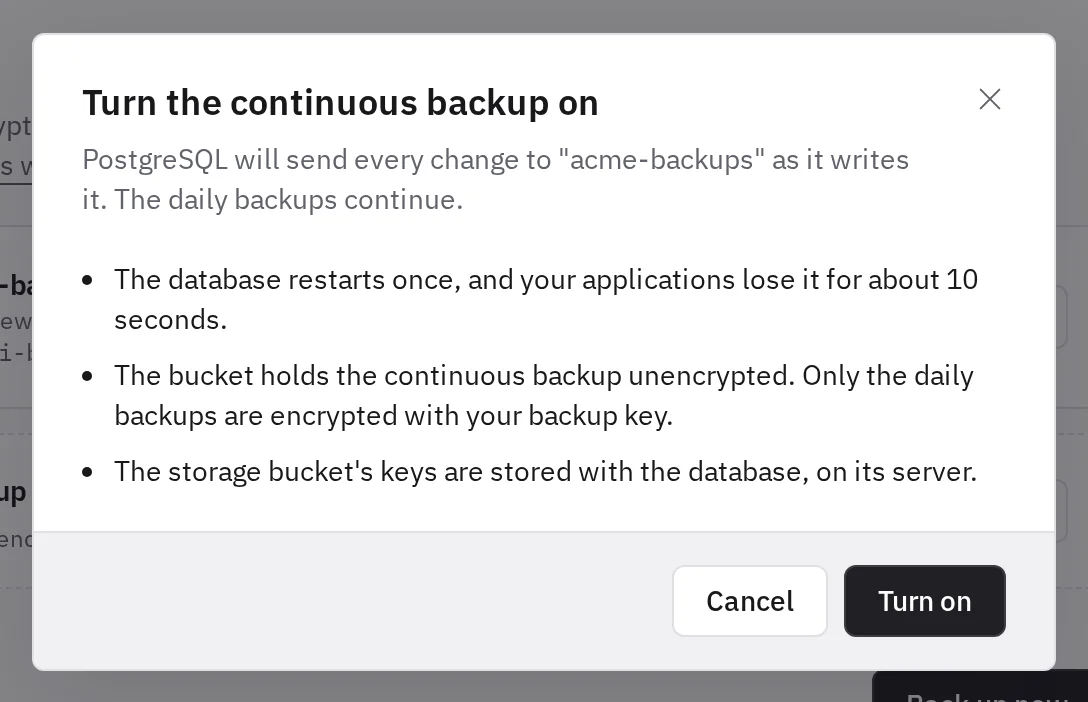
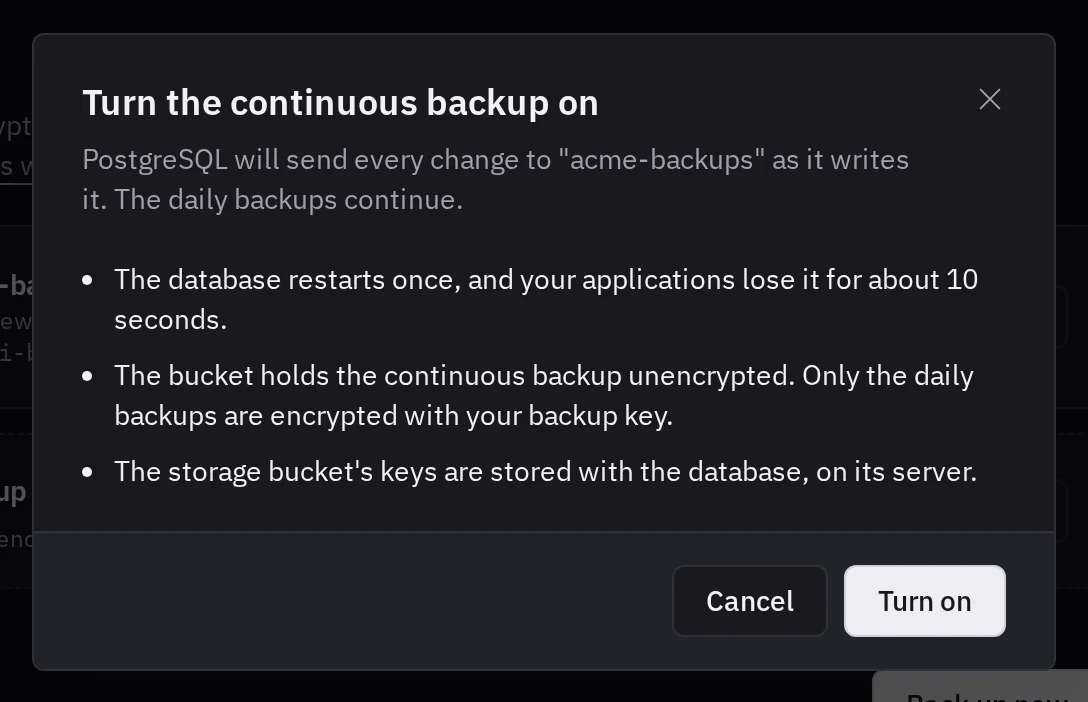
- The database restarts once. Your applications lose it for about 10 seconds, or about 2 seconds with high availability.
- It is not encrypted. pgBackRest, which archives the log, cannot encrypt to a public key. Your bucket holds the data as your provider stores it. The daily backups stay encrypted.
- The keys of the bucket stay on the node. Someone with root on the node, who already reads the database, also reads the keys of the bucket.
Turn it on
The keys of the storage bucket must also be able to list the bucket. Tenkai checks it first, and with keys that cannot list, it refuses and the database does not restart.
- Choose a storage bucket for the backups of the database, if it has none. The continuous backup goes to the same bucket.
- Open the Backups tab of the database and choose Turn on in the Continuous backup card.
- Read what you accept, and choose Turn on.
Each time you turn it on, it gets a new folder under continuous in the folder of the database, such as main-db-k7m4p9/continuous/7c9e6679-7425-40de-944b-e07fc1f90ae7/.
- If the card shows Failed with what the bucket answered, the database did not restart. Fix the cause, then choose Turn on again.
- If the database does not start again after the restart, it shows Failed with the reason. Choose Retry provisioning on its page.
When the bucket does not answer, PostgreSQL queues the unsent log on the volume of the database, up to 128 MiB plus what it writes during one failed send, then drops segments so it keeps running. Tenkai measured 512 MiB at the peak. Leave that room free on the node of a PostgreSQL that writes a lot. Dropped segments open a gap.
While a continuous backup is on, or Failed, you cannot choose another bucket for the backups of the database, turn them off or remove the bucket: turn it off first. You also cannot restore a daily backup into the database. Tenkai refuses to turn it on while a backup of the database runs.
The period you can return to
As soon as the continuous backup is on, Tenkai takes a physical backup, a copy of the files of the database, about 15 seconds for 200 MB. The period you can return to starts the second after it ends. Until then, the card says that no moment can be restored yet.
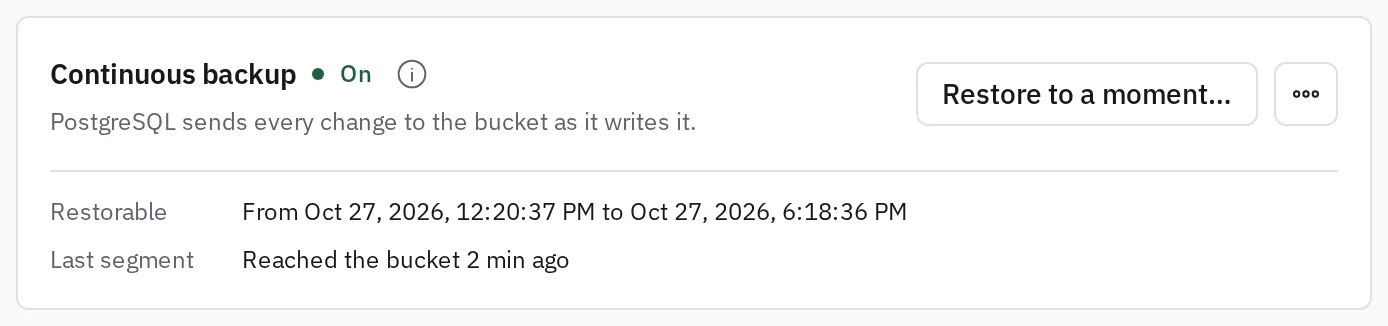
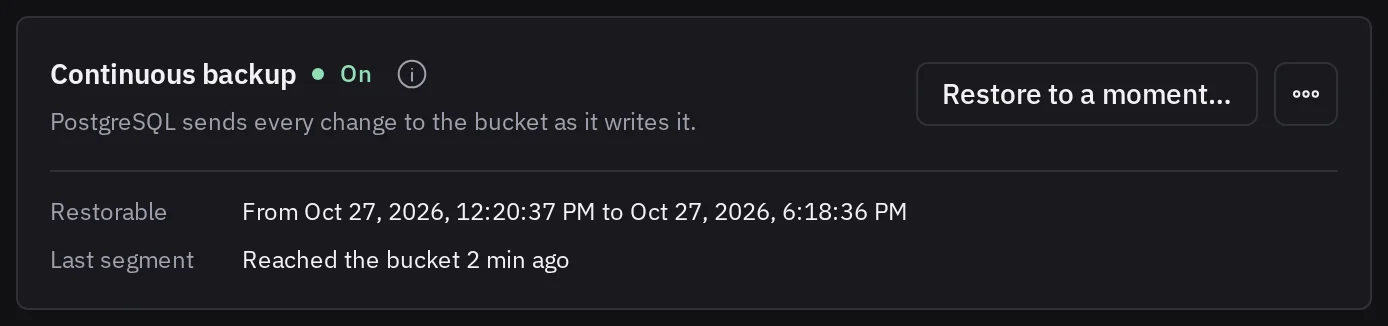
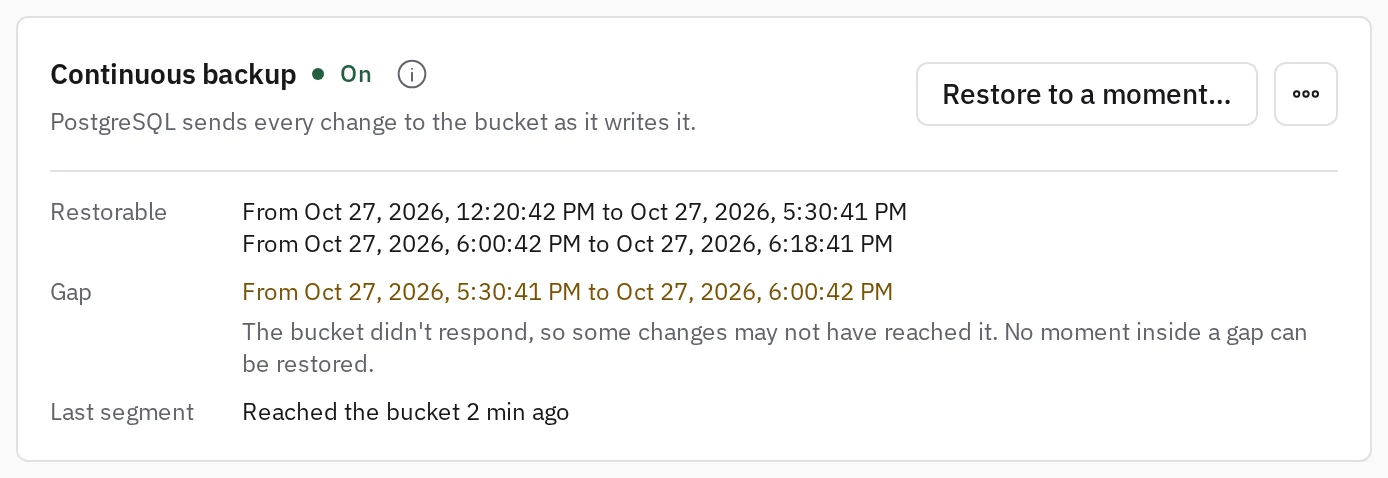
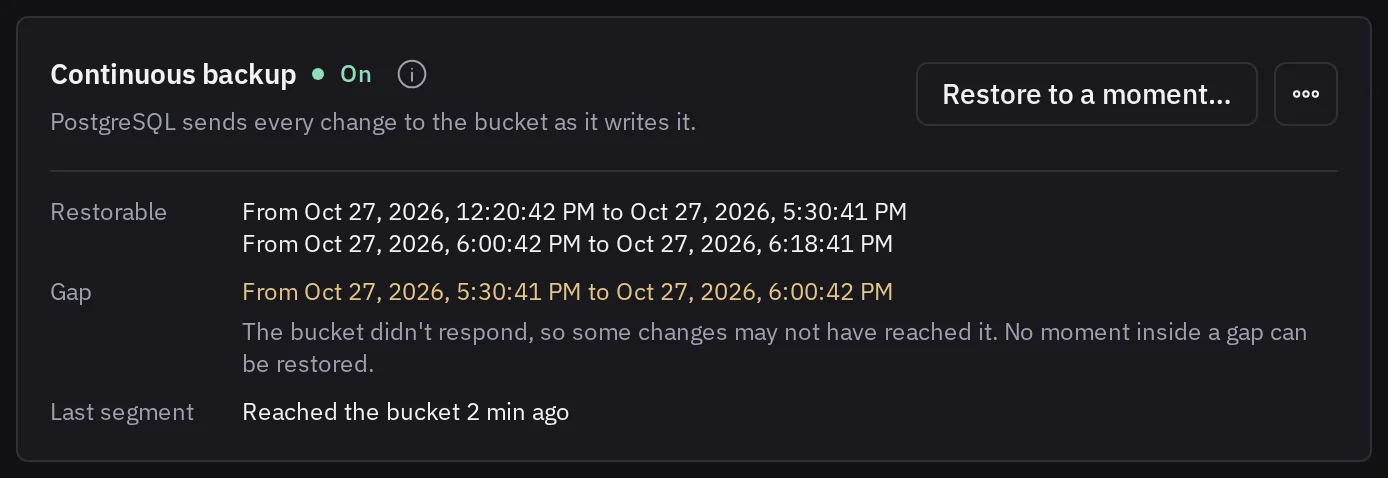
- Restorable is the period you can return to. It ends about 5 to 6 minutes behind the database. After a gap or a restore to a moment, it shows one period before and one after.
- Last segment is when the last part of the log reached the bucket. A database that writes nothing sends nothing, so this time grows old while nothing is missing.
If a physical backup fails, the card says why, and Tenkai takes it again within 5 minutes.
How far back you can return
Tenkai takes a physical backup each day, a full one each week, and keeps the two latest weekly full backups with the log since the older one. So you can return at least 7 days back and at most about 14. A restore does not shorten that.
What the history costs
The history takes about twice the size of the database, plus what the database writes in two weeks, and one more copy for each restore to a moment in the last two weeks. A database that changes a lot costs more in log than in copies. Your provider bills that storage, and a request for about each minute while the database writes.
A gap in the period
When the bucket does not answer long enough, or a send fails, part of the log never reaches the bucket. No moment inside that gap can be restored. The gap starts at the last part of the log Tenkai knows reached the bucket, so when the database wrote nothing for a while before the outage, it starts that much earlier.
Once the bucket answers again, Tenkai takes a physical backup by itself. The gap ends the second after that backup ends.
Restore to a moment
A restore to a moment returns the database to the data it had at a date and a time you choose, such as the second before a migration deleted a table. All the changes made after that moment are lost.
- Open the Backups tab of the database and choose Restore to a moment in the Continuous backup card.
- Choose a date and a time, to the second and in the time zone of your browser, or choose The latest moment, the last change the bucket holds, as when the volume of the database is lost.
- Type the name of the database to confirm.
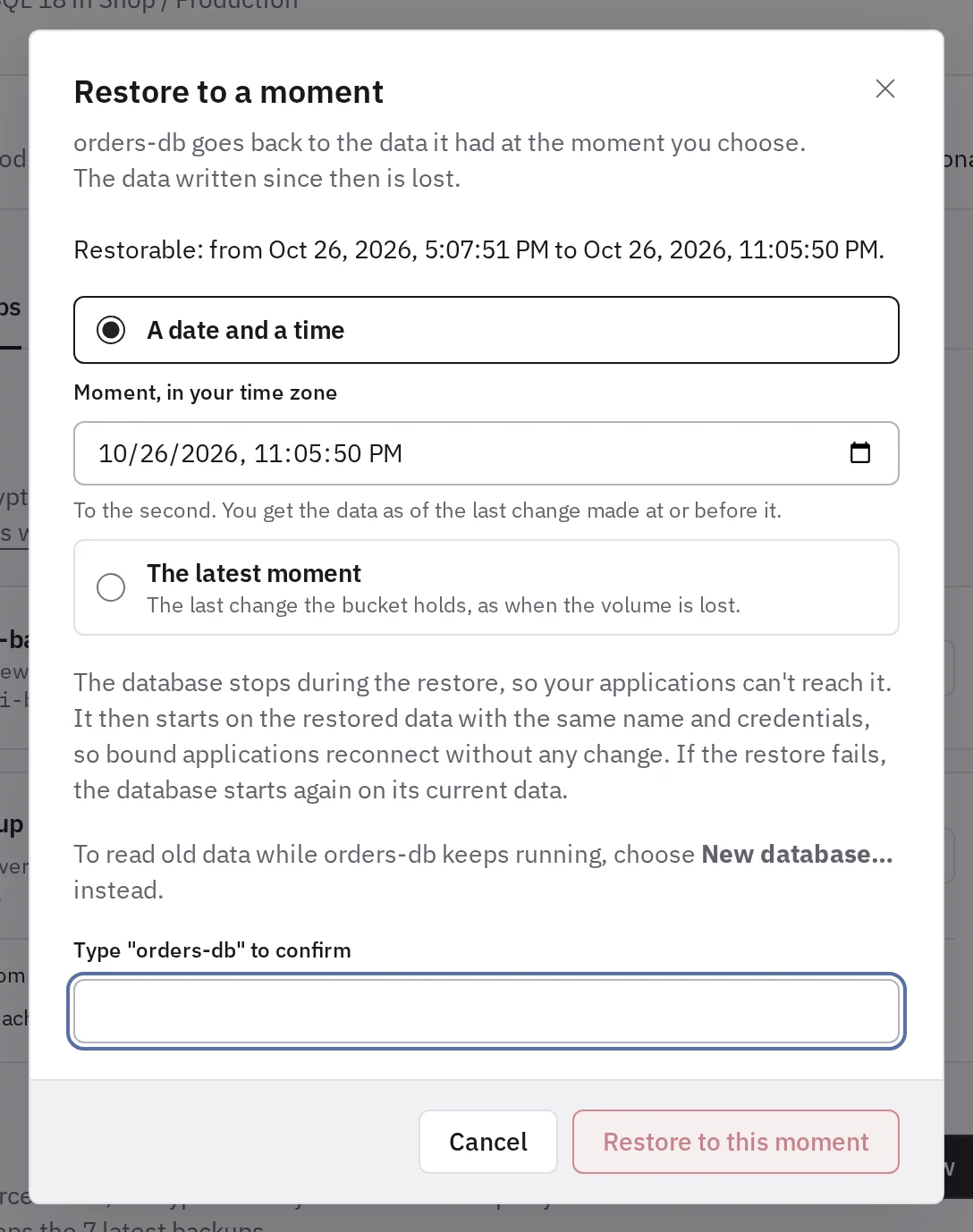
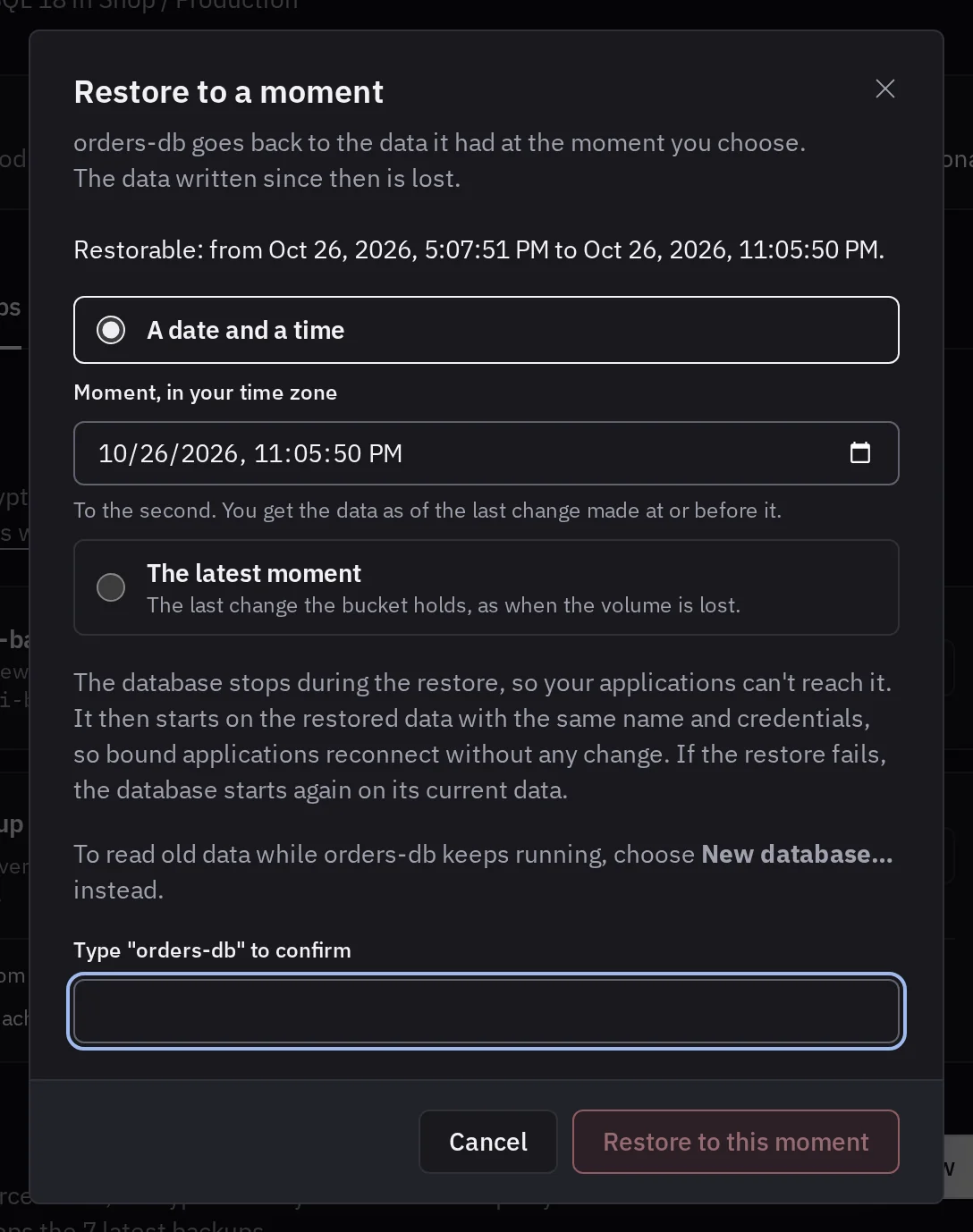
Tenkai refuses a moment outside Restorable, such as one inside a gap.
The database stays stopped until the restore ends, then runs with the same name and credentials. Tenkai never starts it on less data than the bucket holds: when the bucket does not hold every change, or the database did not stop cleanly, the restore fails and the database starts again on its current data. Choose Restore to a moment again. A restore to a moment also works for a database that shows Failed, or whose volume is lost.
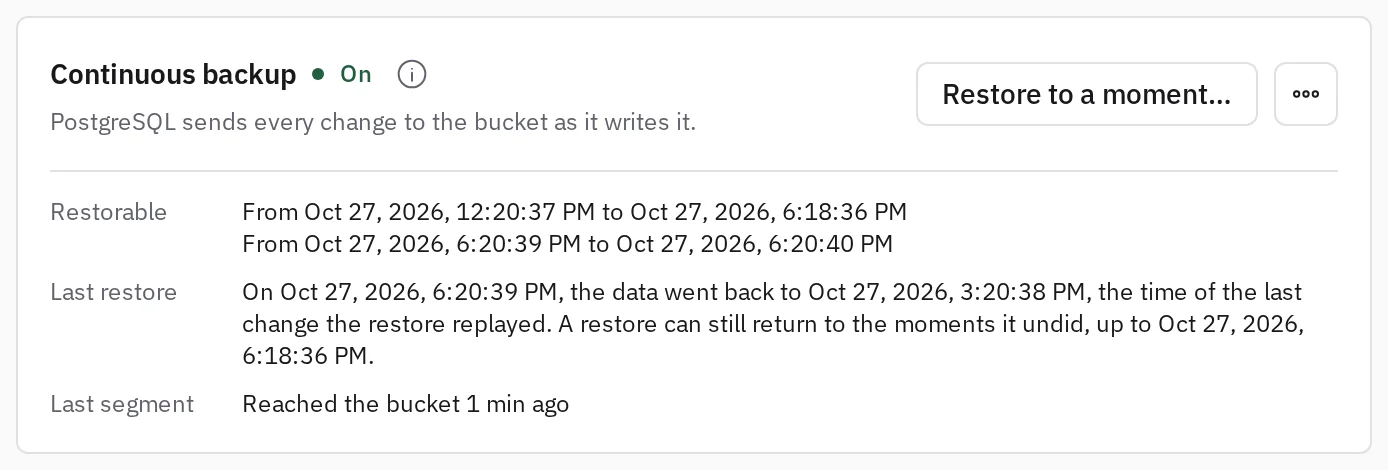
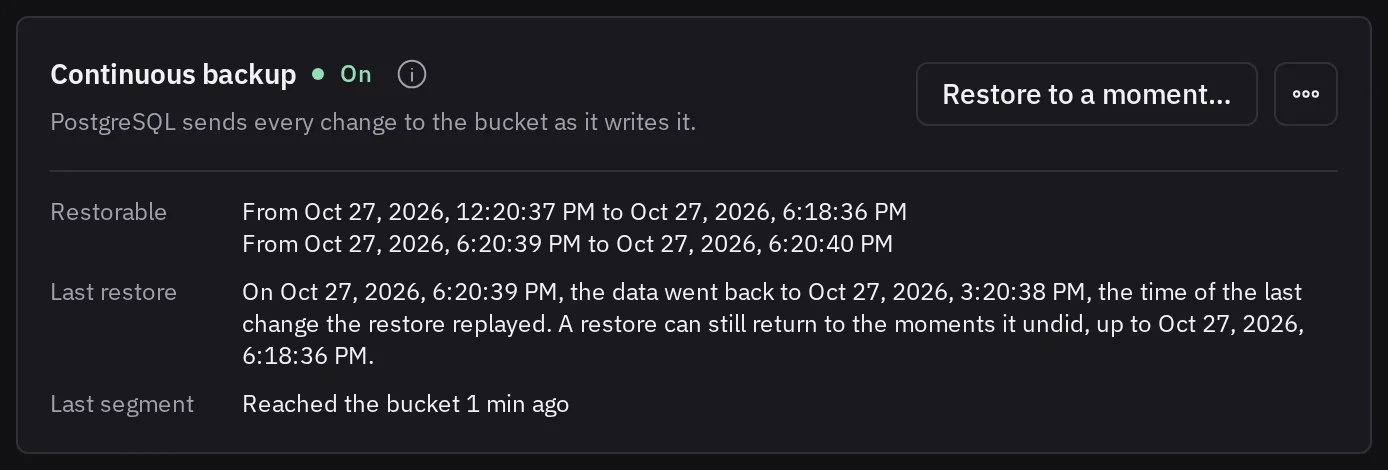
Last restore says when the restore ran and the moment the data is at. The continuous backup continues on a new history from the restore.
Restore again after a restore
A moment you chose badly is not lost. You can restore again, as often as you need, to any moment in Restorable, including the moments a restore undid. The dialog then names that restore, so you know the data comes from before it.
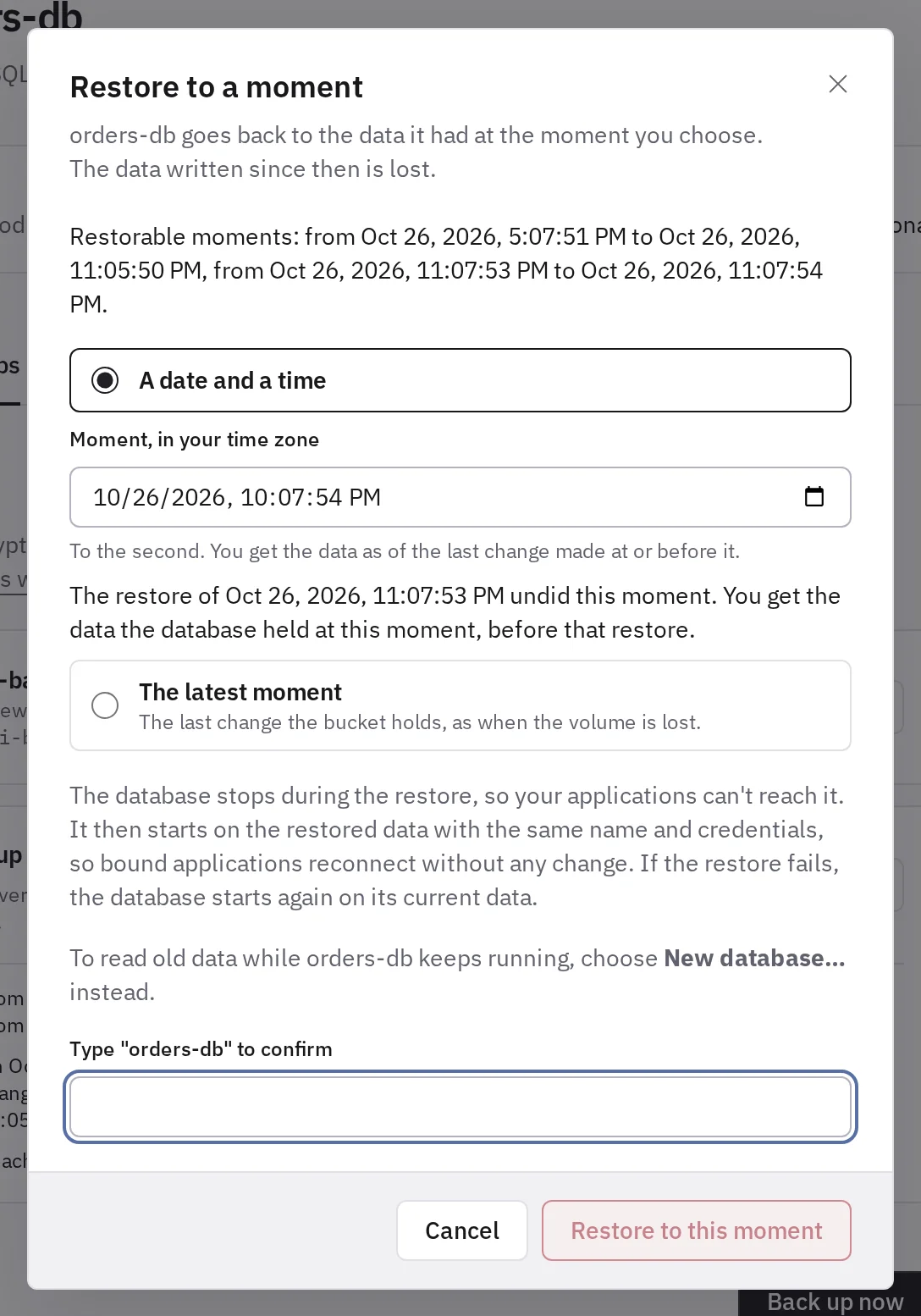
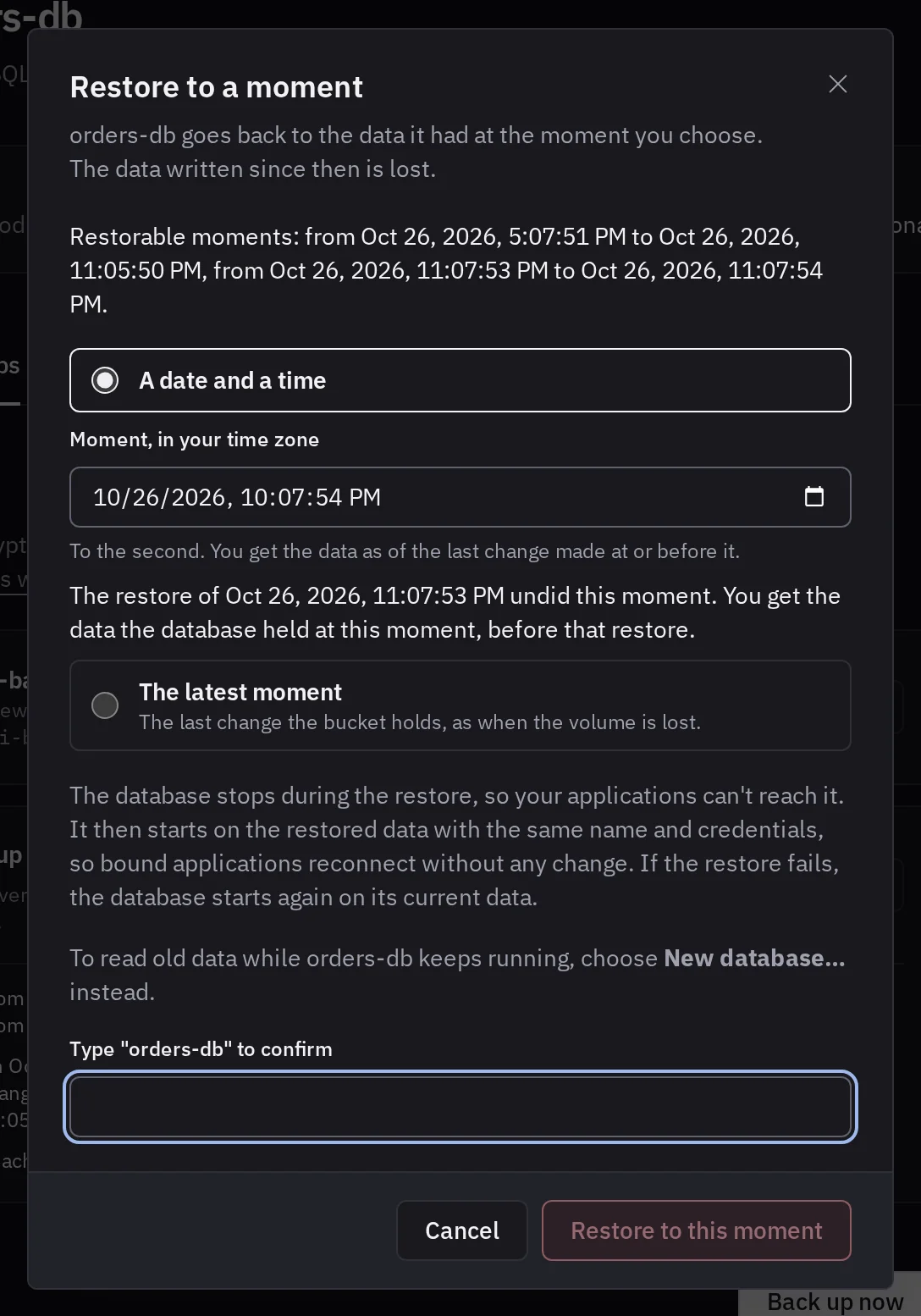
The last few minutes before a restore cannot be restored. Last restore shows up to when you can return.
Create a database from a moment
To read old data while the database keeps running, choose New database… in the … menu of the Continuous backup card.
- Choose a date and a time, or The latest moment.
- Choose a name and an environment of the team.
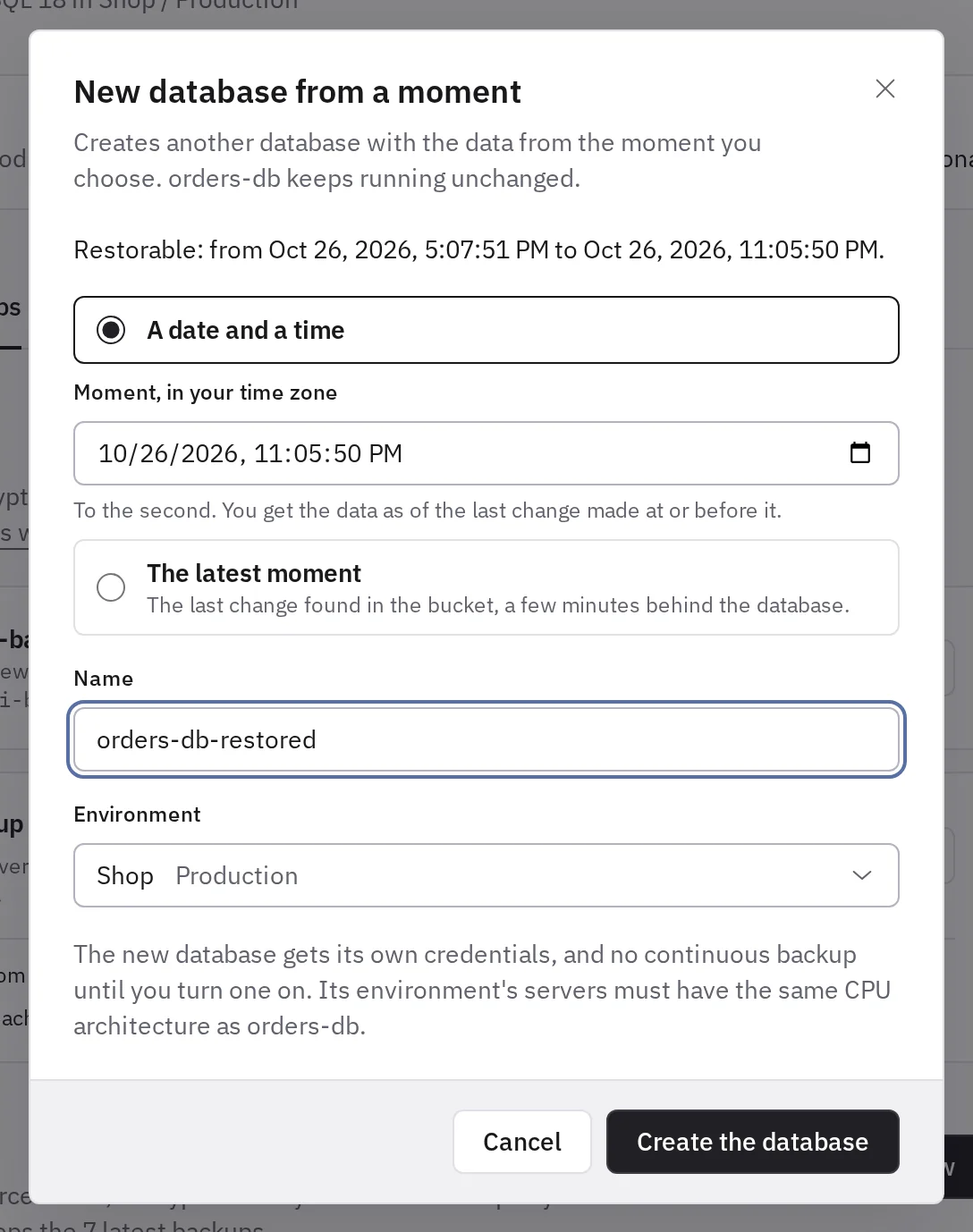
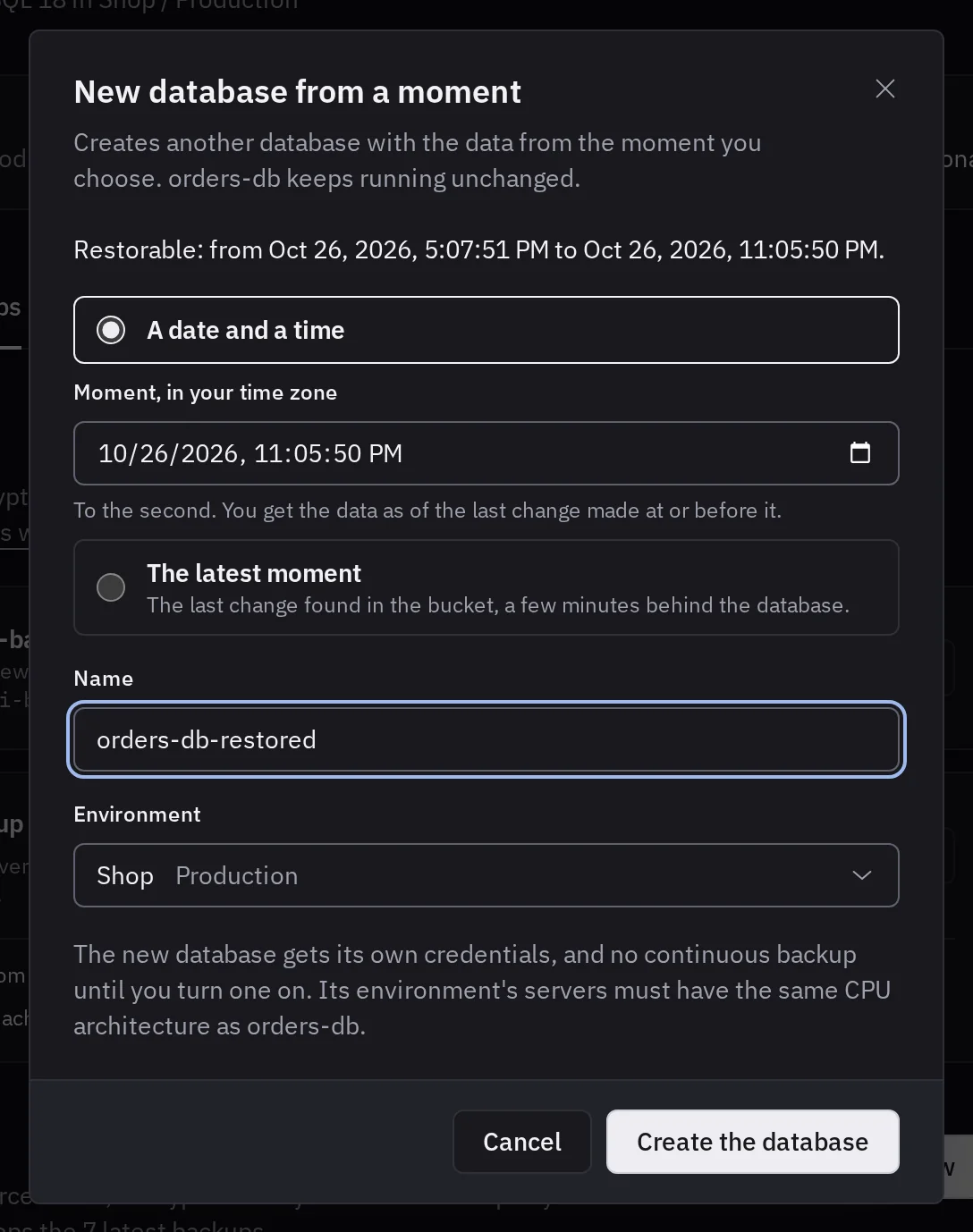
Tenkai creates another PostgreSQL of the same size, with its own credentials. The database you chose the moment of never stops.
- The new database holds at most the changes the bucket held about 5 minutes before you asked. If it cannot get them all, it fails and says so.
- The users
tenkai_adminandtenkaiget the passwords of the new database. A user you created yourself keeps its password. - It has no continuous backup. Turn one on for it like for any PostgreSQL.
- Its cluster must have the same CPU architecture. Otherwise create it from a backup instead.
You can turn the continuous backup off, restore or delete the database while the new one is created.
Restore a daily backup with a continuous backup
While the continuous backup is on, Tenkai does not restore a daily backup into the database, nor the backup of a web application that holds it. You have two ways to get the data of a daily backup back:
- Create a new database from the backup. The continuous backup continues.
- Turn the continuous backup off, restore the backup, then turn it on again. Turning it off deletes its history, so no restore can return to a moment before that.
When the database is in an incident, the history may be the only way back to a moment later than the daily backup. Create a new database first, and turn the continuous backup off only once you no longer need that history.
Replace the keys of its bucket
When an owner or an admin chooses Replace keys for a storage bucket on the Storage page, each PostgreSQL that archives to it restarts once with the new keys: about 10 seconds, or about 2 seconds with high availability. The dialog names these databases. Choose a quiet moment. The new keys must be able to list the bucket, or Tenkai refuses them and restarts nothing.
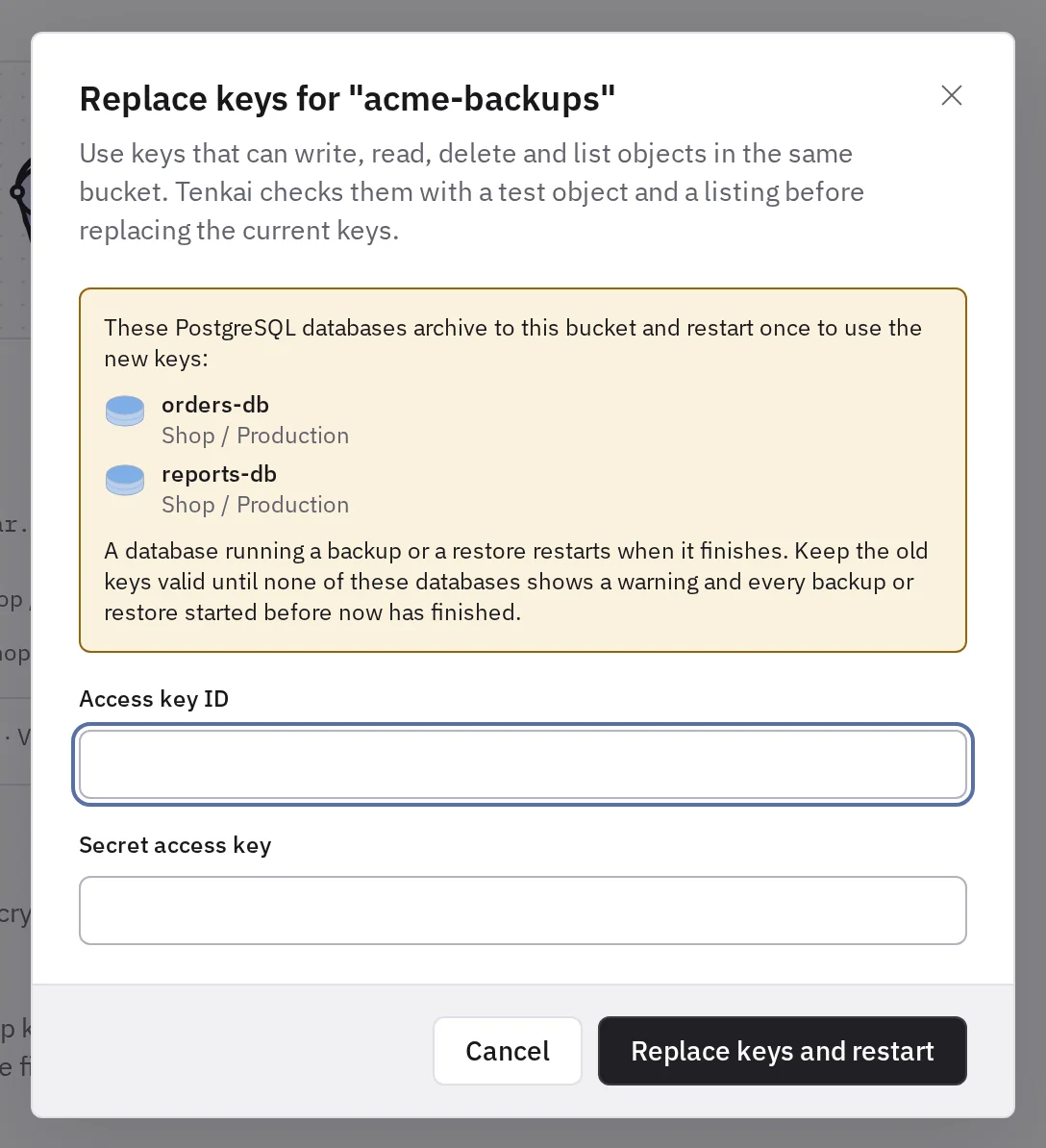
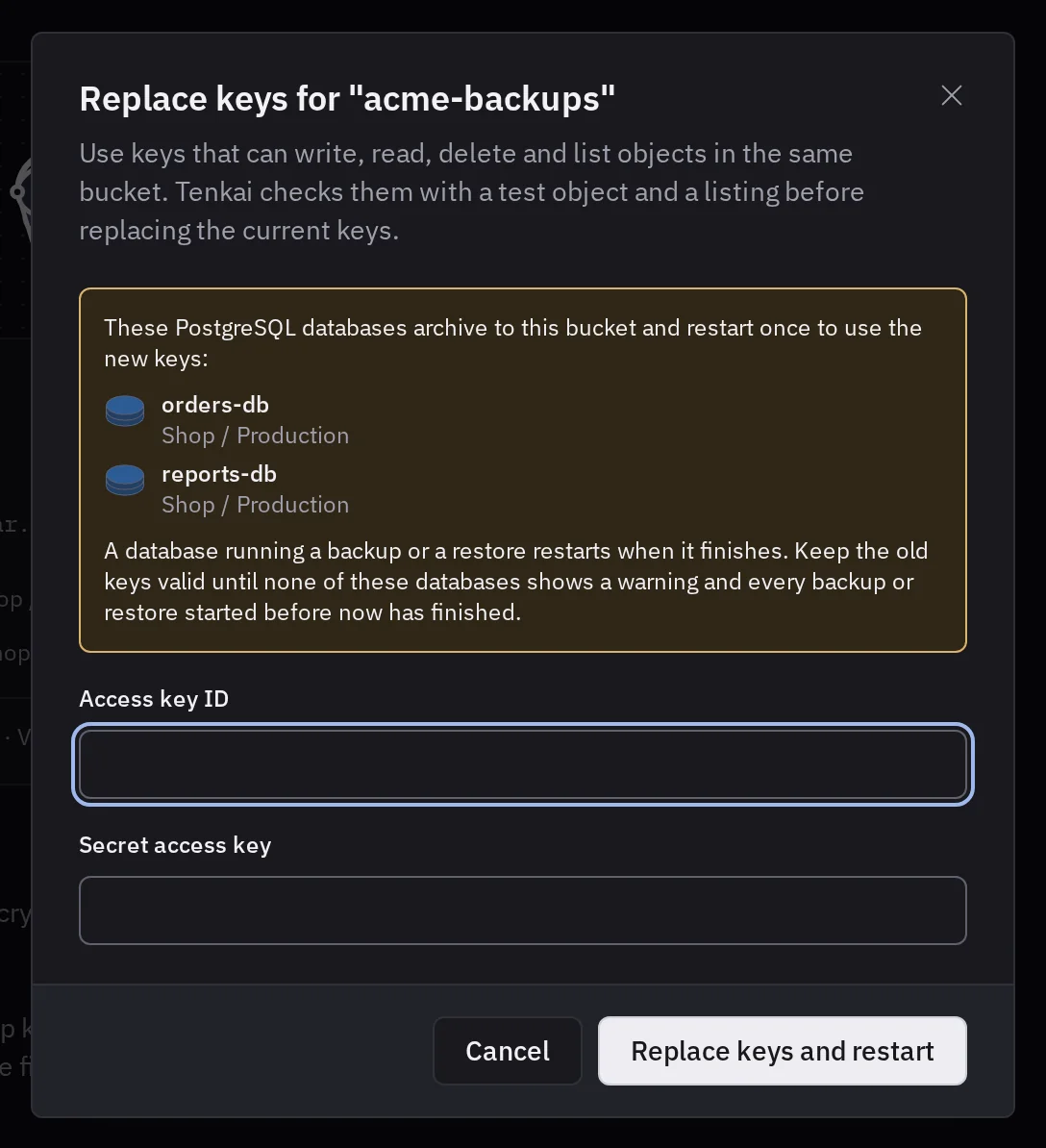
A database busy with a restore, a backup or another change restarts within 5 minutes after it ends. If it cannot start again, it shows Failed: choose Retry provisioning.
Keep the previous keys valid at your provider until both are true:
- no Continuous backup card of these databases says that it may still archive with the previous keys;
- no backup, restore or new database that started before the replacement still runs.
If you revoke them earlier, a refused send opens a gap, and a refused backup, restore or new database fails: start it again.
Turn it off
Turning the continuous backup off deletes its whole history from the bucket. After that, no restore can return to a moment of it. The daily backups stay.
- Open the Backups tab of the database and choose Turn off… in the … menu of the Continuous backup card.
- Read what leaves the bucket, and type the name of the database to confirm.
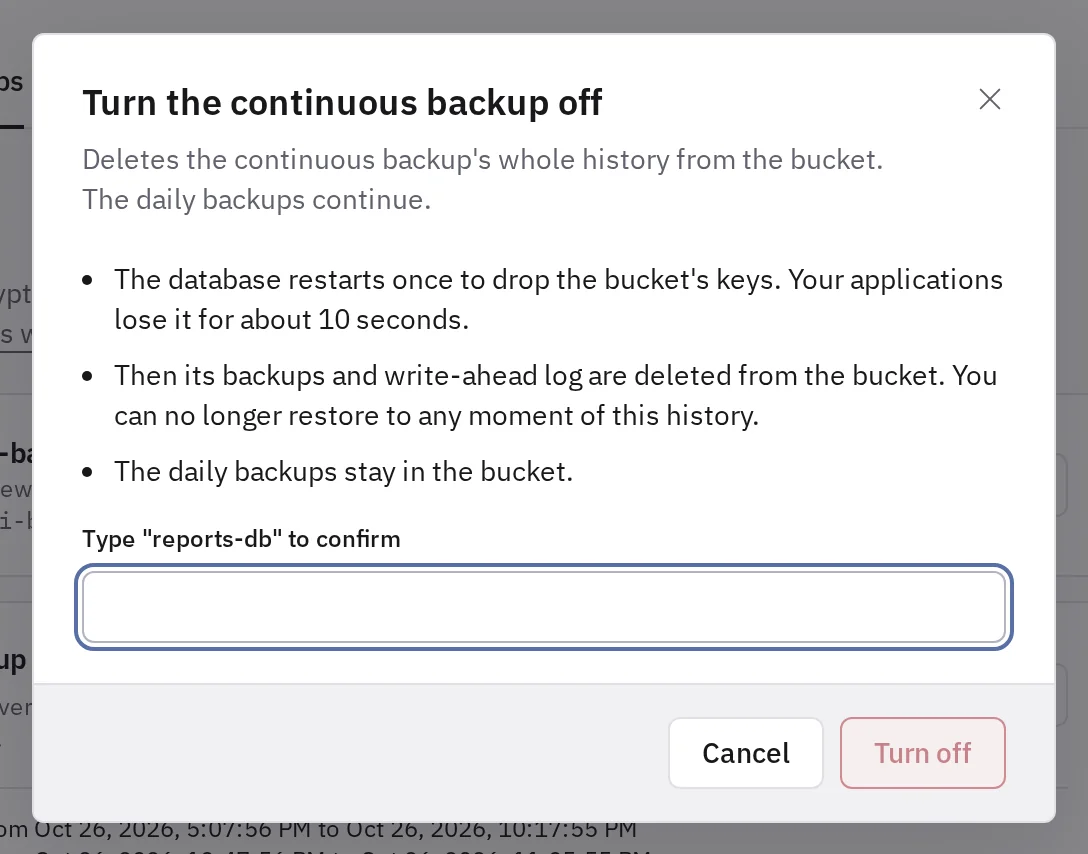
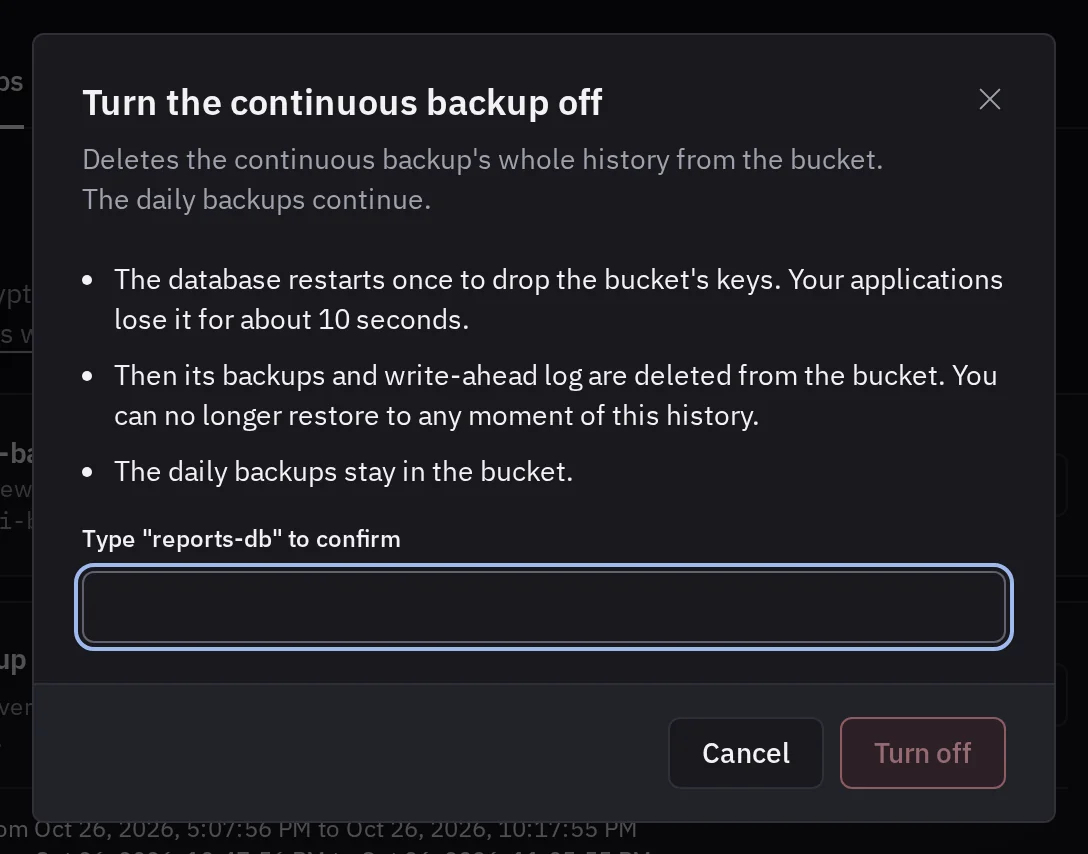
The database restarts once, for about 10 seconds. Then Tenkai deletes the folder of that continuous backup from its bucket.


You can turn it on again at once: the new history goes to a new folder. When the bucket refuses the deletion for about 13 hours, the card says what it answered, and Tenkai tries again 4 hours later: fix the keys of the bucket on the Storage page. You cannot remove the bucket while the deletion still runs.
Tenkai refuses to turn it off while a backup, a physical backup or a restore of the database runs.
When you delete the database, Tenkai deletes the history of every continuous backup it had.
A PostgreSQL with high availability
A PostgreSQL with high availability has a continuous backup too. Both instances send to one folder, and each queues up to 128 MiB of unsent log on its own volume: see the storage limits.
- Turning it on or off and replacing the keys of the bucket restart both instances in turn. The primary role moves once, and your applications lose the database for about 2 seconds.
- A failover continues the period without a gap. A send that failed on the primary still opens a gap, until the next physical backup.
- The clocks of two nodes may differ by a few seconds, so a moment that close to a failover may fall on either side of it.
- A physical backup on an instance whose node stops answering stays running on the card until that node answers, and no other one starts meanwhile.
- A restore to a moment works as for one instance, also to a moment before a failover. The database does not answer until the second instance has copied the data. A new database from a moment runs as one instance.
Back up an application that keeps files
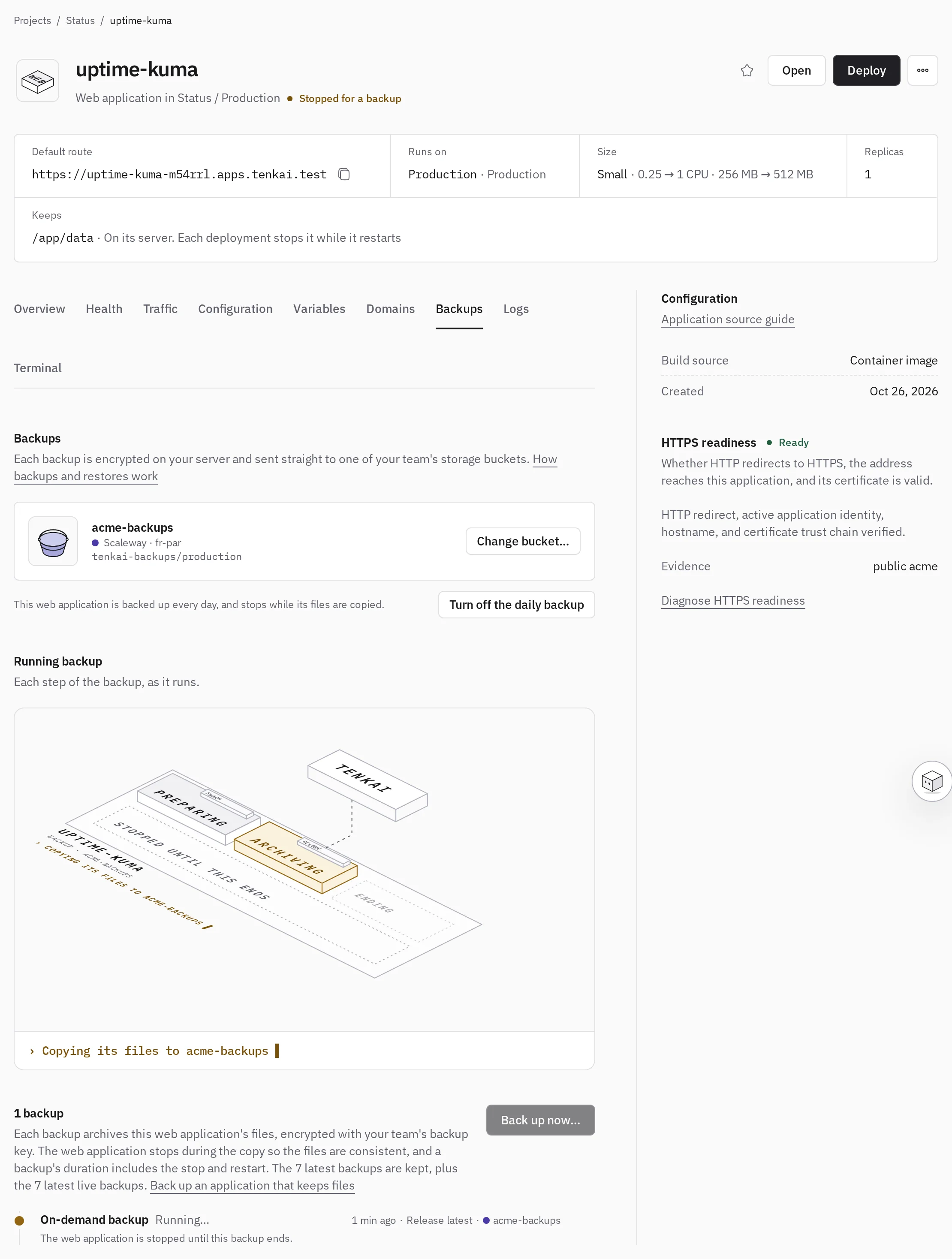
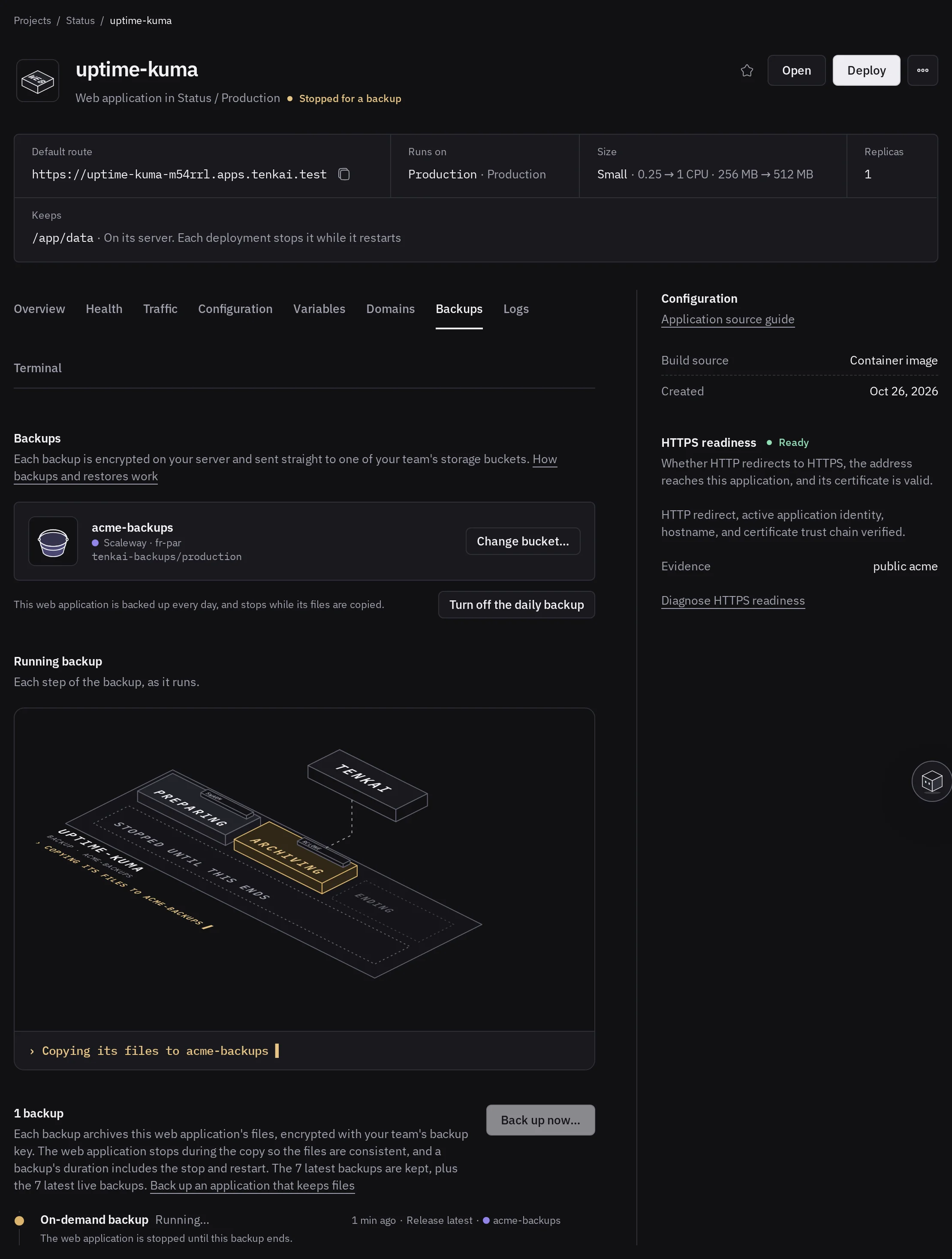
A web application that keeps files, such as WordPress or Uptime Kuma from the marketplace, has a Backups tab too. A backup of it holds an encrypted archive of every directory it keeps, such as wiki-k7m4p9/2026-10-02T030000Z-x3f9qa.tar.zst.age, and a backup of each PostgreSQL, MySQL, Redis® or Valkey the application uses, taken at the same moment so the files and the databases match, such as wiki-k7m4p9/2026-10-02T030000Z-x3f9qa.wiki-db-p4x2aa.dump.age. A database binding you removed still counts until the next deployment.
- Open the Backups tab of the web application, choose Choose a storage bucket, select the bucket and choose Save.
- Choose Back up now…, then Back up now.
From then on, Tenkai backs the application up every day too.
The application stops during the backup, then starts again whether the backup succeeded or not. Count about half a minute for an application with few files, and more as the files grow.
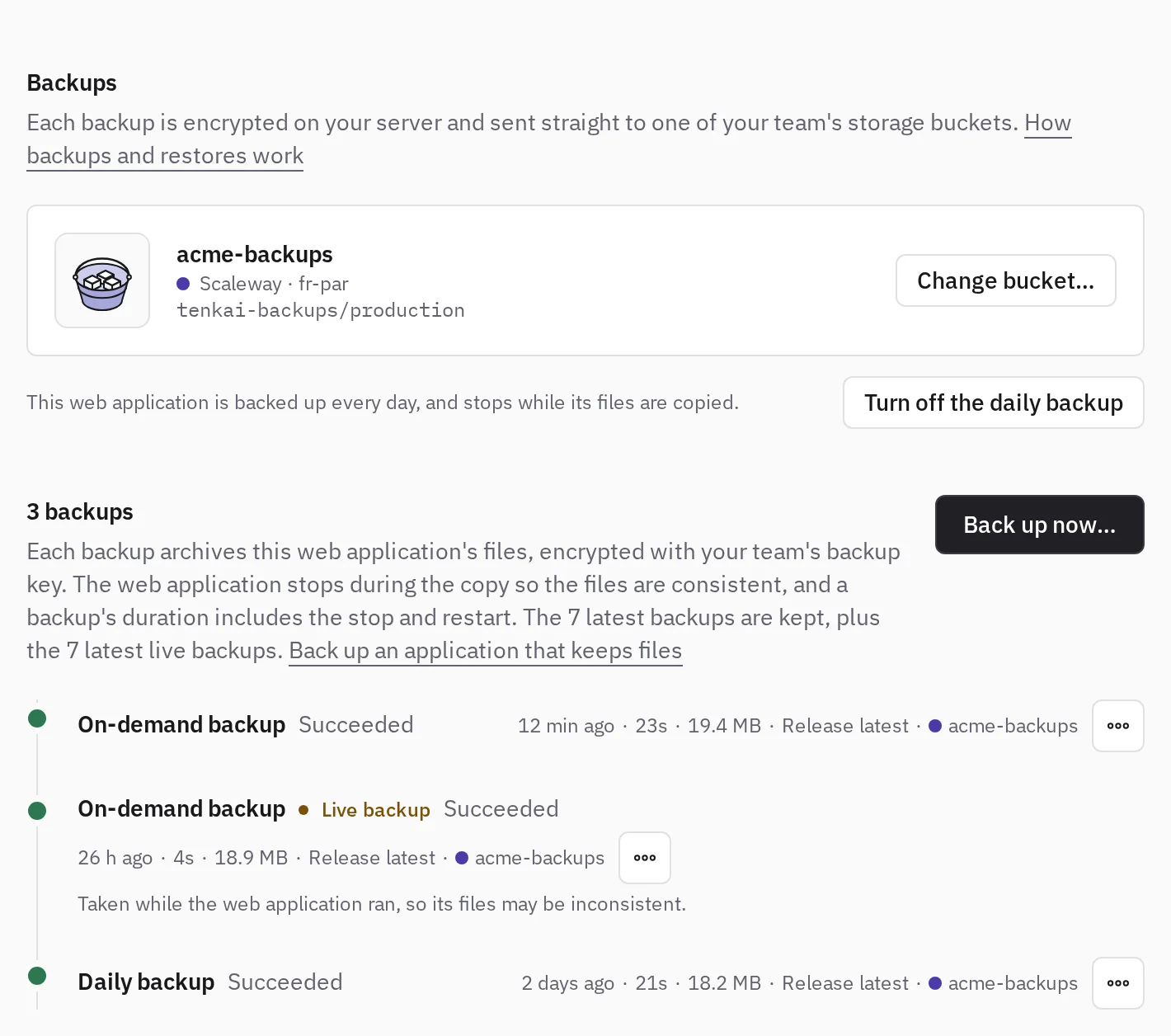
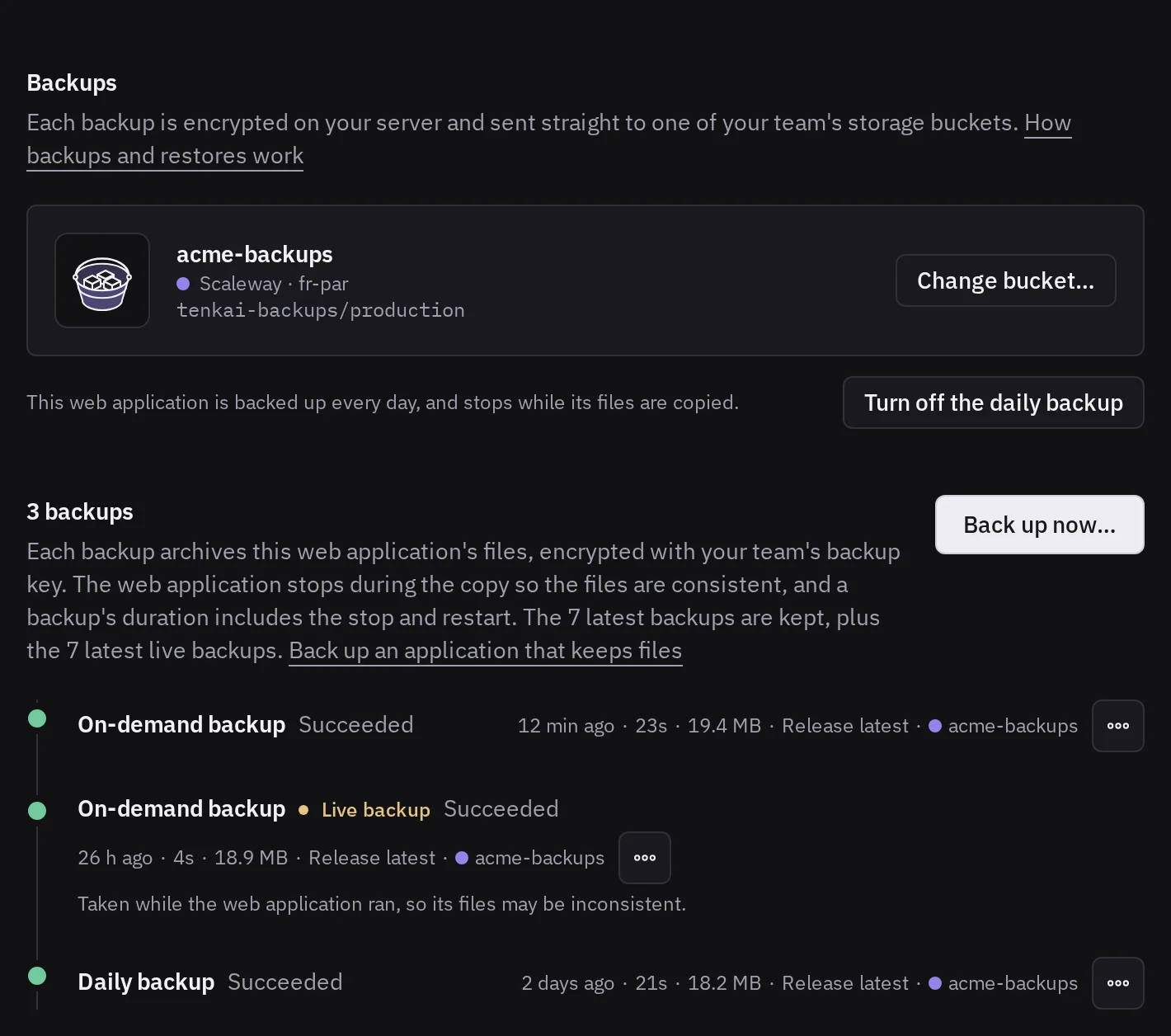
The backup succeeds only as a whole: when the archive or one database fails, Tenkai removes every object it wrote. The backups of the databases in it do not show in their own Backups tab, nor count among their 7.
While the backup runs, Tenkai refuses a deployment of the application, and a backup or a restore of its databases. If Tenkai cannot start the application again within about half an hour, deploy the web application to start it.
Take a live backup
In the Back up now dialog, select Live backup to keep the application running. Tenkai then copies the files while the application writes to them.
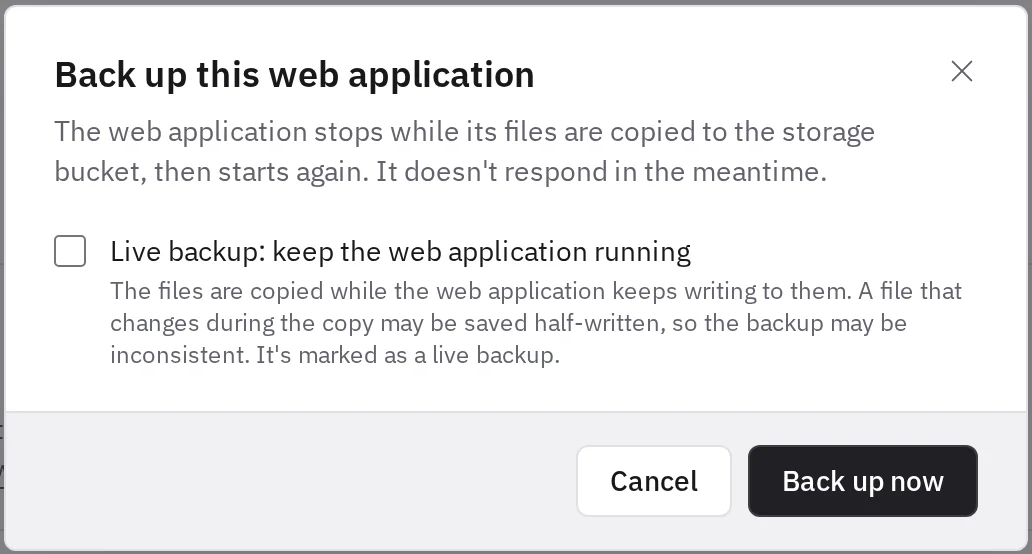
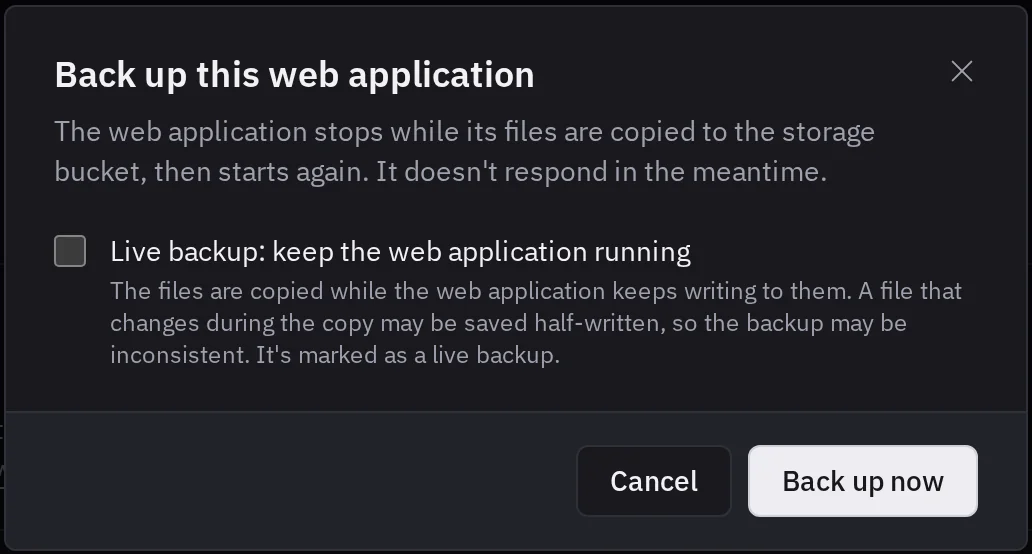
A file that changes during the copy may be saved half written, and an SQLite database copied that way may not open. Nothing tells whether a live backup is broken until you read it. Use it for an application that writes little and must not stop, and take a backup under a stop when you can.
The daily backup
The daily backup stops the application, as one you start does. It is due a day after the latest backup taken under a stop, so Back up now moves the next one. A live backup does not count.
To keep the application from stopping every day, choose Turn off the daily backup in its Backups tab. Back up now still works.
Which backups Tenkai keeps
Tenkai keeps the 7 latest succeeded backups taken under a stop, and apart from them the 7 latest succeeded live backups, so live backups never push out one you can trust.
When you delete the web application, Tenkai forgets its backups. The latest succeeded one taken under a stop, or the latest live backup if it has only those, stays in the bucket with the backups of its databases. Read it without Tenkai. Tenkai removes the others.
Restore a backup
A restore gives the web application the files of a backup back, and each database of the backup its data. They come back together, or nothing changes. What was written since that backup is lost.
- Open the Backups tab of the web application.
- On a backup that succeeded, open the actions menu and choose Restore….
- Type the name of the web application, then choose Restore this backup.
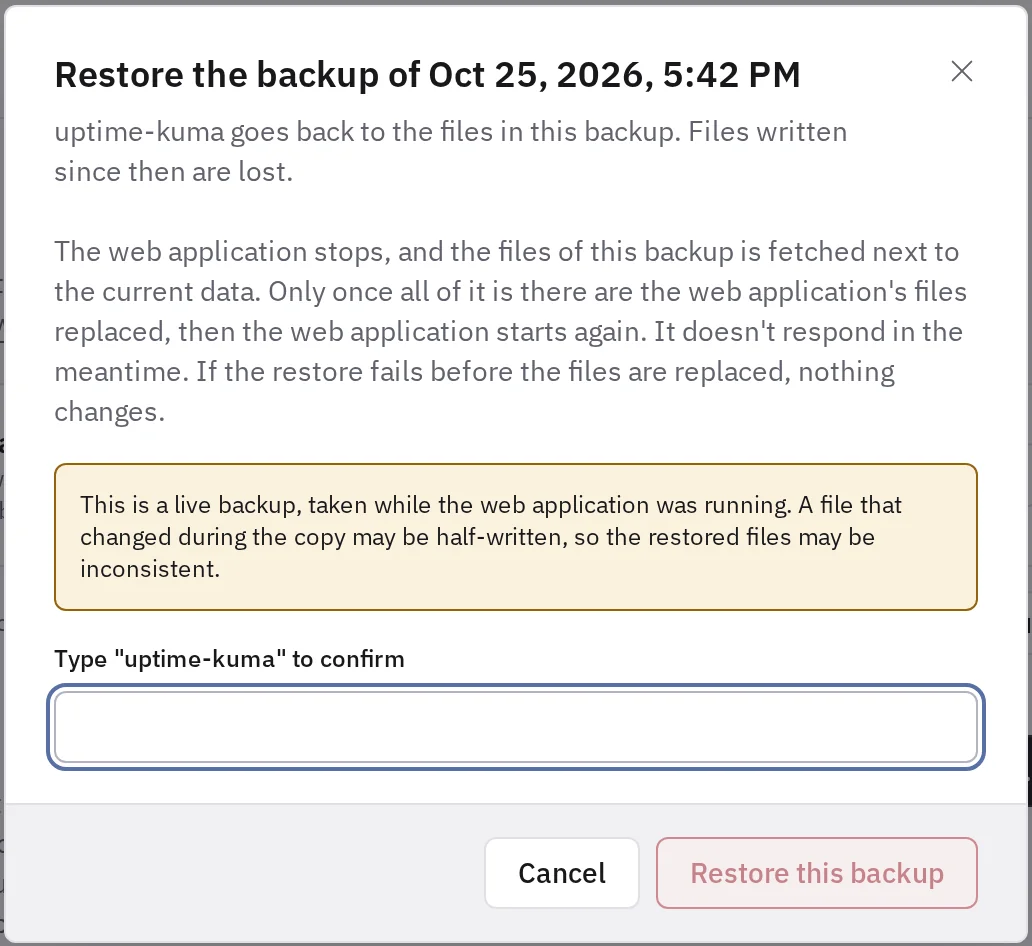
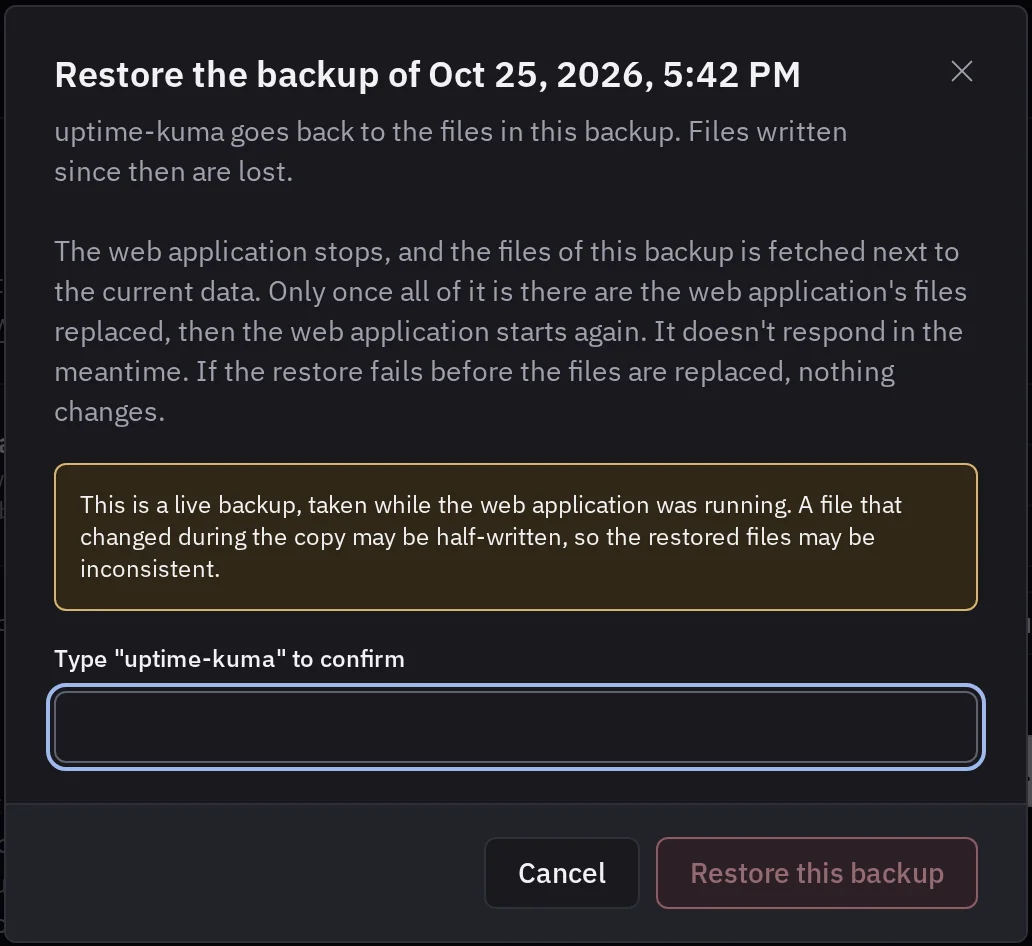
The application and its databases stay stopped until the restore ends. The dialog warns you when:
- the backup holds a database. That database goes back to the backup for every application that uses it, so another application loses what it wrote since;
- the backup is a Live backup. Its files may be inconsistent, and so will the restored ones;
- the backup was taken on another release. The release that runs now may not read files another version wrote: roll back to that release first if it does not.
When the restore fails before the files are replaced, nothing changes and the application and its databases start again on their data. Once the files are replaced, Tenkai no longer goes back:
- a database that did not run or open on its restored data shows Failed, and the restore names it. Choose Retry provisioning on it, which starts it on its restored data. Your application reaches it once you retried it;
- Tenkai keeps the restored volume of each database it started to move, and never removes it. Remove it on the node with
docker volume rmonce you no longer need it.
When the files cannot be replaced, Tenkai puts back the files the application had, then starts it. Until they are back, the application stays stopped, so it never runs on files half replaced, and the backup on the Backups tab says why and when Tenkai tries again, every minute. Do what it says, such as start the server of a data node that does not answer or free space on its disk: the next try puts the files back and the restore fails without a change.
If Tenkai cannot start the application again within about half an hour, the restore fails: deploy the web application to start it. Its files and databases are whole, restored or as they were.
A restore puts the files back on the node the application runs on, so it does not recover from the loss of that node.
Tenkai refuses the restore while a database of the backup runs another operation: wait for it. It also refuses it when a database of the backup no longer exists: read the backup without Tenkai. When the continuous backup of a database of the backup is on, turn it off, restore, then turn it on again, which deletes its history. To keep the history, create a new database from a backup of that database instead.
After a restore, a rollback of the web application no longer puts files back.
Read a backup without Tenkai
The backup key file, tenkai-backup-key.txt, holds the current key of the team and every previous one. With it and age, you can read a backup even if you lose access to Tenkai:
age -d -i tenkai-backup-key.txt main-db.dump.age > main-db.dump
pg_restore --dbname "$DATABASE_URL" --no-owner main-db.dump
The decrypted file is a pg_dump archive in custom format. Load it with pg_restore from PostgreSQL 18, not with psql.
A MySQL backup is a SQL dump compressed with zstd before it is encrypted:
age -d -i tenkai-backup-key.txt main-db.sql.zst.age | zstd -d > main-db.sql
mysql --host "$DB_HOST" --user "$DB_USER" -p "$DB_DATABASE" < main-db.sql
Load it with the mysql client of MySQL 8.4 or later. The dump holds no user: its views, triggers, routines and events name tenkai@% as their definer, so create that user first, or change the definer in the file.
A Valkey backup is an RDB snapshot:
age -d -i tenkai-backup-key.txt cache.rdb.age > dump.rdb
valkey-check-rdb dump.rdb
To load it, put dump.rdb alone in the data directory of a Valkey 9 or later, and start it with --appendonly no. With its append-only file on, Valkey ignores dump.rdb and starts empty.
A Redis® backup is an RDB snapshot too:
age -d -i tenkai-backup-key.txt sessions.rdb.age > dump.rdb
Load it the same way, in Redis® 8 or later, from the redis image of Docker Hub: its modules must be loaded to read the keys they wrote, such as JSON documents.
A backup of an application that keeps files is a tar archive compressed with zstd before it is encrypted. Each directory the application keeps is a folder named after its position under Keeps, on the page of the web application, 1 for the first:
mkdir wiki-files
age -d -i tenkai-backup-key.txt wiki.tar.zst.age | zstd -d \
  | sudo tar --extract --numeric-owner --xattrs --xattrs-include='*' --acls --directory wiki-files
Extract it as root with GNU tar, so each file keeps its owner, its mode and its extended attributes.
Protect the backup key and the buckets
Rotate backup key… creates a new key for the next backups. Tenkai keeps the previous keys to restore the older backups. The file you download holds every key, so download it again after each rotation.
A restore reads only what a backup wrote. Anyone with the keys of a bucket could put another file encrypted to your public key in place of a backup. A restore checks the fingerprint each backup records, and fails with the object is not the one the Backup wrote when the object changed. Backups made before Tenkai recorded the fingerprint are restored without this check.
Replace keys, in the More actions menu of a storage bucket, changes its access keys. A PostgreSQL with a continuous backup in the bucket restarts once. After a leak, rotate the backup key and replace the keys of each bucket, then revoke the old keys at your provider.
You cannot remove a storage bucket while a database or a web application backs up to it, or while a PostgreSQL keeps a continuous backup in it: choose another bucket, or turn the continuous backup off, first. Removing a bucket removes it from Tenkai only. The bucket, its backups and its keys stay valid at your provider, but Tenkai can no longer restore those backups.
When you delete a database, its backups stay in the bucket, but Tenkai forgets them. Read them without Tenkai if you need them later. Tenkai deletes the history of its continuous backup.
Limits
- Backups exist for PostgreSQL, MySQL, Redis®, Valkey and the files of a web application that keeps files. MariaDB comes once it has backups too.
- A Redis® or Valkey backup makes the service copy the memory pages that change during the snapshot. Keep its memory limit well above the data it holds, as the sizes of Tenkai do.
- A restore runs on the node of the database, or on the nodes of its instances with high availability. To restore on another node, create a new database.
- A restore of an application that keeps files runs on the node that holds its files. When that node or its disk is lost, read the backup without Tenkai.
- Without a continuous backup, a restore returns to the start of a backup, at most about one day old.
- A restore to a moment returns at least 7 days back, and at most about 14.
- One backup can hold about 625 GiB of encrypted data.
- Tenkai does not notify you when a backup fails. Check the timeline of your important databases.
Test a restore before you rely on your backups: create a new database from a recent backup and check its data.
Read how backups reach your bucket and what a restore replaces.
Redis is a registered trademark of Redis Ltd. Any rights therein are reserved to Redis Ltd.