Deploy your first application
Deploy your first web application on Tenkai from a public container image, configure its runtime port and check the HTTPS route.
Before you start
You need a team and a cluster whose setup has succeeded. Your applications run on your own servers. Start with projects, environments and clusters if you have not prepared a server yet.
This guide deploys the public image traefik/whoami:v1.11.0, which returns a small diagnostic page. For your own images, choose a server architecture they support.
Create a project
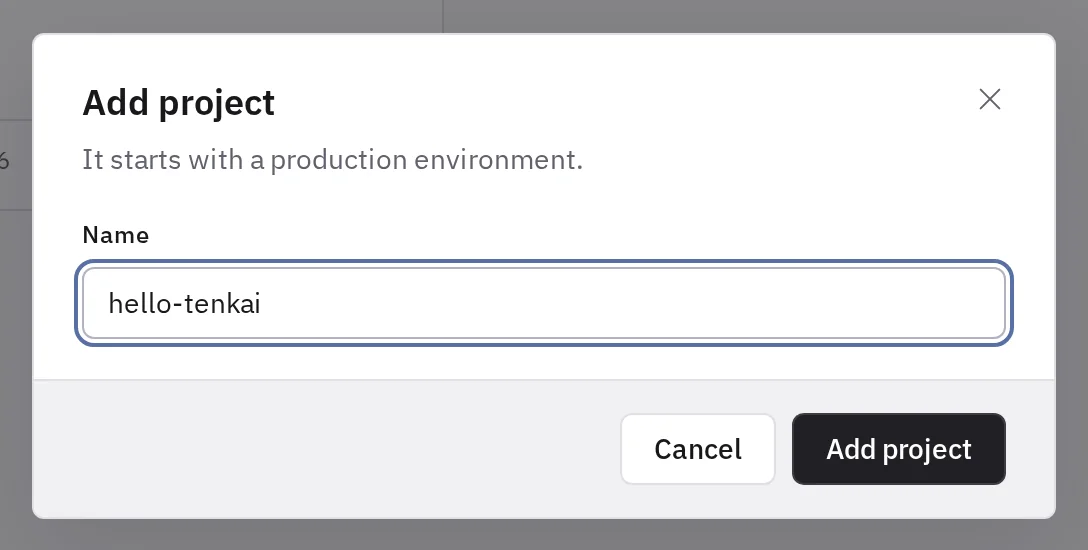
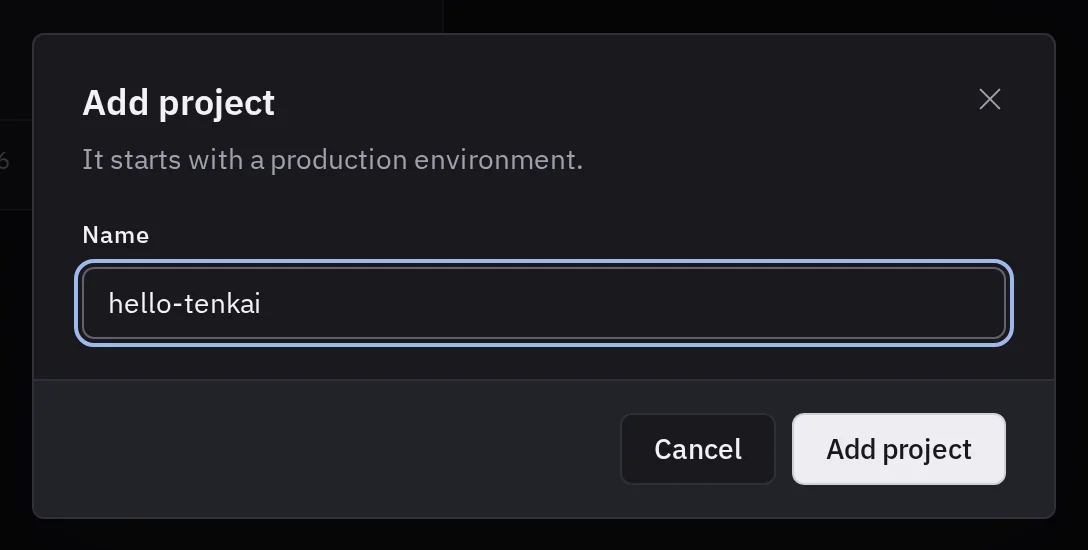
- Open Projects and choose Add project….
- Give it a name, such as
hello-tenkai. - If your team has several usable clusters, choose the Production cluster.
- Create the project. Its production environment comes with it.
Add a web application
- In the project, choose Add resource, then Application.
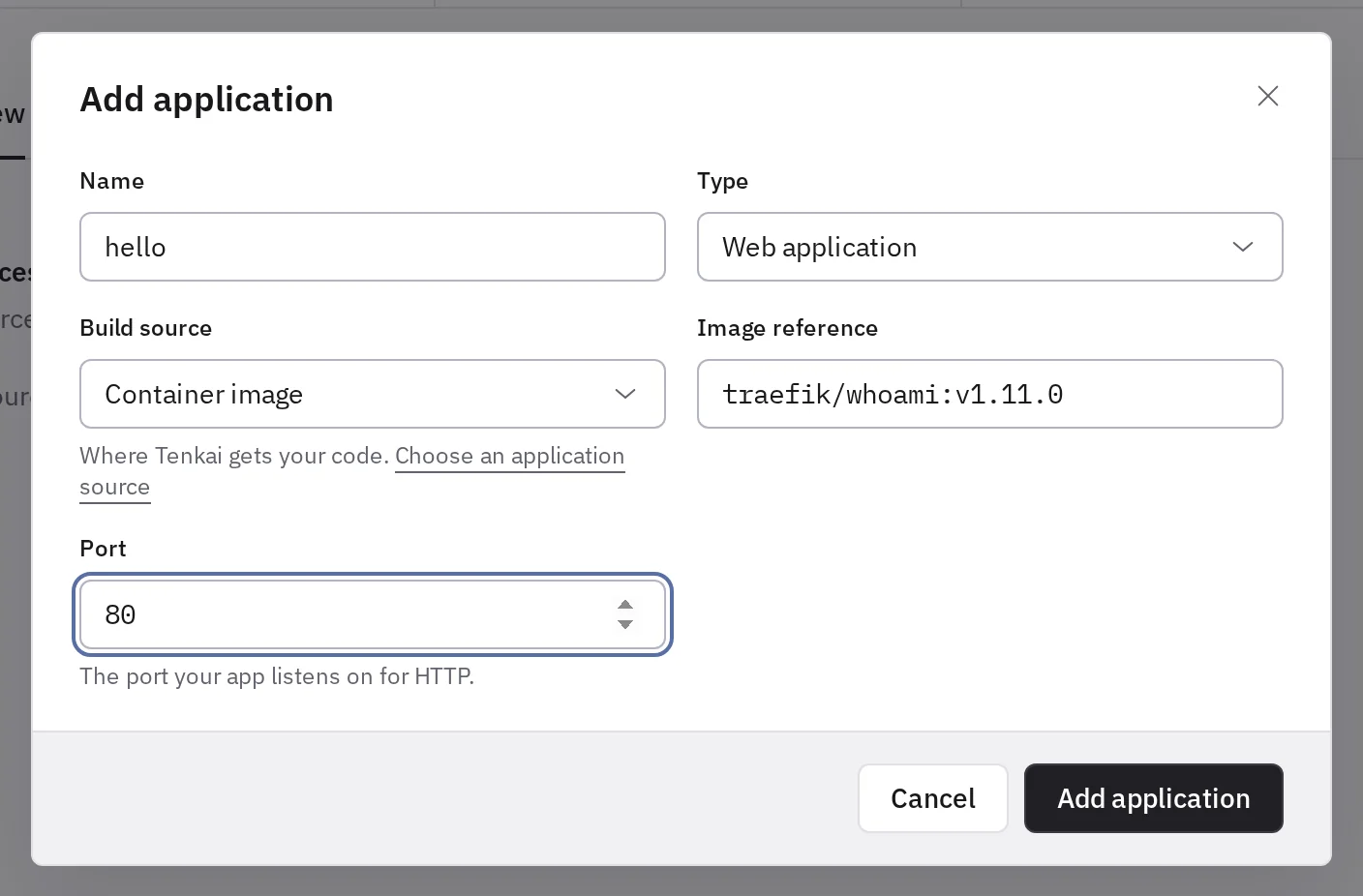
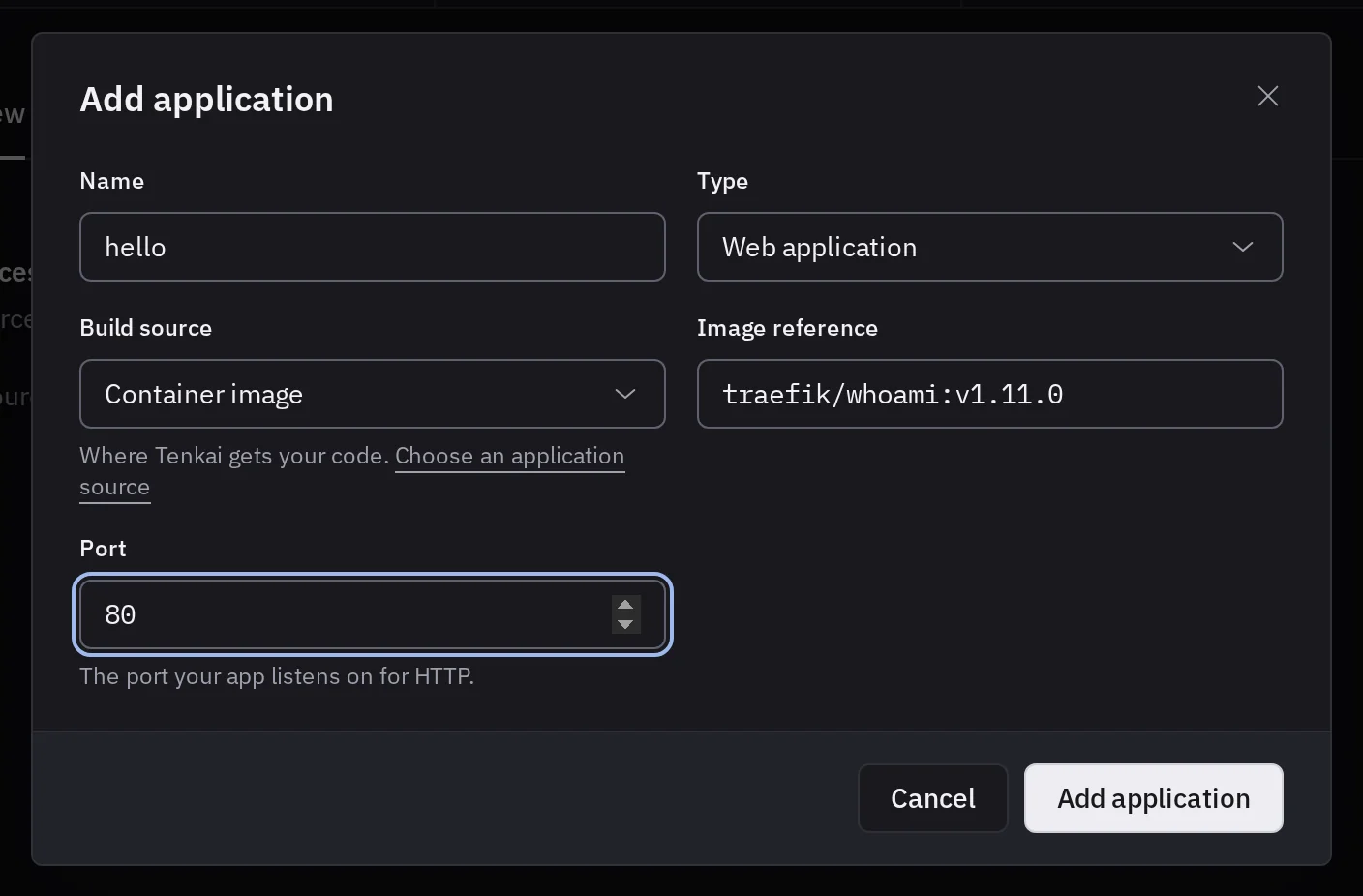
- Name it
helloand choose Web application. - Choose Container image as the build source and enter
traefik/whoami:v1.11.0. - Set Port to
80, the port whoami listens on. - Choose Add application, then open the new resource.
To deploy from Git or a Dockerfile instead, see Choose an application source.
Runtime port
Tenkai sends the requests of a web application to its Port, and checks that port answers during each deployment. Its HTTP server must listen on 0.0.0.0 at that port, not just localhost. A Dockerfile's EXPOSE instruction does not change it. See variables and the runtime port.
Deploy and check the route
- Choose Deploy on the resource. If the deployment fails, read its Details.
- Once the release is active, open the default route shown on the resource.
- If the browser does not load it over HTTPS yet, wait until the Domains tab shows its certificate as Active. Tenkai requests it once the application is deployed.
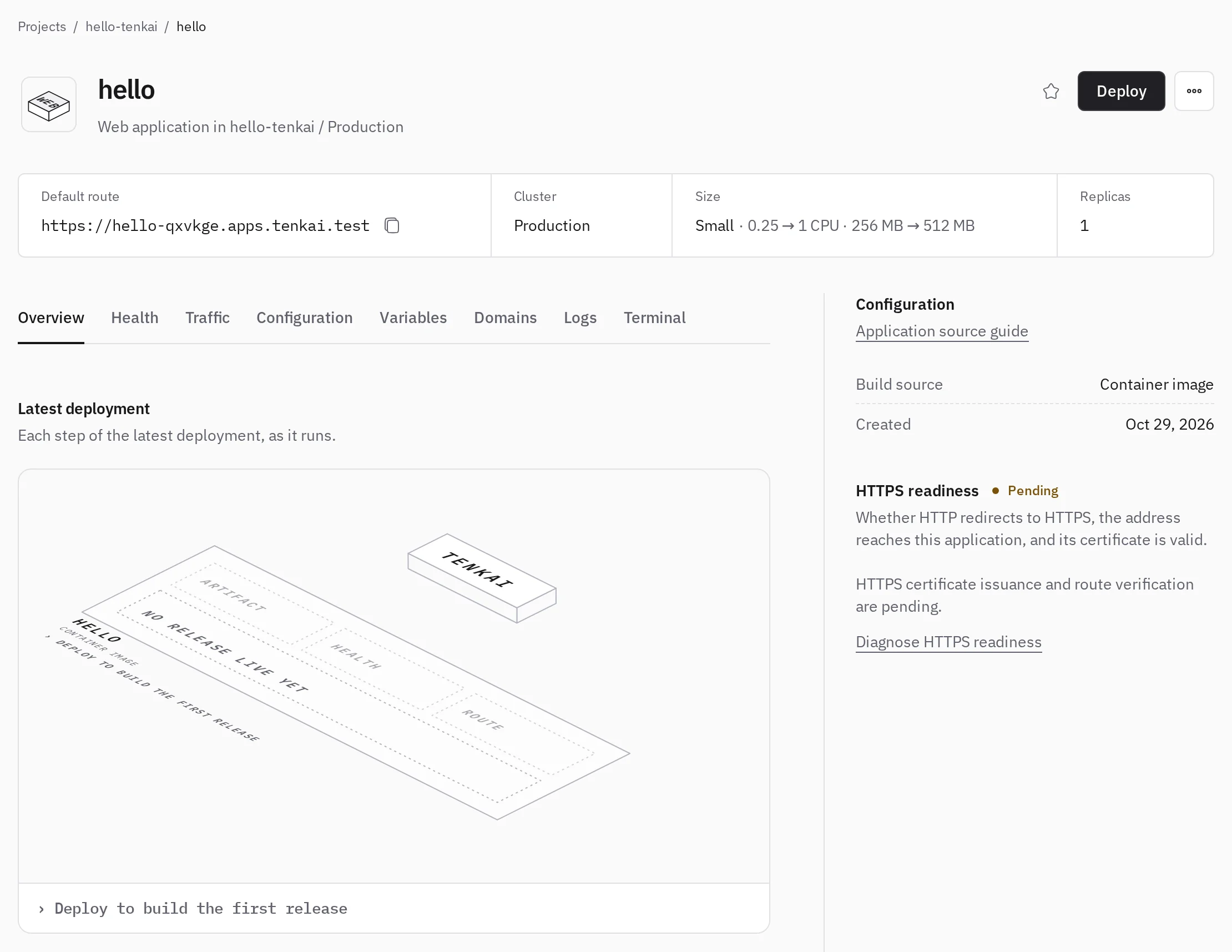
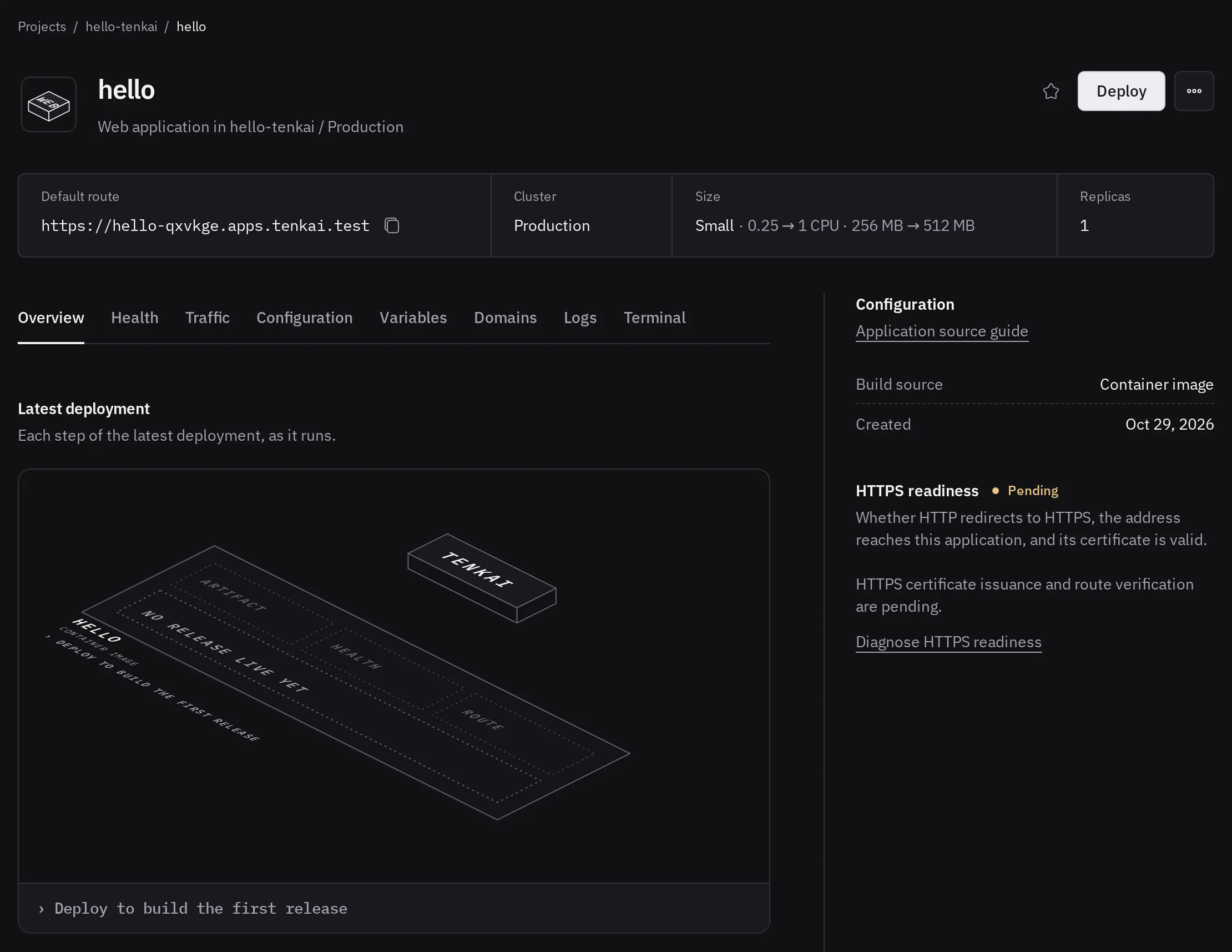
If the application is active but the URL fails, see troubleshooting.
Next steps
Deploy your own Node.js application, then connect a custom domain, or install a ready-made app such as Umami. Health shows what needs attention.
Files written inside a web application's container are lost at the next deployment. For uploads or database files, keep a directory or use a managed service.