Host buckets on a cluster
Run an S3-compatible storage on a node of your cluster, give a web application its own bucket and keys, and know what happens to the files when the node is lost.
Some applications keep their files in an S3-compatible bucket: uploads, attachments, exports. A cluster can host such buckets in its cluster storage. In a project, you add a hosted bucket, a bucket in that storage, and bind it to the applications that use it.
A hosted bucket is not a storage bucket. A storage bucket is a bucket you own at a provider, where Tenkai keeps your backups and the copy of a hosted bucket.
What you should know first
The cluster storage keeps every file in a volume on one node, its data node:
- if the data node or its disk is lost, the files are lost with it;
- the storage cannot move to another node;
- the buckets share the disk of the node with its other resources, so each hosted bucket has a size limit.
Tenkai makes no backup of a hosted bucket. For files you cannot lose, keep a copy of them in a storage bucket. Without a copy, use a hosted bucket only for files you can lose or create again.
The storage, Garage, reserves 128 MB of memory on its data node.
Enable the cluster storage
Owners and admins manage the cluster storage. Owners, admins and developers add, bind and delete hosted buckets.
- Open the page of the cluster and find its Cluster storage section.
- Choose Enable….
- Choose the Server that holds the files, its data node.
- Choose Enable cluster storage.
The storage gets an HTTPS address, such as https://storage-k7m4p9.apps.tenkai.cloud, served through the edge node.
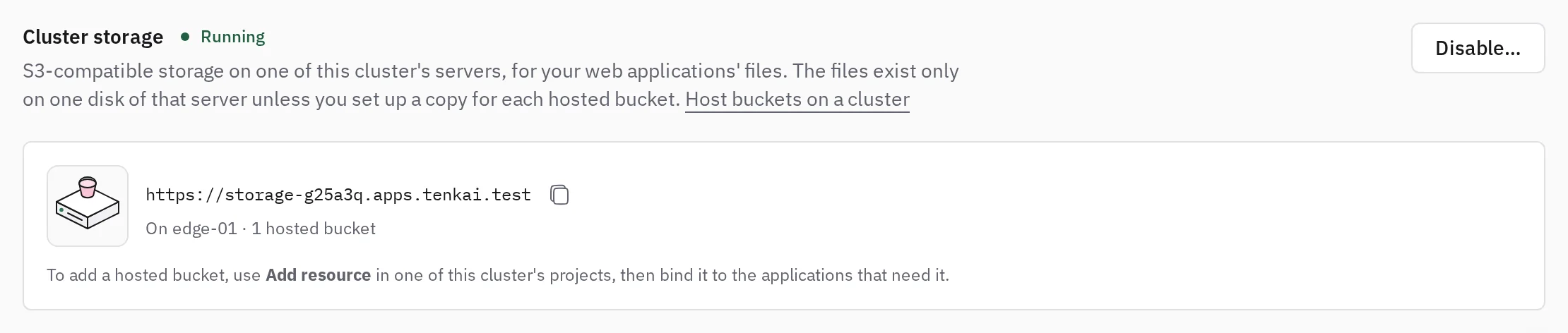
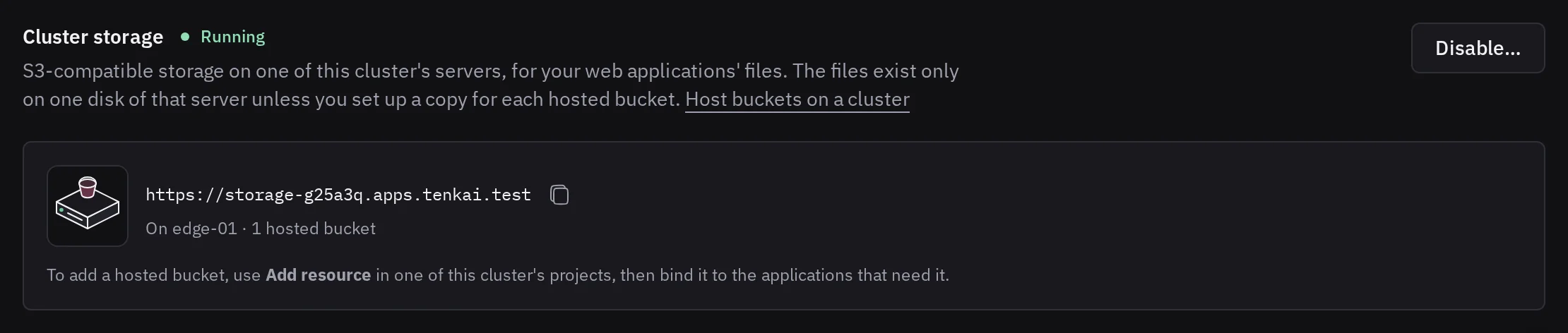
If the storage shows Failed, fix the reason it gives and choose Retry. For example, when the data node has no room for the 0.1 CPU and 128 MB the storage reserves, give the server more CPU or memory, or free some of what its resources reserve. To move the storage to another node, such as a new one, disable it and enable it there. If Tenkai could not publish its address and issue its certificate within 3 hours, choose Retry later.
If enabling says "Another operation was running on this cluster. Try again.", wait for the other operation to finish, then enable it again.
A data node cannot be drained and cannot leave its cluster while it holds the cluster storage.
Add a hosted bucket
The cluster of the project must run its cluster storage.
- Open the project and choose Add resource, then Hosted bucket.
- Enter a Name, such as
uploads. - Enter the Size limit, from 1 to 1000 GB. The storage refuses a file that would bring the bucket above it. Files uploaded at the same moment can still go a little above it.
- Choose Add hosted bucket.
Tenkai creates a bucket such as uploads-k7m4p9, with keys that open this bucket only.
If the bucket shows Not created, open its page and choose Create again.
Bind it to an application
A binding gives an application the address and the keys of the bucket, in variables that Tenkai manages, as for a managed service.
- Open the More actions menu of the hosted bucket in the project, or open its page, and choose Bind to an application….
- Choose the application.
- Choose the variables it receives, then select Bind, or Bind and apply to run the application with them at once.
- Deploy the application again to apply them.
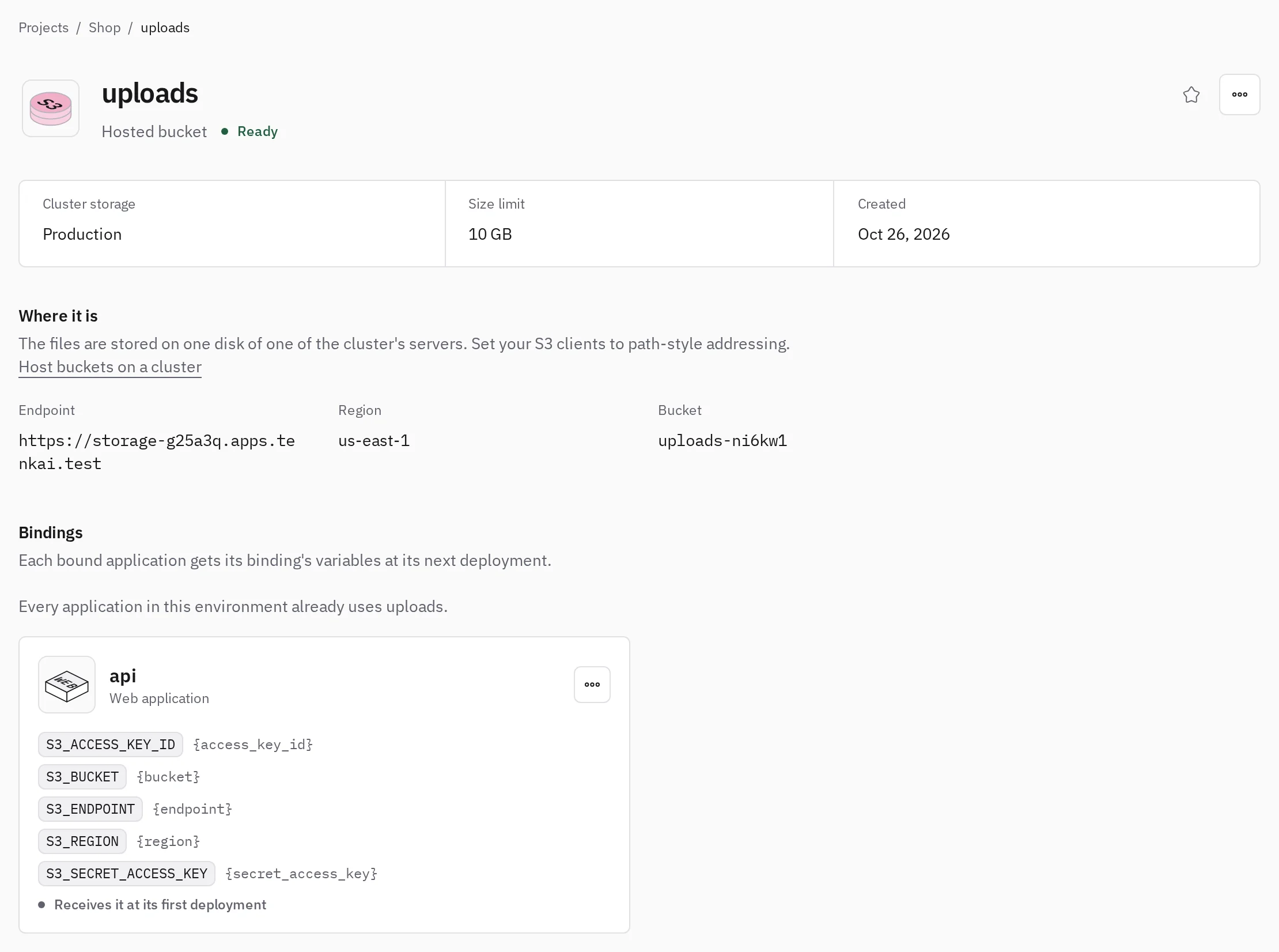
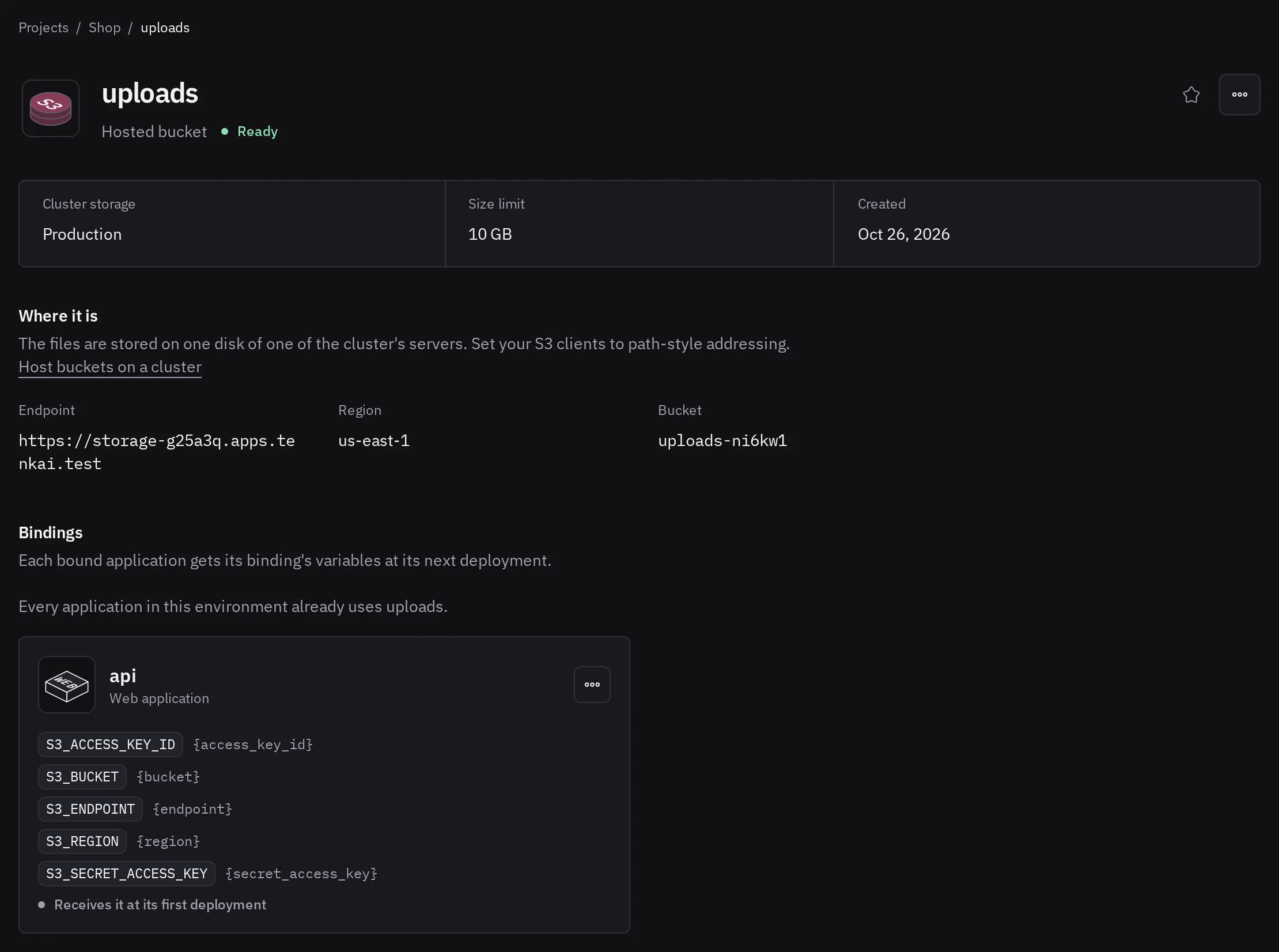
By default, the application receives five variables:
| Variable | Value | What it gives |
|---|---|---|
S3_ENDPOINT |
{endpoint} |
The address of the cluster storage, with https:// |
S3_REGION |
{region} |
us-east-1 |
S3_BUCKET |
{bucket} |
The name of the bucket |
S3_ACCESS_KEY_ID |
{access_key_id} |
The access key of the bucket |
S3_SECRET_ACCESS_KEY |
{secret_access_key} |
The secret key of the bucket |
Give the variables the names your application reads. The AWS SDK set starts from AWS_ENDPOINT_URL, AWS_REGION, AWS_ACCESS_KEY_ID and AWS_SECRET_ACCESS_KEY. A value may combine text and several values, such as {endpoint}/{bucket}.
Several applications of the environment can share a bucket, its files and its keys. Change the variables with Edit a binding, not from the Variables tab, and remove them with Unbind. The bucket and its files stay when you unbind it.
Set your S3 client to path-style addressing, often named forcePathStyle or use_path_style_endpoint: the address has the bucket in its path, such as https://storage-k7m4p9.apps.tenkai.cloud/uploads-k7m4p9/photo.jpg. The application and browsers use the same public address, so a signed URL works in a browser.
The storage checks the checksum a signed upload URL carries. Sign upload URLs without one: with the AWS SDK for JavaScript, create the client with requestChecksumCalculation: 'WHEN_REQUIRED'. Otherwise the browser's upload fails with InvalidDigest.
The edge node gives a request 60 seconds to send its body. Upload large files in parts, as most S3 clients do by default.
Keep a copy of the files
A hosted bucket can keep a copy of its files in a storage bucket of your team, outside the cluster.
- Add a storage bucket from Storage, if the team has none. Unlike for backups, its keys must also be allowed to list the bucket, as well as to write, read and delete objects.
- Open the page of the hosted bucket and find its Copy section.
- Choose Choose a storage bucket… and select the bucket.
- Under How often, choose Every day, Every hour or Every 15 minutes, then choose Save.
- Choose Copy now for a first copy, or wait for the next scheduled copy.
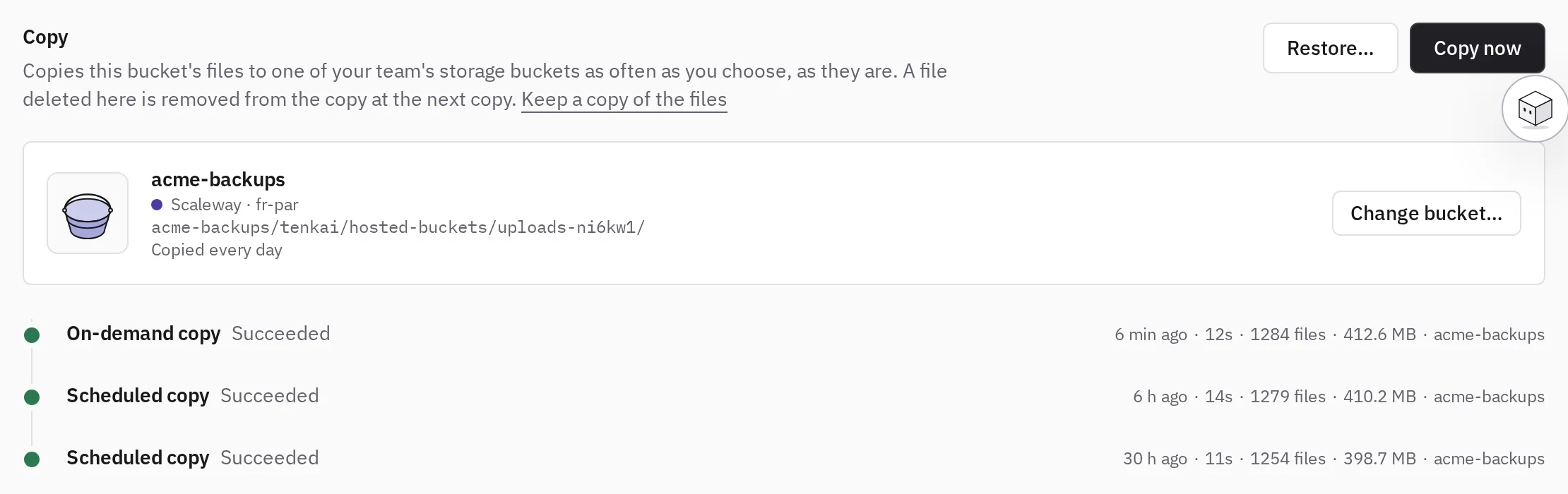
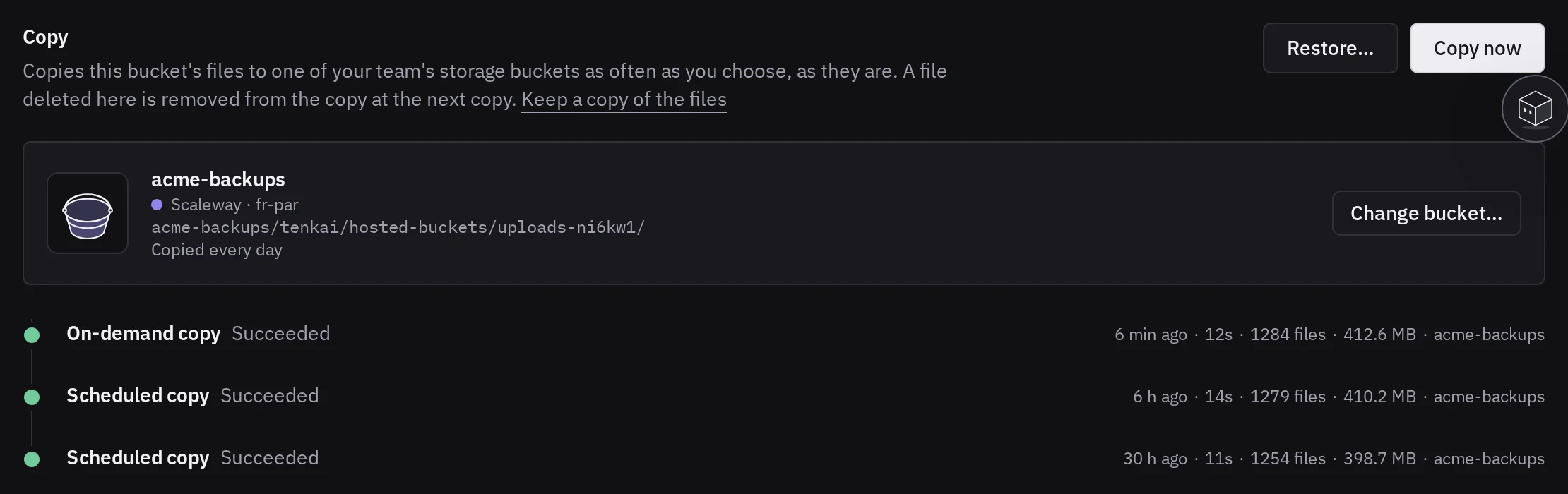
The files go to the folder hosted-buckets/<bucket>/ of the storage bucket, under its prefix, such as acme-backups/tenkai/hosted-buckets/uploads-k7m4p9/. Tenkai copies them as they are, without encryption, so you can read them at your provider without Tenkai.
Tenkai stops a copy that runs longer than 12 hours; the next one goes on from the files already there. To change how often Tenkai copies, choose Change bucket…, keep the same bucket and choose another frequency. To stop the copies, choose Change bucket…, then Keep no copy: the files already copied stay at the provider. A storage bucket that holds a copy cannot be removed.
Choose what the copy keeps
Mirror with Trash and snapshots are experimental: an owner or admin turns on Bucket copy modes for the team first. See Try an experimental feature.
Under What the copy keeps, in Change bucket…, choose one of three modes:
- Mirror, the default: the copy holds what the bucket holds. A file you delete from the bucket leaves the copy at the next copy, so a Mirror protects you from the loss of the node, not from a file deleted by mistake.
- Mirror with Trash: the copy stays a mirror, and each file that a copy deletes or replaces moves to the folder
hosted-buckets-trash/<bucket>/of the storage bucket, where Tenkai keeps it 30 days. - Snapshots: each copy takes a snapshot of the whole bucket in the folder
hosted-bucket-snapshots/<bucket>/. A snapshot holds only what changed since the one before. Tenkai keeps 24 hourly, 7 daily, 4 weekly and 12 monthly snapshots.
The files that one mode copied stay where they are when you choose another. The Trash is the exception: after you leave Mirror with Trash, the copies keep emptying it after 30 days, until it is empty. Meanwhile the keys of the storage bucket must still list and delete the files in hosted-buckets-trash/<bucket>/. If they cannot, the copies fail and say so: give the keys these rights, or empty that folder yourself. If you also choose another storage bucket, Tenkai no longer empties the Trash in the one before: delete its hosted-buckets-trash/<bucket>/ folder at your provider. The Trash and the snapshots count in what your provider bills. Whatever the mode, you lose what changed since the latest copy if the node is lost.
Snapshots are encrypted with restic. To open them without Tenkai, download the backup key of your team from Storage, then derive their password from the key the bucket had when its snapshots started:
printf tenkai-bucket-snapshots | openssl dgst -sha256 -hmac 'AGE-SECRET-KEY-1…'
A rotation of the backup key keeps the snapshots readable with the former key, also after you move the copy to another storage bucket. If you lose the backup key, you lose the snapshots.
Restore the files
Tenkai never deletes a file of the bucket during a restore, so a file added since stays. A file of the same name is replaced. The restore fails if the files do not fit in the size limit of the bucket. What you restore depends on the mode.
Mirror. Choose Restore…, then Restore the files: Tenkai brings back every file of the copy.
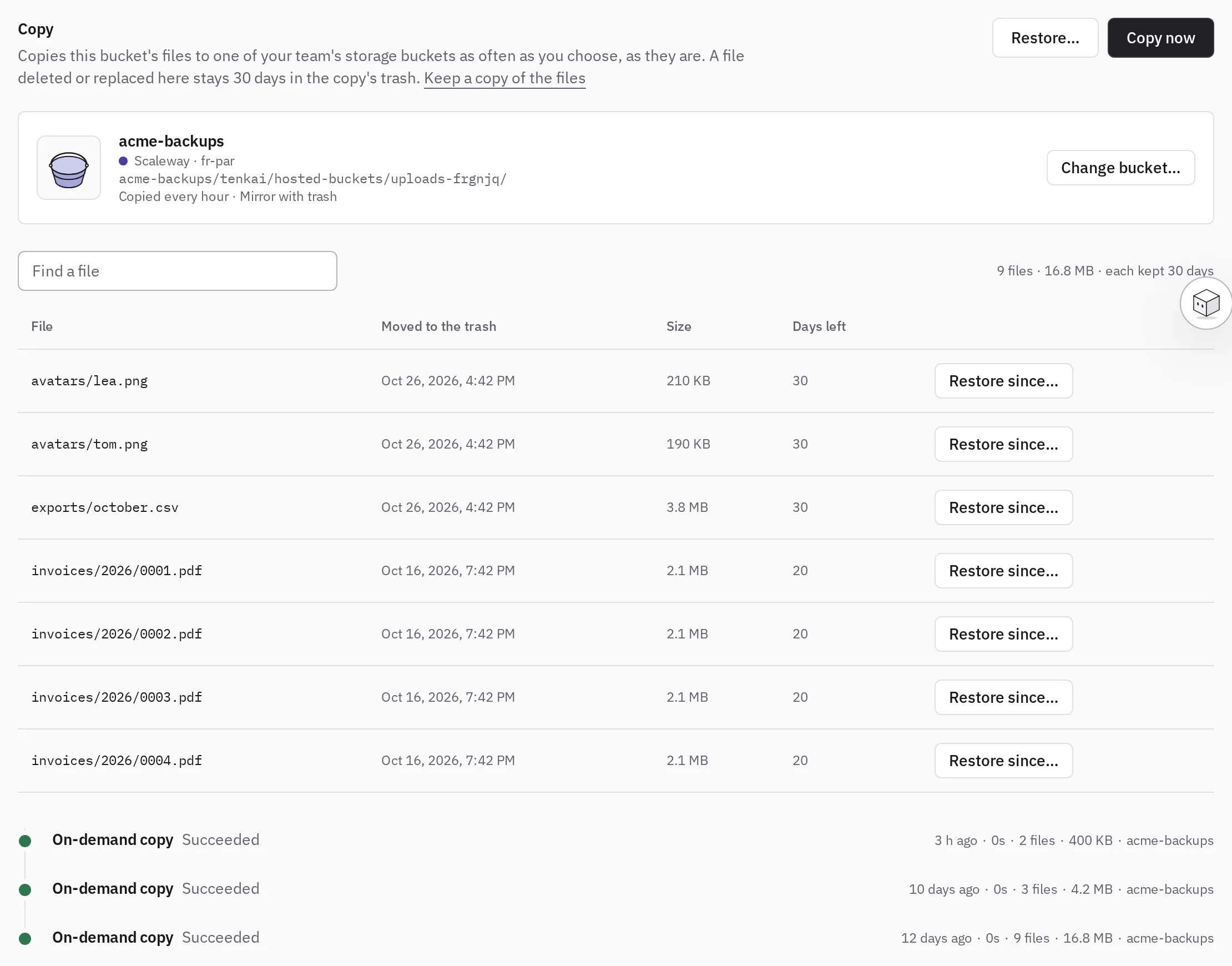
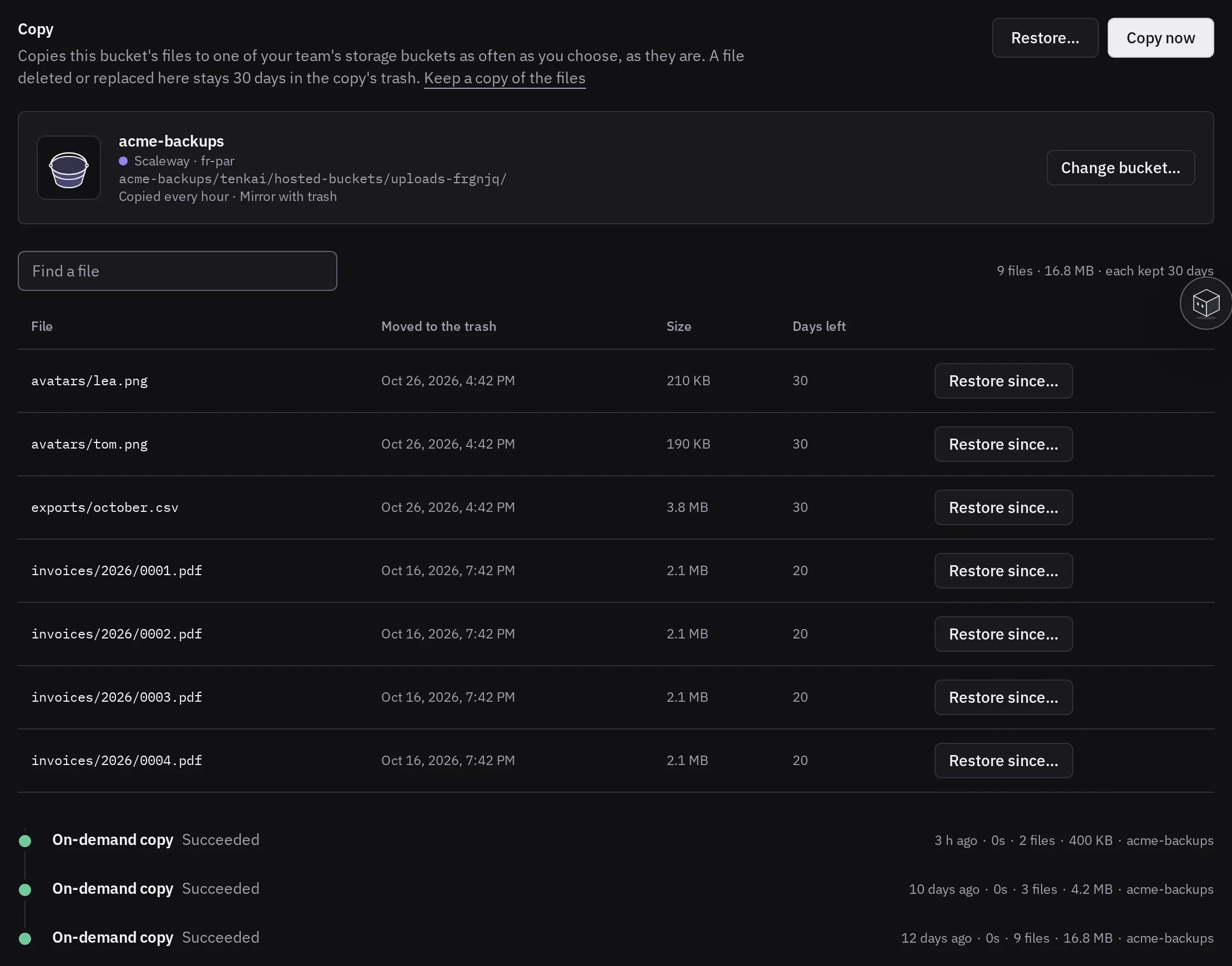
Mirror with Trash. The Copy section lists the files of the Trash, the newest first. Type part of a path in Find a file, then choose Restore since… on its line and Restore the files. Tenkai brings back every file moved to the Trash since that file left the bucket, each one as it was before its first change since then. Restore… still brings back the files of the mirror.
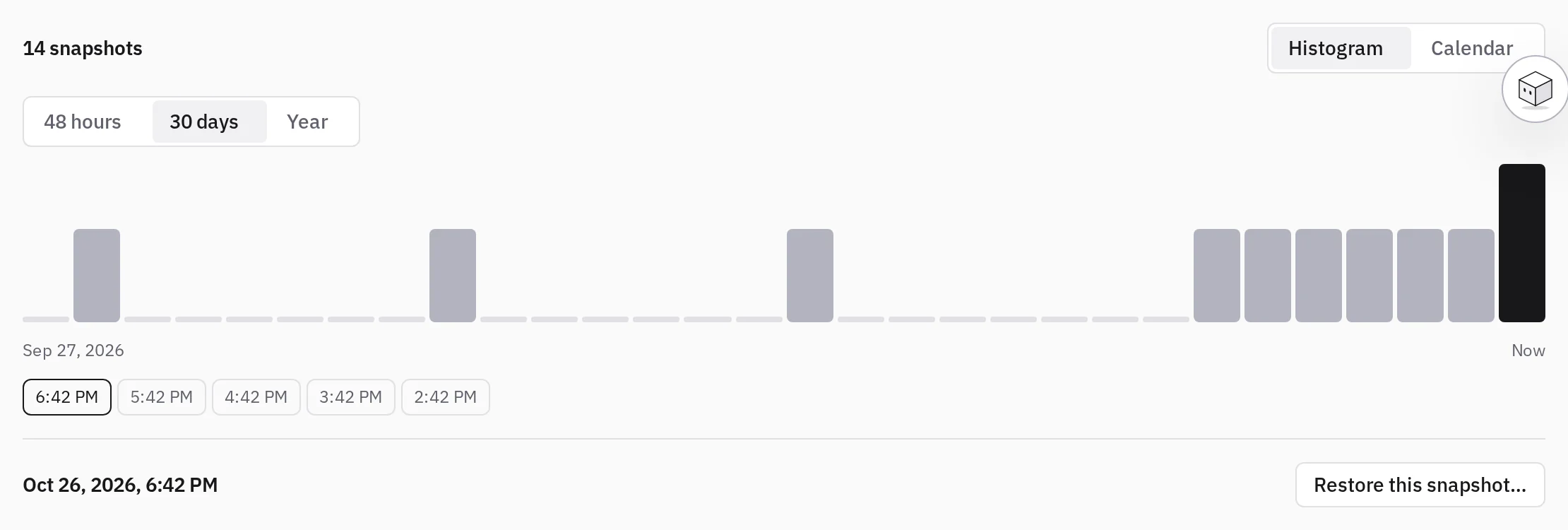
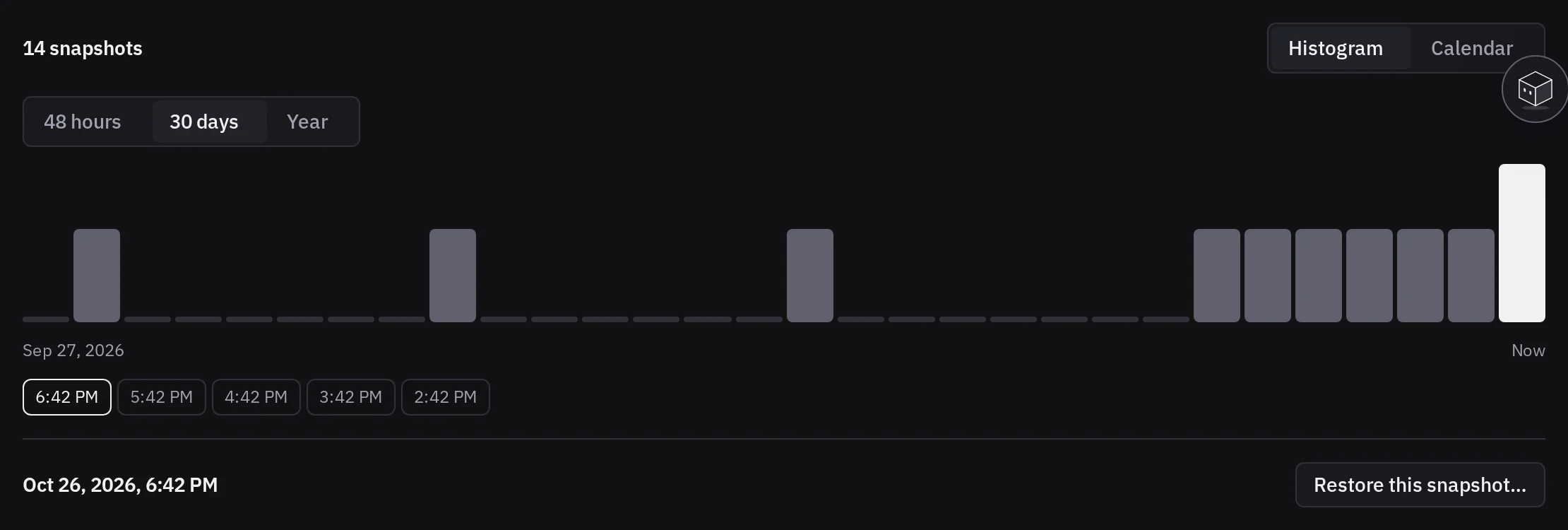
Snapshots. The Copy section shows the snapshots on a Histogram of the last 48 hours, 30 days or year, or on a Calendar of the last 13 months. Choose a bar or a day, then a time when it holds more than one snapshot, then Restore this snapshot… and Restore the files: the bucket gets back its files as they were then.
Delete a hosted bucket
- Open the page of the hosted bucket and choose Delete… in its More actions menu.
- Type its name and choose Permanently delete hosted bucket.
Tenkai deletes the bucket with every file in it, revokes its keys, and removes the variables of its bindings from the applications. This cannot be undone. The files of its copy stay in their storage bucket: delete them at your provider.
If the bucket shows Deletion failed, its page says why. Choose Delete… again. If the servers of its cluster are gone, select The cluster's servers are gone, or will never answer again in the dialog.
Deleting a bound application keeps the bucket and its files. Deleting the project deletes its hosted buckets with their files.
Disable the cluster storage
- Delete every hosted bucket of the cluster.
- Open the page of the cluster and choose Disable… in its Cluster storage section, then Disable cluster storage.
Tenkai removes the storage with the volume that held its files. If you enable it again later, it gets a new address and new keys.
When the data node is lost
If the machine of the data node is gone, its files are gone too. Force the removal of the node from the cluster page. Each hosted bucket then shows Storage lost, and the applications bound to it receive variables that reach nothing.
To get a bucket back:
- Enable the cluster storage on another node, from the page of the cluster.
- Open the page of the hosted bucket and choose Create again. Tenkai creates it empty, with the same name and the same bindings, a new address and new keys.
- If the bucket keeps a copy, bring its files back from its Copy section: Restore…, or a snapshot when the copy keeps snapshots.
- Deploy the applications bound to it again, so they receive the new address and the new keys.
Tenkai pauses the scheduled copies of a bucket created again, so that it does not empty its copy. They start again once a restore succeeds. If you do not want the old files, choose Copy now instead.
If you no longer need a lost bucket, delete it: its bindings go with it.