Install an app from the marketplace
Install a ready-made app such as Umami or WordPress into a project, with the web application, the database and the kept files it needs, and see what to do when it does not start.
What the marketplace installs
The Marketplace is a catalog of ready-made apps, such as n8n, Metabase, Listmonk, WordPress or Uptime Kuma. Open it from Marketplace in the sidebar, and filter it with Search and Category.
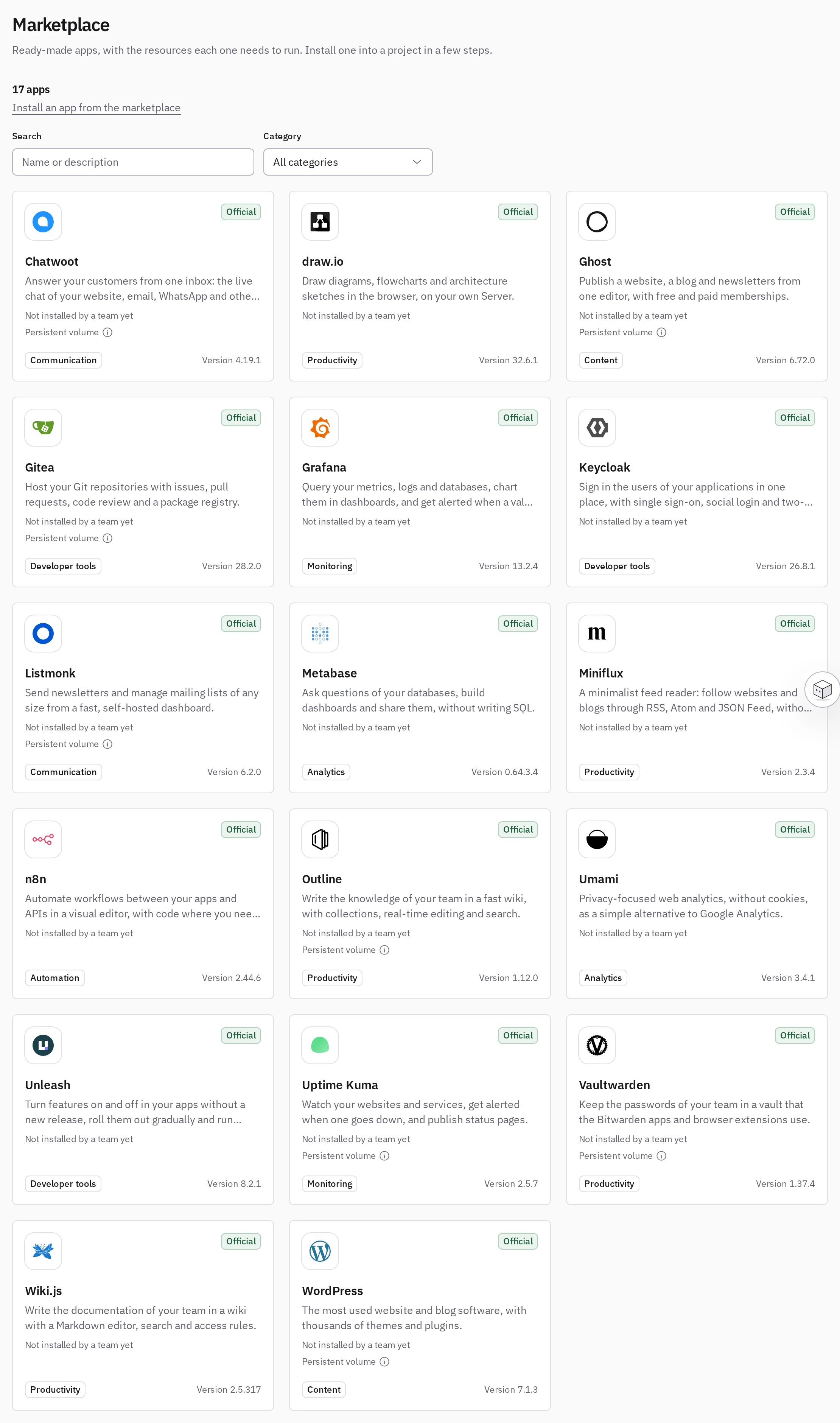
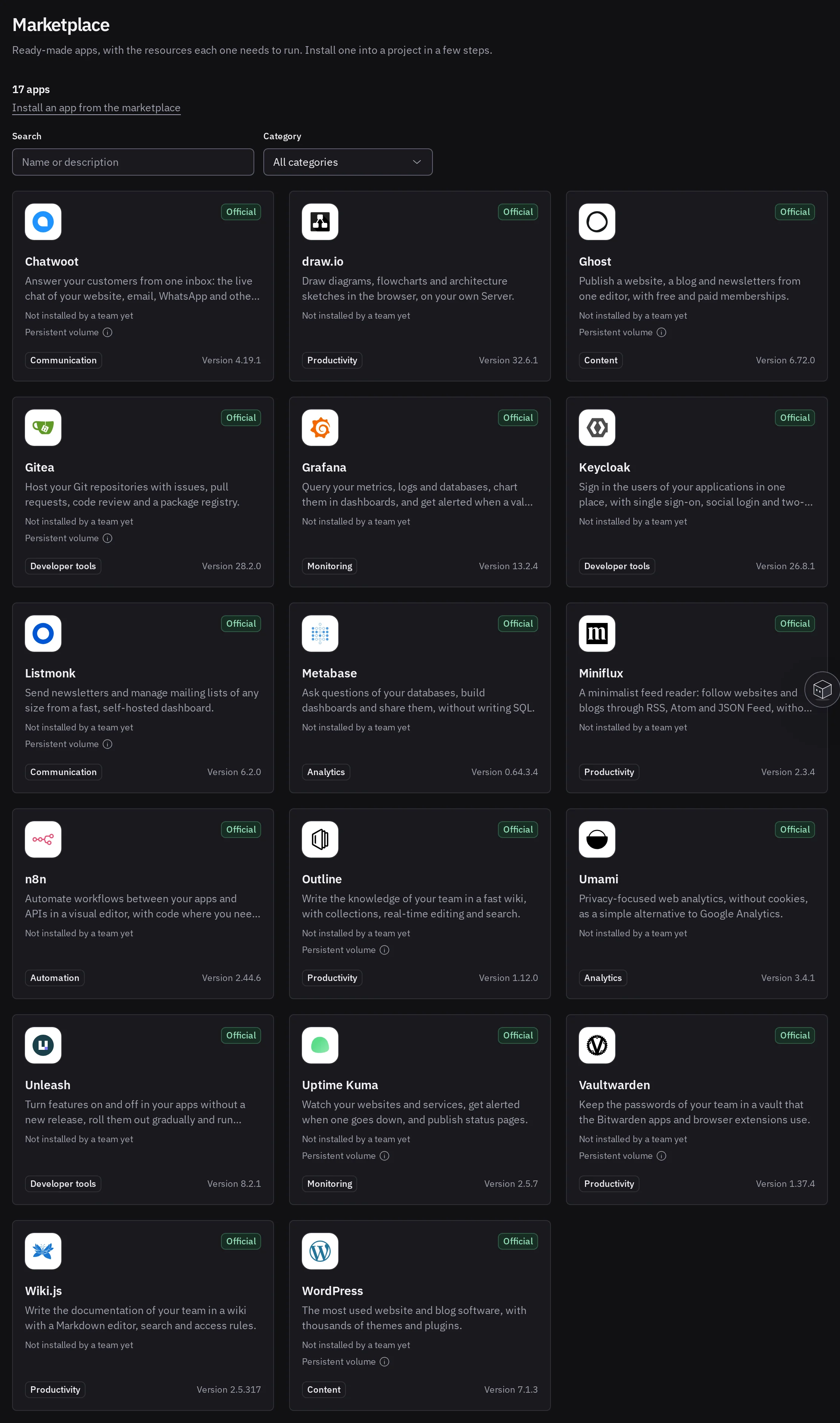
An app is made of ordinary Tenkai resources: Web applications, workers and managed services. Its page lists them under What it adds to a project, with the CPU and memory they reserve together on your cluster.
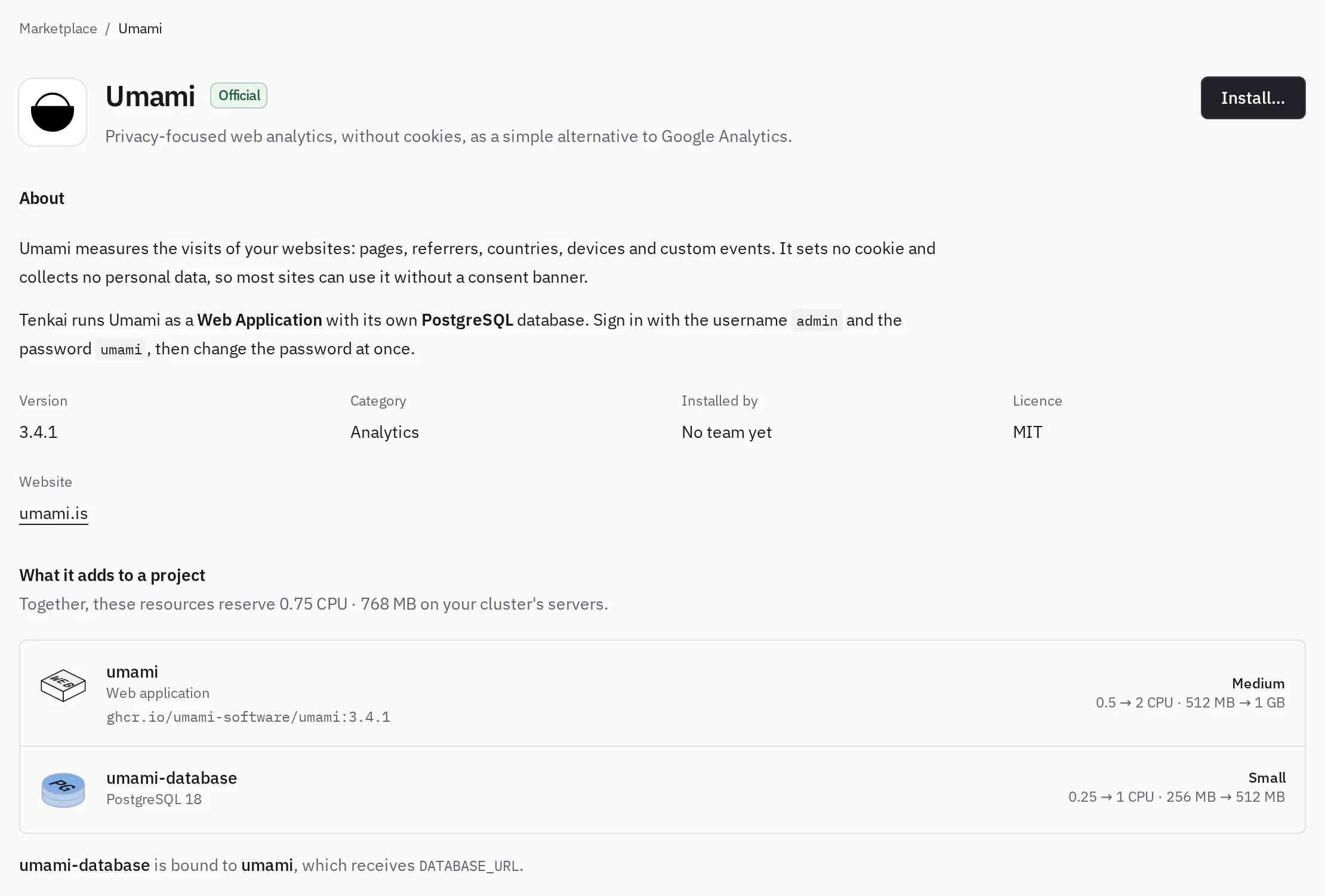
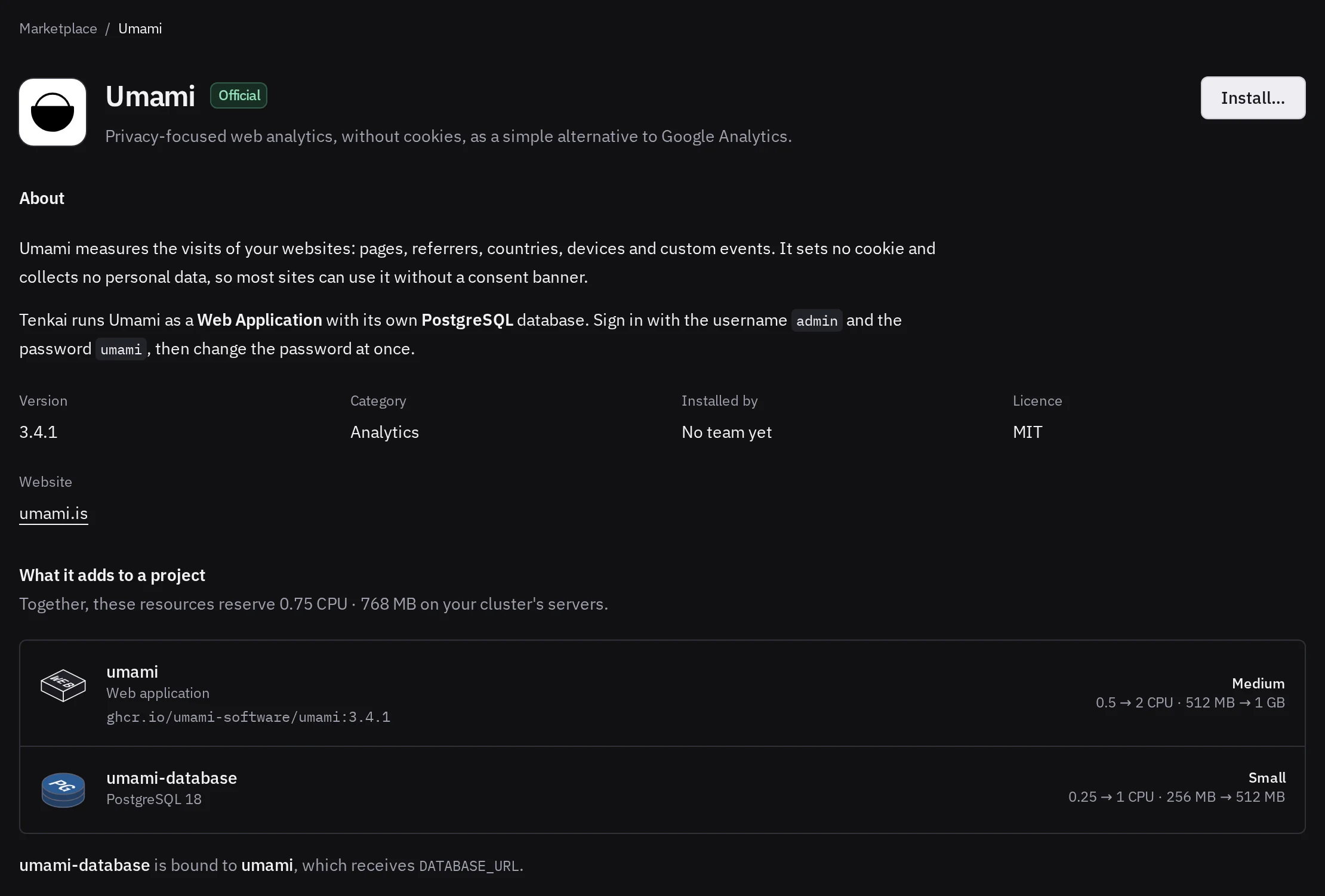
DATABASE_URL.Install an app
Owners, admins and developers can install an app. You need a ready cluster.
- Open Marketplace and choose an app. In a project, Add resource then From the marketplace opens the same catalog for that project.
- Choose Install….
- Under Install into, choose the project that receives the app. Projects are grouped by the cluster they run on, and the dialog names that cluster above the resources. Owners and admins can choose New project under the cluster it should run on, and keep or change its name.
- Keep or change the name of each resource by clicking it, and fill the fields the app asks for, such as the email of its first account.
- Confirm with the button of the dialog, such as Install Umami.
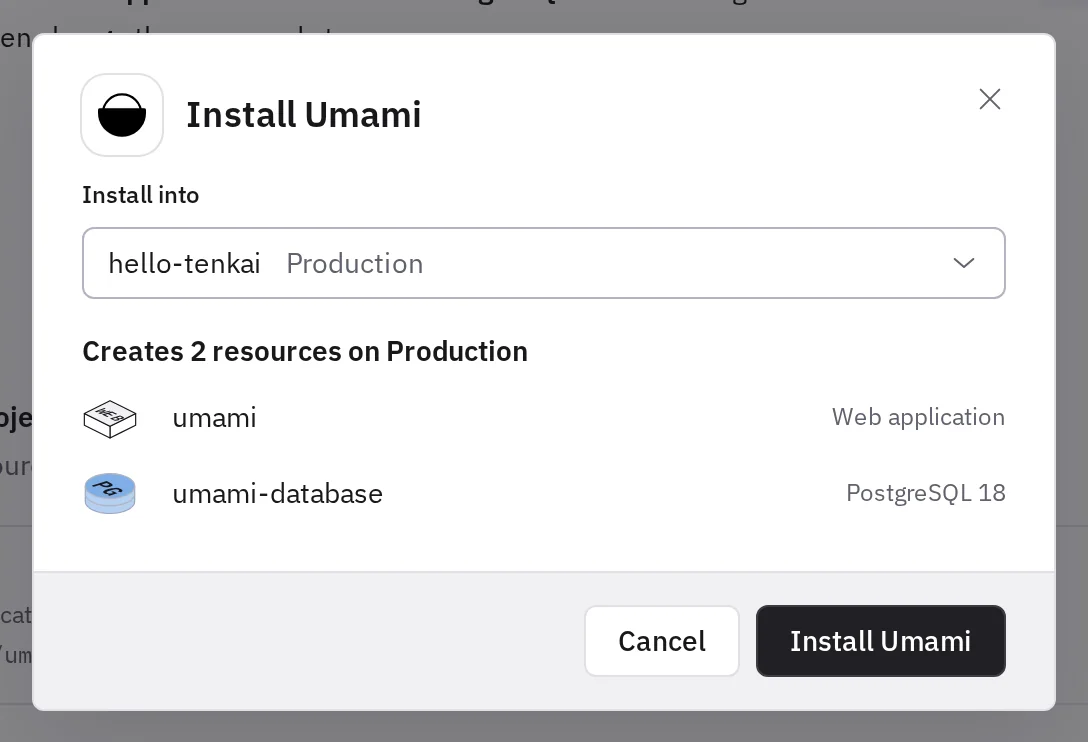
Tenkai creates the resources in the production environment of the project.
What happens after the installation
Tenkai deploys each web application and each worker of the app on its own. An app with a database waits until its managed service runs, and shows Waiting for its managed service meanwhile.
Until each web application of the app serves its first release, the Resources of the project show the installation: what Tenkai creates and deploys now, and the step that failed. Choose Show the resources to see the resources as usual, or a resource below the drawing to open it. Once the app is live, the project shows its resources again.
Follow the deployment as for a first deployment, then open the default route. Read the About section of the app before you sign in, and choose Show more under it for how to sign in and what to keep. Some apps start with a default password you must change at once. Many let the first visitor create the first account. Some need variables from you, such as an SMTP server for Ghost. Outline has no password: the browser that creates its workspace is signed in, and any other sign-in needs an SMTP server or an identity provider that you add to its variables. Grafana, Keycloak, Gitea, Miniflux and Unleash start with an administrator whose password Tenkai generated: read it in the variables of the web application. Gitea asks you to choose another one at your first sign-in. Vaultwarden lets nobody create an account until you invite an email address from its administration page, which opens with the token in ADMIN_TOKEN.
When a web application and a worker of an app share a variable, such as SECRET_KEY_BASE for Chatwoot, change it in both, then deploy both.
The resources are yours
An installation copies the app into your project. Change its resources like any other: Variables, size, custom domain, health check, or delete them. Keeping your copy up to date is up to you: a newer version of the app does not reach it until you upgrade it.
When a newer version fixes a security issue, Tenkai emails the owners and admins of your team once for each installation of an earlier version, with what the flaw allows and a link to the advisory. Open the app from the email and upgrade it.
The health check of WordPress calls /wp-admin/install.php?step=1. If you block or delete that file, change the path of the health check first, or the next deployment fails.
A database of an app has no backup until you choose where they go: see Back up and restore a database and the storage and recovery limits.
Apps that keep files
Some apps write to a directory that must stay, such as WordPress, Uptime Kuma, Listmonk, Chatwoot, Outline, Ghost, Vaultwarden and Gitea. Their card says Persistent volume. Tenkai keeps these directories in a volume on one node of your cluster, as for any web application that keeps files.
Such a web application:
- runs on that node only, with one replica;
- does not answer for a moment during each deployment, usually less than a minute, and stops during a backup unless you ask for a live backup;
- needs free room on the node for a copy of its files before a deployment that changes the image;
- rolls back only to a version whose files Tenkai holds: see Roll back an application that keeps files;
- loses its files when you delete it.
A worker of the same app does not see these files. The About section of Chatwoot, under Show more, says how to keep them in an S3 bucket instead.
Choose a storage bucket in the Backups tab of the web application to back up its files every day, with the databases of the app taken at the same moment: see Back up an application that keeps files. A restore brings back the files and the databases together, on the same node only.
If the node or its disk is lost, Tenkai does not bring the application back. Read the backup without Tenkai, install the app again and put the files in place yourself. What was written since the latest backup is lost.
Upgrade an installed app
When the marketplace has a newer version of an app you installed, each of its resources says so under its facts. A version that fixes a security flaw also shows in health. Owners, admins and developers can upgrade.
- Open a resource of the app and choose Review the upgrade.
- Read What's new for each version since yours, and What changes in your copy: images, sizes and variables.
- Keep Back up … first checked, then confirm with Upgrade to ….
The upgrade goes through every version since yours, in order, then deploys each application it changed. With the backup, Tenkai deploys once the backup ends. A backup needs a storage bucket for the app's databases and files: see set up backups.
What you changed on your copy stays as you set it: an image, a size or a variable value of your own, a variable you added or deleted. Your changes lists them. Check that they still suit the new version.
If the backup fails, nothing deploys, and the resource says why. Fix it and take a backup from the Backups tab if you want one, then choose Deploy without a backup.
A newer version may migrate its database as it starts. A rollback then runs the old version against a database it may not read. If the app does not start after the upgrade, read the logs of the deployment, then restore the backup taken before it.
When Tenkai refuses the installation
Tenkai installs the whole app or nothing, and the dialog says why:
- This project already has a resource named …: change the name, or choose another project.
- A new project needs a ready cluster: prepare a cluster first.
- A team owner or admin creates the projects of the team: a developer installs into an existing project only.
- No node has that free: the managed service needs more CPU or memory than any node has left. Add a node or reduce the size of other resources.
- No node of the cluster is ready, or Tenkai could not reach the cluster: see cluster is not ready.
- Tenkai could not retrieve the image of this app: retry in a moment.
- This app exposes a TCP port: update the edge router of the cluster, or free a TCP port by deleting a web application that holds one.
When the app does not start
If the web application stays on Waiting for its managed service and the service needs your attention, open the managed service and use Retry provisioning. See managed service provisioning fails. If it shows Not deployed, choose Deploy.
If the deployment fails, read its logs: see Read the logs of a deployment.
Redis is a registered trademark of Redis Ltd. Any rights therein are reserved to Redis Ltd.