Let a coding agent operate Tenkai
Sign in from Claude Code, Cursor or another MCP client, or create an agent token for an agent that cannot, and approve the deployments and servers the agent asks for.
What an agent token is for
A coding agent, such as Claude Code, Codex or Cursor, can operate Tenkai through its MCP server: read these guides, list your projects, create a resource, follow a deployment and read its logs, check what the health page lists and fix it, diagnose a resource from its replicas, releases, traffic and runtime logs, and a server that fails to set up. An Agent token is the credential the agent connects with.
The agent acts as the team member who created the token, with that member's team role. The scopes and Projects of the token limit it further; a scope never grants more than the role allows.
An agent that can open your browser signs in to Tenkai. For one that cannot, such as an agent in a pipeline, you create the token and give it the secret.
Sign in from the agent
Owners and admins sign an agent in. The agent needs an MCP client that supports OAuth, such as Claude Code, Cursor or VS Code.
- Open Agent tokens in the sidebar. Under the MCP URL, choose the tab of your agent.
- Run what the tab gives. In Claude Code, run
claude mcp add --transport http tenkai <MCP URL>, then/mcp, and choose to authenticatetenkai. In Codex, runcodex mcp add tenkai --url <MCP URL>, thencodex mcp login tenkai. - The agent opens Tenkai in your browser. Sign in if asked.
- Check the name of the agent and the address Tenkai sends your browser back to. An agent names itself, so allow only one you started yourself.
- With several teams, choose the Team the agent works in.
- Clear the Scopes the agent does not need, check Read runtime logs, Change variables and Add storage buckets if it needs them, and add Projects to limit it to some of them.
- Choose Allow.
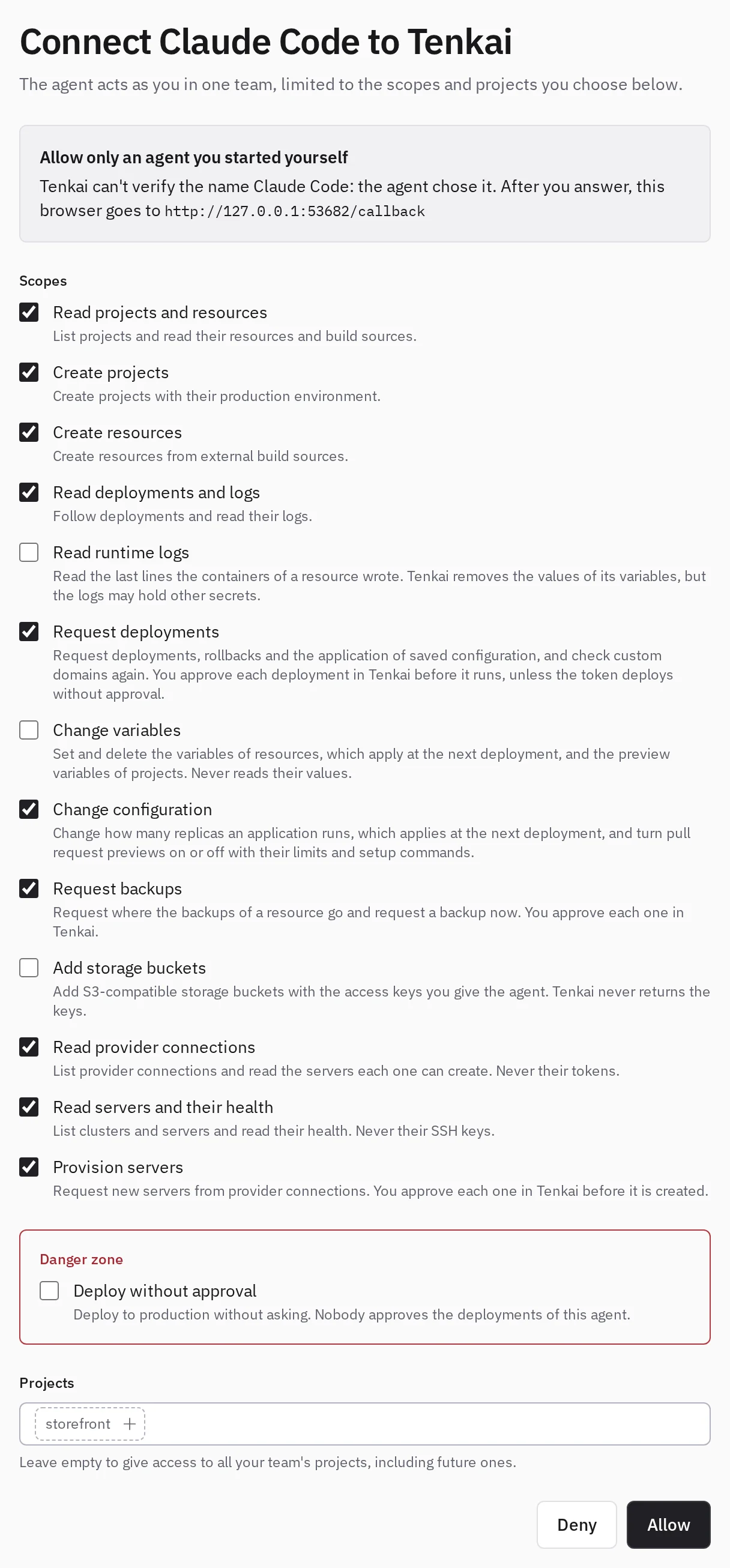
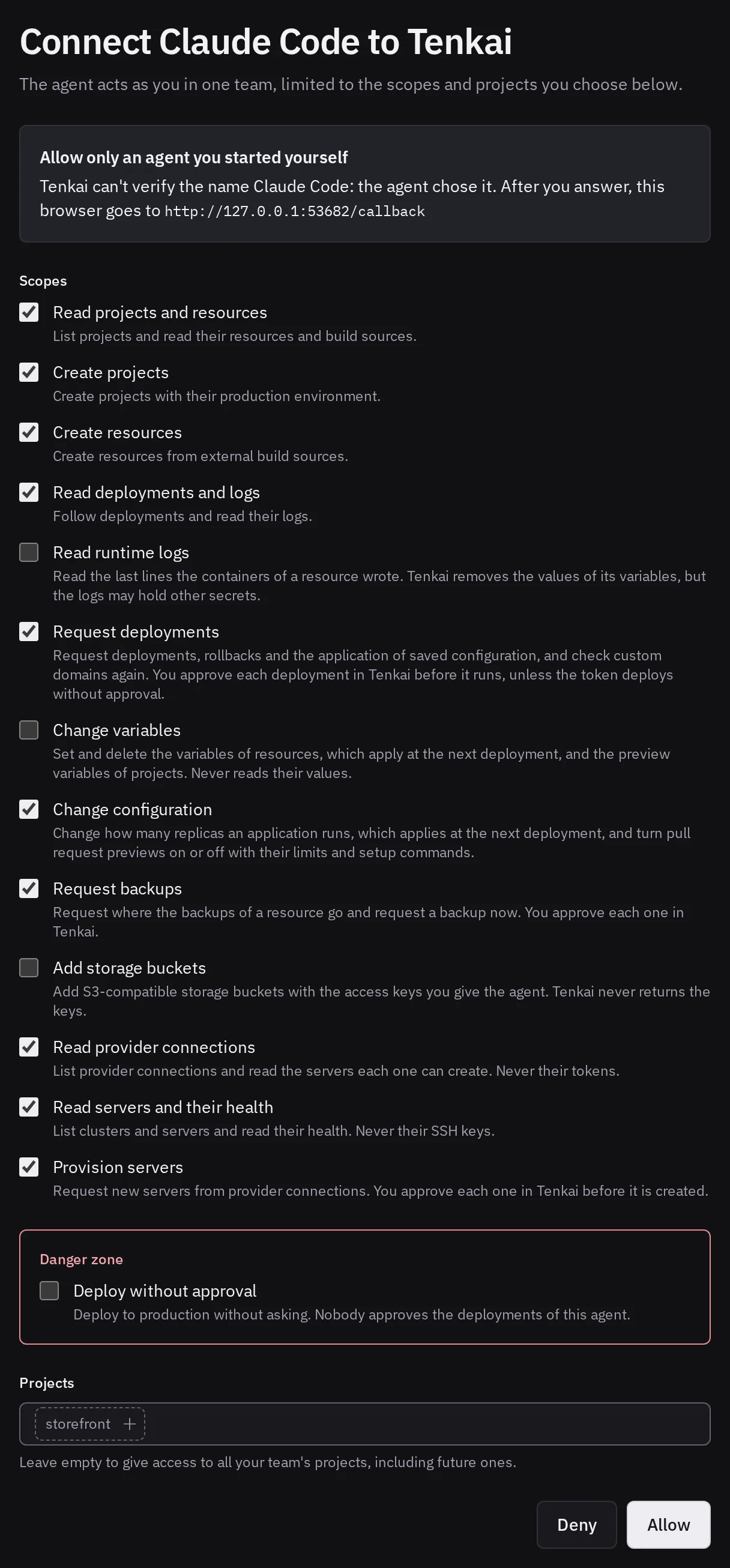
Tenkai creates an agent token named after the agent, with no secret to copy. The sign-in page expires after 10 minutes. The agent must sign in again if it does not reach Tenkai for 30 days. To change its scopes, projects or team, sign in again from it and revoke its previous token.
Create an agent token
Create a token for an agent that cannot sign in. Owners and admins create agent tokens.
- Open Agent tokens and choose Add agent token….
- Enter a name that says where the token lives, such as
Claude Code on my laptop. - Clear the Scopes the agent does not need, and check Read runtime logs, Change variables and Add storage buckets if it needs them.
- To limit the agent to some projects, add them under Projects. Leave it empty to reach every project, including those created later.
- Choose Add agent token, then copy the token. Tenkai shows it only once.
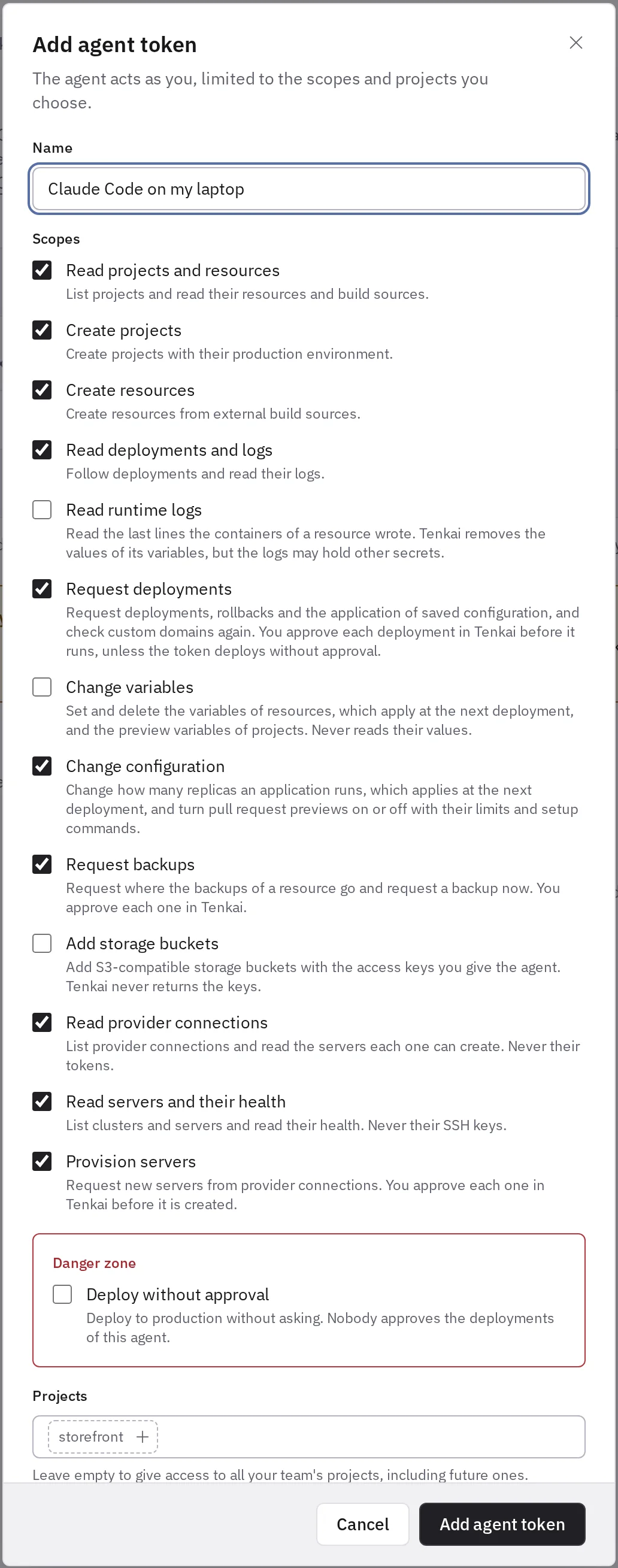
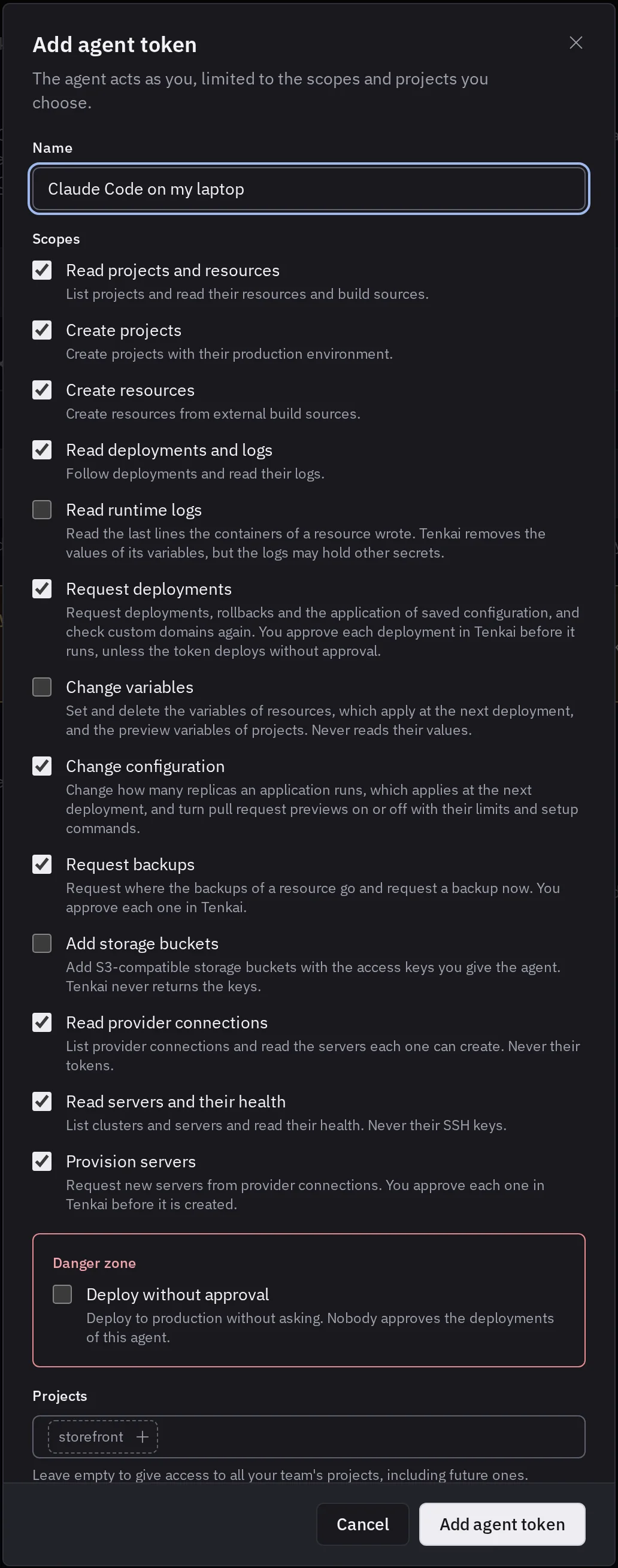
The scopes are:
- Read projects and resources: list projects and read their resources and build sources, with what diagnoses a resource: its replicas, releases, custom domains, traffic, runs, backups with the storage bucket they go to, and the names of its variables, never their values. The agent sees the names of your storage buckets and whether each is valid, never their keys.
- Create projects: create projects with their production environment.
- Create resources: create resources from external build sources.
- Read deployments and logs: follow deployments and read their logs.
- Read runtime logs: read the last lines the containers of a resource wrote. Tenkai replaces the values of the resource's variables, credentials in URLs and values assigned to secret names, but an application can write a secret Tenkai does not know of, or the old value of a variable you changed since the last deployment. Tenkai never selects it for you, even when the agent asks for every scope: check it only for an agent you trust with those logs.
- Request deployments: request deployments, rollbacks and the application of saved configuration, which you approve before they run, unless the token also deploys without approval. The agent can also check a custom domain again.
- Change variables: set and delete the variables of resources, and the preview variables of projects. A variable of a resource applies at the next deployment, which you approve. The agent never reads a value. Tenkai never selects it for you, even when the agent asks for every scope.
- Change configuration: change how many replicas an application runs. The change applies at the next deployment, which you approve. The agent can also turn pull request previews on or off and set their limits and setup commands: a preview deploys each pull request into its own environment without an approval, never into production.
- Request backups: choose the storage bucket where the backups of a database go, and start a backup now. You approve each one. The agent never turns backups off.
- Add storage buckets: add a storage bucket with the endpoint, bucket and access keys you give the agent. Tenkai checks the keys with a test object, as the storage page does, and never returns them to the agent. The bucket receives no backup until a database chooses it, and you approve each choice the agent asks for. The creator of the token must be an owner or an admin. Tenkai never selects it for you, even when the agent asks for every scope.
- Read provider connections: list provider connections and the servers each one can create, never their tokens.
- Read servers and their health: list clusters and servers with the health of each node, and what needs attention on them. The agent reads the errors and setup steps of a server, and asks Tenkai to try an SSH connection to it, which Tenkai opens and closes at once.
- Provision servers: request new servers, which you approve before they are created.
Let an agent deploy without approval
The Danger zone holds one right, Deploy without approval. With it, the agent deploys, rolls back and applies configuration in production on its own, and nobody approves anything. It needs Request deployments, and it is never checked unless you check it. Keep it for an agent you let work alone, such as one on a staging project, and limit that token to the projects you chose.
The agent still deploys only while its creator can deploy, and a new server still needs an approval. A deployment queued this way names the token in the Deployments of its resource. To take the right back, revoke the token. To give it to an agent that has a token, create a new token or sign the agent in again, then revoke the old one.
Limit a token to projects
A token limited to projects sees and changes nothing outside them. The limit does not cover provider connections and servers, which belong to the whole team: clear their scopes if the agent does not need them.
Such a token cannot hold Create projects. When every project of the token is deleted or handed over to another team, it reaches no project; it never falls back to all of them. To change the projects of a token, create a new one and revoke the old one.
Connect the agent
The dialog that shows the new token gives the command or the configuration for your agent, with the token in it:
- Claude Code and Codex: one command to run in a terminal.
- Other agents: Cursor, VS Code, Gemini CLI and any client that supports Streamable HTTP take the MCP URL and an
Authorization: Bearerheader. - stdio only: clients that only launch local servers, such as Claude Desktop, reach Tenkai through
mcp-remote.
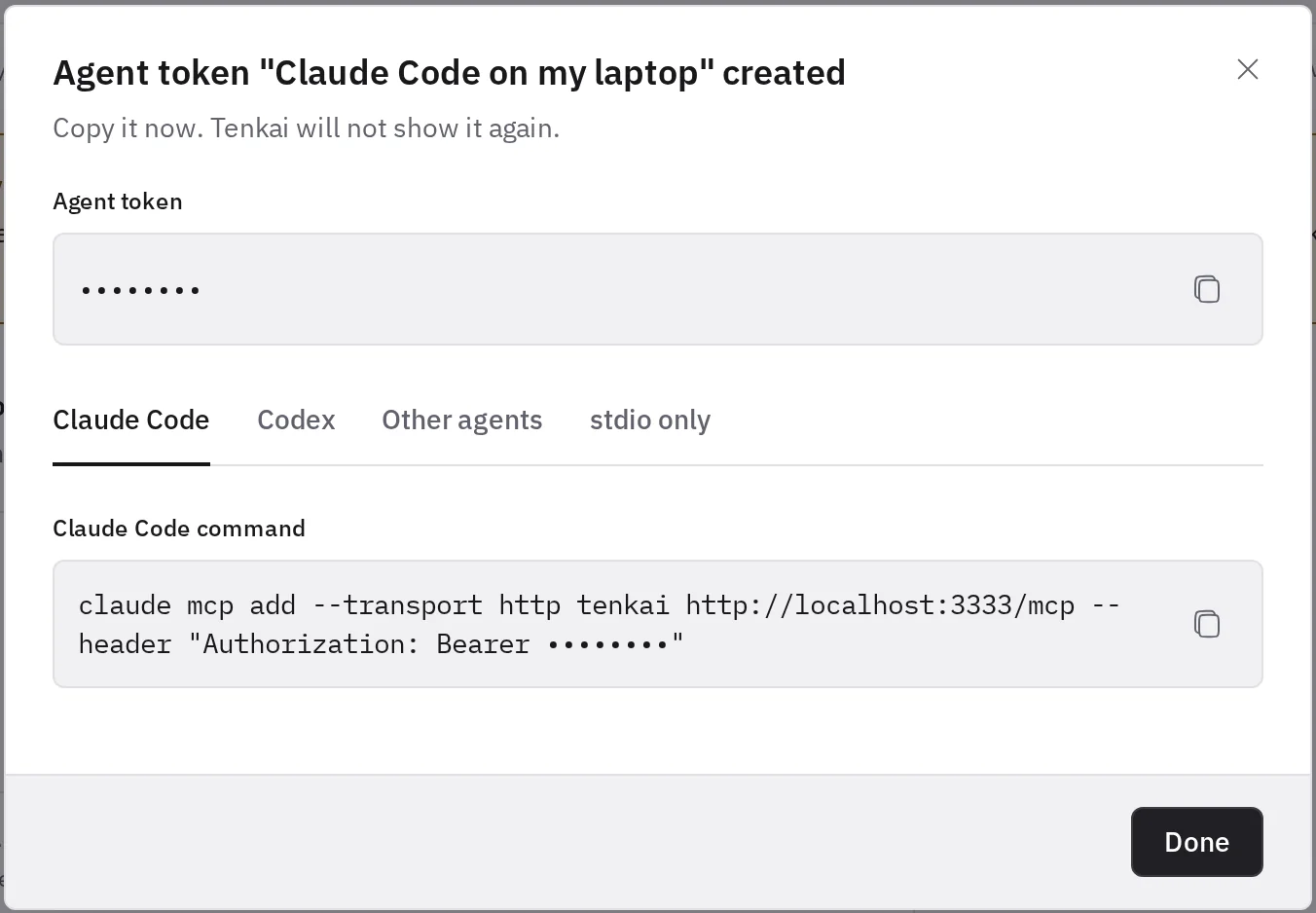
If you lose the token, create another one.
Approve what the agent asks for
Each new server needs a person's approval, and so does each deployment, rollback and application of saved configuration unless the token holds deploy without approval. Each choice of a storage bucket for backups and each backup an agent starts needs one too, whatever the token holds. A rollback that would put back older files of a web application is never the agent's: roll it back yourself from its page.
The agent gives you a link, and the overview lists the requests that wait. A member who could run the action approves or rejects it: someone who can deploy for a deployment, a rollback or a configuration, someone who can manage resources for the backups, an owner or admin for a server. An approval lasts 15 minutes and completes one action.
Revoke a token
Open the … menu of a token and choose Revoke…. The agent can no longer reach Tenkai. Revoke a token as soon as the machine that holds it is lost, or when its creator should no longer act for the team.
Treat the secret of an agent token as a password. Keep it out of repositories, screenshots and shared configuration files.