Manage the nodes of a cluster
Add a node, make a cluster highly available, drain or resume a node, remove a worker node, and choose whether new servers get the Tenkai Agent.
Roles of the nodes
Each server of a cluster is one of its nodes. Clusters and the roles of their nodes explains the roles:
- The Edge node receives the traffic of every web application, and custom domains point to it. If it is lost, custom domains stop answering until their DNS points to the new edge node. A CNAME record follows on its own. Tenkai keeps 0.1 CPU and 128 MB free on it, so that its router can restart each time an environment gets a route, such as a new pull request preview.
- Manager nodes run the cluster. The edge node is always one of them.
- Worker nodes run workloads only.
A managed service, and a web application that keeps files, stays on the node that holds its data, its data node. The cluster page calls them stateful resources.
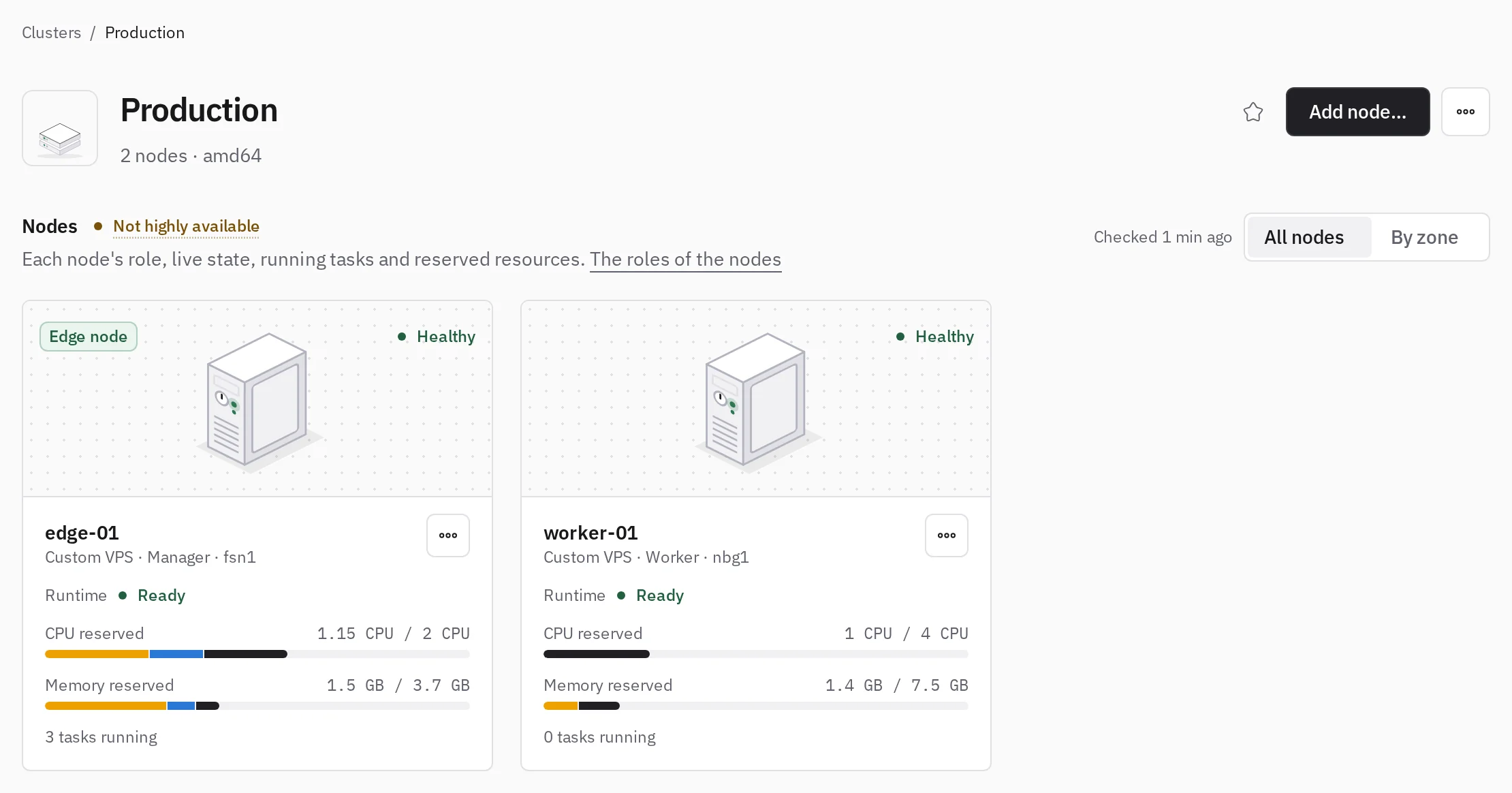
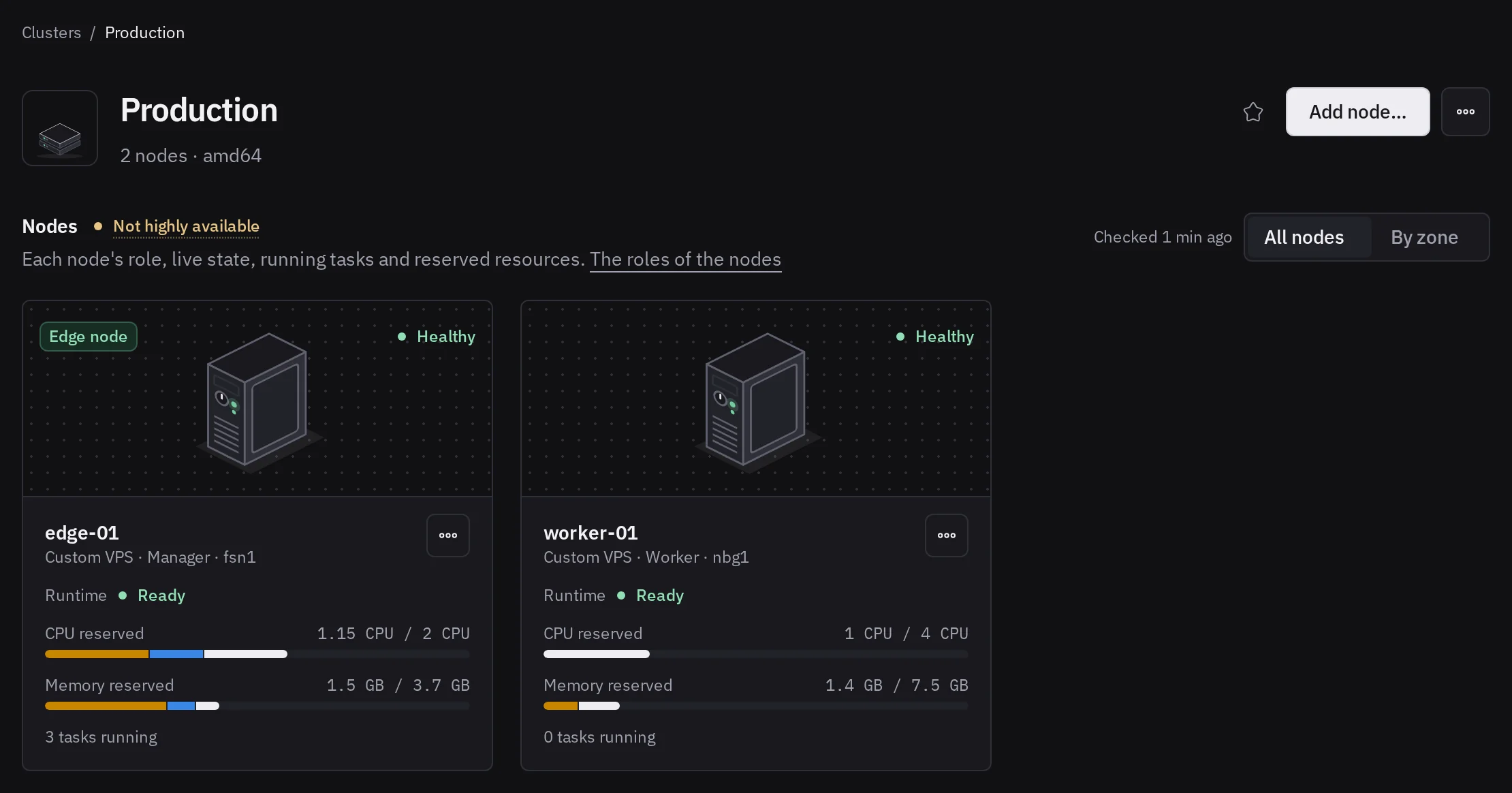
Only owners and admins can change the nodes of a cluster.
Add a node
Choose Add node… on the cluster page once the edge node is ready. The server joins as a worker node. Create it through a connected provider, and choose the SSH keys to authorize on root in the same dialog, or enroll a server you already administer with the command Tenkai shows.
Every node of a cluster shares its CPU architecture. Tenkai creates x86 servers only: for an ARM cluster, enroll an ARM server yourself.
Spread replicas across zones
Give the nodes that can fail together the same zone, such as the nodes of one provider location or one building. When a web application, a worker or a scheduled job runs several replicas, Tenkai places them evenly across the zones of the cluster, so the loss of one zone does not stop all of them.
- A server Tenkai creates through a provider takes its location as its zone, such as
fsn1. - A server you enrolled has no zone until you give it one: choose Set zone… in the More actions menu of its node, or use the pen next to Zone on its page.
- The nodes without a zone count as one zone together.
- Choose By zone above the nodes to see them grouped by zone.
A zone only steers placement: when a zone is full or drained, the replicas still start in the others. The replicas that run do not move when a zone changes. They spread again at the next deployment.
Make a cluster highly available
A cluster with one manager does not survive the loss of that manager. With three managers it survives the loss of one, with five the loss of two. Managers change in pairs, from the … menu of the cluster:
- Make highly available promotes two worker nodes. They keep running their workloads.
- Reduce managers demotes two managers to worker nodes.
A cluster has at most five managers. A cluster that runs etcd for a PostgreSQL with high availability keeps three or more.
If more managers fail at once than the cluster can survive, it loses its quorum: see Recover a cluster. To survive the loss of two managers, a cluster needs five.
Recover a cluster
When most managers are lost, for example two of three, the cluster page says The cluster lost the quorum of its managers. The applications that run go on running, but nothing changes or moves on the cluster, and a PostgreSQL with high availability may stop taking writes.
If the machines will come back, wait for them: the cluster recovers on its own. If they are gone for good, choose Recover from <Edge Node>… and type the name of each lost manager. Tenkai then:
- drops the lost managers from the cluster network of every node that stays;
- makes the edge node the only manager, and its etcd member the only member;
- keeps each lost manager as a worker node, until you force its removal.
Delete a lost machine at its provider before it can start again: with its disk, it would run the old cluster beside the new one. Then force the removal of each lost node, and make the cluster highly available again: until then, it survives no other loss.
A PostgreSQL with high availability whose two instances ran on lost managers stays without a primary: replace its instances, or restore a backup. The writes a lost primary confirmed alone may be lost.
If the recovery stops, read which step failed and choose Retry.
Tenkai recovers a cluster only from its edge node. When the edge node is among the lost managers, the page says so: bring the edge node back, or create a new cluster and restore your backups there.
Move the edge node
In a highly available cluster, the edge node can move to another manager, for example before you retire its machine. Choose Make it the edge node in the More actions menu of a ready manager.
If the cluster page offers an update of the edge router, run it first: Tenkai does not move an edge node whose edge router is out of date.
Tenkai prepares the new node, points the edge hostname of the cluster to it, which every default route follows, then moves each web application by a relocation: traffic switches once the new copy is healthy. Both edge routers serve until DNS caches forget the old address. Then the old edge router stops, and the old node stays a manager.
During the move:
- A custom domain with a CNAME record follows on its own. Change each A record to the address of the new edge node: the page lists the custom domains that still reach the old one.
- A web application whose configuration changed since its active release does not move until you deploy it.
- A run in progress of a scheduled job stops. The job runs again at the next time of its schedule.
- If an image of an older release cannot be copied, that release can no longer be rolled back to. Its page says why.
- The managers cannot change, neither node of the move can be drained, and the share for builds cannot change.
The old edge router keeps serving until every custom domain reaches the new edge node, then for 10 more minutes while DNS caches forget the old address. Tenkai checks the domains again every 15 seconds.
A domain proxied by Cloudflare resolves to Cloudflare, so Tenkai cannot see where it points: change the origin of its record in Cloudflare. Then, or for a domain you no longer use, an owner or admin chooses Retire without them. A domain that still points to the old address stops answering once its edge router retires.
If the move stops, read its details and choose Retry.
When every manager receives traffic
In early access, when every manager is an edge node, choose Make it the primary edge node instead. Only the cluster registry and the builds move: Tenkai starts the registry on the new node, copies the deployment artifacts, then moves each web application by a relocation. The move ends once the last one moved.
No DNS record changes, and the move waits for no DNS cache. The old node stays a manager and an edge node: it keeps its edge router and keeps receiving traffic, so a custom domain with an A record to it keeps working.
Choose whether new servers get the Tenkai Agent
The Tenkai Agent reports the history, the hardware and the pending updates of a server. Tenkai manages servers over SSH, so a cluster works without it, but a server without the agent shows no history and no upkeep report.
To stop installing it on the servers that join a cluster, choose Settings… in the Cluster actions menu, clear Install the Tenkai Agent once a server is set up, and choose Save settings. Nodes already set up stay as they are: install or remove the agent from their server page.
A new cluster starts with the choice in the team settings.
Keep the Tenkai Agent up to date
When Tenkai moves to a newer version of the Tenkai Agent, it updates the agent of each node within the hour. The server keeps running its applications during the update. To update without waiting, choose the button that updates the agent on the cluster page.
To start each update yourself, choose Settings… in the Cluster actions menu, clear Update the Tenkai Agent automatically, and choose Save settings.
Tenkai does not update a node without an agent, one whose agent stopped reporting, or one whose last installation failed: open the server to install the agent or to retry.
A new cluster starts with the choice in the team settings.
Choose whether the cluster builds
A cluster builds from a Git repository only when its edge node keeps a share for builds, which you turn on from Settings… in the Cluster actions menu of the cluster page. Turn Git builds on or off explains what changes.
Drain and resume a node
Open the More actions menu of a node card:
- Drain moves the web applications and the workers of the node to other nodes, then runs nothing on it until you choose Resume. You cannot drain the edge node: move it first.
- On a manager, Stop accepting workloads moves them the same way and keeps new workloads off the node until you choose Accept workloads. Its stateful resources stay, with their data.
Both need another node that accepts workloads.
A node shows In maintenance while Tenkai reboots it after moving its applications away. It takes workloads again once the reboot ends. When the reboot failed, choose Resume once the server answers.
A node cannot be drained while it holds the data of a managed service, the files of a web application or the cluster storage. The node card names them. A manager that holds a member of the etcd of its cluster cannot be drained either: choose Stop accepting workloads instead. A node that holds an instance of a MySQL or a PostgreSQL with high availability drains once you replaced that instance on another node, for a MySQL or a PostgreSQL.
Remove a worker node
Choose Remove from cluster in the More actions menu of a ready worker node, once another node accepts workloads. Tenkai moves its web applications and its workers to the other nodes one at a time, drains it, then forgets its server. You can cancel until the drain.
A worker node that holds the data of a stateful resource cannot leave its cluster. To remove a manager, reduce the managers first.
The machine keeps running, and your provider keeps billing it, until you delete it there. For a server that Tenkai created at Hetzner Cloud, DigitalOcean or Infomaniak Public Cloud, select Also delete the machine to have the provider delete it with everything on it.
If the removal stops, read its details, then choose Retry once you corrected the cause. The … menu beside it offers Cancel removal, and Force removal… if the machine is gone.
If requesting the removal says "Another operation was running on this cluster. Try again.", nothing moved yet. Wait for the other operation to finish, then remove the node again.
Force the removal of a lost node
Use Force removal… when the machine of a worker node is gone or will never answer again. Tenkai moves nothing first: if the machine still runs, its applications stop at once. Type the name of the node to confirm.
A run in progress of a scheduled job stops, on every node. The job runs again at the next time of its schedule.
If the node holds the cluster storage, the files of its hosted buckets are lost with the machine. See When the data node is lost.
Remove a server from Tenkai
Choose Remove in the More actions menu of a server page. Tenkai forgets the server; it does not delete or stop the machine. For a worker node that joined the runtime, the dialog offers Remove node instead, which removes it from its cluster.
For a server that Tenkai created at Hetzner Cloud, DigitalOcean or Infomaniak Public Cloud, select Also delete the machine to have the provider delete it with everything on it and stop billing it. At Infomaniak, its disk and its IPv4 address go with it. This cannot be undone. It needs the provider connection of the server with a valid token, and a custom DigitalOcean token needs the droplet:delete scope. If the provider does not delete the machine, Tenkai keeps the server and says why: try again, or remove the server without the box and delete the machine at the provider.
If you replaced the token of a Hetzner Cloud connection and Hetzner finds no such machine, check the Hetzner console, then remove the server without the box.
Tenkai cannot delete a Scaleway instance yet: delete the instance, its volume and its flexible IP in the Scaleway Console.
Tenkai refuses while it creates or sets up the server, and while an update or a reboot runs on it. For a manager of a cluster that has other nodes, remove the cluster instead.
Hand a cluster over to another team
The handover of a cluster is in early access, offered to the teams that try it first. Both teams need it: the team that hands the cluster over, and the team that receives it.
Owners and admins can give a cluster to another team, such as the team of your company when the cluster started in your personal team. Its servers go with it, and so does every project that runs on it, with its resources, its custom domains and its deployments. Your applications keep serving.
- Ask an owner or admin of the other team for its receiving code.
- Open the Cluster actions menu of the cluster page and choose Hand over….
- Enter the receiving code, choose Continue, and check the name of the team that receives the cluster.
- Type the name of the cluster and choose Hand over cluster.
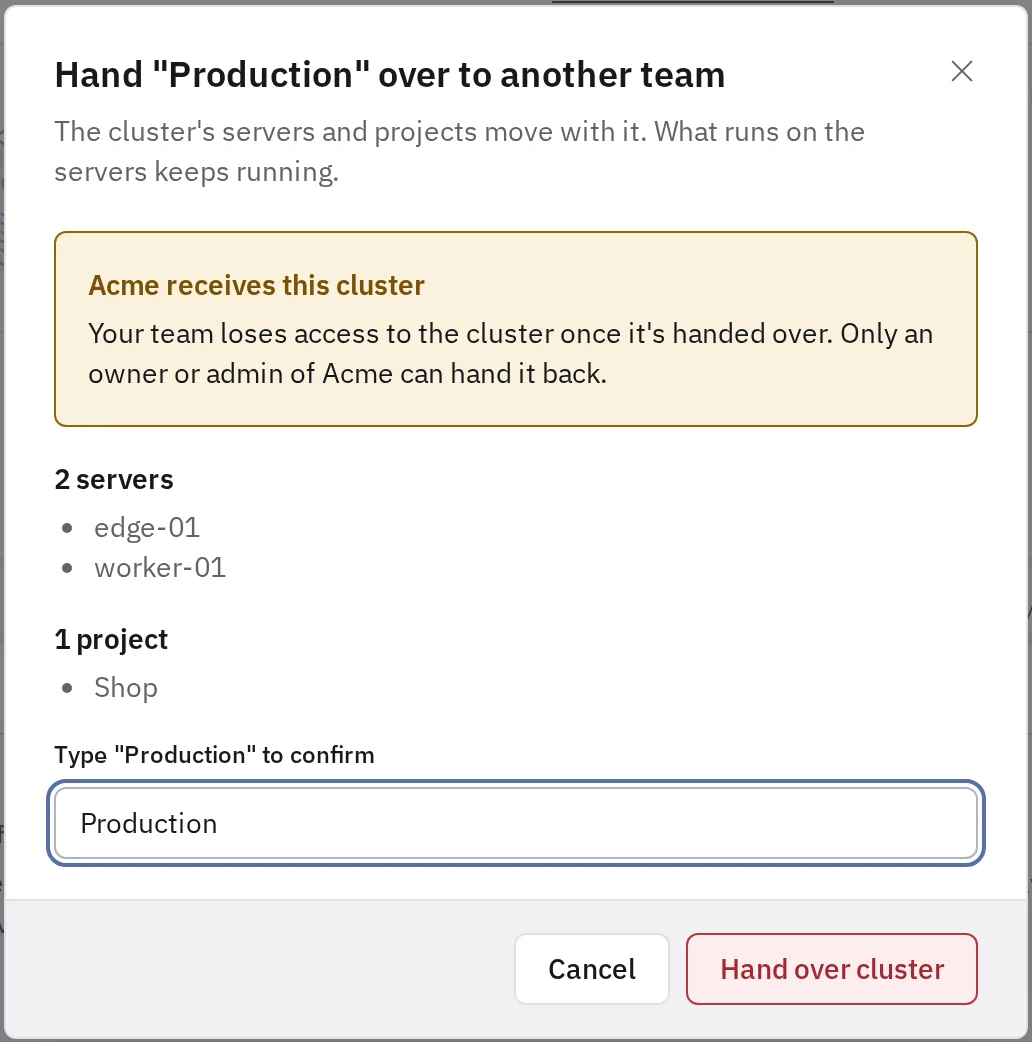
Your team no longer sees the cluster. An agent token of your team limited to a project that moved loses that project. Each receiving code works once.
A terminal your team opened on the cluster stays open until it is closed or idle for 10 minutes, and an external access on a managed service until it expires, 4 hours at most. Close them before the handover if the other team must be alone on the cluster at once.
Tenkai refuses when:
- a project of the cluster also runs on another cluster: a project moves whole;
- it creates or sets up a server of the cluster, an update or a reboot runs on one of them, or another operation runs on the cluster or on one of its resources, such as a deployment or a backup;
- the plan of the other team has no room for every server of the cluster;
- the other team already gives a hostname of a custom domain of the cluster to one of its resources;
- a server authorizes the SSH key of someone outside the other team;
- a resource pulls with the GHCR credential of someone outside the other team;
- a resource has backups or backup settings in one of your storage buckets, or a hosted bucket keeps or kept a bucket copy there;
- an application has a deploy hook, which deploys as the member who enabled it;
- a project has pull request previews on, or still has a preview environment: turn them off, then close their pull requests or delete their environments;
- Tenkai created a server of the cluster through a provider connection.
Remove a cluster
Owners and admins can remove a cluster with every server of it, for example a cluster whose machines are gone.
- Delete the projects that use the cluster, even those without resources. See the servers of a cluster are gone if they no longer answer.
- Open the Cluster actions menu, choose Remove…, type the name of the cluster, and choose Remove cluster.
Tenkai forgets the cluster and its servers without touching the machines: your provider keeps billing each one until you delete it there.
To delete the machines too, select Also delete the machines. The providers delete each machine that Tenkai created at Hetzner Cloud, DigitalOcean or Infomaniak Public Cloud, with everything on it, before Tenkai forgets the cluster. This cannot be undone. The dialog names the machines that stay: those of servers you enrolled yourself, and Scaleway Instances. Delete those at the provider. Each deletion needs the provider connection of the server with a valid token, and a custom DigitalOcean token needs the droplet:delete scope.
If a provider does not delete a machine, Tenkai keeps the cluster and all its servers, and says which server and why. Fix the cause and remove the cluster again: the machines already deleted stay deleted, and Tenkai deletes the rest.
Tenkai refuses while it creates or sets up a server of the cluster, and while an update or a reboot runs on one of them.