Your team and its settings
See what a team owns, create a team and switch between your teams, rename it, change its icon, choose what a new cluster starts with, and read what each team role may do.
What a team is
A Team owns everything you run with Tenkai: its projects, its clusters, their resources, and its billing. Tenkai creates your Personal team when you sign up.
Every team member can read the team settings. Only owners and admins can change them. The Billing tab, with the plan, payment method and invoices, shows only to owners and billing members. See plans and billing. The Activity tab shows only to owners and admins, on the Team plan. See Read the activity.
Create a team
Create a team to keep the work of a company apart from your personal team.
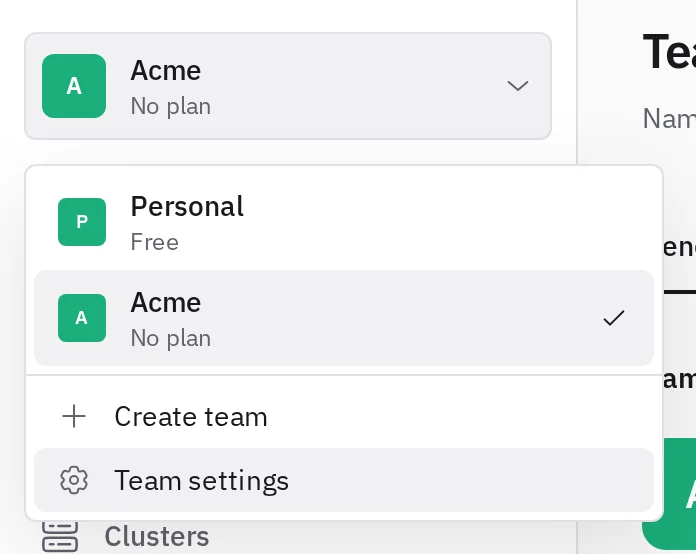
- Select the team above the navigation, then Create team.
- Enter its name and choose Create team.
You become its owner. A new team has no plan, and cannot add a server or invite anyone until it subscribes: only your personal team is on the Free plan. See plans and billing.
Switch to another team
Select the team above the navigation, then the team to work in. You can also search for it by name.
Rename the team or change its icon
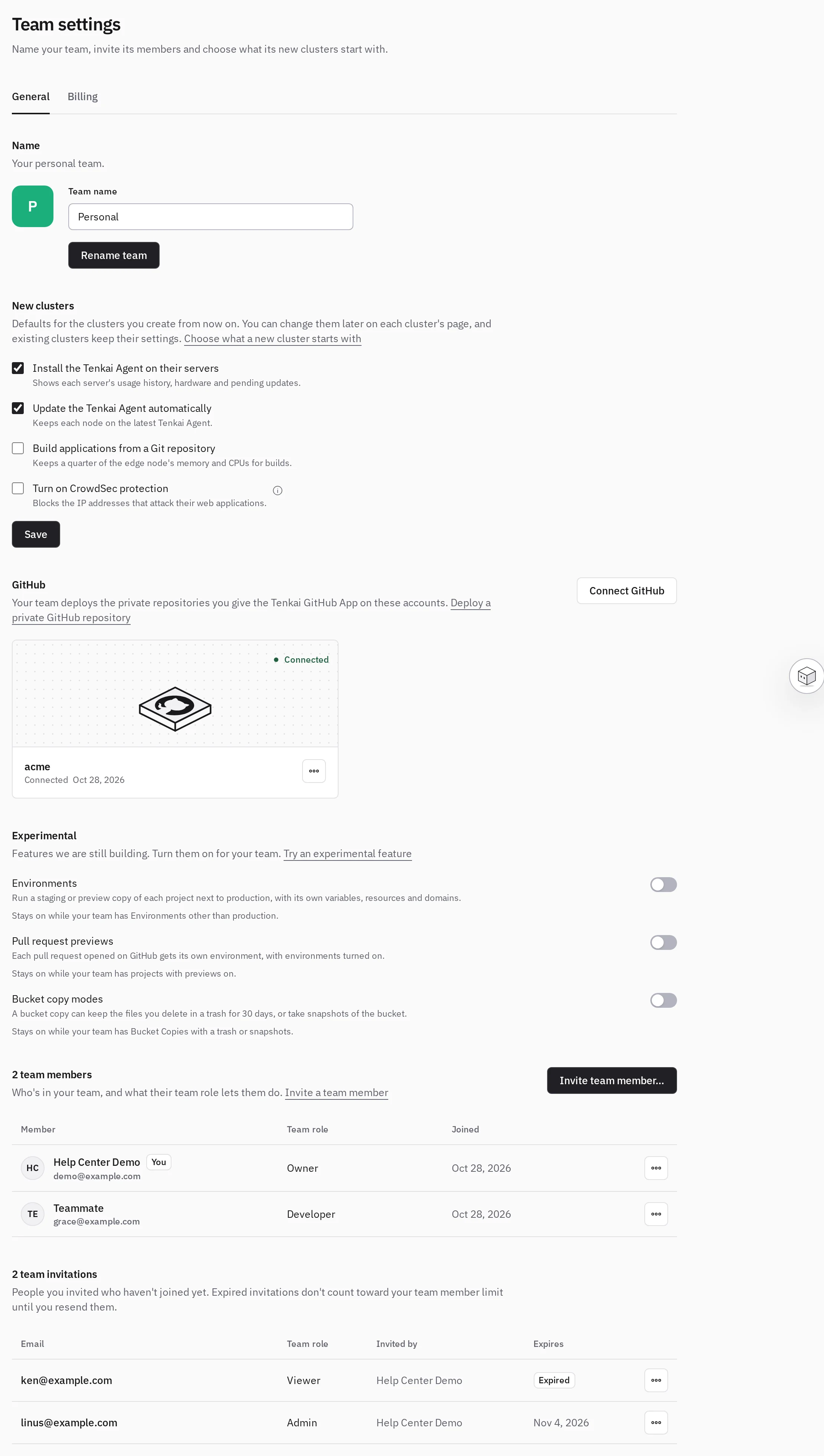
Under Name, enter the new name and choose Rename team. To change the icon, select it next to the name and upload a PNG, JPEG, WebP or ICO image of up to 256 KB, or choose Remove icon.
Choose what a new cluster starts with
New clusters holds the choices that each new cluster takes:
- Install the Tenkai Agent on their servers. The agent reports the history, hardware and pending updates of a server. Without it, Tenkai reads server health over SSH. Choose it for one cluster.
- Update the Tenkai Agent automatically. Without it, you start each update from the cluster page. Keep the Tenkai Agent up to date.
- Build applications from a Git repository. The first server keeps a quarter of its memory and CPUs for builds. Without it, the cluster deploys container images only. See Turn Git builds on or off.
- Turn on CrowdSec protection. On a paid plan, blocks the addresses that attack the cluster's web applications, and shares them with the CrowdSec community. See Block attacks with CrowdSec.
The first two are selected by default; select the third if you build from Git. Choose Save. Existing clusters keep their choices: change those on each cluster page.
Get an email for each SSH login
SSH login alerts show when your team tries them in early access.
Under SSH login alerts, select Email owners and admins on each SSH login and choose Save. Each owner and admin then gets an email for each SSH login to one of your servers: who logged in with which SSH key, as which account, from which address and when. The email says when the key is one Tenkai did not authorize on that server, or when the login used a password.
SSH login alerts come with the Pro plan and the Team plan. On another plan, each server still lists its logins, and nobody gets an email. If your team moved to another plan with the alerts on, choose Turn off SSH login alerts, or they start again when you upgrade.
A server sends alerts only while its Tenkai Agent reports. Tenkai's own connections send none.
Connect GitHub
GitHub lists the GitHub accounts and organizations whose private repositories your team deploys. Owners and admins choose Connect GitHub to add one, or Disconnect. See Private GitHub repository and Deploy each push to GitHub.
Try an experimental feature
Experimental lists features we are still building. Owners and admins turn one on or off with its switch, for every team member at once. How an experimental feature works may change before it reaches every team.
Some stay on while your team uses them, so what you made keeps working:
- Environments stays on while a project has an environment other than production. Delete those environments to turn it off.
- Pull request previews stays on while a project has previews on. Turn previews off on each of them to turn it off.
- Bucket copy modes stays on while a bucket copy keeps a trash or snapshots. Choose Mirror or Keep no copy on each of them to turn it off.
Give the receiving code
The receiving code shows when your team tries the handover of a cluster in early access.
Give the Receiving code to whoever hands a cluster over to your team. Select the copy button under Receiving code. The code works once: Tenkai replaces it when a cluster arrives. If it reached the wrong person, choose Replace code; the old code stops working at once.
Only owners and admins copy and replace the receiving code.
Read the activity
The Activity tab lists who revealed a sensitive value, and when: each copy of a value and each Edit as .env opened, with the keys it showed. It never shows the values.
The activity is part of the Team plan, also when Tenkai offers it until a date. On another plan, the tab and the Latest reveals button do not show, but Tenkai still records each reveal.
Choose a Team member to read only their reveals, or Environments or Resources to read the reveals of one kind of variables. Someone whose account was deleted shows as Deleted user, and an environment or a resource deleted since shows as deleted.
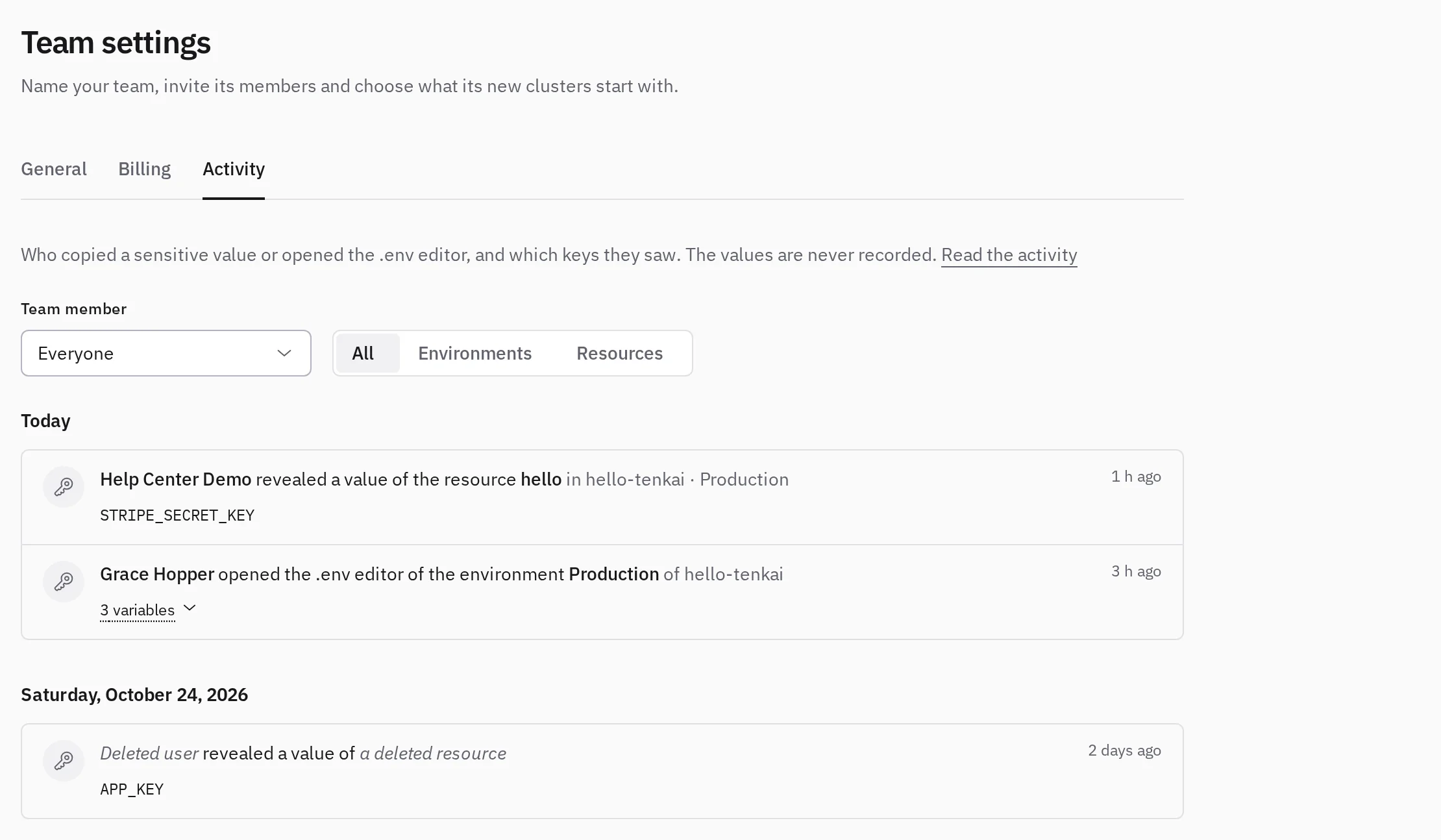
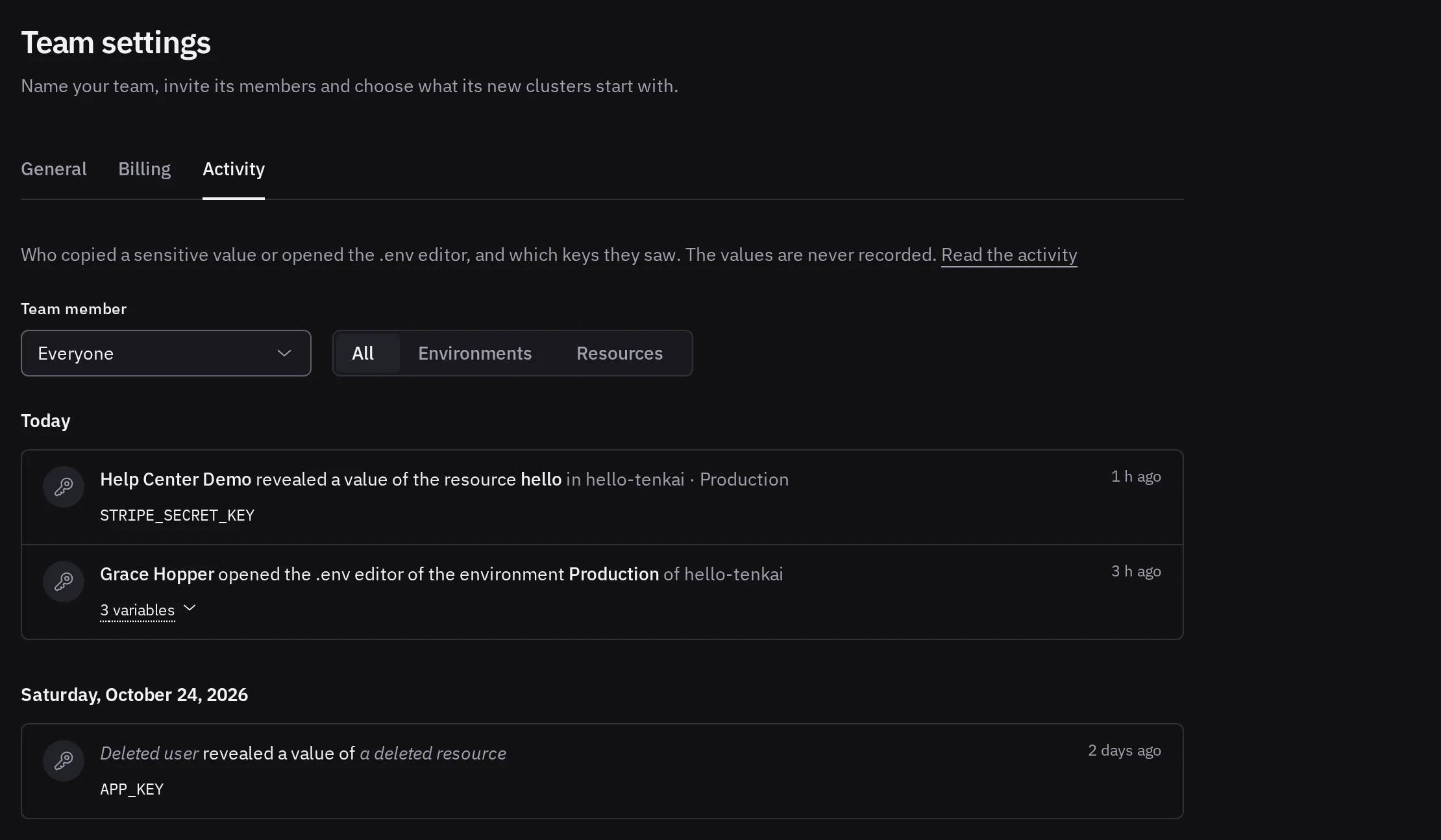
The Latest reveals button, with a shield, in the variables of an environment or a resource shows its five latest reveals.
Team members and their team roles
A team role decides what a member may do:
- An Owner has full control of the team, its billing included.
- An Admin manages projects, clusters, resources, deployments, sensitive values and the team settings.
- A Developer manages resources and deployments.
- A Viewer reads, and changes nothing.
- A Billing member manages billing only.
Invite a team member
Owners and admins invite by email.
- Under Team members, choose Invite team member….
- Enter their email, choose their team role, and choose Send invitation.
The emailed link works for 7 days. Only an owner can invite an owner.
The plan limits the team members, and pending invitations count toward it. The Free and Hobby plans allow only you, so your personal team on them cannot invite. See plans and billing.
Under Team invitations, choose Resend to email the link again for 7 more days, or Revoke to make it stop working. An expired invitation no longer counts toward the plan. Only an owner resends or revokes an invitation to be owner.
Accept a team invitation
Open the link in the email, signed in with the account of the invited email, then choose Accept or Decline. You keep your other teams.
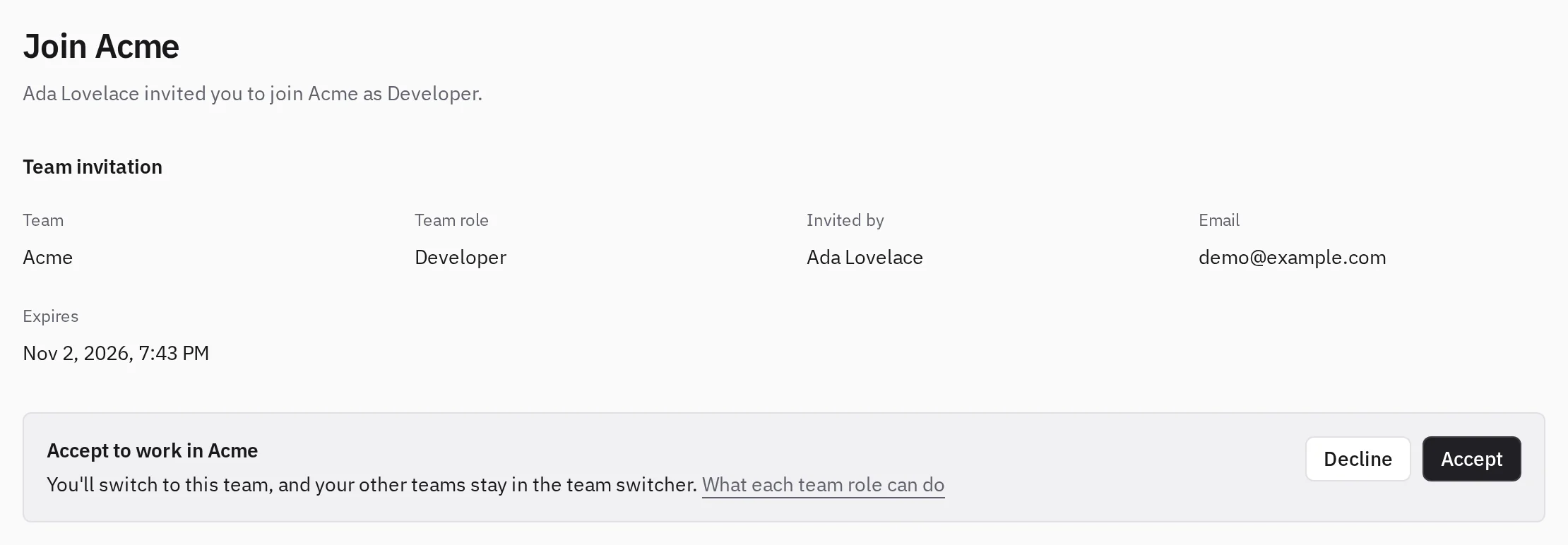
Tenkai refuses the link from another account. If the invitation expired, ask an owner or admin to resend it. If the team's plan has no place left, ask an owner to upgrade.
Change the team role of a team member
Owners and admins select the actions button on the row of the team member, then Change team role. The new role applies at once, to their agent tokens too.
Only an owner makes someone owner, and an admin cannot change an owner's role. A team keeps at least one owner: make another team member owner before changing the last one.
Remove a team member
Select the actions button on the row of the team member, then Remove from team, and confirm. An owner removes anyone, an admin everyone but owners. Nobody can be removed from their personal team.
They lose access at once. Their agent tokens, deploy hooks and favorites in the team go.
Tenkai revokes their SSH keys from the servers of the team. If a server does not answer, the key still works there until an owner or admin selects Retry in its SSH access section. A key they added by hand stays. See Revoke access.
Resources that pull with their GHCR credentials keep running but show Needs a GHCR credential until another team member links one. The dialog lists them under Details before you confirm.
Leave a team
Select the actions button on your own row, then Leave team, and confirm. The same applies as when a team member is removed: you lose access, and your SSH keys and GHCR credentials stop serving the team.
You cannot leave your personal team. If you are the last owner, make another team member owner first.