Your account
Change your password, sign in with GitHub, choose the theme, and find the credentials that belong to you rather than to a team.
What belongs to your account
Your account is you: your email, how you sign in, and the credentials that are yours. A team owns the projects and the clusters.
Select your name at the foot of the sidebar to open your user menu: the theme (System, Light or Dark), Account settings, Replay the tour, Report a bug, Request a feature and Sign out.
Change your name, avatar or email
Open Account settings.
- Select your name to change the name your teams see.
- Select your avatar to upload a PNG, JPEG or WebP image of up to 1 MB, or to remove it and show your initials again.
- Select your email to change it. Tenkai asks you to confirm who you are, then sends a link to the new email. Open it within 24 hours. Until then, you sign in with your current email. Resend sends a new link, and Cancel keeps your current email.
Linked accounts, such as GitHub, stay linked when your email changes.
Report a bug or request a feature
In the user menu, choose Report a bug or Request a feature, write your message and send it to the Tenkai team. For a bug, open the dialog on the page where it shows, and say what you did, what you expected and what happened.
Read what's new
When we ship something new, a card at the bottom of the sidebar, above your name, names it. Several unread notes stack, newest in front: point at the stack to see their titles. Select a card to read its note, or close it to move on to the next one. A new account only gets the notes published after it was created.
Every note stays on What's new.
Stop product updates
We may also email a note of What's new. To get no more of these emails, open Account settings and turn off Product updates under Emails, or choose Stop product updates at the bottom of one of them. Emails about your account, such as a maintenance or new prices, still reach you.
Change your password
Open Account settings. Under Password, enter the new password twice, choose Change password, and confirm who you are. Tenkai signs you out of every other browser.
An account created with GitHub has no password: Set password lets you also sign in with your email.
Tenkai refuses password logins for 15 minutes after 5 failures on one email, or after 30 attempts from one network, such as an office behind one address. Wait, or sign in with GitHub or a passkey meanwhile.
Add a sign-in method
Open Account settings. Sign-in methods shows a card for each passkey, your authenticator app once it is on, and each linked account. Choose Add… to add one, and the … menu of a card to change or remove it.
Sign in with GitHub
Under Sign-in methods, choose Add…, then GitHub account…. Confirm who you are and approve the request at GitHub. You can then choose Continue with GitHub on the sign-in page.
To unlink it, choose Unlink… in the … menu of its card. Tenkai signs you out of every other browser. Unlink… stays disabled while GitHub is your only way in: set a password or add a passkey first.
Linking GitHub only signs you in. It gives Tenkai no access to your repositories. To pull a private image, add a GHCR credential.
Sign in with a passkey
A passkey signs you in with the fingerprint, face or PIN that unlocks your device, without a password. Tenkai asks no authenticator app code after a passkey.
- Open Account settings. Under Sign-in methods, choose Add…, then Passkey…, and confirm who you are.
- Name it after its device, such as "Work laptop", and choose Add passkey.
- Unlock the device when your browser asks.
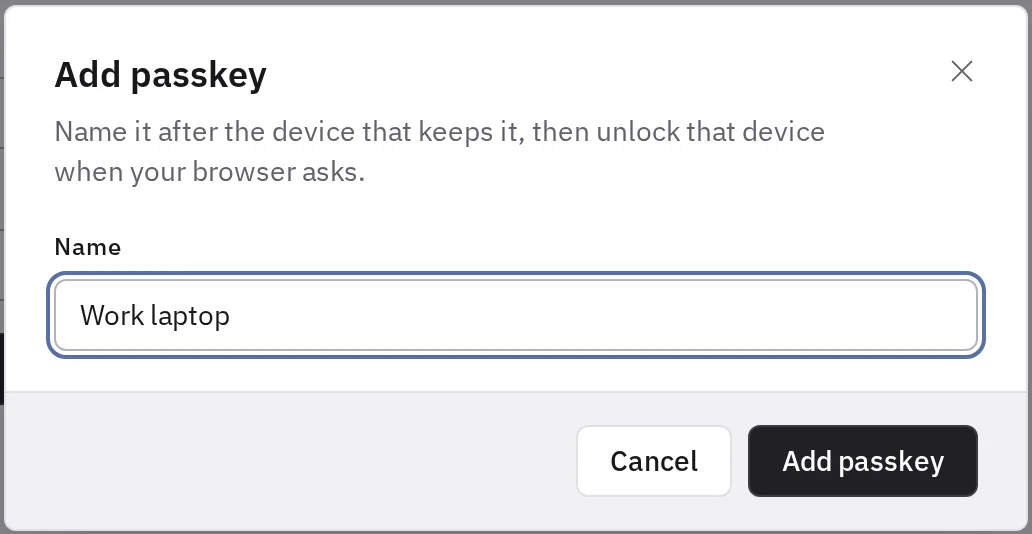
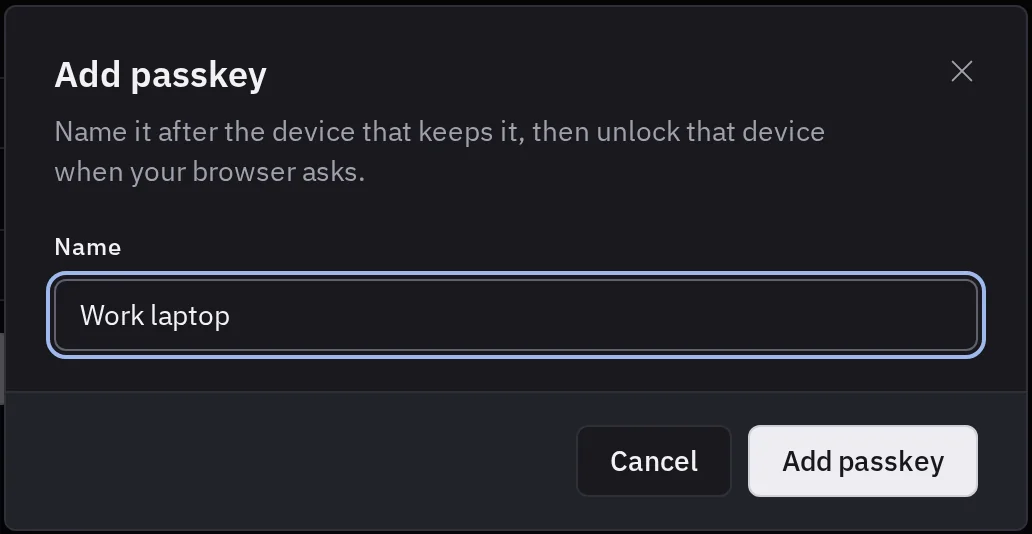
Add one for each device you sign in from, up to 10, so that losing one device does not lock you out.
To sign in, choose Sign in with a passkey on the sign-in page and unlock your device.
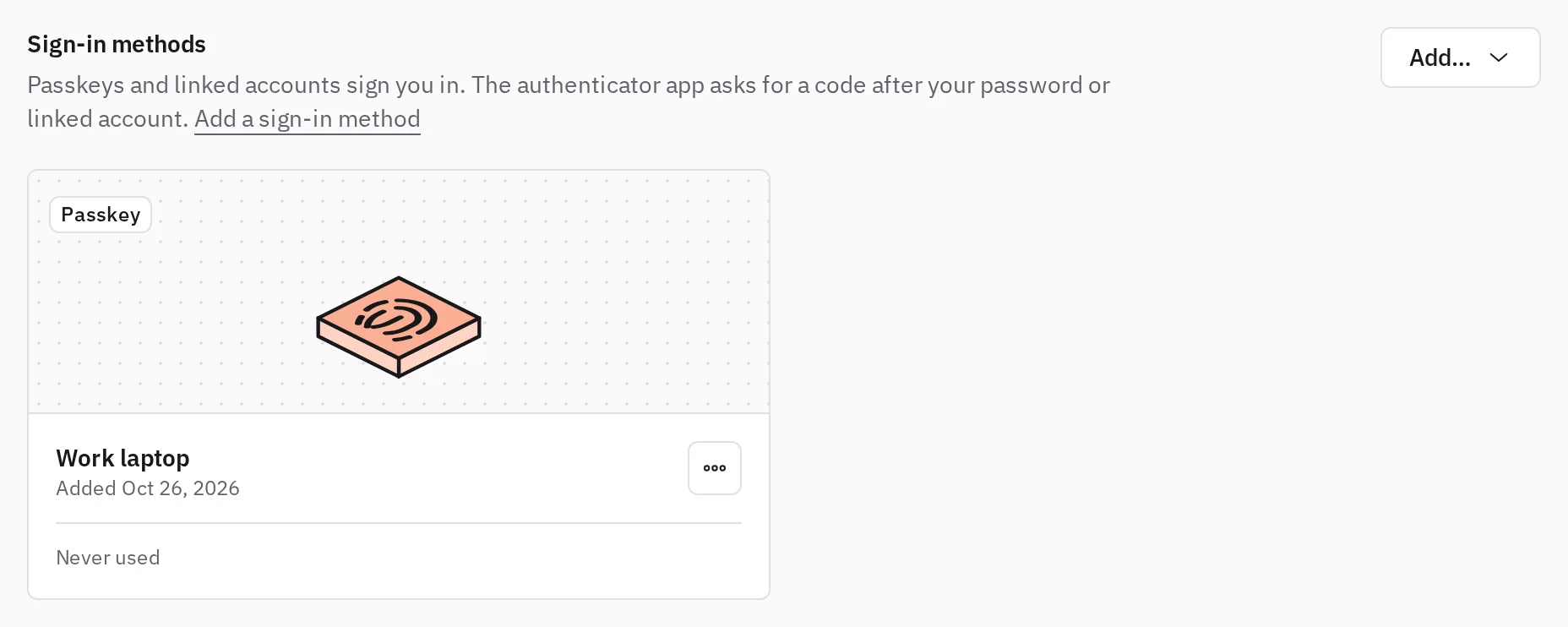
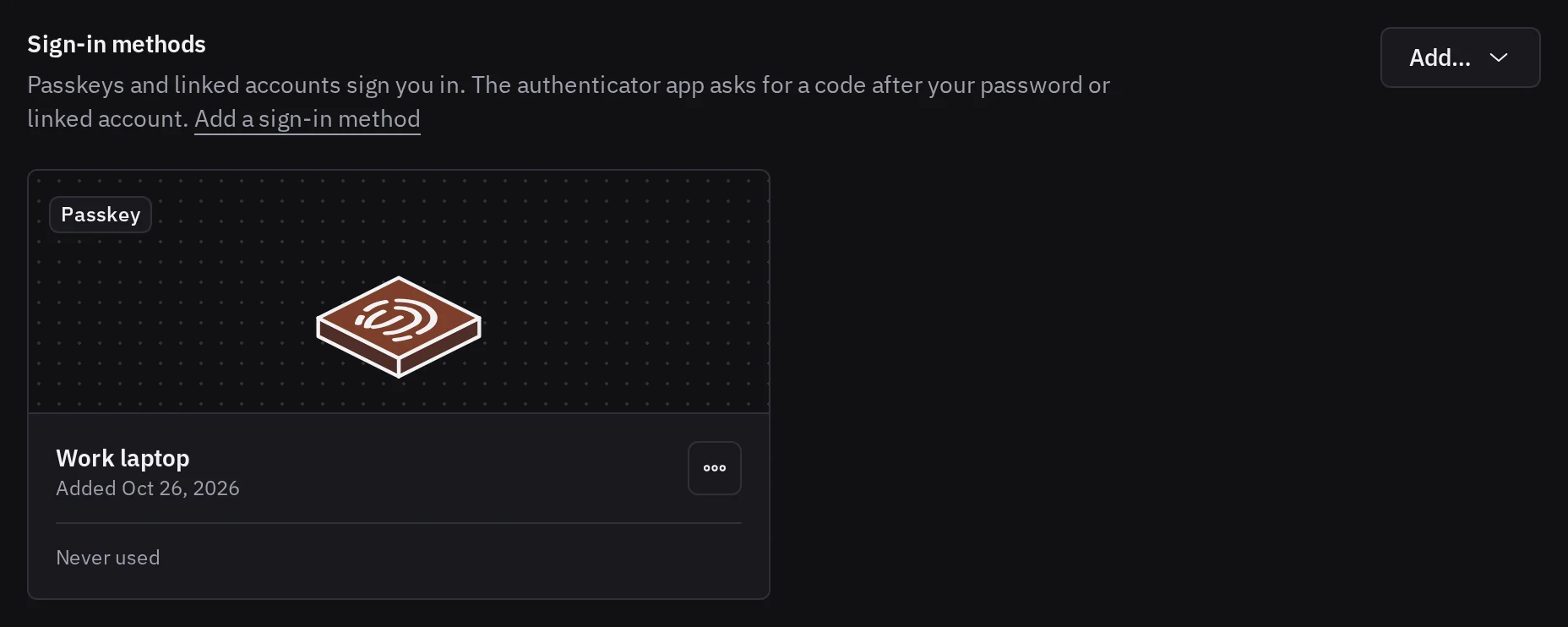
To remove one, choose Remove… in the … menu of its card and confirm who you are. Tenkai signs you out of every other browser. Delete the passkey on the device too: Tenkai cannot. Your last passkey cannot be removed while it is your only way in.
Protect your account with an authenticator app
An authenticator app, such as 1Password, Bitwarden, Google Authenticator or Aegis, shows a new 6-digit code every 30 seconds. Once you turn it on, Tenkai asks for its code after your password or GitHub, so a stolen password alone no longer opens your account. A team cannot require it.
- Open Account settings. Under Sign-in methods, choose Add…, then Authenticator app…, and confirm who you are.
- Scan the QR code with your authenticator app, or copy the secret under it.
- Enter the code the application shows, and choose Turn on.
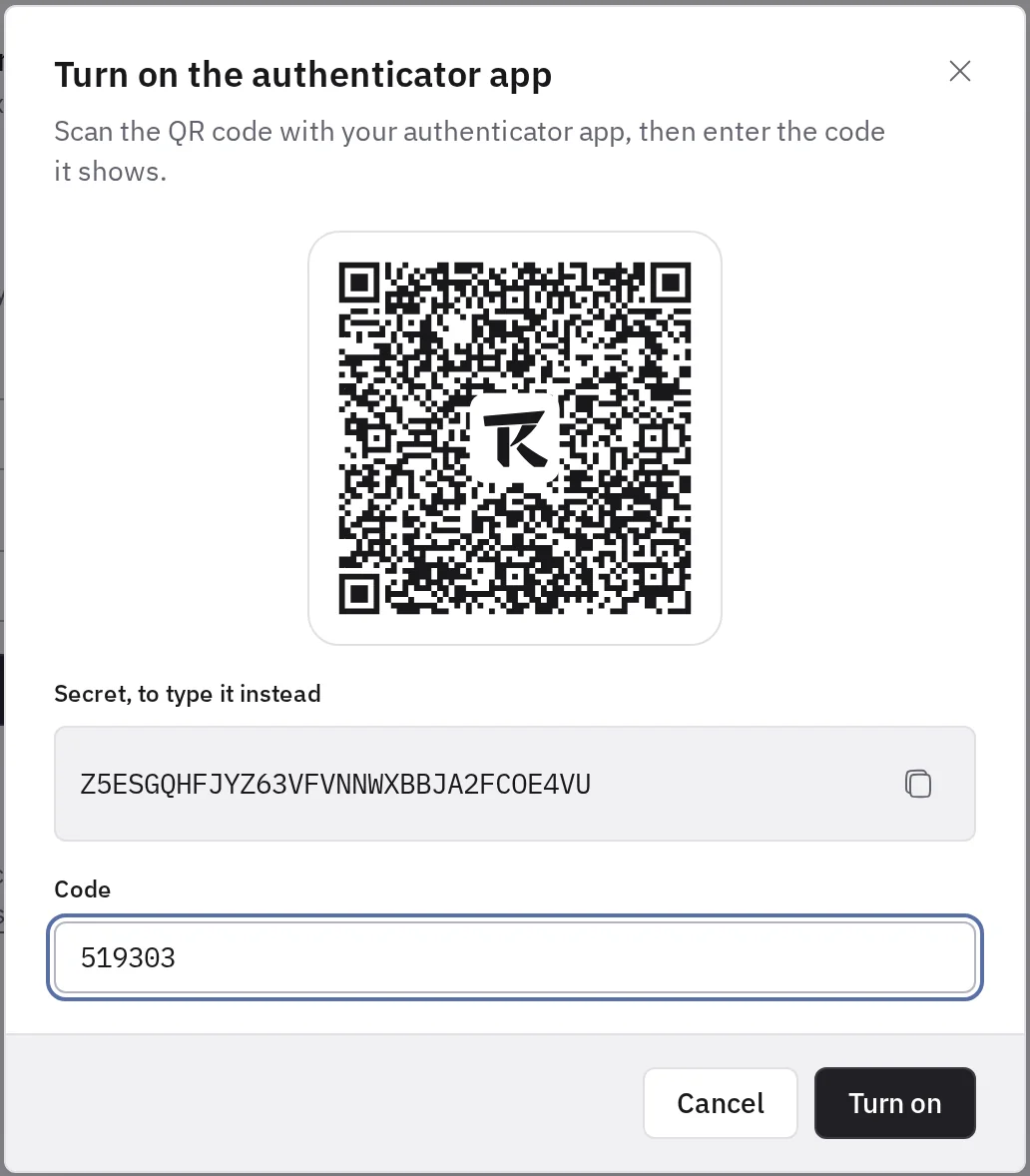
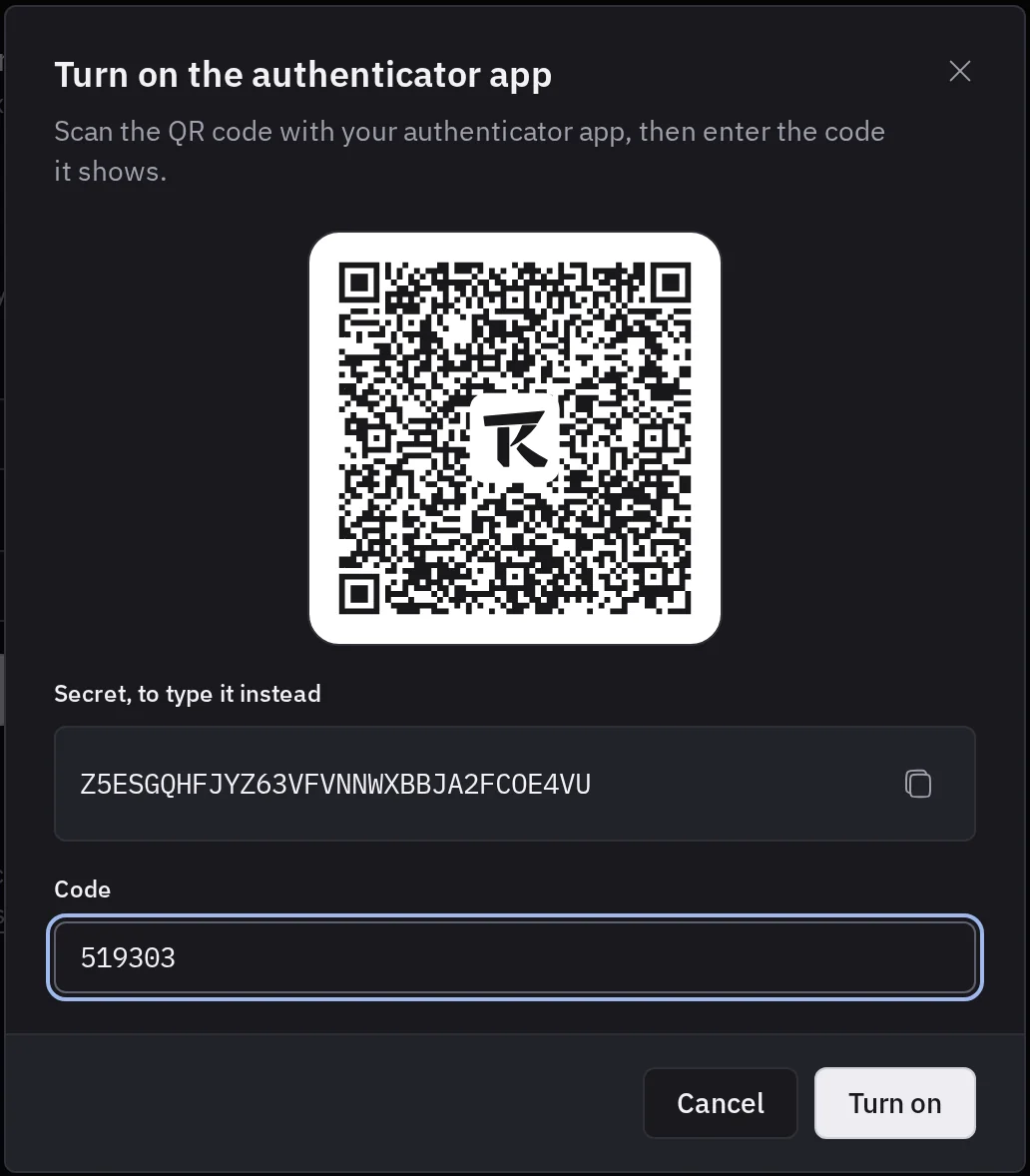
Tenkai then shows your recovery codes: save them before you close the dialog. It signs you out of every other browser.
When you sign in, enter the code on the Second factor page within 10 minutes. After 5 wrong codes in 15 minutes, Tenkai refuses every code for 15 minutes.
To stop, or to move to another device, choose Turn off… in the … menu of its card and confirm with a code or a recovery code. Tenkai forgets the secret and your recovery codes. Then turn it on again from the new device.
Recovery codes
A recovery code replaces one code of your authenticator app when you do not have your device. You get 10 when you turn the authenticator app on.
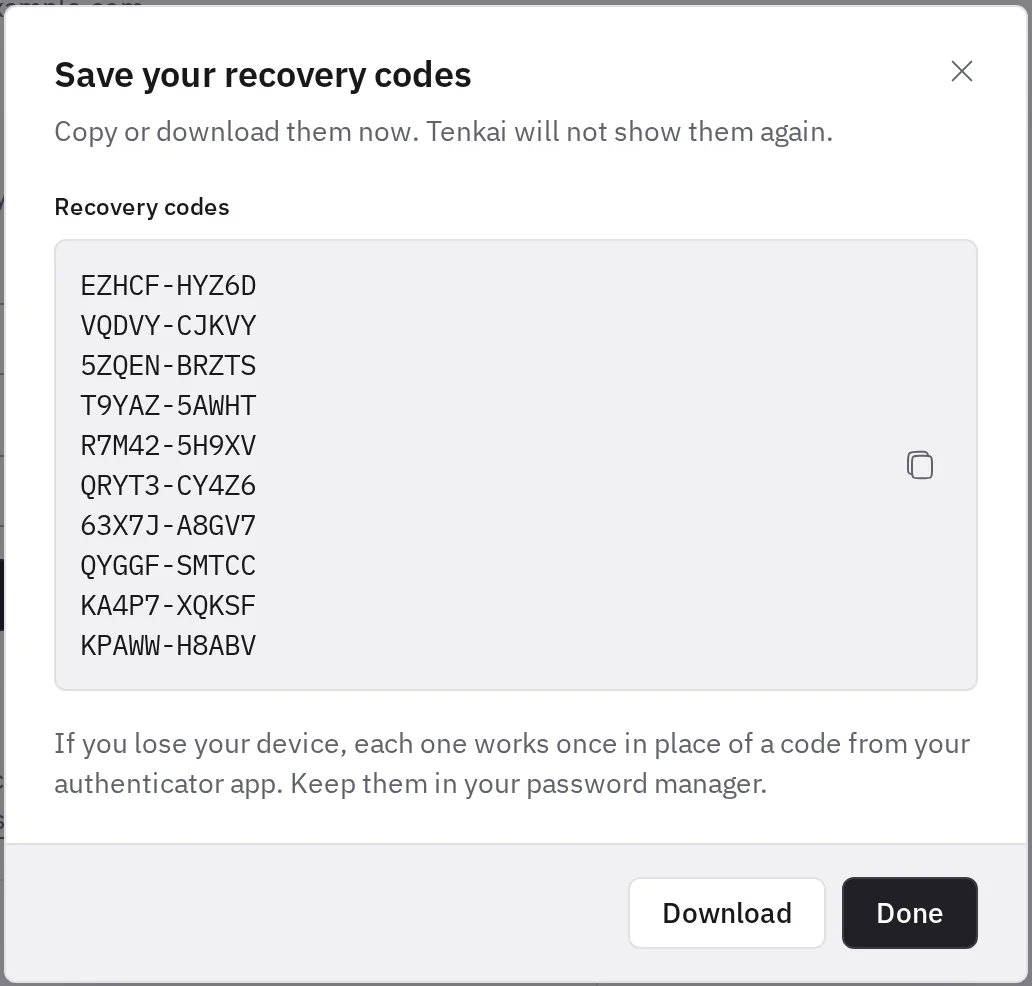
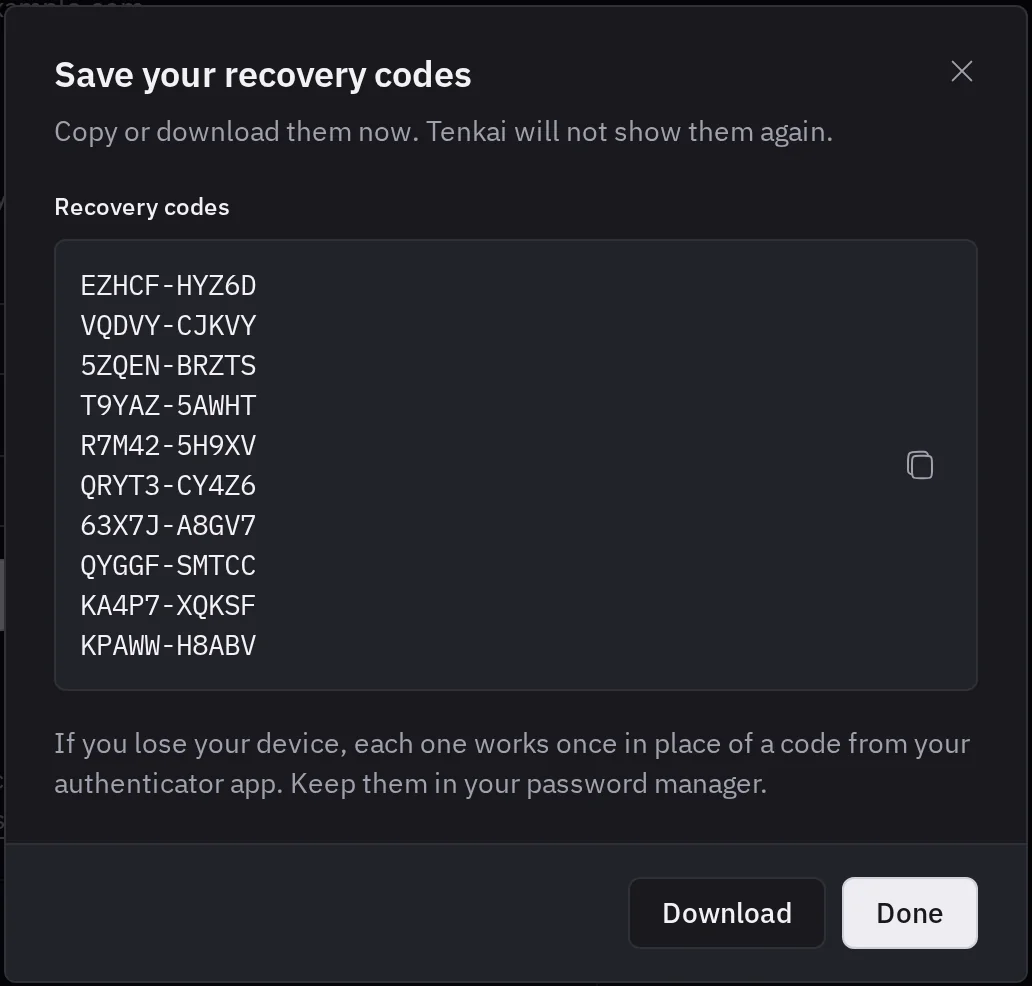
Tenkai shows them only once. Copy or Download them, and keep them away from the device that holds your authenticator app.
To use one, choose Use a recovery code on the Second factor page. Make new recovery codes…, in the … menu of the authenticator app card, gives you a new set of 10 and voids the previous one.
Without your device, a recovery code or a passkey, you cannot sign in. Tenkai has no reset by email.
See where you are signed in
Open Account settings. Sessions lists the browsers where your account is signed in, how and from which IP address, then the sessions that ended.
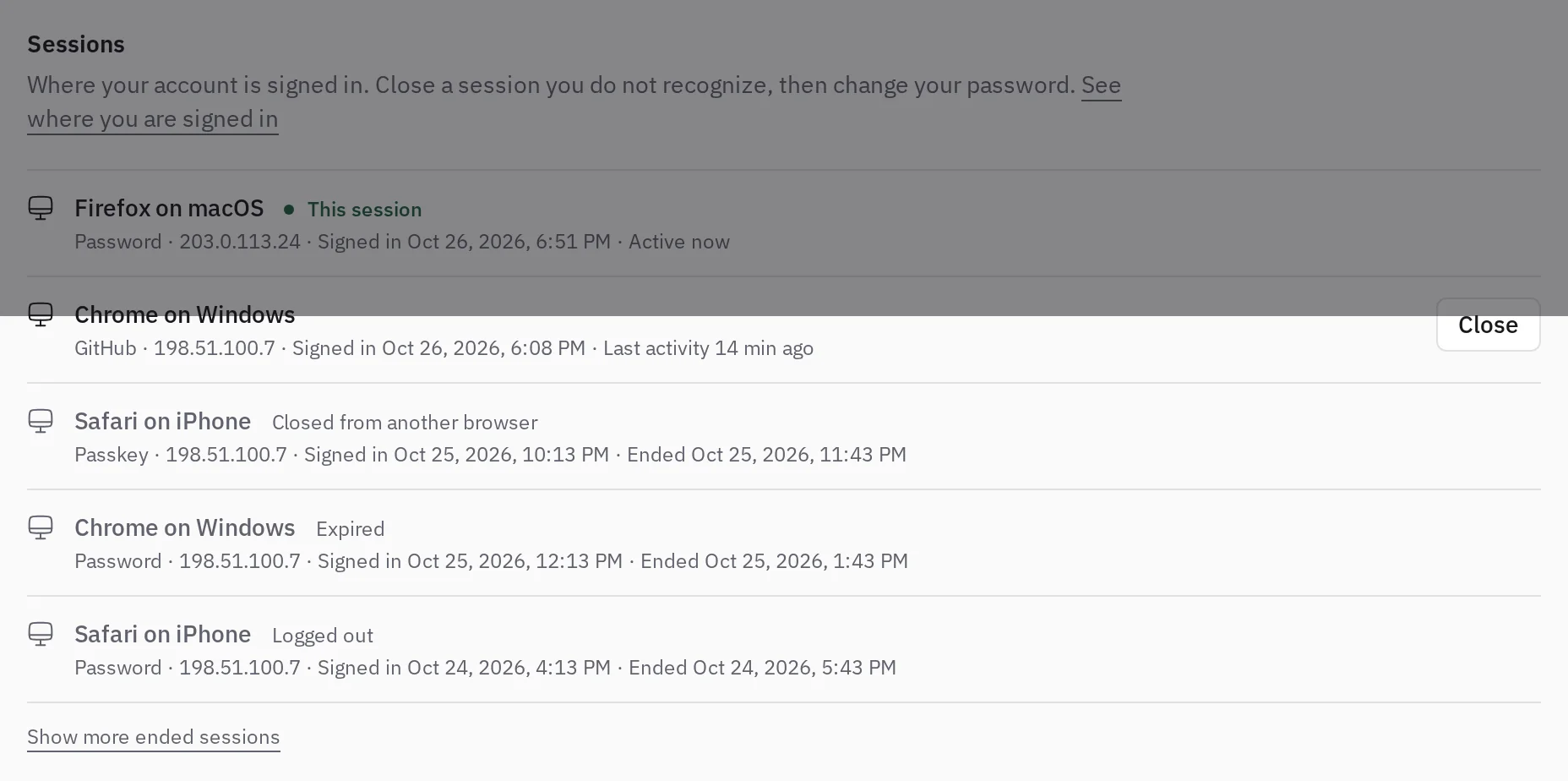
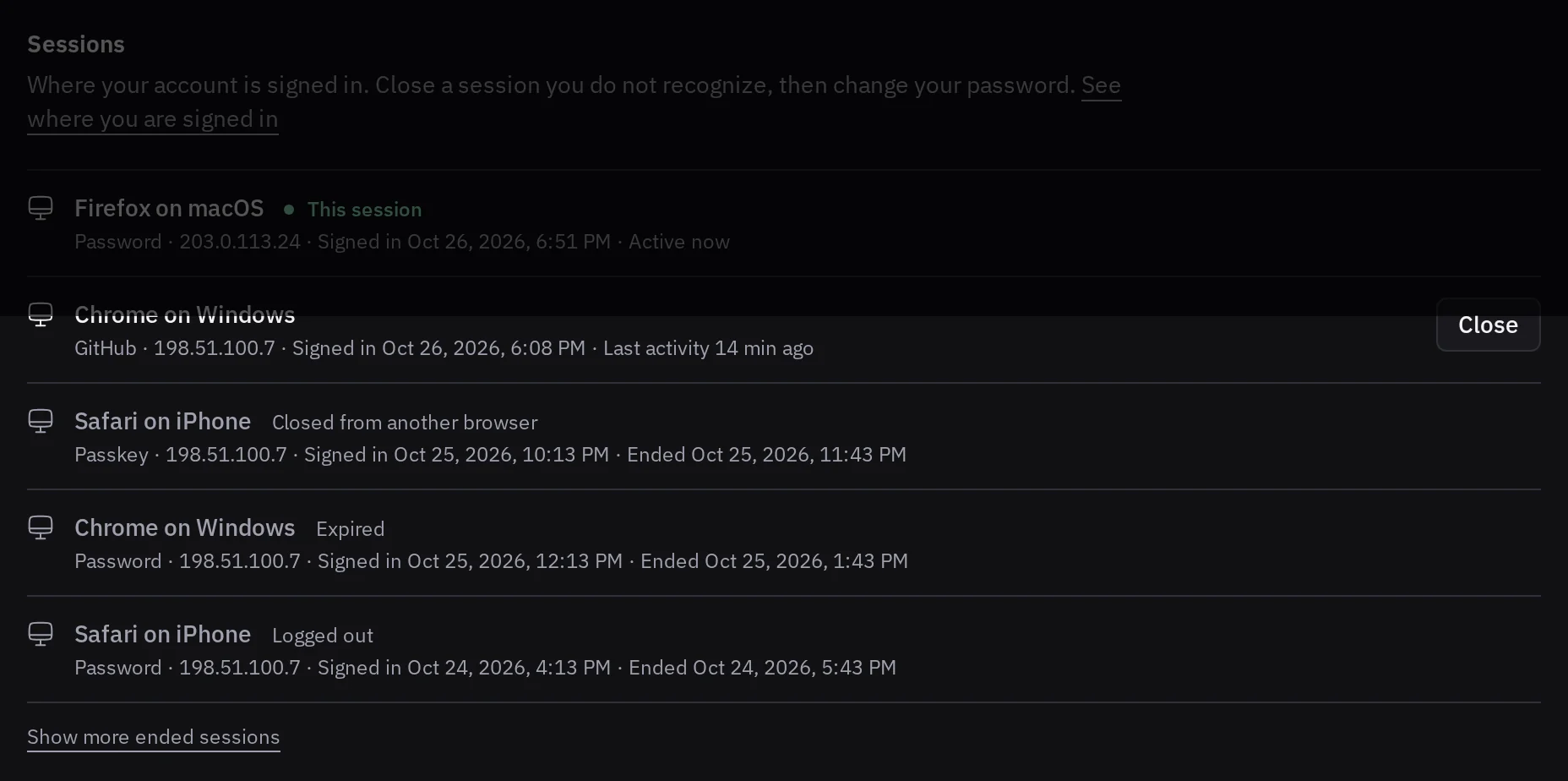
Choose Close to end another session. If you do not recognize one, close it, then change your password, which ends every other session.
A session also expires 3 days after its last request.
Confirm who you are
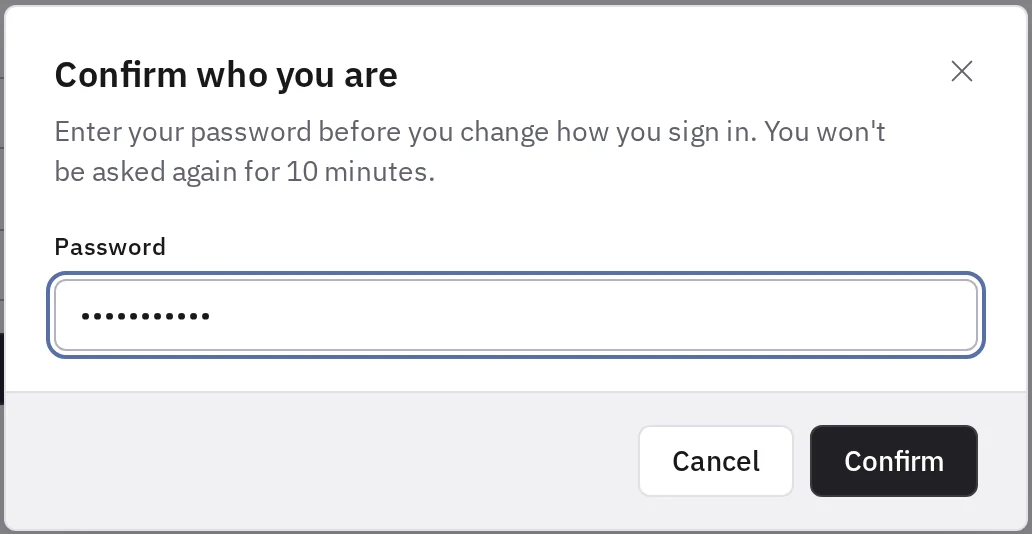
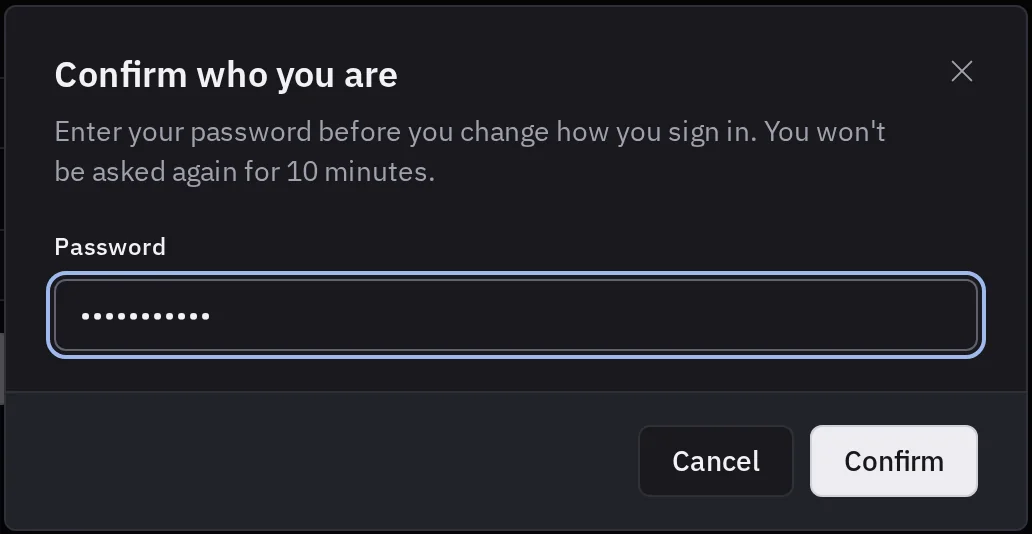
Before a change to how you sign in, Tenkai asks you to confirm who you are, so someone at your unlocked computer cannot take over your account.
- With a passkey: choose Use a passkey and unlock your device.
- With an authenticator app: a code, or a recovery code, which is then used up. With a passkey too, choose Use a code from your authenticator app.
- With neither: your password. With a passkey or an authenticator app, your password alone does not confirm.
- With GitHub only: nothing.
Tenkai does not ask again for 10 minutes in that browser. After 5 wrong codes or passwords in 15 minutes, it refuses them for 15 minutes.
Your credentials
My credentials, in the sidebar, holds what is yours in every team: your SSH keys, which an owner or admin authorizes on a server, and your GHCR credentials, which you link to a resource.