Create a managed service
Create PostgreSQL, MySQL, Redis® or Valkey, bind an application, back it up and understand storage and recovery limits.
Supported services
Tenkai provisions PostgreSQL, MySQL, Redis® and Valkey as managed services. MariaDB is coming soon and cannot be created yet. Each service keeps its data on one node of the project's cluster, its data node, shown under Runs on. A cluster of a single server can run managed services too. A MySQL can also run on two nodes, with high availability.
Redis® 8 runs from the unchanged redis image of Docker Hub, under the GNU Affero General Public License v3, with its modules such as JSON and search. Its source is at redis/redis.
MySQL 8.4 runs from the Percona Server for MySQL image, percona/percona-server. Your application and your tools connect to it as to any MySQL 8.4. Tenkai turns off the reports this image sends to Percona.
MongoDB
Tenkai cannot offer MongoDB as a managed service because of its license. MongoDB is published under the Server Side Public License only. Its section 13 requires whoever offers MongoDB as a service to publish, under the same license, the source of everything that runs that service: for Tenkai, its control plane, its agent and its backup tools. Percona Server for MongoDB has the same license.
Use a hosted MongoDB instead, such as MongoDB Atlas:
- Copy the connection string that the provider gives, such as
mongodb+srv://…. - Add it to your application as a sensitive variable, such as
MONGODB_URI. - If the provider accepts connections only from listed addresses, list the public address of each node of the cluster. Your application connects from the node it runs on, which changes when you drain a node.
Create the service
- Open a project created on a ready cluster.
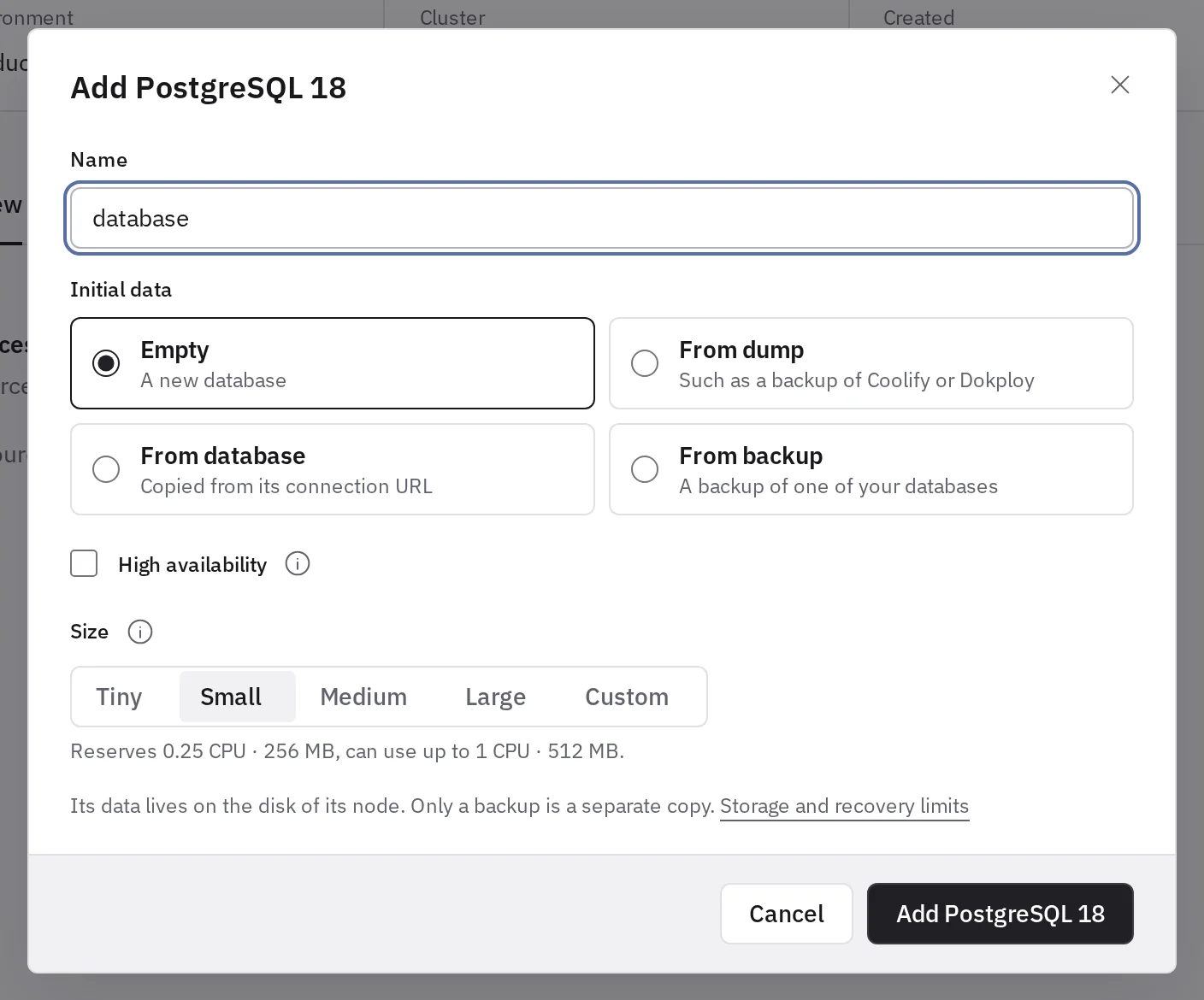
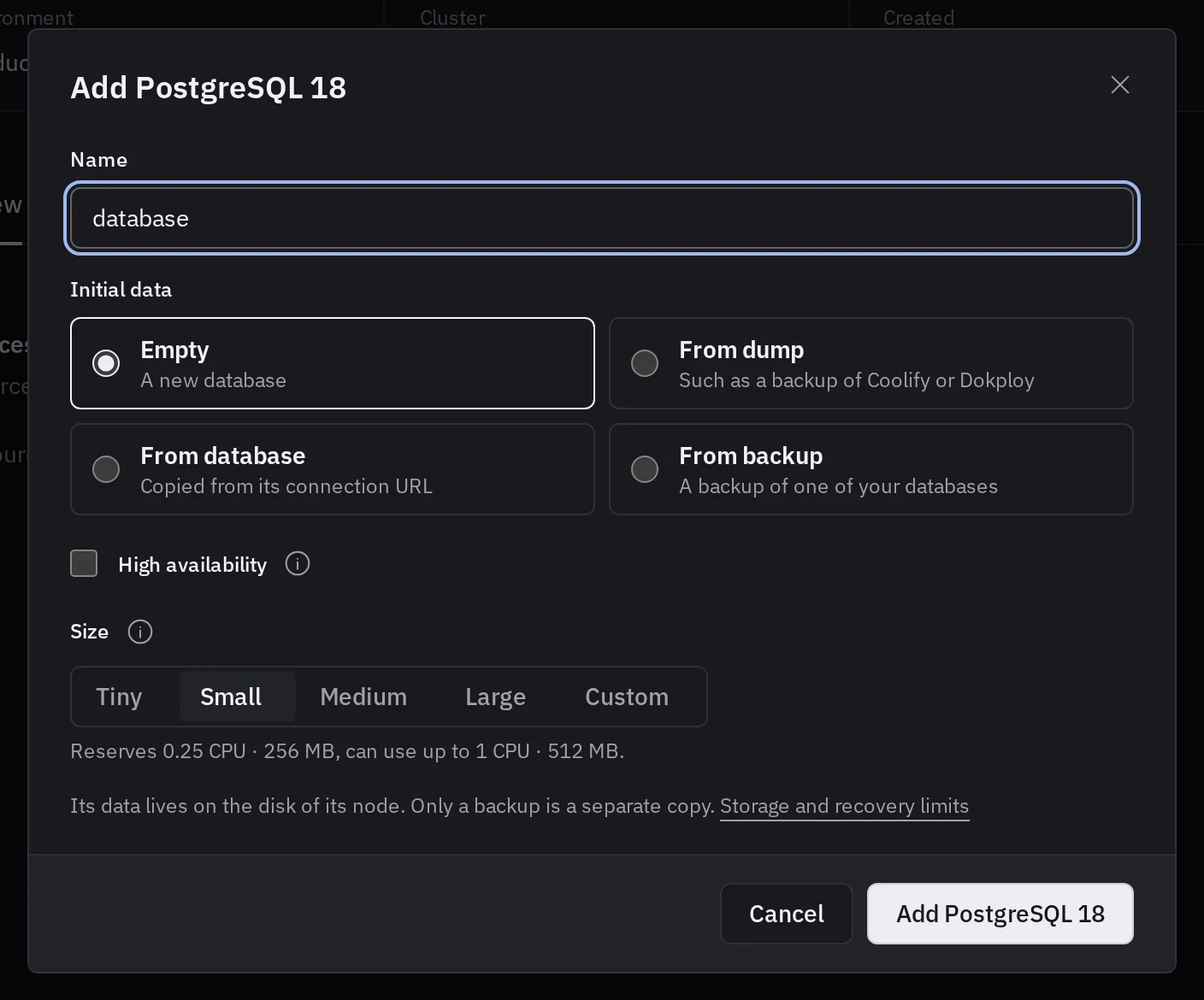
- Choose Add resource and select PostgreSQL, MySQL, Redis® or Valkey.
- Enter a name such as
database. - For a PostgreSQL or a MySQL, keep Initial data on Empty, or start it from a dump, from an existing database or from a backup.
- Choose its Size: the CPU and memory it reserves on its node, and the limit above them. Custom takes your own amounts.
- For a database that must keep taking writes when its node fails, select High availability, if your team has early access. For a PostgreSQL, read Keep a PostgreSQL writable when a node fails first. A MySQL needs Medium or larger: read high availability first.
- Choose Add and the name of the service, such as Add PostgreSQL 18, then wait on the resource until its Lifecycle says the service is running.
If provisioning fails, read its details, fix the cause and choose Retry provisioning. Do not create a second service instead.
If creation says "Another operation was running on this cluster. Try again.", no service was created. Wait for the other operation to finish, then create it again.
Bind an application
Creating a service gives no application access to it. Bind it:
- Once the service is running, choose Bind to an application… under Bindings on its Overview tab.
- Choose the application and the variables it receives.
- Choose Bind and apply to run its active release again with the new variables, or Bind and deploy the application later. An application never deployed shows Bind and deploy.
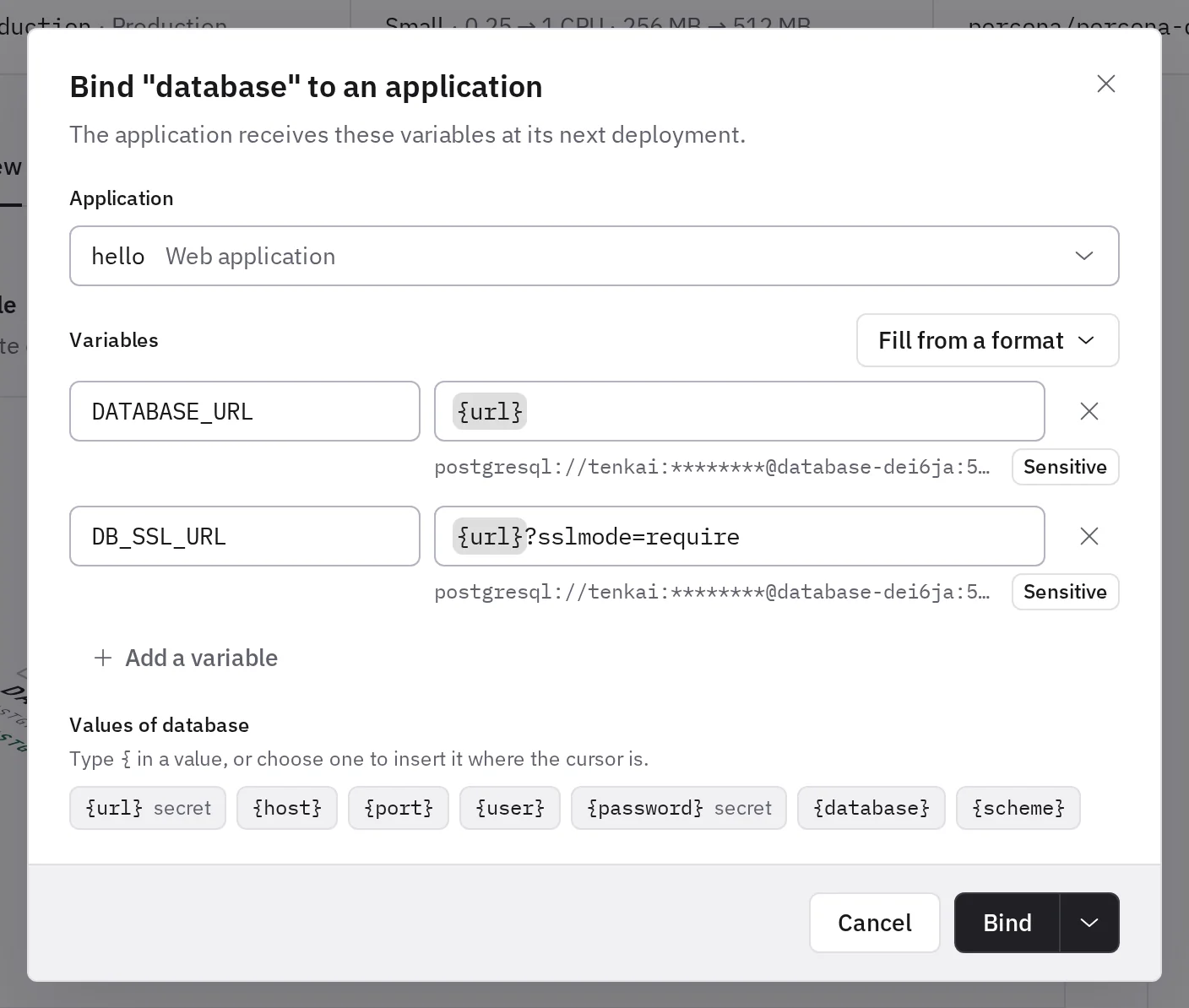
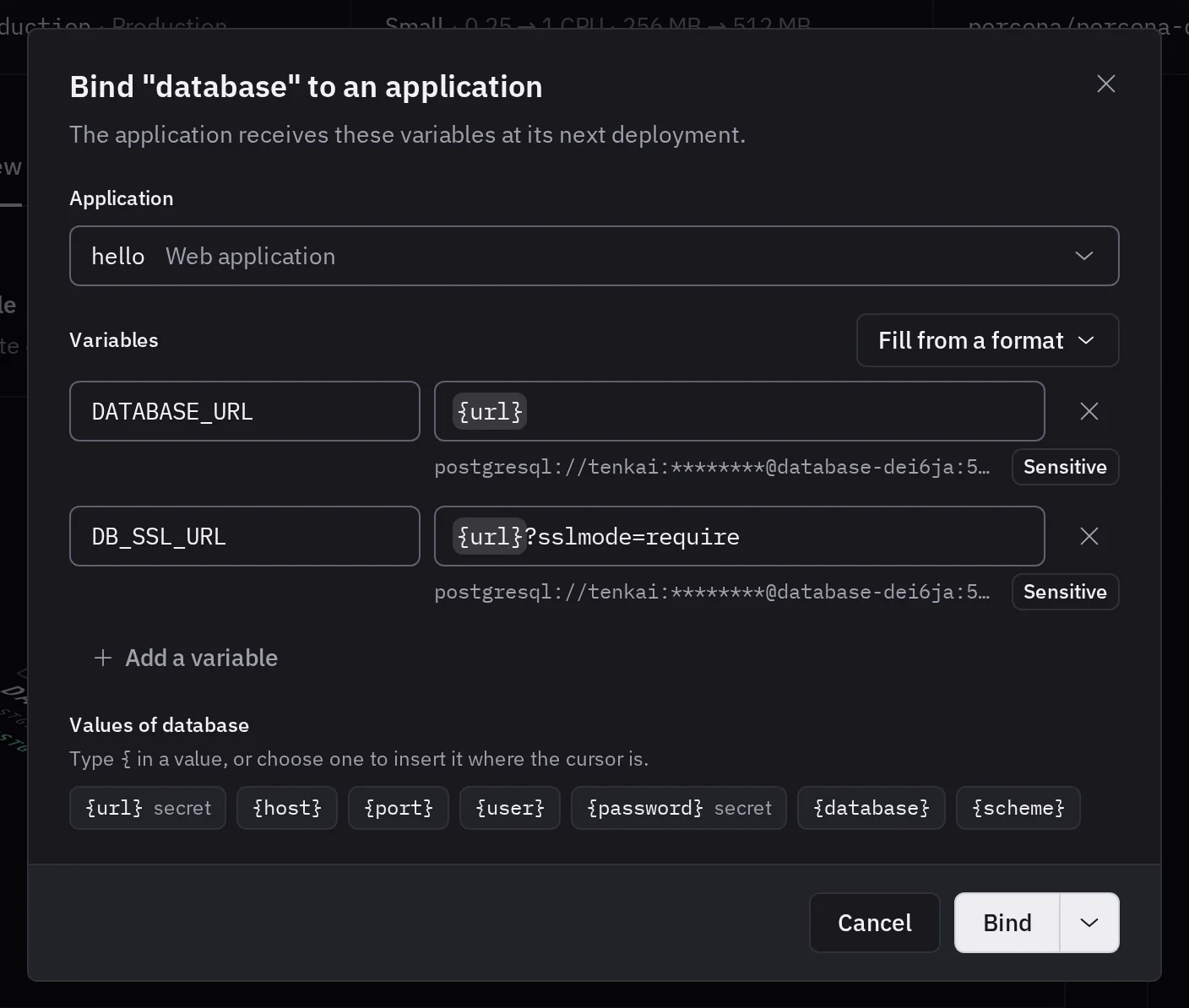
By default, the application receives DATABASE_URL (a postgresql:// or mysql:// URL), or REDIS_URL for Redis® and Valkey. Give the variables the names your application reads:
- Rename a variable, for example to
DB_URLfor Laravel, or toANALYTICS_DATABASE_URLto bind a second database to the same application. - Choose Fill from a format: Separate variables (
DB_HOST,DB_PORT,DB_USER,DB_PASSWORD,DB_DATABASE, orREDIS_HOST,REDIS_PORT,REDIS_USERNAME,REDIS_PASSWORD), Laravel or libpq (PGHOST,PGPASSWORD…). - Choose Add a variable and build its value from
{url},{host},{port},{user},{password},{database}and{scheme}, such as{url}?sslmode=require. Redis® and Valkey have no{database}.
An application cannot receive the same variable from two services: give the second one other names. A binding overrides a variable of the same name.
To change the variables, choose Edit variables in the menu of the application under Bindings, or select the binding in the project topology. The application keeps the old values until its next deployment, unless you choose Save and apply. After you unbind, deploy again, or choose Unbind and apply, to remove the connection.
Your application can create the PostgreSQL extensions a database owner may create, such as pg_trgm, pgcrypto, citext, hstore and uuid-ossp, plus vector (pgvector) and pg_stat_statements. pg_stat_statements records nothing, because it is not loaded at startup. Other extensions that need a superuser cannot be created.
Inside the cluster, PostgreSQL also accepts TLS with a self-signed certificate: a libpq client with the default sslmode=prefer connects encrypted, without verification.
Owners and admins find the user, database and password under Credentials on the Overview tab, to connect without a binding. This user has the same privileges as the bound applications. It is not read-only.
Connect from outside the cluster
Owners and admins can open External access to reach a running service from a laptop with psql, pg_dump, mysql, redis-cli, valkey-cli or another client.
- On the Overview tab, choose Open external access….
- Choose how long it stays open: 15 minutes, 1 hour or 4 hours. You cannot extend it.
- List the IPv4 addresses or networks allowed to connect. Tenkai fills in the address it sees for you.
- Download the CA certificate and keep it, under its downloaded file name, where your client runs. It is the same for every managed service of the cluster and never changes.
- Copy the connection string. The copy holds the real password, so paste it only where you would paste a password. A team member who cannot reveal sensitive values gets
<password>instead and asks an owner or admin.
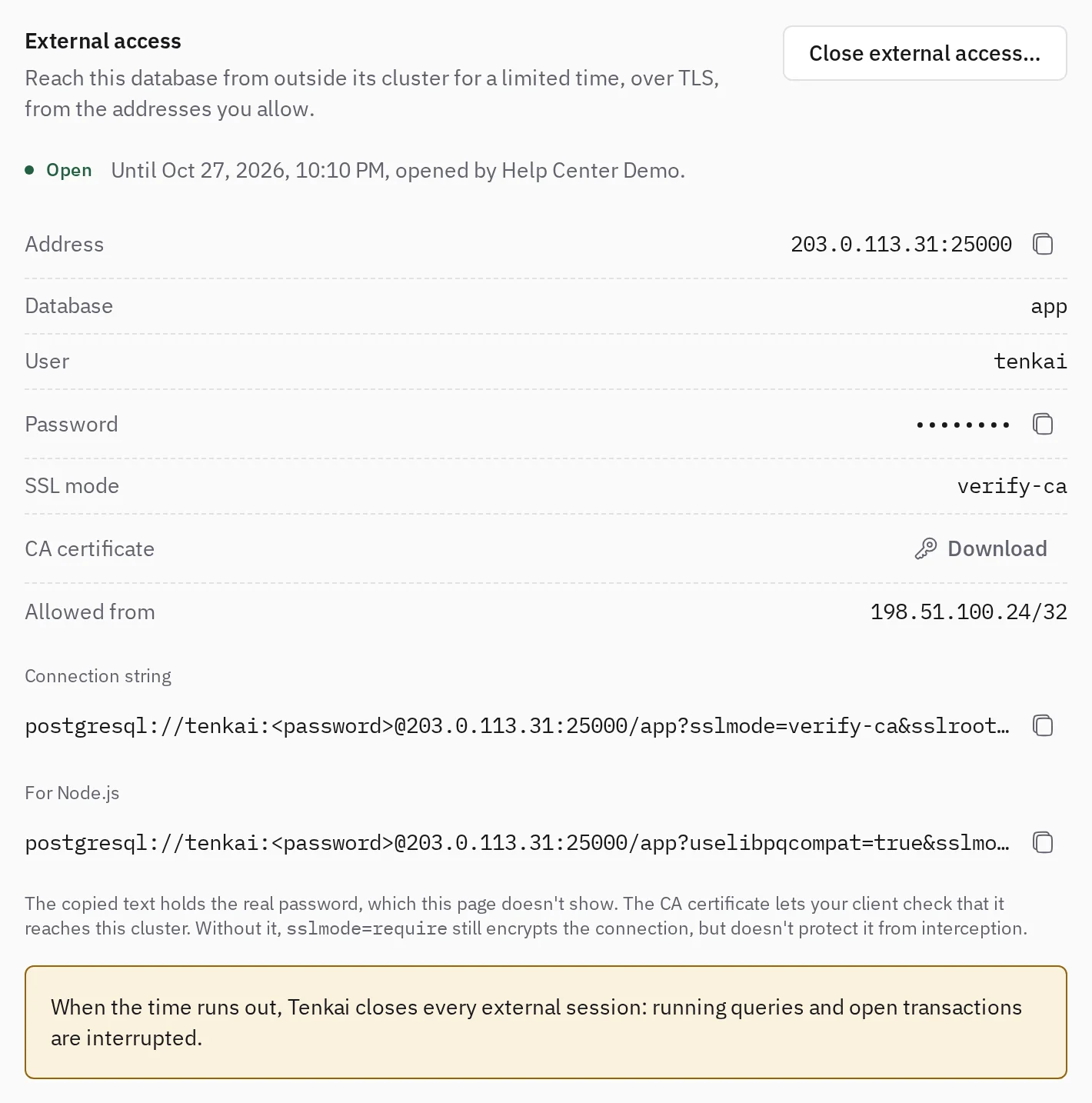
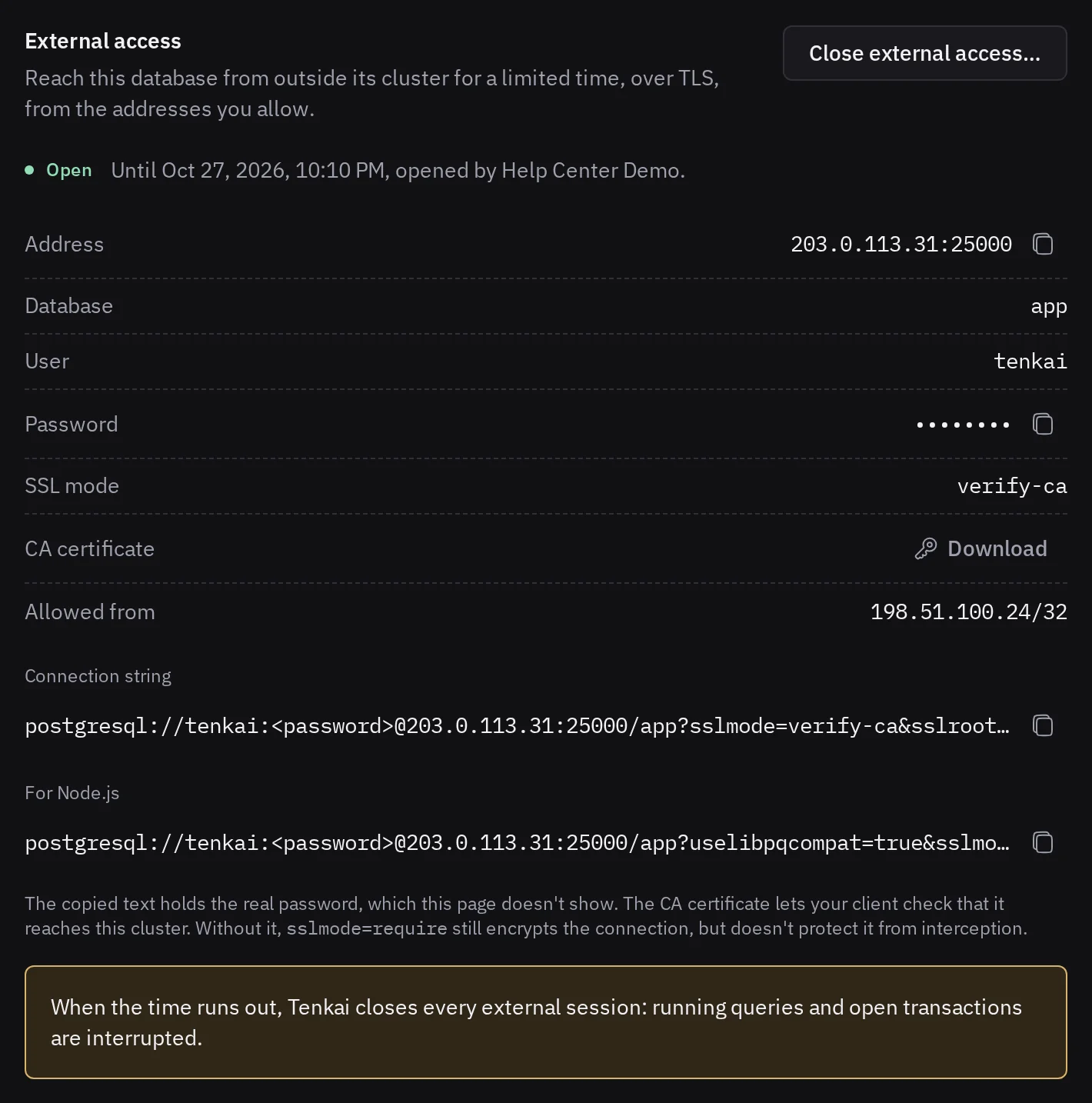
Connections go through the edge node, which needs a public IPv4 address. When the time runs out, or when you choose Close external access…, Tenkai closes every external session, which interrupts running queries and open transactions. Bound applications keep their connections.
Verify the certificate with the CA file:
- PostgreSQL:
sslmode=verify-cawithsslrootcert. For node-pg, use the For Node.js string.sslmode=requireconnects without verifying, so someone on your network could read the connection, password included. - MySQL:
--ssl-mode=VERIFY_CA --ssl-ca=<file>, or the CA option of your client. MySQL refuses a login without TLS from outside. Only the application user can log in from outside, not the admin user. The first time you open external access to an older MySQL, Tenkai restarts it once, which closes its open sessions. - Redis® and Valkey:
rediss://with--cacert <file>.--insecureconnects without verifying.
Use -p with mysql and --askpass with redis-cli or valkey-cli to keep the password out of your shell history.
With high availability, external access reaches the primary at one address. After a failover, open sessions close, and a new connection reaches the new primary. If an instance was stopped when external access opened and later becomes the primary, a client that verifies is refused until you open external access again.
Back up and restore a database
Tenkai sends encrypted backups of each database to a storage bucket you provide, once a day and when you choose Back up now. You can restore one on its node or into a new database: see Back up and restore a database. To start a new database from a backup of another one, see Create a database from a backup. A database with high availability still needs backups: read what changes for it.
Start from a dump
To bring a PostgreSQL or a MySQL over from Coolify, Dokploy or another host, create the new database from a dump of the old one. The backups that Coolify and Dokploy send to S3 load as they are.
- Add the bucket that holds the dump as a storage bucket, as in set up backups.
- Choose Add resource, select PostgreSQL or MySQL, then under Initial data choose From dump.
- Choose the Storage bucket, and enter the Key of the dump from the root of the bucket, as the console of your provider shows it, such as
data/coolify/backups/databases/my-team/app-db/pg-dump-app-1792430373.dmp. The prefix of the storage bucket does not apply. - Choose the Add button at the foot of the dialog. The Lifecycle shows the load until the database runs on its data.
If the dump does not load, the database shows Restore failed with the reason. Fix the dump, delete the database and create it again.
Tenkai loads one database, as the user your applications connect as, so every table, view and function belongs to that user. Bind your applications to the new database: its credentials are not those of the old one.
- PostgreSQL: an archive of
pg_dump --format=custom(-Fc), compressed with gzip or not. Tenkai refuses a dump in SQL, because it can run commands on the server that loads it: export the database again withpg_dump -Fc. Tenkai leaves out the owners and privileges of the archive. The load runs in one transaction. Only the extensions an application may create load, such aspgcryptoorvector. - MySQL: the SQL of
mysqldump, compressed with gzip or not. A dump with the comments ofmysqldumpmust end with its line-- Dump completed: Tenkai refuses one cut short. A dump written with--compactor--skip-commentshas no such line: it loads, and the page of the database shows that Tenkai could not check it is complete, until a restore replaces its data. Check then that every table holds all its rows. Your application user becomes the definer of the views, triggers and routines of the dump. A backup of Coolify or Dokploy holds no stored procedures or functions: to bring them over, export the database withmysqldump --routines. A dump of a server with GTIDs fails onSQL_LOG_BIN: export it with--set-gtid-purged=OFF. - A dump of all databases, such as
pg_dumpallormysqldump --all-databases, or one that creates a database or switches to another, fails. Export the one database your application uses.
Tenkai takes no backup after the load: choose a storage bucket for the new database, then Back up now.
Start from an existing database
To move a PostgreSQL or a MySQL that still runs elsewhere, such as on a Coolify or Dokploy server, create the new database as a copy of it. The copy holds the data of the moment it starts.
Tenkai does not copy a MariaDB, such as one that Coolify runs, into a MySQL: the copy stops before it touches the new database.
- Make the old database reachable from the nodes of the cluster: a public port, or one that lets in the addresses of the nodes. A database reachable only on the private network of its server, such as the Docker network of a Coolify server, cannot be copied: open its port for the time of the copy, then close it.
- Stop the applications that write to it, or accept that the writes after the start of the copy stay behind.
- Choose Add resource, select PostgreSQL or MySQL, then under Initial data choose From database.
- Paste its Connection URL, such as
postgres://user:[email protected]:5432/appormysql://user:[email protected]:3306/app. For a PostgreSQL that requires TLS, add?sslmode=require. - Choose the Add button at the foot of the dialog. The Lifecycle shows the copy until the database runs on its data. Tenkai forgets the URL once the copy ends, and only reads the old database.
Tenkai copies one database as a dump does, with the same rules for its owners, definers and extensions: see Start from a dump. The user of the URL must read every object of that database: a MySQL view or routine that another user defined needs that user's privileges, or the copy fails on it.
If the copy fails, the database shows Restore failed with the reason, such as a refused password or a host the node could not reach. Fix it, delete the database and create it again. Tenkai also refuses a database that runs a newer major version than its own, PostgreSQL 18 or MySQL 8.4.
High availability
This section is about MySQL. For a PostgreSQL, read Keep a PostgreSQL writable when a node fails. High availability for MySQL is in early access.
A MySQL with high availability runs two instances on two nodes, and each write goes to both. Your applications reach the primary through the hostname of their binding. When the primary or its node fails, writes go to the standby at the same hostname, port and credentials. You do not redeploy. A third member, the arbitrator, holds no data and runs on a third node, so the instances can tell a lost instance from a lost network.
Turn it on
For a new MySQL, choose Medium or a larger size and select High availability when you create it. For one that already runs, read Turn it on for a MySQL that already runs. You cannot turn it off, and you cannot change the size afterwards.
Tenkai refuses it when the cluster has fewer than three nodes that accept workloads, when no second node has room for the second instance or no third node has room for the arbitrator, or when the size is below Medium.
Turn it on for a MySQL that already runs
An owner, an admin or a developer can do it. The data, users, bindings, hostname, port and credentials stay, so you do not redeploy.
- Take a backup.
- Close its external access if one is open. You can open it again afterwards.
- In the More actions menu of the MySQL, choose Turn on high availability…, then confirm.
- Wait until its Lifecycle says the service runs with high availability.
Tenkai checks the tables first:
- A table with another engine than InnoDB stops the change, and the MySQL keeps running as one instance. Tenkai names the tables. Run
ALTER TABLE <table> ENGINE = InnoDB, then try again. - A table without a primary key does not stop it, but add one when you can: see What it asks of your tables.
The writes then stop twice for a few seconds: once when the instance restarts, about 6 to 8 seconds in our tests, and once more after the second instance has copied the data. In between, the first instance is slower, and ALTER TABLE waits until the copy ends. A database of 314 MB had both instances 75 seconds after the request. During a stop, your application reads:
ERROR 2003 (HY000): Can't connect to MySQL server, for a new connection;ERROR 2013 (HY000): Lost connection to MySQL server, for an open session or a new connection.
Make your application reconnect after a lost connection.
If the change fails, the service shows as Failed with two instances. Choose Retry provisioning to continue. It does not go back to one instance.
Replace an instance on another node
An instance stays on its node with its data. To move it, for example before you drain or remove that node, or after its machine is gone for good, an owner, an admin or a developer chooses Replace an instance… in the More actions menu of the MySQL, then the instance and the node that receives the new one. A PostgreSQL with high availability has its own replacement, which keeps the old instance until the new one follows.
The new node must accept workloads, have room for the size of the service, and not hold the other instance. A third node must still have room for the arbitrator:
- On three nodes, with the old node healthy, choose the node of the arbitrator. The arbitrator moves to the old node.
- When the old node is gone, or you want to drain or remove it, on three nodes, add a server to the cluster first.
The new instance copies all the data from the other instance, which stays writable meanwhile. Until the copy ends, the database runs on one instance: if that one fails, the database stops. A database of 2 GB took 38 seconds in our tests. When you replace the primary, the other instance becomes the primary and the open sessions close once. Move the primary back afterwards if you want it on the new node.
Once the replacement ends, you can drain the old node or remove it from its cluster. Until then, Tenkai refuses both, and refuses a restore of the database.
If the replacement fails, the service shows as Failed: choose Retry provisioning to continue. When the old node does not answer, Tenkai stops rather than risk two instances taking writes. Bring the node back and choose Retry provisioning. If its server is gone for good, choose Its server is gone…. Confirm it only for a machine that no longer runs: otherwise its old instance could take writes beside the new one. If that machine ever comes back, delete its old volume, or the machine.
What it protects against
- A crash of MySQL on the primary, or the loss of its node or network. The writes stopped for 6 to 7 seconds in our tests.
- The loss of the standby or the arbitrator. The writes stop for about 6 seconds.
- Both instances stopping together, as when both servers restart. The writes came back about 15 seconds after the instances started again.
A returning instance catches up and joins as the standby by itself. A failover does not need Tenkai, so it works while Tenkai is unreachable.
A write that MySQL confirmed while both instances were in the cluster is never lost. A write that got no answer may or may not be there: your application must retry it. For less than a second during a failover, your application may read ERROR 1213 (40001), a deadlock, at a commit: run the transaction again.
It does not protect against:
- a deleted table or a wrong
UPDATE, which both instances apply. Only a backup brings that data back; - the loss of two of the three nodes at once. The remaining instance refuses every query until the other data instance is back (the arbitrator alone is not enough), then the cluster forms again by itself, about 25 seconds later in our tests. Meanwhile your application reads
ERROR 1047 (08S01): WSREP has not yet prepared node for application useorERROR 2013 (HY000): Lost connection to MySQL server at 'reading initial communication packet'.
While one instance is down or catching up, the other holds the only up-to-date copy, as on a single instance.
Read the instances
The Instances section lists both instances with their node, role and state. Preferred marks the instance that should take the writes, which a move of the primary changes. The Primary is the instance that actually takes them. An instance that is Catching up cannot take over yet. Not read means Tenkai could not reach its node, not that it stopped.
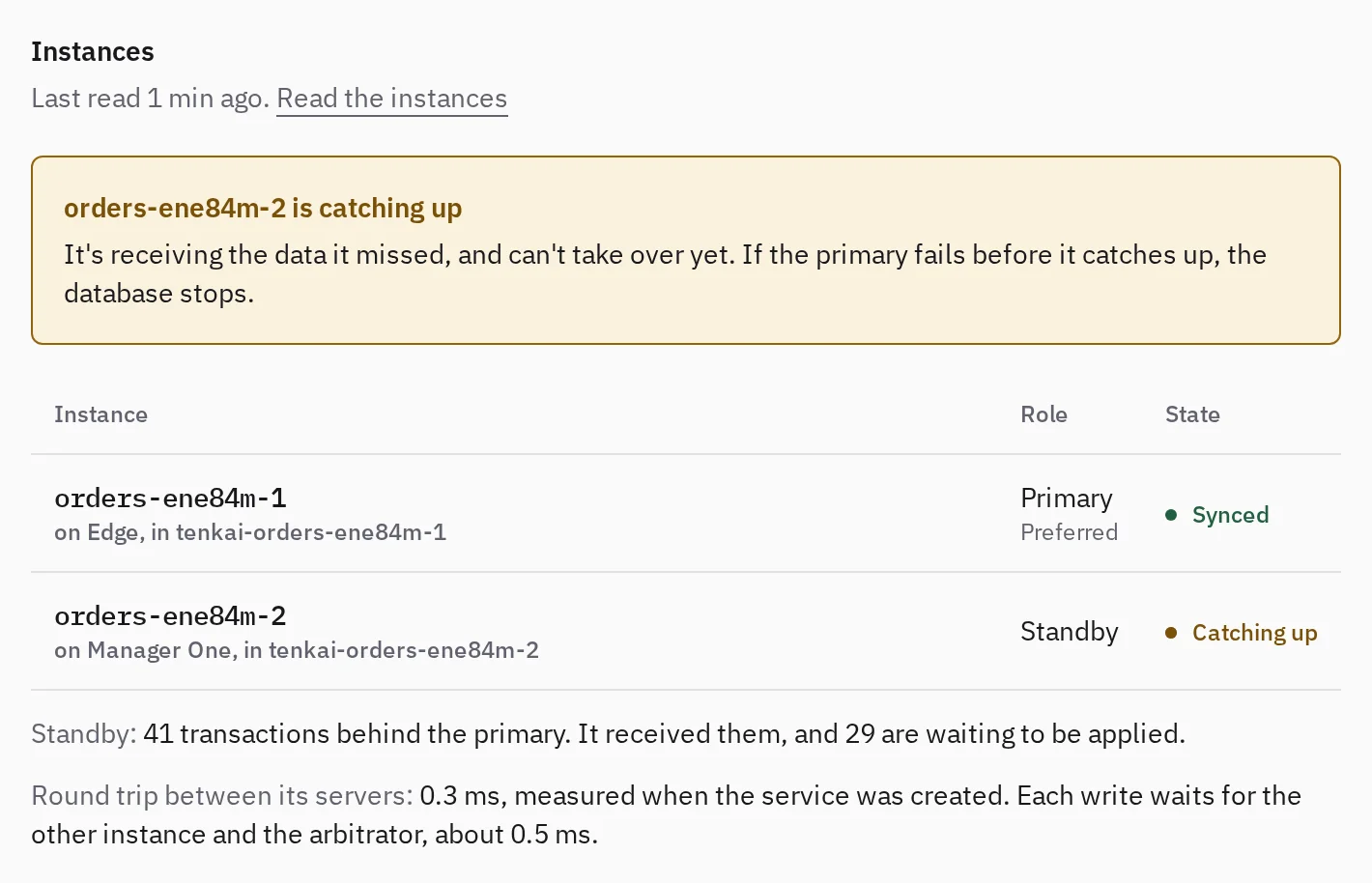
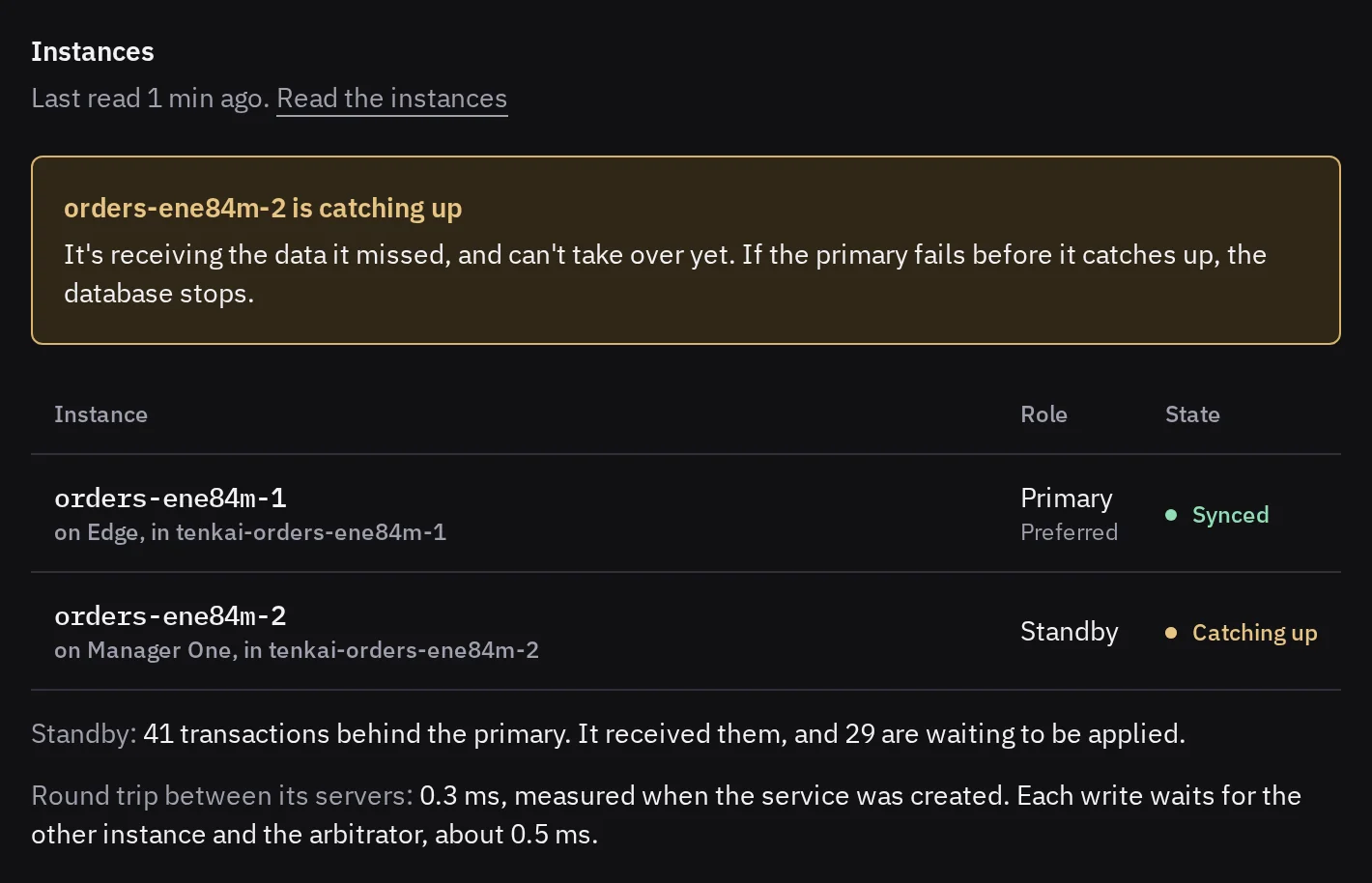
When a protection is missing, the section says so, with the buttons of what to do, and health lists the database under High availability:
- An instance is out of the cluster. If the node of the primary fails now, the database stops. The instance comes back by itself once its node runs. If it does not, check its node on the page of the cluster.
- An instance catches up. If the primary fails before it has caught up, the database stops.
- The arbitrator is out of the cluster. The loss of either instance stops the writes. If it stays out, check that a third node runs and has 32 MB free for it.
- Your applications cannot write. No instance is in the majority with every write, and an instance outside the majority refuses every query, so your applications cannot read either. The instances form the cluster again by themselves once both run: choose Open the cluster and check the nodes of both. If the machine of one is gone for good, replacing that instance does not help, since the replacement waits until the instance that stays takes the writes. Choose Open the backups, create a new database from a backup on healthy nodes, and bind your applications to it. The button shows once a backup succeeded.
Move the primary
Move the primary before you work on its node, or to choose which node takes the writes. An owner, an admin or a developer can do it while the MySQL runs.
- In the More actions menu of the MySQL, choose Move the primary…, then confirm.
- Wait until its Lifecycle names the new primary.
Both instances must run and hold every write. If not, nothing changes and the page says why: wait until the instance has caught up, then try again. The writes stop for a few seconds, and open sessions close with ERROR 2013 (HY000): Lost connection to MySQL server, then ERROR 2003 (HY000): Can't connect to MySQL server until the move ends. No data moves. If the move fails, choose Retry provisioning.
A server reboot moves the primary off the node for you, and does not reboot the node when the primary cannot move.
What it costs
- Capacity. Each instance reserves the size of the service on its node, so it doubles what the service reserves. The arbitrator reserves 32 MB on a third node.
- Each write. A write waits about one and a half round trips between the nodes. The Instances section shows the round trip and the wait it adds. With 5 ms between the nodes, a write took about 10 ms in our tests. Keep the three nodes in the same data center or region: Tenkai does not refuse nodes that are far apart, the database is just slow.
- A change of a table.
ALTER TABLEandCREATE INDEXstop every write of the database while they run.
What it asks of your tables
- Use InnoDB for every table. A table with another engine, such as MyISAM or MEMORY, is not copied to the other instance.
- Give each table a primary key. A table without one is slower to apply, and some statements on it are refused.
The Logs and Terminal tabs show the preferred instance.
Storage and recovery limits
The data of a managed service lives on a volume on its node, unlike the disposable filesystem of a web application. It is not a backup, and it may not survive the loss of the node or its disk. A PostgreSQL with high availability keeps a copy on a second node, which survives the loss of one node but not a mistake in the data. Only a backup is a separate copy.
The volume uses the disk of its node, shared with the other resources there. The size of the service does not limit it. A PostgreSQL with a continuous backup needs more room while its storage bucket does not answer: up to about 512 MiB of write-ahead log in our tests, on each instance with high availability. Past that, the history has a gap. Keep that room free on the node, or a full disk stops the database.
Size, removal and failures
To change the CPU and memory of a service, choose Change size in its More actions menu. The service restarts on its node. A MySQL with high availability keeps the size it had when it got it, so choose its size first.
Deleting a service destroys its data volumes, its credentials and its bindings. If provisioning or deletion fails, read the lifecycle details and use the retry action, then see troubleshooting.
What the size of a PostgreSQL sets
PostgreSQL takes a quarter of the memory it reserves for its shared buffers, and plans its queries as if three quarters of that memory were cached.
Tiny128 MB reserved · 256 MB limit
Small256 MB reserved · 512 MB limit
Medium512 MB reserved · 1 GB limit
Large1 GB reserved · 2 GB limit
A Small PostgreSQL
- Shared buffers
- 64 MB
- Planner cache estimate
- 192 MB
- Shared buffers
- A quarter of the reserved memory
- Planner cache estimate
- Three quarters of the reserved memory. PostgreSQL allocates none of it: it plans its queries as if its shared buffers and the system cache held this much
- Rest of the limit
- For the connections, their queries' memory and the system cache
The size sets no disk: see the storage limits.
What the size of a MySQL sets
The InnoDB buffer pool grows with the size, so MySQL starts within it.
Tiny128 MB reserved · 256 MB limit
Small256 MB reserved · 512 MB limit
Medium512 MB reserved · 1 GB limit
Large1 GB reserved · 2 GB limit
A Small MySQL
- Buffer pool
- 128 MB
- Log buffer
- 16 MB
- Connections
- 100
- Open tables
- 400
- Table definitions
- 400
- Performance Schema
- On
- InnoDB buffer pool
- Half of the reserved memory, and no more than a quarter of the limit
- InnoDB log buffer
- 16 MB up to the Small size, 64 MB above
- Rest of the limit
- For the connections, the open tables, the Performance Schema and MySQL itself
A MySQL with a memory limit of 512 MB or less, as Tiny and Small, gets smaller settings for the rest. Below 512 MB, as Tiny, it runs without the Performance Schema, so its performance_schema tables stay empty. Above 512 MB, a MySQL accepts 151 connections at once, whatever its memory.
What the size of a Redis® or a Valkey sets
A Redis® or a Valkey keeps its data in three quarters of the memory it reserves.
Tiny128 MB reserved · 256 MB limit
Small256 MB reserved · 512 MB limit
Medium512 MB reserved · 1 GB limit
Large1 GB reserved · 2 GB limit
A Small Redis® or Valkey
- Memory for data
- 192 MB
- When it is full
- Refuses writes
- Data
- Three quarters of the reserved memory
- Rest of the limit
- For the rewrite of the append-only file, the clients and fragmentation
When the data fills it, writes are refused and no key is dropped. Choose a larger size before it fills.
Use the database size calculator to estimate memory for your data and connections.
Redis is a registered trademark of Redis Ltd. Any rights therein are reserved to Redis Ltd.