Connect a custom domain
Connect your domain to a Tenkai web application with a CNAME or an A record, and verify automatic HTTPS.
Before connecting a domain
Deploy a web application and confirm its default route works. You need access to your domain's DNS zone, and an edge node, the cluster node that receives public traffic, with a public IPv4 address. Tenkai routes the domain; it does not register or transfer it.
Add the hostname
Open the resource's Domains tab and choose Add custom domain…. Enter a hostname such as app.example.com, without https://, a port or a path. Add the domain in Tenkai first: a DNS record alone does not connect it.
Configure DNS
At your DNS provider, create one of the two records that Tenkai shows, and copy its name and value exactly. Providers may ask for app instead of app.example.com, or @ at the root of a domain.
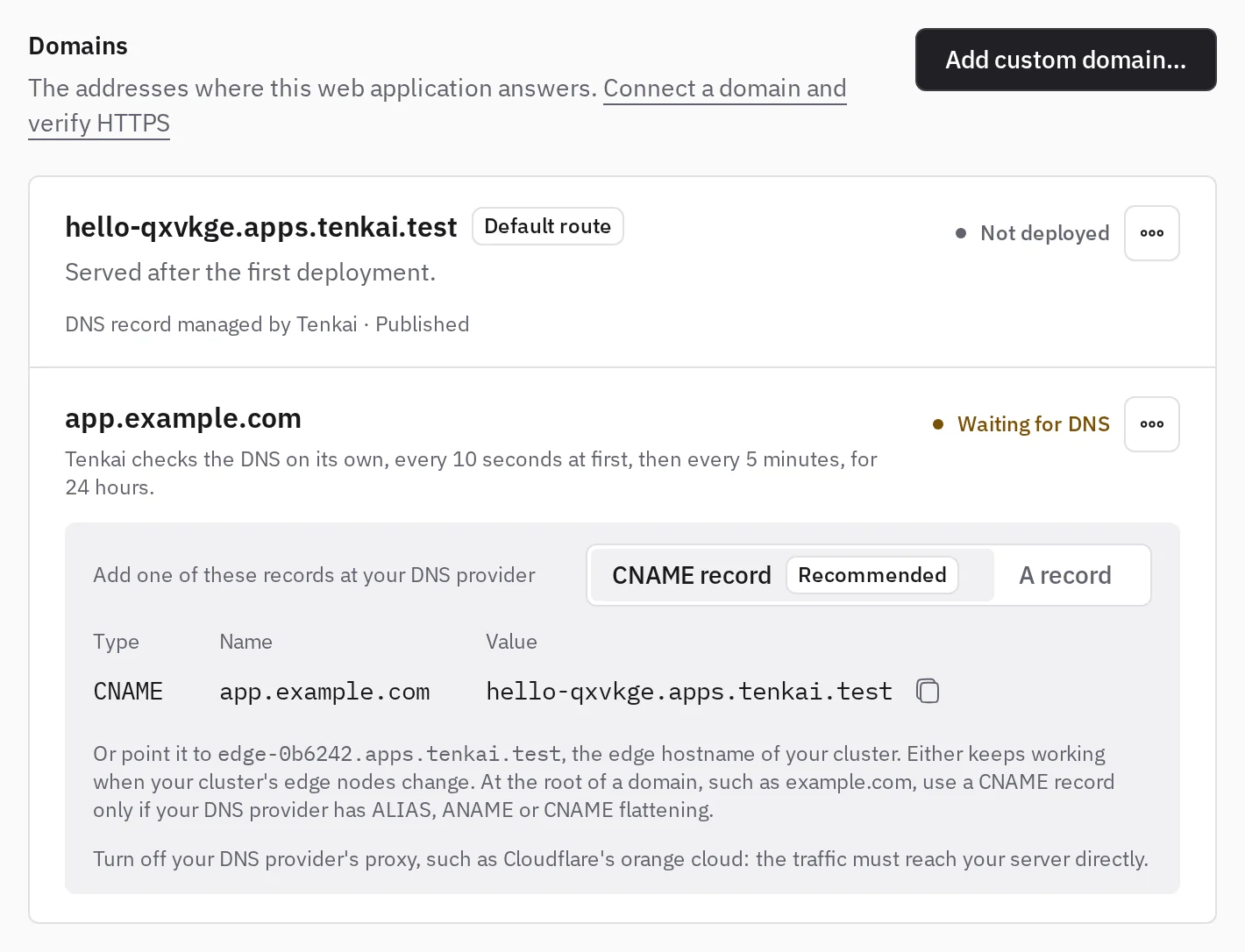
Use a CNAME record (recommended)
A CNAME record points your hostname to the default route hostname, such as shop-ufus25.apps.tenkai.cloud. It follows every change of the edge nodes of your cluster, and keeps working when you disable the default route.
A CNAME record to the edge hostname of the cluster, such as edge-k7m4p9.apps.tenkai.cloud, works too. Every default route points to it, and Tenkai keeps it on the edge nodes.
The root of a domain, such as example.com, accepts a CNAME record only if your DNS provider has ALIAS, ANAME or CNAME flattening. Otherwise, use an A record.
Use A records
An A record points your hostname to the IPv4 address of an edge node. A cluster whose managers all receive traffic has an edge node on each manager: add one A record for each address that the Domains tab lists. Visitors then reach your web application through any of them.
When the edge nodes change, such as when a manager is replaced or its public address changes, change the records yourself. The cluster page lists each custom domain whose A records miss an edge node, or name an address that is no longer one, with the addresses to set. Tenkai checks the domains again after each change of the edge nodes. Once you changed the records, choose Check again there. Meanwhile, the domain keeps working through its records that still point to an edge node.
At the root of a domain, such as example.com, A records are the only choice unless your DNS provider has ALIAS, ANAME or CNAME flattening. Prefer a CNAME record everywhere else.
Every A record of the hostname must point to an edge node. Remove any AAAA record: Tenkai routes IPv4 only, and Let's Encrypt prefers IPv6, so the certificate fails.
Each value is the Public address on the server page of an edge node. If that page reports no public IPv4 address, or the internet reaches the edge node at another address, an owner or admin changes it there. Do not guess a DNS value.
Turn off the proxy of your DNS provider
Set the record to DNS only, not proxied (such as the orange cloud of Cloudflare). A proxied record resolves to the provider's addresses, so Tenkai cannot verify it or get a certificate.
Check the public answers
dig +short CNAME app.example.com
dig +short A app.example.com
dig +short AAAA app.example.com
With a CNAME record, CNAME prints the default route hostname, A prints it, the edge hostname of the cluster, then the IPv4 address of each edge node that receives traffic, and AAAA prints no IPv6 address. With A records, only A prints something: the addresses of your records.
Wait for HTTPS
Tenkai checks DNS automatically; DNS changes can take time to propagate. Once the check passes and a release is active, Tenkai gets a Let's Encrypt certificate, sends it to the edge node, then routes the domain. You add no DNS record for the certificate, but the hostname must reach the edge node on port 80 from the internet.
The domain is not routed until its certificate is ready, so an active deployment does not prove HTTPS works. The Certificate line of each address shows the state and the expiry date. If Tenkai cannot get the certificate, it gives the reason and the time of the next attempt, and retries on its own. Other domains and the default route keep working. Tenkai renews certificates before they expire.
If another team still routes your domain, your domain waits: its details say that another web application holds its certificate. Once your DNS points at your cluster, the other team's next renewal fails and the certificate passes to you. That renewal comes about a month before their certificate expires, so it can take weeks, unless the other team removes the domain, which frees it at once.
If automatic checking stops, fix the reported problem, open the domain's … menu and choose Check DNS again or Check HTTPS again.
Verify the web application
Open https://app.example.com once the domain is ready. Expect your web application with no certificate warning. If it fails, see HTTPS troubleshooting.
Disable the default route
Once your own domain works, you can stop the default route from answering: open its … menu on the Domains tab and choose Disable default route. Its DNS record stays, so a CNAME record that points to it keeps working.
Enabling it again needs a new certificate. Let's Encrypt issues 5 certificates per hostname in 7 days; past that, the address stays unrouted for up to several days. Do not toggle it repeatedly.
Stop using a domain
Removing a custom domain in Tenkai does not remove its DNS records: delete them at your DNS provider. Adding the domain again requests a new certificate, under the same limit of 5 in 7 days.
When you delete a web application or its project, its default route hostname stops working. Delete the CNAME records that point to it.