Diagnose deployment and HTTPS failures
Read the logs of a deployment and find the next check for a failed build, an application that does not respond, incorrect DNS or an HTTPS verification failure.
Find what failed
Start with health, in the sidebar: each line opens the page where you act on it. Then read the message next to the failure. Tenkai says what to change where the problem shows: under a field, in a callout on the resource or the server, or under a deployment.
Read the logs of a deployment
On the resource's Overview tab, find the deployment in Deployments. A failed deployment shows the phase that failed, a message, and its logs open on their last lines, where the error usually is. When the new version did not start, did not answer, or a worker stopped after it started, they end with the last lines the new version wrote: Tenkai removes it, so the Logs tab never shows them.
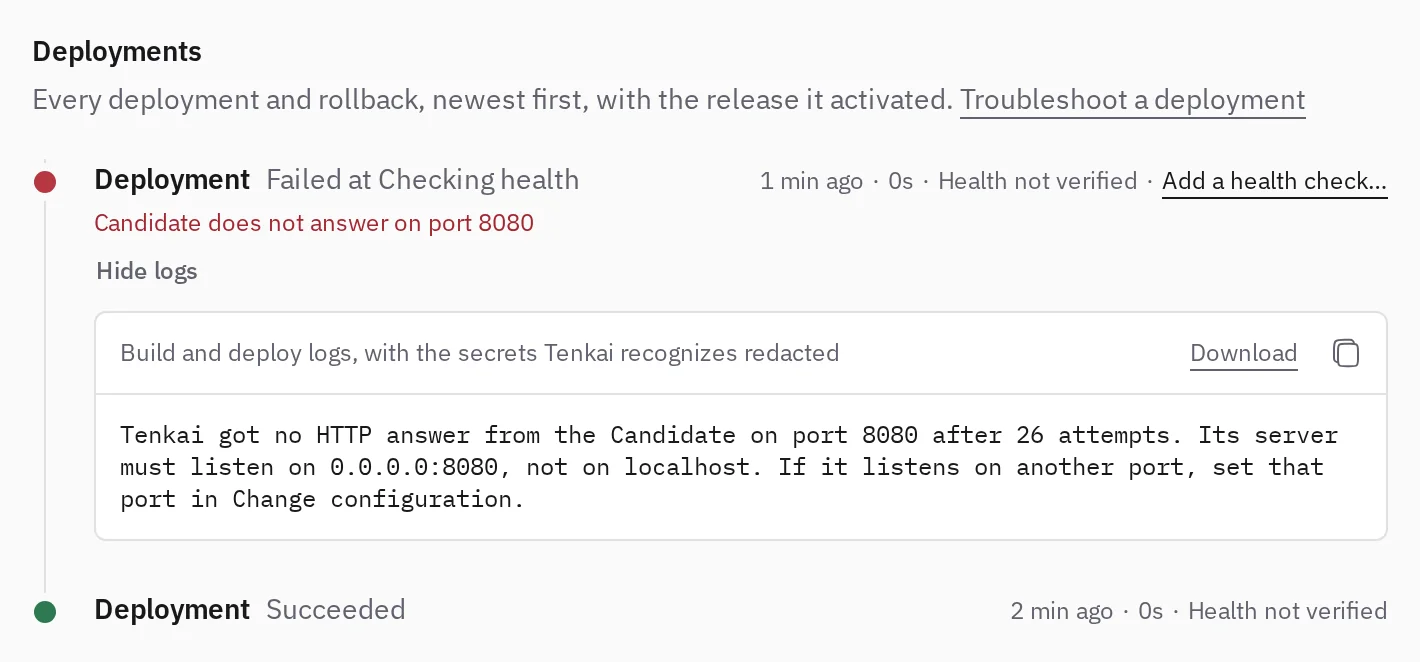
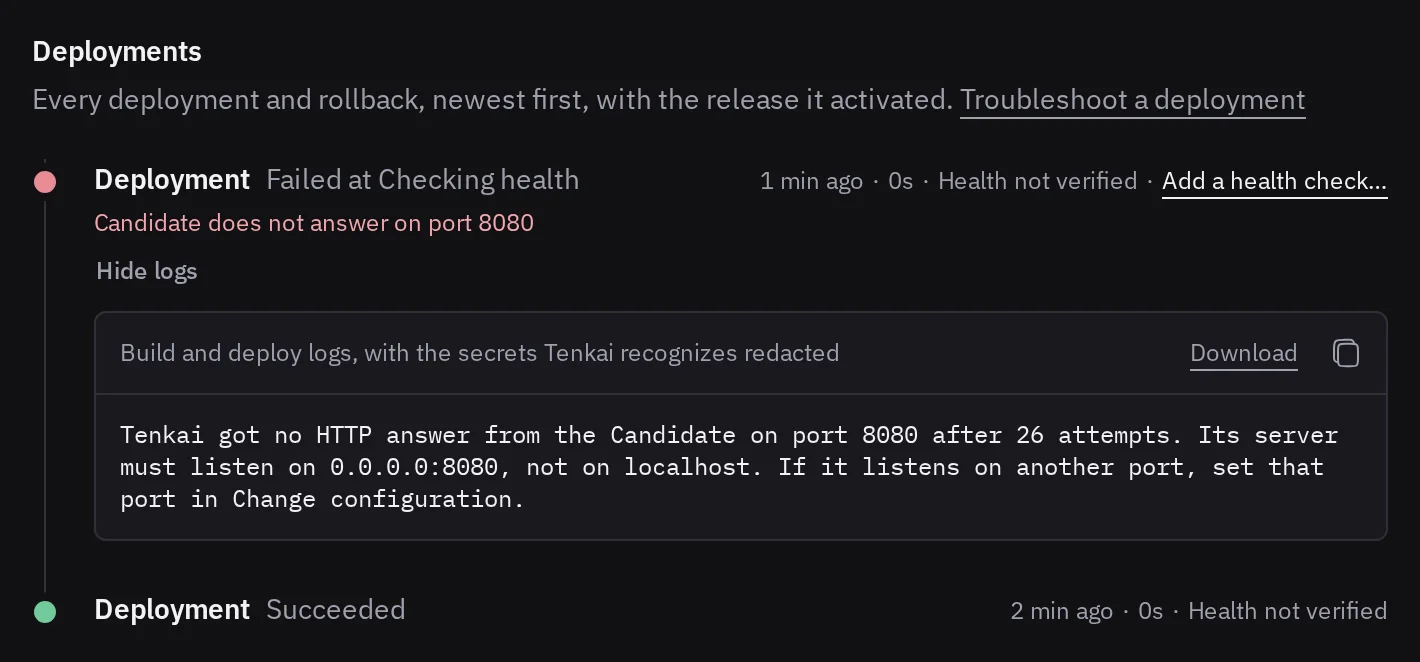
0.0.0.0:8080, its port. The logs say what its server must listen on.- Show logs opens the logs of any other finished deployment, such as a successful one to compare with.
- Download the full logs saves all of them as a file.
- Tenkai redacts the secrets it recognizes, but not every secret your application prints. Read the logs again before you share them.
- When the latest deployment failed, Hako diagnoses it above Latest deployment: the cause, and the actions that would repair it. It reads the runtime logs, so only the members who see the logs tab see it.
To see what the running application prints now, or open a shell in it, see Read the logs of a resource and open a terminal in it.
Build or source preparation fails
Read the logs of the deployment, then check its source:
- Check the repository URL and requested Revision. Commit the files the build needs.
- For a Dockerfile, check its path and build directory / context. A
COPYcan only read files in that context. - If the dialog that creates an application offers Container image alone, Git builds are off on the cluster: turn them on from the cluster page.
- For source builds, check Railpack's detected runtime, the build command and the start command.
- For an image, check that its tag or digest exists and supports the cluster architecture.
- For a private GHCR image, check Image access in Configuration: it says whether a GHCR credential is linked and still pulls the image. See Pull a private GHCR image. For a private GitHub repository, check that your team connected its GitHub account and that the Tenkai GitHub App has the repository.
Use application sources to correct the setting, then deploy again.
Docker Hub limits the pulls
Docker Hub limits anonymous pulls and answers toomanyrequests once a server reaches the limit. Deploy again later, or point the server to a mirror of Docker Hub:
- for pulls and builds, set
registry-mirrorsin/etc/docker/daemon.json, then runsystemctl reload docker; - for the copy of an image into the cluster registry, add the mirror in
/etc/containers/registries.conf.d/.
Application does not respond
Check whether the deployment activated a release, and read its message and logs. Then read the Logs tab of the web application for startup errors, missing configuration or a process that exits.
Candidate does not answer on port 8080, or on the port you set, means the new version gave no HTTP answer in two minutes, so Tenkai kept the active release. The logs of the deployment end with what the new version wrote, such as a database it could not reach or a variable it misses. Candidate could not be probed means Tenkai could not run that check on the cluster, not that your application failed: deploy again.
The HTTP server must listen on 0.0.0.0, at the Port of the web application. Tenkai sets PORT to it; an EXPOSE line does not make the server use it. When the image listens on another port, change Port in Change configuration…: see the runtime port. The Node.js example is a known working configuration to compare with.
If the logs say that a program was not found, or the container exits at once, check the Entrypoint on the Configuration tab. Tenkai runs it without a shell, in place of what the image declares. See change what the containers start with.
Redeployment required means that the variables, the size, the replicas, the kept directories or the entrypoint changed since the active release started. The application runs the previous configuration until you choose Apply configuration or deploy again. Details in the callout shows what changed.
New image deployment required means you saved a container image that no deployment has pulled yet. Choose Deploy to run it: Apply configuration pulls nothing.
Swarm found no room for the new task of Traefik on the edge node means the edge node had no 0.1 CPU and 128 MB free when an environment got its first route, such as a new pull request preview. Make a resource that runs on the edge node smaller, or move it to another node, then deploy again.
If the application responds on the default route but not on your own domain, check DNS and HTTPS instead of rebuilding the image.
A deployment never ends
A deployment that changed the routes must confirm them before it ends. When it cannot, for example because the cluster stopped answering, the web application shows Reconciliation required and refuses a deploy, a retry and a rollback.
You do not have to start it again: Tenkai resumes it every 15 minutes until it can confirm the routes. Its logs say why it stopped. Check that the cluster answers, as in cluster is not ready.
An application that keeps files waits the same way while its new container restarts, and ends as succeeded once it runs again. If it keeps restarting, read the logs of the web application to find why.
When no deployment owns the routes, the callout offers Reconcile routes instead. If the service of the web application was removed from the cluster, reconciling ends the refusal, and you deploy again to run the web application. See When a deployment fails.
HTTPS is not ready
A deployment can succeed while HTTPS is not ready yet. Read the readiness details on the resource and fix the reported cause. Then use Retry HTTPS verification for the default route, or Check DNS again or Check HTTPS again in the … menu of a custom domain.
For a custom domain, check that its CNAME record points to the default route hostname, or that its A records point to the IPv4 address Tenkai shows, with no AAAA record or DNS provider proxy in the way. The edge node must be reachable on ports 80 and 443, and the domain needs an active release.
Tenkai issues each certificate with Let's Encrypt and routes no hostname without one. The readiness details, and the Certificate line of each address on the Domains tab, give the reason of a failure and the time of the next attempt:
- The certificate authority could not validate the hostname. Let's Encrypt did not reach it. For a custom domain, check its DNS records and that port 80 of the edge node answers from the internet.
- The certificate authority refused the certificate or reached a limit. Let's Encrypt limits how many certificates a domain gets in a week. Tenkai waits longer before each attempt.
- The certificate authority did not answer or Tenkai could not publish the DNS record that proves the hostname. Tenkai tries again within minutes.
- Tenkai is not configured to issue certificates. The installation misses the setting the details name. Whoever runs the installation has to add it.
Tenkai tries again on its own, so wait for the time it gives. Do not bypass certificate errors. See custom domains for DNS instructions.
Cluster is not ready
Open Clusters and read the enrollment and setup details of the server. An enrolled server still needs a successful cluster setup. Fix SSH access, connectivity or setup errors before you deploy again. See projects and clusters.
When the provisioning, the enrollment or the setup of a server failed, Hako diagnoses it at the top of the server page: the cause, and what to change before you retry. It tries an SSH connection to the server to tell, for example, a closed firewall from a reinstalled machine. Only owners and admins see it, and each diagnosis counts as a question to Hako.
Unreachable, under Telemetry on the server page, means Tenkai could not connect over SSH: check that the machine runs and accepts SSH at the address and port shown under SSH address. If you reach the server through a bastion or another port, see Reach a server through a bastion or another port.
Owners and admins can open a root shell from the Terminal tab of a server that Tenkai still reaches. See Open a terminal on a server. If an update or a reboot failed, see When an update or a reboot fails.
The servers of a cluster are gone
When the machines of a cluster are deleted or will never answer again, Tenkai cannot reach the cluster to remove anything. Clean up in this order:
- Delete each project of the cluster. In the dialog that deletes a project, select the box that says its servers are gone: Tenkai deletes its resources without the cluster. Delete a project without resources too.
- Remove the cluster. Once no project uses it, remove the cluster with every server of it.
To delete one resource and keep its project, choose Delete on the resource. When it shows Deletion failed because the cluster does not answer, open Delete again, or Retry deletion, and select the same box.
Select the box only when the machines are gone. If a server still runs, the services and the data of the resource stay on it, and Tenkai no longer knows them.
Cannot log in to a server
Open the server page and check SSH access. Your key must be listed as Authorized: a key in your account does not reach a server until an owner or admin authorizes it. If it shows Failed, an owner or admin can select Retry.
Log in as root with the command shown there. Servers accept no password over SSH, so Permission denied (publickey) means your SSH client did not offer the matching private key. Pass it with ssh -i ~/.ssh/<key> root@<address>.
Managed service provisioning fails
Read the lifecycle details of the managed service: they keep the reason of the last attempt. Check the node shown under Runs on and its free disk space, then use Retry provisioning. Do not delete existing storage to force a retry.
Swarm found no node for a task of this database means no node can run the service, or the writer endpoint or the arbitrator of a MySQL with high availability. The details give the reason: a node that is down or drained, no node that accepts workloads, or no room. Bring the node back or resume it, then use Retry provisioning. A restore and a move of the primary can fail the same way.
The Swarm of the cluster had no leader or did not answer means the manager nodes were electing a leader, as after a manager restarts, or answered too slowly. Tenkai waits a minute and tries again on its own. If every attempt failed, check that most manager nodes are ready on the cluster page, then use Retry provisioning.
The provisioning stopped before it ended means Tenkai itself stopped during the work, during an upgrade for example. Use Retry provisioning, or delete the service from the … menu.
If the service runs but your application cannot connect, check its binding and deploy the application again: binding alone does not reconfigure the running release.
Read managed service limits before you treat a retry, a deletion or a new service as a recovery of your data. See backups for backups and restore.
A marketplace app does not start
An app installed from the marketplace is made of ordinary resources. Its web application waits for its managed service before its first deployment, so check the service first, then the deployment. See When the app does not start, and When Tenkai refuses the installation if the app was not installed at all.
Tenkai shows an error page
- Page not found: the page does not exist, or it belongs to another team. Check the team you are signed in to.
- Access denied: your role in the active team does not allow this action. Ask an owner or admin of the team.
- Something went wrong: Tenkai itself failed. Reload the page and retry once. Your running applications keep serving when Tenkai is unavailable.